Best Affordable Monitors for Graphic Design in 2026: Where the Money Should Go
Disclosure: We may earn a commission when you buy through links on this page, at no extra cost to you. As an Amazon Associate I earn from qualifying purchases. Learn more
Spend in the right order on the best affordable monitors for graphic design: colour accuracy, panel type, and size first, gaming extras last.
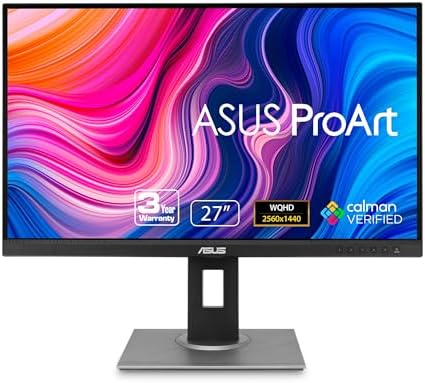
Design monitors run from under $100 to well past $1,000, and the gap between a frustrating screen and a good one is rarely about the biggest number on the box. What matters is the order you spend in. The best affordable monitors for graphic design put colour accuracy and panel quality first, then size, then everything else. The product table lays out the current field so you can see where each class of screen sits before the spending breakdown below.
Start with a warning about colour figures. Every gamut percentage and accuracy claim on a budget listing is a maker's figure, measured on one tuned sample under ideal conditions. The calibration class is what makes a budget panel honest: a screen you can adjust and profile will hold its colour, while a screen with impressive numbers and no adjustment drifts within months.


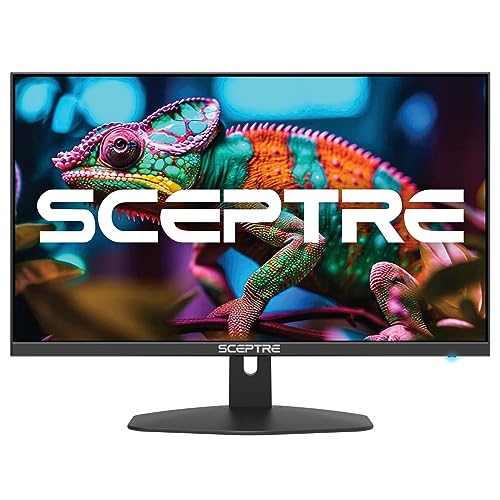
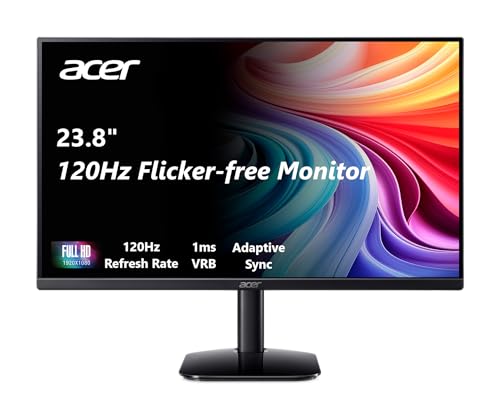
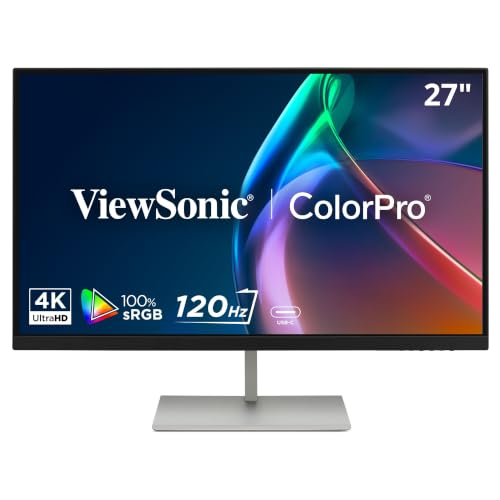
What Your Money Gets You at Each Price Tier
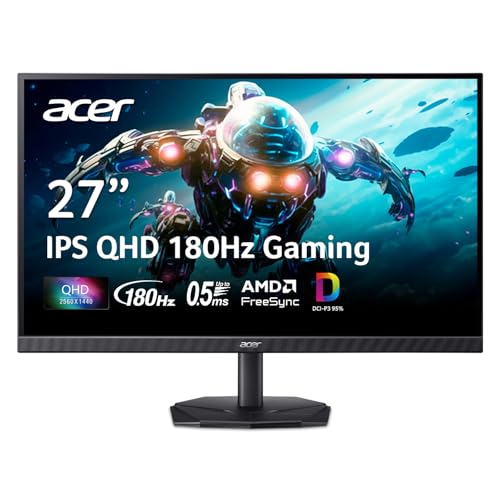
The three bands below describe classes of screen, not individual products, and the product table shows how the current market sorts into them. Each step up buys a specific, nameable improvement, and knowing which step your work actually needs is the whole game.
Budget Tier: Under About $200
Expect a 24 inch 1080p IPS panel with coverage close to the full sRGB space and basic tilt adjustment. Colour is honest enough for web work, social graphics, and learning layout software. What you give up is resolution headroom, brightness uniformity across the panel, and any factory calibration report. For a first design screen or a second display beside a laptop, this band is a sensible place to start.
Midrange Tier: About $200 to $400
This is where most working designers should land. Panels grow to 27 inches at 1440p, colour coverage widens, and many models add height adjustment and a USB hub. Factory calibration reports start appearing, and brightness uniformity improves enough for client facing work. If your income touches your screen at all, the jump from the budget band to this one is the best value move in this guide.
Premium Tier: About $400 to $700
Spending more buys 4K resolution, wider colour spaces suited to print and video work, and hardware calibration support on some models. You also get better stands, thinner bezels for paired setups, and longer warranties. What it does not buy is a different category of reliability: a midrange screen still serves most portfolios well. Pay this much only when your clients, your print work, or your eyes demand it.
Features Worth Paying For (and Ones to Skip)
Resolution and Screen Size
Resolution decides how much canvas you see before you zoom. At 24 inches, 1080p is workable but text and fine vector edges look soft. At 27 inches, 1440p is the comfortable standard, and 4K earns its keep at 32 inches or on very detailed illustration work. Buyers comparing the broader shelf of best monitors for graphic design will notice the same pattern: size and resolution must rise together, or one of them is wasted money.
Panel Technology and Viewing Angles
IPS panels are the default choice for design because colour stays consistent when you lean, shift, or share the screen with a client. VA panels offer deeper contrast but shift colour at angles, and TN panels are built for speed, not accuracy. Guides to best ips monitors for graphic design exist for a reason: for colour work, the panel family matters more than almost any single specification printed beneath it.
Colour Gamut, Accuracy, and Calibration
Look for coverage of the full sRGB space at minimum, and a stated average Delta E below 2 if the maker publishes one. Wider spaces such as DCI P3 help video and print designers, but only when paired with colour management in your software. Remember too that screen colour and print colour are different classes of output: the screen shows light, the press lays ink. The proof class is the bridge, meaning a printed proof or a soft proof profile you trust, and no monitor purchase removes the need for it.
Ports, Stands, and Eye Comfort
A stand that adjusts for height keeps the top of the screen near eye level, which matters more over a working week than most buyers expect. That said, no monitor treats eye strain. Breaks, viewing distance, and room light do more for tired eyes than any panel feature, so budget for a decent stand and a lamp before you budget for marketing claims. Shoppers reading about best computer monitors for graphic design will find the same advice: ergonomics is a feature class, not an accessory.
Gaming Extras You Can Skip
High refresh rates, adaptive sync, and aggressive response time tuning are built for motion, and design work is mostly still images. A 60 Hz or 75 Hz panel serves layout, photo editing, and illustration perfectly well. If you play games on the same desk after hours, the roundup of best monitors for graphic design and gaming covers hybrid picks, but for a design only budget, leave the gaming extras on the shelf and spend the difference on colour.
Picking the Right Size for the Best Affordable Monitors for Graphic Design
Desk depth decides size more than ambition does. A shallow desk pushes a big panel too close, while a deep desk makes a small one feel lost. One caution before you measure: best affordable laptops for graphic design are complete computers with screens attached, while everything in this guide is a standalone display that needs a computer to feed it.
Best Affordable Monitors for Graphic Design 27
The 27 inch class is the most requested size in this price range, and it rewards three checks. First, pair it with 1440p resolution, because 1080p stretched across 27 inches looks visibly coarse. Second, confirm your desk gives you roughly 80 cm of viewing distance, since closer sitting makes pixels and panel glare more obvious. Third, decide whether one 27 inch screen beats two smaller ones for your workflow, because palette heavy programs often prefer a second screen over a bigger single canvas.
Long Term Costs to Factor In
The panel price is only the first payment. A calibration tool costs about $100 to $200 and keeps colour honest for years, so serious print or client work should budget for one. Cables, a monitor arm, and a spare power supply add smaller amounts. Electricity is minor for a single screen, usually a few dollars a month, but warranty length is not minor: a three year warranty in the midrange band protects the purchase far better than a one year promise at the bottom.
Frequently Asked Questions
What features matter most in a monitor for graphic design?
Colour accuracy and panel uniformity matter most, ahead of resolution and size. A screen that shows even colour from corner to corner lets you trust gradients and skin tones without second guessing. After uniformity, look for full sRGB coverage, a stand that reaches your eye level, and ports that match your computer. Refresh rate, speakers, and decorative lighting add nothing to design output, so they sit at the bottom of any honest priority list.
How long does a graphic design monitor usually last?
A midrange monitor typically serves five to eight years before brightness fades enough to matter for colour work. The backlight dims slowly rather than failing at once, so an aging screen can move to email and document duty when it no longer suits colour critical tasks. Recalibrating once or twice a year stretches the useful colour life, and keeping brightness below maximum slows the fade further.
Does refresh rate matter for graphic design work?
No, refresh rate has almost no effect on design work, because layouts, photos, and illustrations are still images. A 60 Hz panel redraws the screen often enough for smooth scrolling and cursor movement. The exception is motion design and video editing, where a faster panel makes timeline playback feel smoother. Even then, colour accuracy and resolution change the finished work far more than refresh speed does.
What monitor size works best on a small desk?
A 24 inch 1440p monitor is the strongest small desk choice, because it keeps text sharp at close viewing distances without crowding the workspace. Measure the desk depth first: you want at least 60 cm between your eyes and the screen. A monitor arm that clamps to the desk edge reclaims the footprint the stand would take, and a single screen beats a cramped pair when the desk is under about 120 cm wide.
Is IPS or OLED better for graphic design?
IPS is the safer design choice at affordable prices, thanks to stable colour at wide angles and no risk of image retention. OLED delivers perfect blacks and striking contrast, which flatter video work, but static toolbars held on screen for long hours can leave faint marks over time. OLED also costs more for the same size. For layout, photo, and print preparation on a budget, IPS remains the practical recommendation.
Final Thoughts
Spend on colour first, size second, and extras last. The best affordable monitors for graphic design are not the cheapest screens on the shelf; they are the ones whose colour you can trust after a year of daily work. Pick the tier that matches your clients and your desk, check the product table once more before you order, and put the savings toward calibration and a proper stand.