Best 4K Monitors for Console Gaming: A First Time Buyer's Guide for 2026
Disclosure: We may earn a commission when you buy through links on this page, at no extra cost to you. As an Amazon Associate I earn from qualifying purchases. Learn more
Shopping for the best 4k monitors for console gaming for the first time? Learn the terms, compare options, and avoid rookie mistakes with this easy guide.
Buying a monitor for a console feels different from buying one for a desk job, and the spec sheets do not make it easier. The good news is that the best 4k monitors for console gaming all get the same handful of things right, and once you know those things, the rest is preference.
This guide starts with the basics, explains each spec in plain English, and ends with the setup steps that matter on day one. Work through the sections in order, note which features match how and where you play, and use the product table below to see how the main options differ before you spend anything.


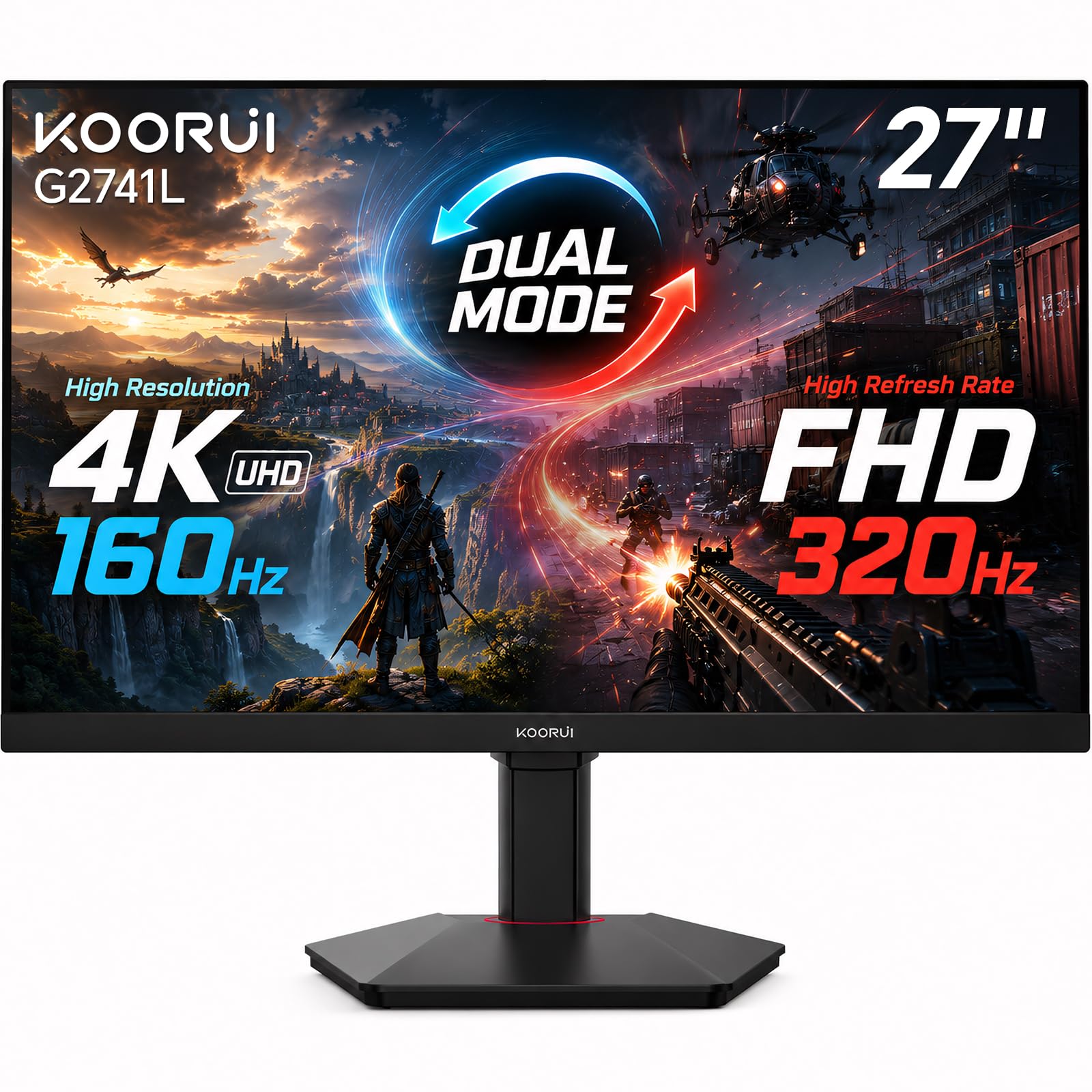
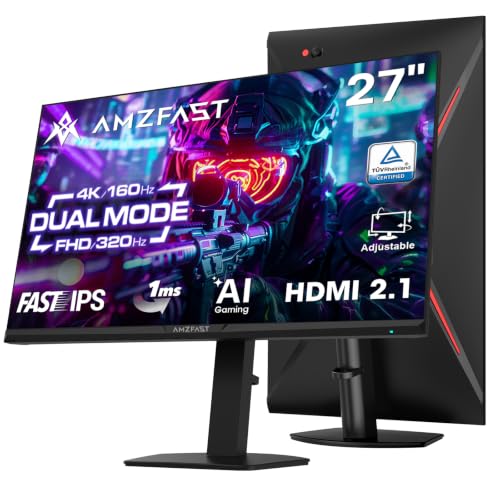
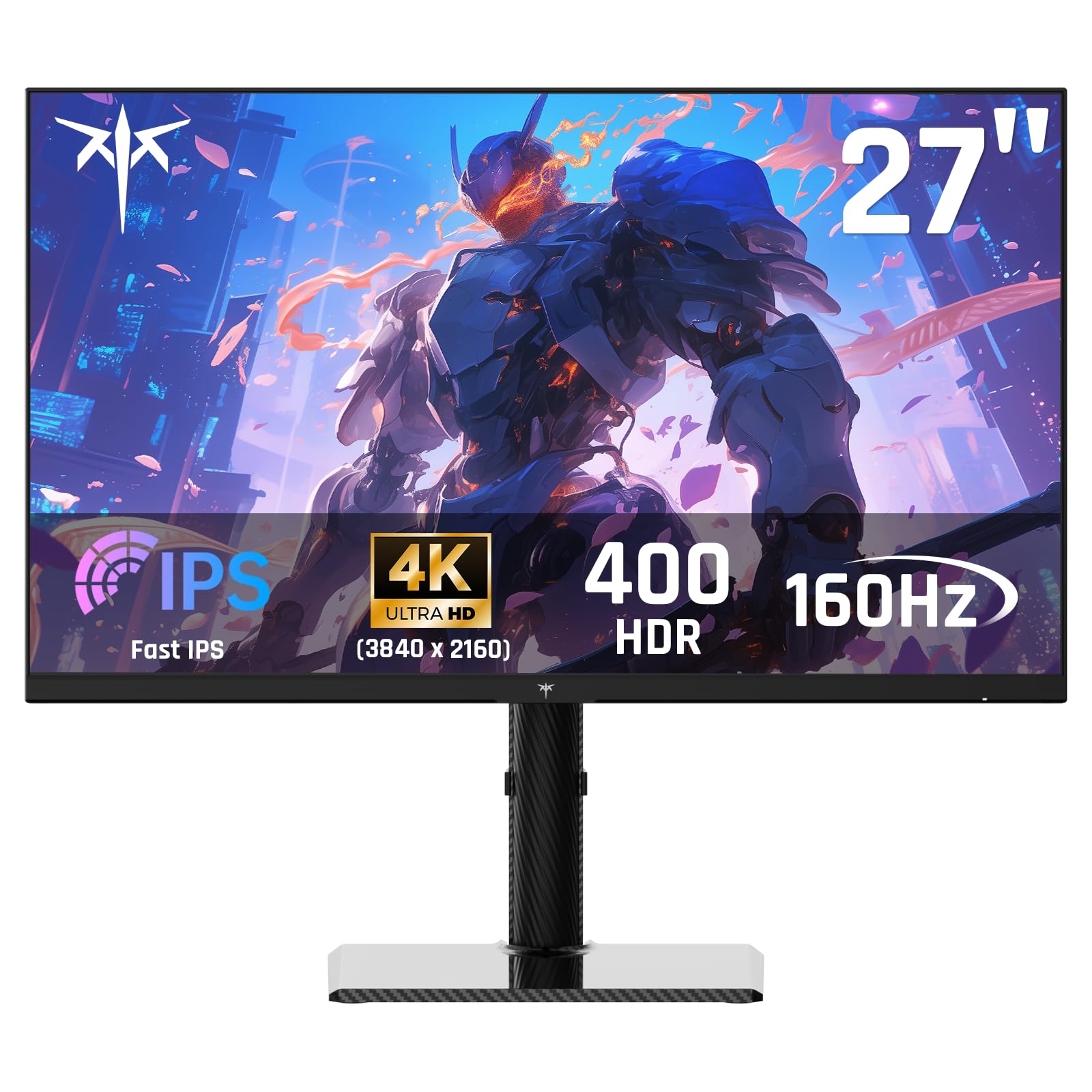
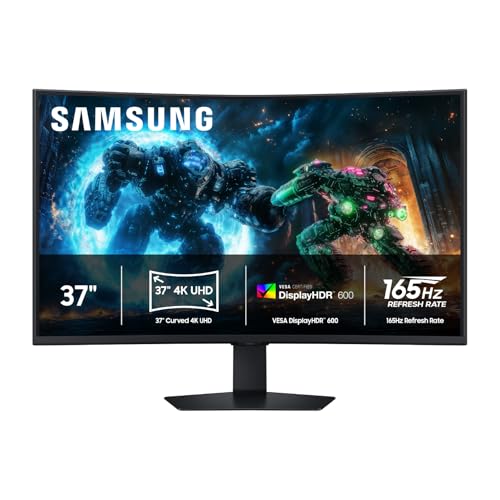
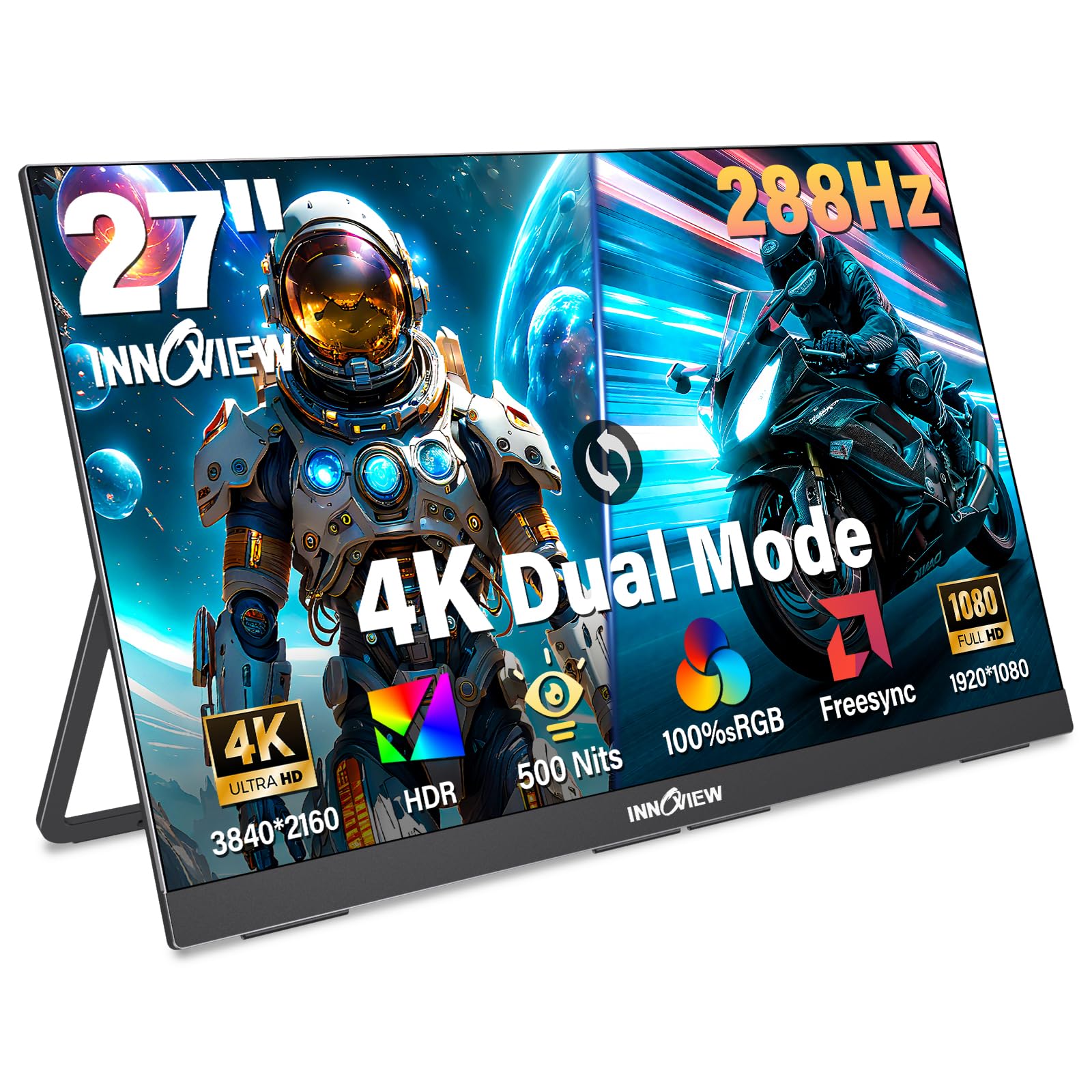
4K Monitors 101: The Basics
A 4K monitor shows 3840 by 2160 pixels, about four times the pixels of a 1080p screen, so game worlds, menus, and text all carry far more detail. On a desk, that detail lands in a 27 inch or 32 inch screen that sits close to your face, which is why a monitor can look sharper than a large TV showing the same game. Consoles send the same 4K signal to either one, so the difference comes from size, distance, and the features built around the panel.
Sharpness helps menus and maps stay readable, but no monitor treats eye strain, and a 4K panel is not a health device. Breaks, sensible brightness, and a viewing distance of about an arm's length do more for tired eyes than any spec, and strain that keeps returning deserves an eye exam rather than a new screen. Readers who want the wider category view can also see our guide to best monitors for console gaming.
Key Specs Explained in Plain English
Five groups of specs decide how a console game looks and feels on your desk. The best 4k monitors for console gaming get the first three groups right before anything else, so start there and treat the rest as tiebreakers.
Screen Size and Pixel Density
PPI means pixels per inch, and it is the number that turns resolution into real sharpness. A 27 inch 4K screen packs about 163 ppi, a 32 inch 4K screen about 140 ppi, and a 27 inch 1440p screen about 109 ppi. Stated plainly, pixel density governs how crisp a console picture looks at desk distance. If you sit close and play story games with small text, the 27 inch size keeps detail tight, while the 32 inch size suits a couch or a deep desk, trading a little density for a bigger, easier picture.
Refresh Rate and Adaptive Sync
Refresh rate is how many times the screen redraws each second, written in hertz. Current consoles output at most 120 frames per second, and only in titles that support it, so the refresh rate you can actually use is capped by the console itself. A 120Hz or 144Hz panel covers that limit with room to spare, while a 240Hz panel adds cost a console cannot use.
Variable refresh rate, often shortened to VRR, lets the screen match the console when frame rates dip, which keeps motion smooth instead of tearing. Shoppers comparing faster general models can also read our guide to best 4k monitors gaming.
Ports and HDMI Bandwidth
Ports decide whether the console can send its best signal at all, so read the port class as a bandwidth question. HDMI 2.1 carries 4K at 120Hz plus VRR, while HDMI 2.0 stops at 4K and 60Hz.
Count the ports as well as the version, because two consoles and a PC quickly fill a desk setup. One full speed HDMI 2.1 port is the minimum for a single console, and two make switching painless. Buyers running a PC beside the console should compare best computer monitors for console gaming for port layouts that suit both machines.
Panel Technology: IPS, VA, OLED and Mini LED
Panel type sets the character of the picture. IPS panels hold color well at wide angles and suit shared screens, VA panels give deeper blacks for dark rooms at the cost of slower dark transitions, and OLED panels light each pixel on its own for the fastest response and the richest contrast. OLED carries one caution, since a fixed on screen element held for hundreds of hours can leave a faint mark called burn in.
Mini LED pairs a normal panel with many small backlight zones, which raises brightness and contrast without that risk. Broad comparisons continue in our guide to best gaming monitors.
HDR and Brightness
HDR widens the gap between dark and bright parts of a scene, so fires, headlights, and skies carry more punch. The honest measure is brightness in nits combined with local dimming, which lets one part of the screen go dark while another stays bright. Many desk monitors claim HDR at about 400 nits with no local dimming, and that label alone changes little.
A rating around HDR600 or higher, with dimming zones behind it, is where the effect becomes obvious in games. HDR10 is the baseline format every console uses, and Dolby Vision support depends on the console and the game.
Sound and Extra Features
Sound is the weak point of most monitors, because the small builtin speakers are built for menu clicks and voice chat, not for game audio. A headphone jack or a simple soundbar plan matters more than speaker watts on a spec sheet. Useful extras include a stand that adjusts for height, VESA mount holes if you prefer an arm, and a USB hub that keeps a controller charger or headset dongle tidy. Desk setups shared with a work machine are covered in our guide to best computer monitors for gaming.
Rookie Mistakes to Avoid
Most first time regrets come from a short list of avoidable errors.
- Buying a 4K 60Hz monitor for a console that can output 120Hz in supported games, then wondering why motion feels flat.
- Trusting an HDR label without checking brightness and local dimming, so the picture looks no better than standard mode.
- Picking a 32 inch screen for a shallow desk, so the edges sit outside comfortable view and menus feel far away.
- Ignoring the stand, then paying again for a mount because the screen sits too low for long sessions.
- Spending on a 240Hz panel for console only play, where the console limit leaves the extra speed unused.
Getting Started: Setup and First Use
Set the console output first. In the console settings, choose 4K resolution, enable 120Hz output and VRR if your monitor supports them, and turn on the auto low latency mode so the screen switches to its fastest setting when a game starts. On the monitor, pick the game picture mode rather than the vivid mode, since vivid pushes color and brightness past what the game intended.
OLED owners should run the pixel refresh cycle the maker provides and vary on screen content during long sessions. Keep the cable that came with the console, because it is rated for the full signal.
4K Monitors: Your Questions Answered
What features matter most in a 4K monitor for console gaming?
The HDMI 2.1 port matters most, because it unlocks 4K at 120Hz and VRR together. After that, panel type and brightness shape the picture more than any gaming extra. One detail worth checking in the fine print is whether every HDMI port runs at full speed, since some models give full bandwidth to one port and a slower class to the second. A two console desk should treat that line as a deciding factor.
Is 4K worth it for console gaming?
Yes for most desk setups, because text, maps, and distant detail stay clear at close range where a 1080p screen looks soft. Keep expectations honest about rendering, though. Many games offer a performance mode that renders below 4K and upscales, which still looks clean on a 4K panel, while quality modes render closer to native 4K at a lower frame rate. The monitor serves both modes well, so the choice stays with the game.
IPS or OLED: which panel is better for console gaming?
Neither wins for every room. OLED gives the deepest blacks and the fastest response, and it shines in a dark room with varied content. IPS costs less, shrugs off static screens, and holds up better in a bright room where glare washes out a glossy OLED. If the monitor doubles as a work screen with fixed toolbars all day, IPS is the safer long term pick, while a game only screen used at night is where OLED earns its price.
How long does a 4K gaming monitor usually last?
Most panels stay useful for about five to eight years of regular play. The backlight dims slowly over that span, so an older screen may need a higher brightness setting to match its first year. Warranty terms differ more than lifespan does, so compare the cover for dead pixels and backlight faults before you buy. A dead pixel policy that replaces the screen for a single bright dot is worth more than a longer term with strict limits.
Does refresh rate matter if my console caps at 120 frames per second?
It matters up to the cap and not beyond it. A 144Hz panel gives the console full room at 120 frames per second and still feels responsive in menus. Anything faster pays off only if a PC shares the screen, where higher frame rates are possible. A higher panel rate can also trim input delay slightly at the same frame rate, because each frame is drawn sooner after the console sends it.
Wrapping Up
For a first purchase, keep the order simple. Start with pixel density for your seating distance, confirm the HDMI 2.1 port class your console needs, then choose the panel that fits your room light. The product table above pulls those choices together in one view. Chosen that way, the best 4k monitors for console gaming stop being a spec puzzle and become a screen that simply suits how you play.