Best 27 Inch Monitors for Photo Editing: A First Time Buyer's Guide for 2026
Disclosure: We may earn a commission when you buy through links on this page, at no extra cost to you. As an Amazon Associate I earn from qualifying purchases. Learn more

First time photo editors: compare the best 27 inch monitors for photo editing by color gamut, resolution, panel type, and calibration.
Buying your first photo editing monitor is mostly a vocabulary problem. Once you know which terms actually change how your photos look on screen, the spec sheet stops being intimidating and the best 27 inch monitors for photo editing sort themselves into a short list. This guide starts with the basics, explains each key spec in plain English, and finishes with setup steps, common mistakes, and the comparison table below.
You do not need the most expensive screen to edit well. A first time buyer mainly needs honest color, enough resolution for detailed retouching, and a stand that holds the panel at a comfortable height for long sessions. Everything beyond that is a bonus to weigh against your budget.




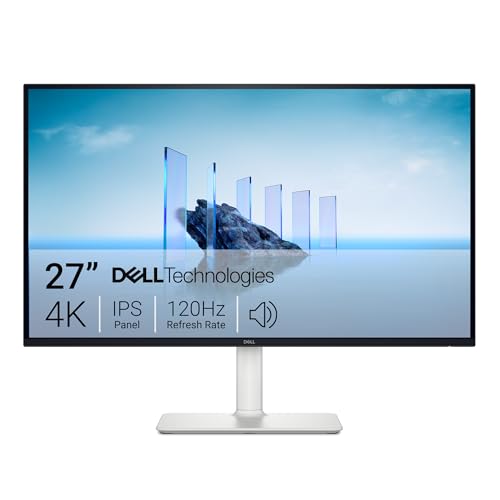
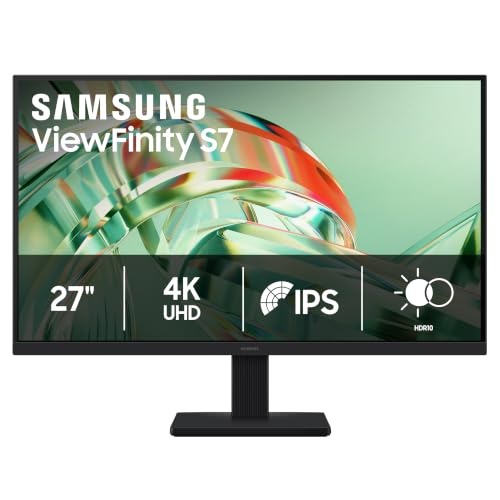
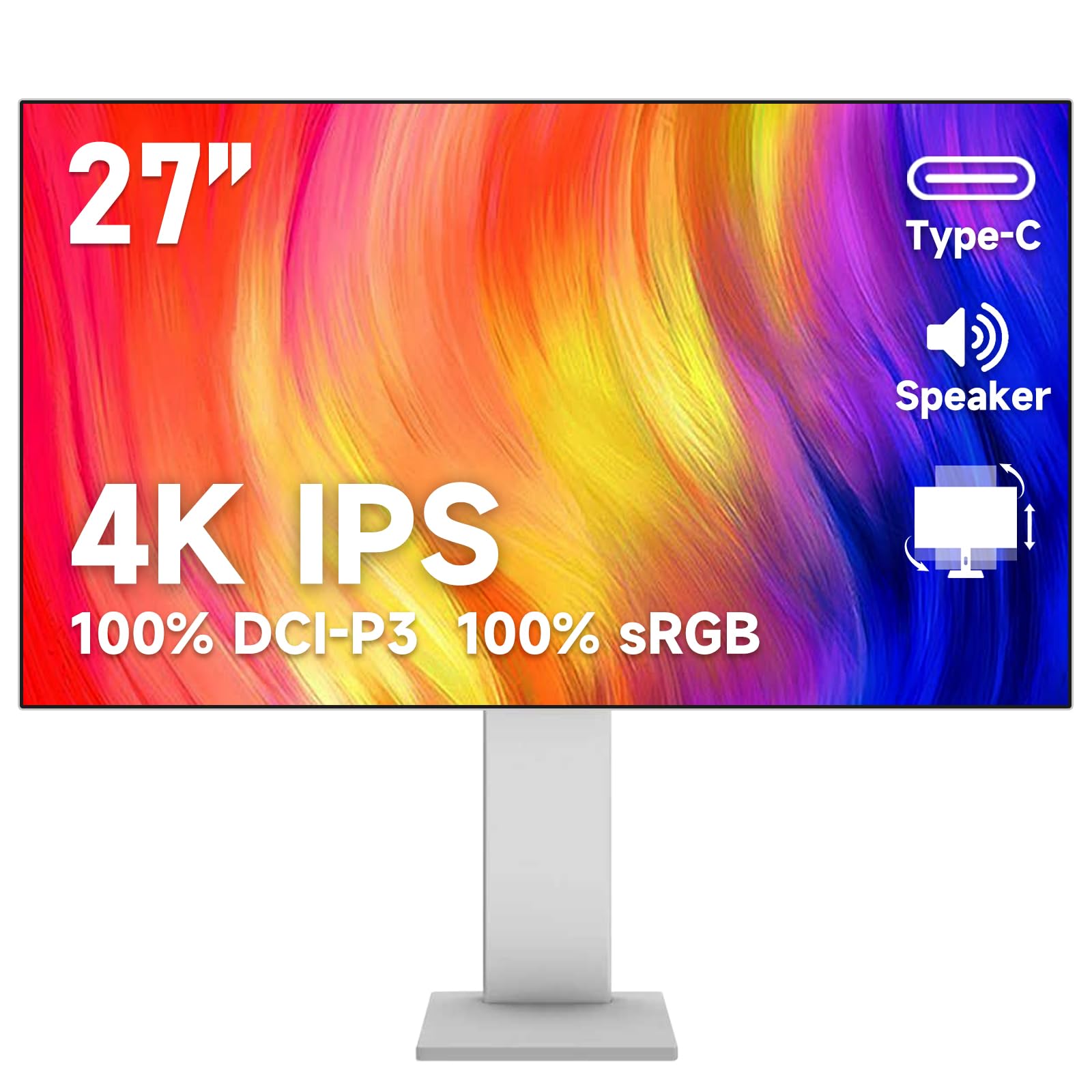

27 Inch Monitors 101: The Basics
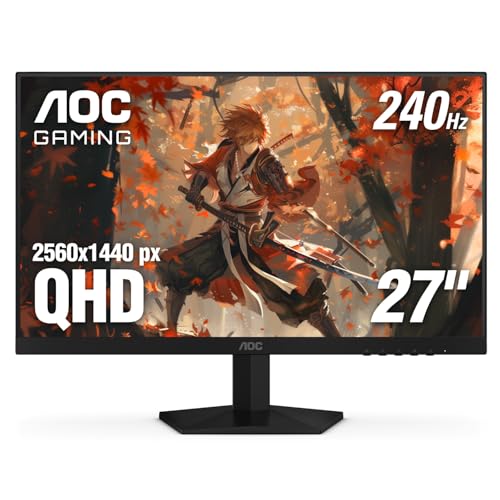
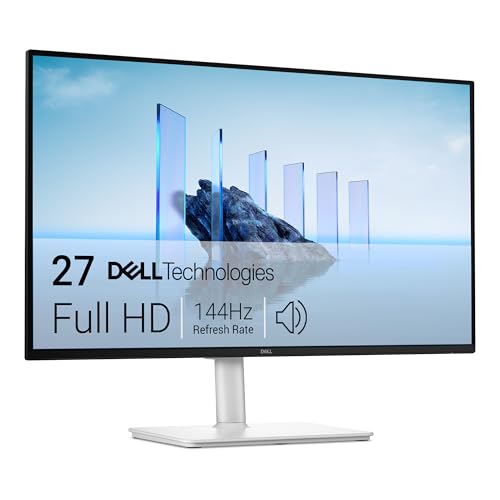
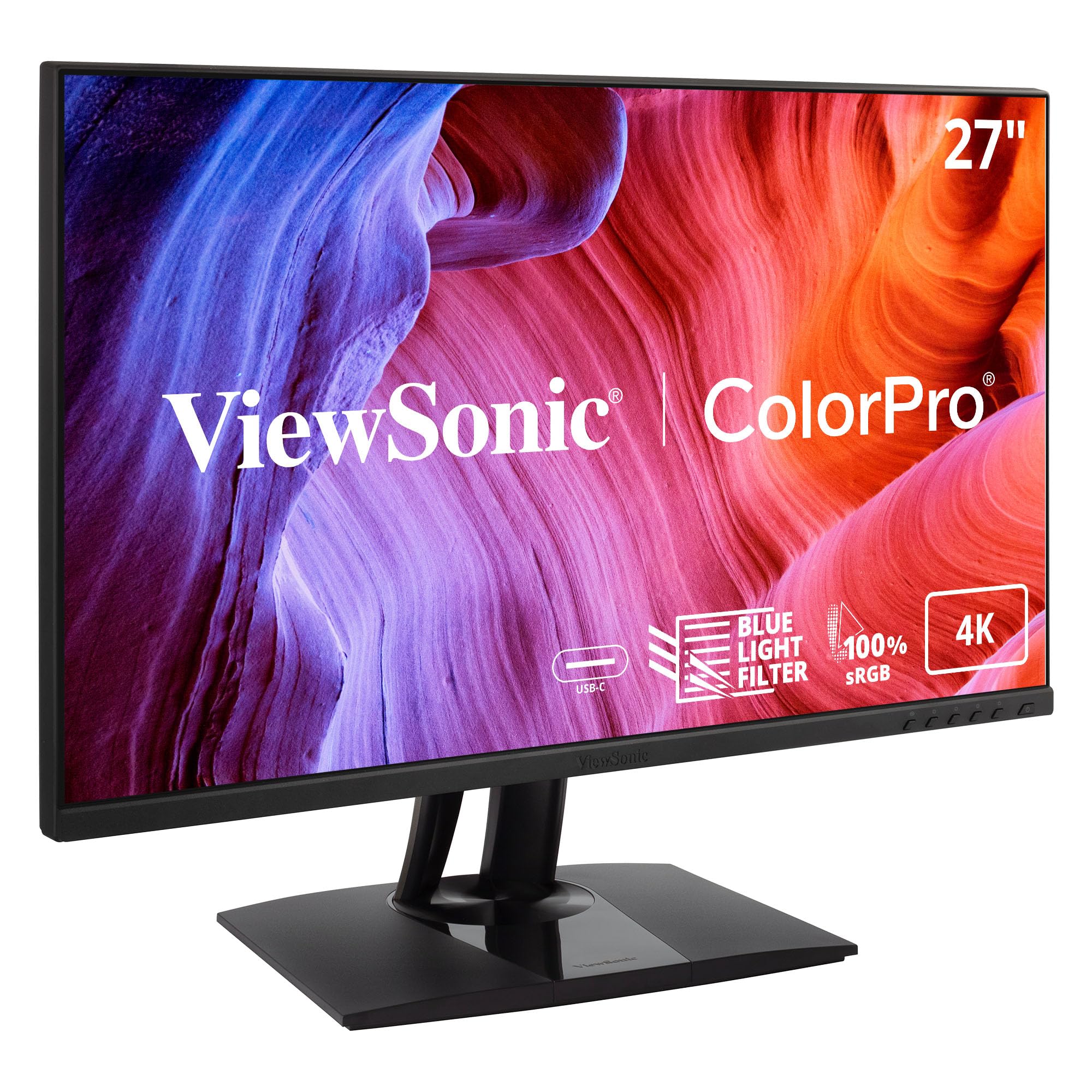
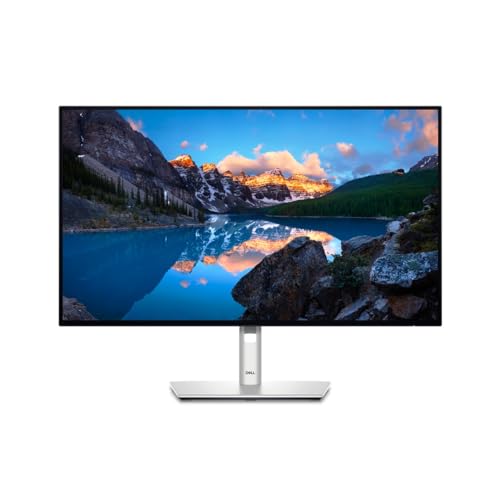
A 27 inch monitor measures 27 inches from corner to corner, and at a normal desk distance of about an arm's length it fills your view without forcing you to turn your head. That size has become the standard editing desk choice because two windows, such as your photo library and your editing tools, fit side by side without crowding. The product table lists the picks this guide is built around in compact spec form.
If you are still deciding whether this size suits your desk, our guide to the best 27 inch monitors walks through desk depth, viewing distance, and what the size does well outside photo work. One honest note before the specs: no monitor can treat eye strain. Sensible brightness, regular breaks, and a screen at the right height help your eyes feel better during long edits, but if your eyes keep hurting, an eye exam is the step that finds the cause.
Key Specs Explained in Plain English
Features That Matter for Photo Editing
Color governs photo editing, because the gamut a panel can show decides which colors in your file you can actually see and judge. Gamut is simply the range of colors the screen can produce, read as a coverage figure against a standard range. Full coverage of the standard web range means the colors you pick are the colors your audience sees, while a wider gamut that reaches into the DCI P3 range helps if you also grade video or prepare files for print. A low Delta E figure, ideally around 2 or less, means the colors shown sit close to the colors they should be, which is why broader guides to the best monitors for photo editing put gamut and accuracy before every other spec.
Panel Technology (IPS, VA, OLED, Mini LED)
The panel type is the technology that makes the picture, and each type trades something away. IPS panels hold their color steady when you lean to one side, which matters when you judge a photo from a slightly shifted seat, and they are the safe default for editing. VA panels show deeper blacks but their color shifts more at an angle, while OLED panels give perfect blacks and very fast response at a higher price, with a small risk of burn in when the same toolbars sit on screen all day. Mini LED panels push brightness much higher, which suits HDR work, at a price between IPS and OLED.
Resolution and Screen Size
Resolution is the pixel count, and on a 27 inch screen it decides how sharp fine detail looks. Sharpness is read as pixel density: a 27 inch 1440p screen lands at about 109 pixels per inch, a 27 inch 4K screen reaches about 163, and a larger 32 inch 1440p screen spreads the same pixels over more glass at about 92. For most first time editors, 1440p at about 109 is the sweet spot, because text and tools stay a usable size while retouching detail stays clear. Choose 4K if you regularly crop heavily, edit for large prints, or sit close to the screen.
Connectivity and Ports
Ports decide how the monitor joins the rest of your desk, and DisplayPort and HDMI both carry the full picture from a desktop computer, so either one is fine for editing. USB C is the port to look for if you edit on a laptop, because a single cable can carry the picture and charge the laptop at the same time. A built in USB hub earns its place too, since a card reader or backup drive can live on the monitor instead of under the desk. Readers connecting a desktop tower will find the port discussion in our guide to the best pc monitors for photo editing useful alongside this one.
Stand, Mounting, and Ergonomics
You will sit in front of this screen for hours, so the stand matters more than most first time buyers expect. Look for height adjustment first, because the top of the screen should sit near eye level to keep your neck relaxed. Tilt is standard almost everywhere and swivel helps when you share the screen with someone beside you, and if the included stand is limited, a VESA mount pattern of 100 by 100 mm lets you attach the panel to an arm later. A matte antiglare finish is worth having in a bright room, since reflections wash out the shadow detail you are trying to judge.
Rookie Mistakes to Avoid
One class of screen to keep separate while you shop: the best gaming monitors 27 inch models are built as a speed class, tuned for fast refresh and quick response, not as a color accuracy class, so their headline specs answer a different question from yours. With that settled, the mistakes below catch most first time buyers.
- Choosing by brightness alone, because a bright panel with a narrow gamut still cannot show the colors in your files.
- Leaving the vivid picture mode on, because it pushes saturation past the truth and makes every edit you export look dull by comparison.
- Skipping panel uniformity, because a screen that is brighter in one corner makes vignettes and skies impossible to judge evenly.
- Forgetting the cost of calibration gear, because even a good panel drifts over time and needs a correction profile to stay honest.
- Buying 4K for a shallow desk, because at a close viewing distance the extra sharpness is wasted and interface text shrinks.
Getting Started: Setup and First Use
Setup takes about fifteen minutes. Place the monitor so the top edge sits near eye level, connect it with the cable that matches your computer, and open the picture menu before you edit a single photo. Choose the standard or sRGB picture mode instead of any vivid mode, then set brightness to match your room rather than leaving it at the factory maximum, which is almost always too bright for judging exposure.
Calibration is the last step, and it is simpler than it sounds. The picture modes built into the monitor are a starting point, while a hardware calibrator is a measuring tool: it reads the colors your screen actually produces and builds a correction profile your computer applies automatically. Running that tool once when the monitor is new, then again every month or two as the panel ages, keeps the colors you see close to the colors in the file.
Frequently Asked Questions
What features matter most in a 27 inch photo editing monitor?
Color gamut and color accuracy matter most, because they decide whether the colors you adjust are the colors that are really in the file. After that, look at resolution for retouching detail, then at the stand for comfortable height. One point the spec sheet rarely mentions: check the return policy before you buy. Panel uniformity varies from unit to unit, and an easy exchange is your protection if your screen shows a bright corner or a dull patch.
Is 4K worth it on a 27 inch monitor for photo editing?
4K is worth it if you crop deeply, prepare files for large prints, or want interface text to stay crisp at a close viewing distance. At about 163 pixels per inch, fine detail in hair, fabric, and foliage is easier to judge without zooming in. If you mostly edit for screens and social sharing, 1440p shows you everything you need and costs less. Either way, remember that your computer scales the interface, so editing tools stay readable on both resolutions.
What monitor size should I get for a small desk?
A 27 inch monitor suits most desks about 24 inches deep or more, because you can keep it at roughly an arm's length from your seat. On a shallower desk you will sit closer, and small text and wide toolbars can feel crowded. If your desk is truly tight, our guide to the best 24 inch monitors for photo editing covers the smaller class. Whichever size you pick, measure the stand footprint too, since wide feet can eat the space where your keyboard should go.
How long does a 27 inch editing monitor last?
Most editing monitors last about five to eight years of daily use before brightness fades or backlights age unevenly. The panel usually outlives the stand and the cables, both of which are cheap to replace. You can extend the useful life by keeping brightness at a moderate level instead of maximum, since a dimmer backlight ages more slowly. When colors start drifting faster than calibration can correct, or bright patches appear that no profile fixes, the panel itself is telling you it is time to replace it.
Does refresh rate matter for photo editing if I do not game?
Refresh rate barely matters for photo editing, because still images do not move. A standard 60 Hz screen redraws the picture fast enough for sliders, brushes, and zooming to feel smooth. Higher refresh rates help games and fast video, not stills, with one exception: if you also cut a lot of video on the same desk, a faster panel makes timeline scrubbing feel smoother. For a photo first desk, spend the money on gamut and accuracy instead of speed.
Final Thoughts
For a first editing monitor, the decision comes down to three things: color you can trust, resolution that fits your desk, and a calibration habit that keeps both honest over time. Get those right and the best 27 inch monitors for photo editing stop being a confusing spec sheet and become a tool that quietly does its job. Use the product table to compare the screens side by side, and pick the one whose gamut, resolution, and stand match the way you actually edit.