
Best 15 Inch Laptops Under 700: Types Compared and How to Choose for 2026
Disclosure: We may earn a commission when you buy through links on this page, at no extra cost to you. As an Amazon Associate I earn from qualifying purchases. Learn more

Compare Chromebooks, convertibles and budget Windows models to pick the best 15 inch laptops under 700 for your routine, software and budget.
At this budget the shelves split into three very different kinds of machine, and the listings blur them together on purpose. A Chromebook, a convertible, and a traditional budget laptop can all cost about $600 while suiting completely different people. This guide to the best 15 inch laptops under 700 compares each type plainly so you can pick the style first and the specs second.
Skim the product table for prices, then read the type comparison to see which design matches your desk, your commute, and the software you actually open each day.
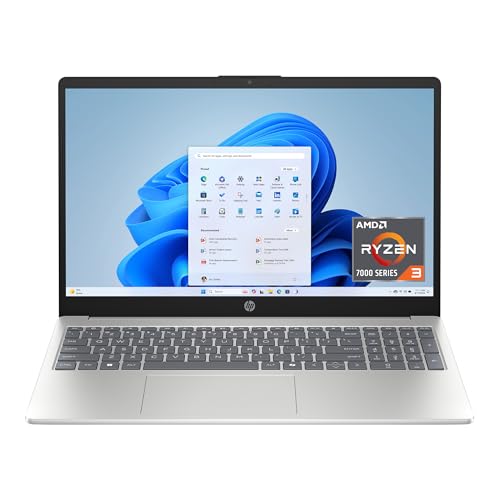
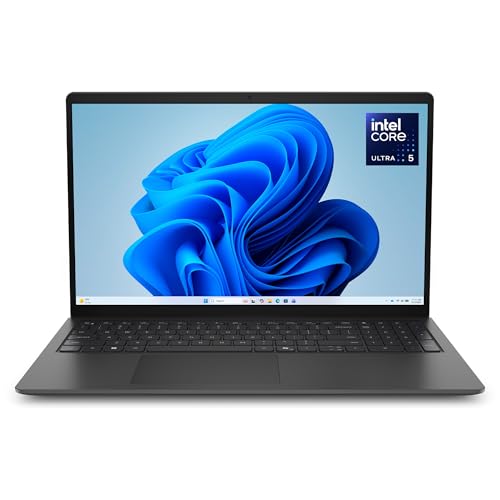

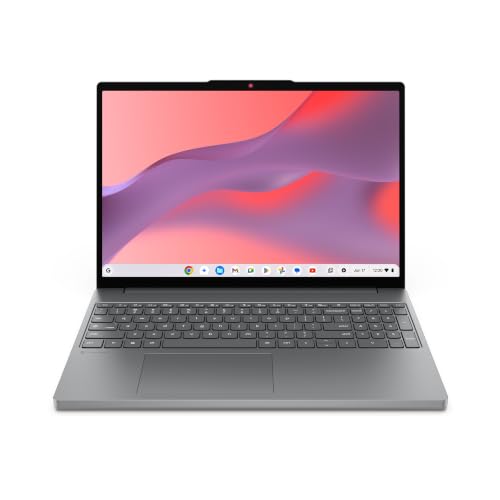
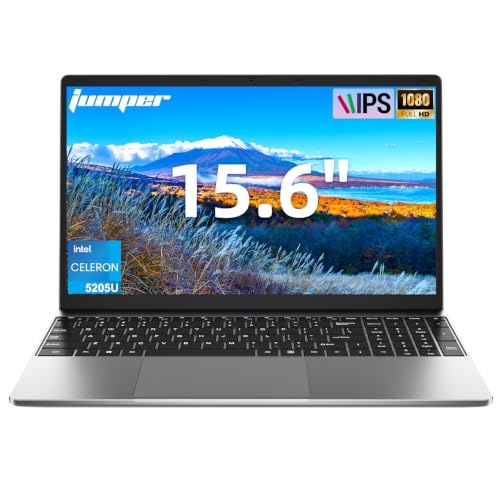
Types of 15 Inch Laptops Compared
In general terms, Chromebooks cost about $300 to $550 in this size and favor simplicity, convertibles run about $500 to $700 and favor flexibility, and traditional laptops span the whole range with the strongest performance per dollar. The sections below explain how each type works and where it disappoints.
Chromebooks
Chromebooks run ChromeOS, a system built around the Chrome browser and web apps, with Android apps as a supplement. They start fast, update quietly in the background, and rarely slow down over time. Battery life is a strength, often ten hours or more. The trade is software limits, because full Windows programs, some printer drivers, and many offline creative tools simply do not exist here. Choose a Chromebook if your work lives in Google Workspace, school portals, and streaming, and you value low maintenance over maximum software choice.
2 in 1 Convertibles
A convertible uses a 360 degree hinge so the screen folds behind the keyboard for tablet style use, tent mode for video, or flat mode for drawing with a pen. That flexibility suits teachers, students who annotate slides, and presenters. The costs are extra weight from the hinge and touch layer, plus prices that leave less room for RAM at a given budget. If you will not fold the screen weekly, a standard laptop gives you more speed and a lighter bag for the same money.
Budget Laptops
Traditional clamshell laptops running Windows are the default choice for a reason. They run every mainstream program, connect to any printer, and offer the widest spec range under $700, including 16 GB of RAM and 512 GB SSDs near the top of the budget. Build quality varies the most in this group, so screen brightness and keyboard quality separate the good from the mediocre. Choose this type if you need specific software, offline files, or the option to upgrade memory later.
If you are still weighing screen sizes, our guide to the best laptops under 15 inches explains how smaller models trade screen room for portability.
Chromebooks vs 2 in 1 Convertibles: Which Should You Choose?
On software, the Chromebook is limited to web and Android apps, while a Windows convertible runs full desktop programs. On input, the convertible wins for pen notes and markup, while the Chromebook keyboard setup is simpler and cheaper to replace. On battery, Chromebooks usually last longer because the system is lighter. On price, a Chromebook leaves money for a second monitor or a good bag. Choose the Chromebook for managed school or family use, and choose the convertible when handwriting, presenting, or drawing is part of your routine. If neither pen input nor web only work fits you, the traditional laptop remains the safest answer.
How to Choose the Right 15 Inch Laptop
Ports and Connectivity
Whichever type you pick, count ports before you buy. Two USB C ports, at least one USB A port, HDMI, and a headphone jack cover classrooms, offices, and hotel desks. USB C charging is common in this range and simplifies travel. WiFi 6 is standard, and WiFi 6E shows up on better models for crowded apartment networks. Chromebooks lean harder on cloud storage, so an SD card slot matters less there than on a Windows machine used for photos.
Processor and Performance Tier
For Windows models, Ryzen 5 and Core i5 or Core Ultra 5 processors are the sweet spot under $700, with Ryzen 7 options appearing on sale. These chips handle office suites, research with many tabs, and light editing without lag. For Chromebooks, a modest processor still feels quick because ChromeOS is light, but 8 GB of RAM is the figure that keeps tabs smooth. Avoid entry level chips on Windows if you multitask, because they are the first thing that feels dated.
What You Can Realistically Get Under $700
Under $700 you can expect a Full HD screen at 300 nits or brighter, 16 GB of RAM, a 512 GB SSD, and a backlit keyboard on a good Windows model. Metal bodies appear, though often only on the lid. Dedicated gaming graphics remain rare and usually weak at this price. What you should not accept is a 250 nit screen, 8 GB of soldered RAM with no upgrade path, or a small 256 GB drive if you store video or large photo libraries.
Battery Life in Real World Use
Manufacturer claims assume dim screens and light tasks, so discount them by about a quarter for real planning. A Windows laptop rated at 12 hours will usually deliver eight to nine hours of mixed work, while a Chromebook rated the same may truly reach ten. Fast charging over USB C is a practical bonus, often restoring about half the battery in under an hour. If you work away from outlets, battery size in watt hours tells more truth than marketing hours.
Tighter budgets change the balance of these features, as our guide to the best 15 inch laptops under 600 shows in tier by tier detail. A smaller screen can also stretch the budget, which our guide to the best 13 inch laptops under 700 covers.
Tips to Get the Most From Your 15 Inch Laptop
- Keep the operating system and firmware updated, since updates patch security holes and fix battery drain bugs on every type.
- Avoid running at 100 percent charge all the time if your model has a battery limit setting for desk use.
- Use a padded sleeve when commuting, and carry a convertible by its base rather than by the folding screen.
- On a Chromebook, pin your daily web apps to the shelf so the simple system stays fast to navigate.
- Restart the machine weekly, because long sleep cycles hide slowdowns that a fresh start clears in a minute.
Readers comparing a lower spend can also see what changes in our guide to the best 15 inch laptops under 500, and those ready to spend more can check our guide to the best 15 inch laptops under 1000.
FAQs
Can you get a good 15 inch laptop under $700?
Yes, this is one of the easiest budgets to shop because strong midrange specs are standard. Sixteen GB of RAM, a 512 GB SSD, and a bright Full HD screen are all realistic at once. The main decision left is type, not raw power. Pick the design that matches your software and input habits, and the performance will take care of itself.
Should I buy a laptop or a tablet?
Buy a laptop if you write, research, or manage files for more than short bursts, because a real keyboard and full file system save time daily. A tablet suits reading and video on the move. A convertible laptop is the middle path when you want both, though it weighs more than a tablet alone and costs more than a basic clamshell of similar speed.
How long should a 15 inch laptop last?
A well chosen model at this price should serve five to seven years. Batteries fade first, typically after about four years of daily charging. Choosing 16 GB of RAM now and keeping storage below about 80 percent full both extend useful life noticeably. Chromebooks have a fixed update end date set by the maker, so check that date before buying any model that has been on sale for a while.
How much RAM do I need?
Sixteen GB is the right target under $700 for Windows, because it keeps browsers, calls, and office apps smooth together for years. Eight GB works on a Chromebook and on a light use Windows machine, but it leaves little headroom as software grows. If two models differ mainly by RAM, take the larger memory every time, since many slim laptops cannot be upgraded later.
Is a Chromebook enough for school?
For most students, yes, because lessons and homework live in web platforms that Chromebooks run perfectly. They are also easy for schools to manage and cheap to replace after damage. The exceptions are courses needing Windows only programs, advanced science tools, or certain exam software. A quick check of the course software list before term starts removes all doubt.
Final Thoughts
Decide the type first, Chromebook, convertible, or traditional laptop, then verify RAM, storage, and screen brightness within that type. That order prevents the most common regret at this price, which is buying strong specs in the wrong shape. The best 15 inch laptops under 700 for you is the one whose design matches your routine, so compare your finalists in the product table and choose with that routine in mind.


