Best 144hz 4K Monitors in 2026: How to Choose With Confidence
Disclosure: We may earn a commission when you buy through links on this page, at no extra cost to you. As an Amazon Associate I earn from qualifying purchases. Learn more

Compare 144hz 4K monitors by panel type, size, HDR, ports and adaptive sync, with a clear checklist to match your desk, console and budget needs.
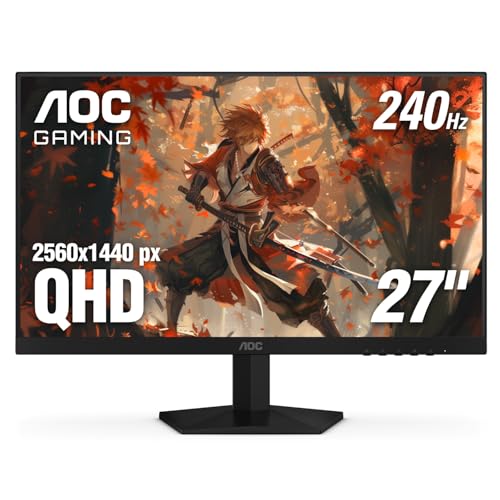
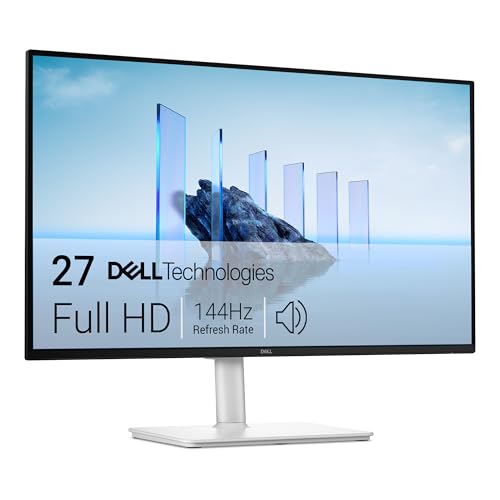
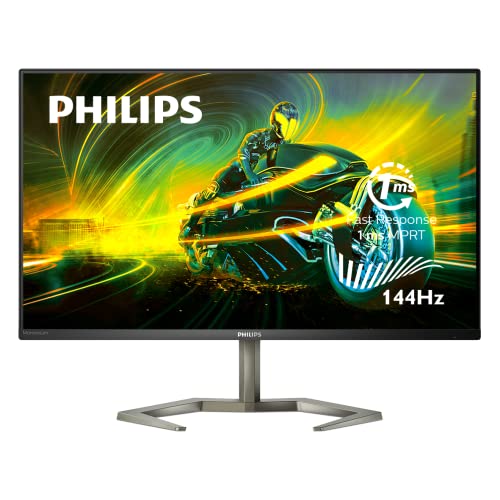
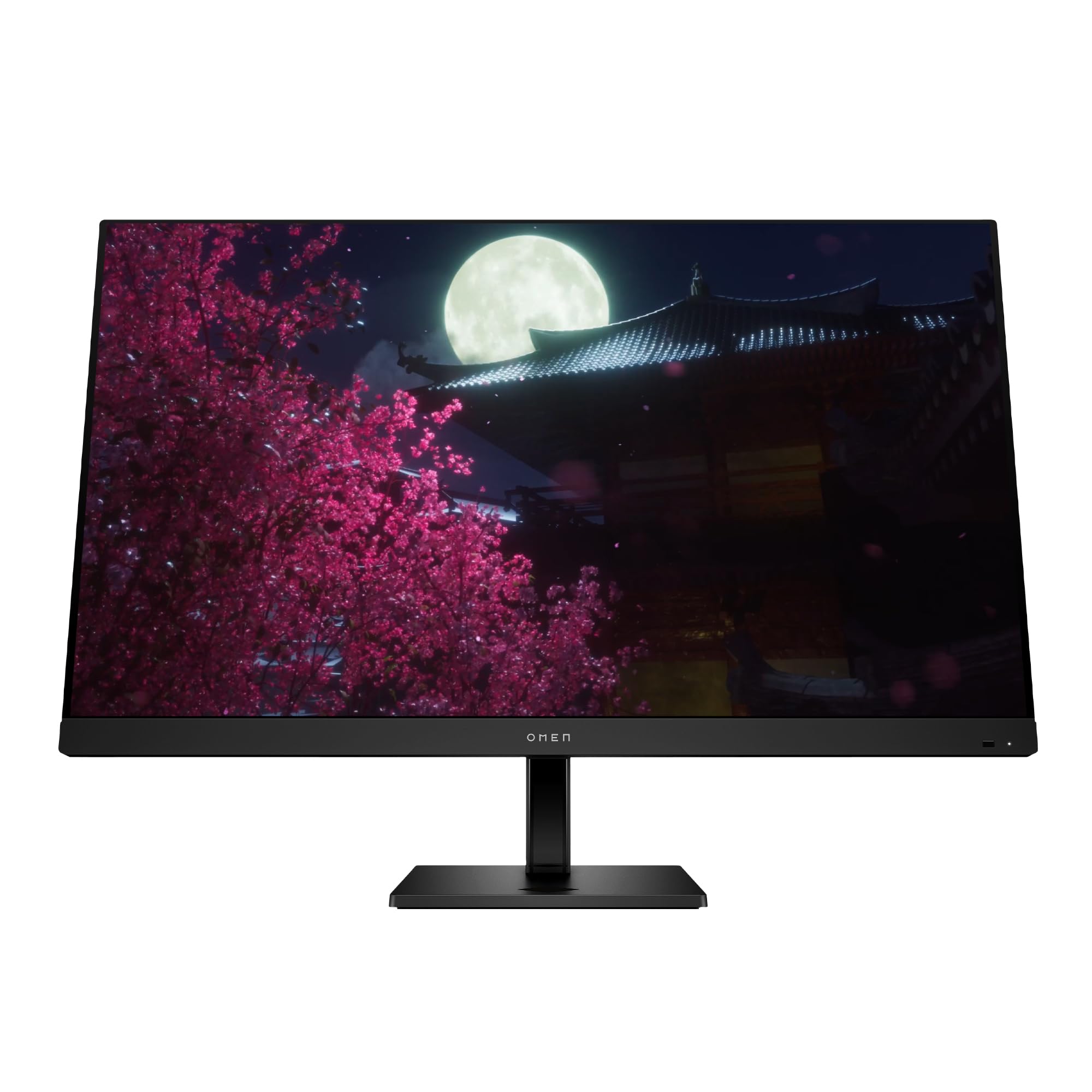
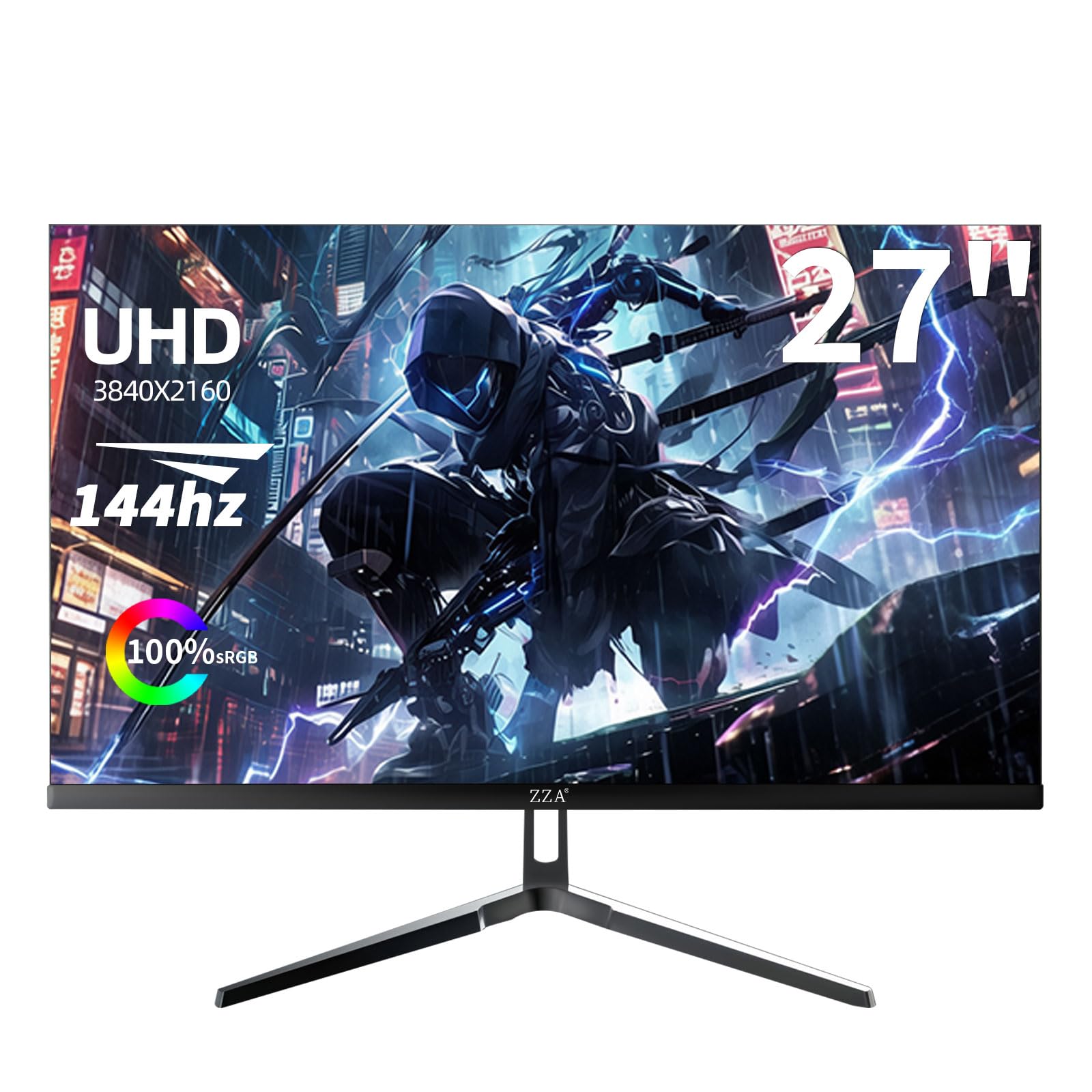
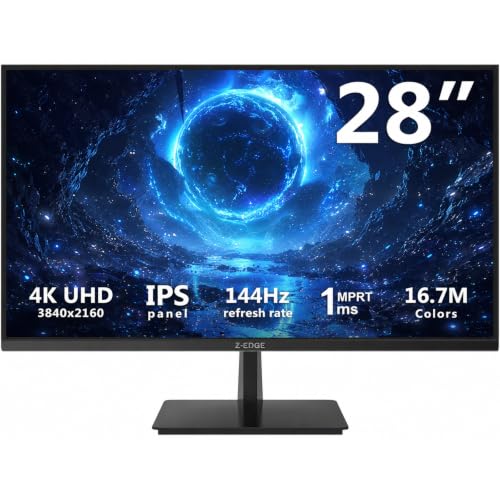
A 4K screen shows detail well, but detail alone can feel sluggish when motion stutters or controls respond late. The best 144hz 4k monitors pair that sharp picture with fast refresh, low lag and the right ports, so games look clear and feel responsive. Use the comparison table below to check size, panel and price as you read.
Start with the device you will connect most often and the distance you sit from the screen. A console player, a PC gamer and a creator who edits photos after work differ on size, color needs and budget.





Who Should Buy a 144hz 4K Monitor?
Choose by the source you use most, since it decides the ports, size and panel to pay for.
Console Players With Current Generation Systems
You need two HDMI 2.1 ports with full bandwidth, variable refresh rate support and low input lag, because consoles rely on HDMI for 4K at high frame rates. A 32 inch screen suits a desk, while a 42 inch screen suits a chair set farther back. Built in speakers matter more in this living room style setup.
PC Gamers With a Strong Graphics Card
You need a graphics card that can render games near 144 frames per second at 4K, or you will rely on upscaling and lower settings for smooth motion. A 27 or 32 inch screen keeps pixel density high at desk distance. If your build is growing, see our guide to the best 4k pc monitors for more PC focused advice.
Creators and Hybrid Workers Who Game After Hours
You need accurate color, wide viewing angles and USB C input with power delivery, so one cable can carry picture and charge a laptop. IPS and Mini LED panels fit this mix best, since they stay bright in daylight and show consistent color. A factory calibration report matters if photo or video work pays the bills.
Key Features to Compare
Compare each model in the same order, from panel to connections, so price cannot hide a poor fit.
Panel Technology in IPS, VA, OLED and Mini LED Models
Panel type shapes contrast, color and motion. IPS gives wide viewing angles and stable color, so it suits shared desks and creative work. VA gives deeper contrast for less money, but dark scenes can smear in fast motion on cheaper panels. OLED gives near perfect blacks and very fast pixel response, with a risk of burn in from static elements. Mini LED boosts LCD brightness and local dimming, though halos can appear.
Resolution and Screen Size for Your Viewing Distance
When you compare the best 144hz 4k monitors, judge the 3840 by 2160 picture by the size it is spread across. A 27 inch screen looks sharp at about 2 feet, a 32 inch screen gives more room for windows at about 2 to 3 feet, and a 42 inch screen needs about 3 to 4 feet. If sharpness matters less than speed, see our guide to the best 144hz monitors for lower resolution choices.
HDR and Brightness for Games, Film and Daylight Use
HDR labels alone tell you little, because a monitor can accept an HDR signal and still show flat highlights. Look for peak brightness of about 600 nits or more, local dimming and wide color coverage. OLED gains impact from contrast rather than raw brightness, so it shines in dark rooms, while a matte Mini LED or IPS model holds detail better in a bright room.
Stand, Mounting and Ergonomics for Long Sessions
A good stand adjusts height, tilt and swivel, so the top of the screen sits near eye level for long sessions. Check stand depth too, because large feet can eat the space your keyboard needs. Most models use a 100 by 100 mm VESA pattern, and larger screens need an arm rated for their weight, since a weak arm can sag over time.
Connectivity and Ports for PC, Console and Laptop
For full 4K at 144hz, you need HDMI 2.1 with full bandwidth on consoles and DisplayPort 1.4 with Display Stream Compression on most PCs, plus cables rated for that speed. Count your ports, including USB C for a laptop and USB ports for a keyboard or headset. A KVM switch helps when two computers share one desk, because the keyboard and mouse follow the picture source you select.
Adaptive Sync, Response Time and Input Lag
Adaptive sync matches refresh rate to the frame rate your device delivers, so motion stays smooth without screen tearing. Look for G Sync or FreeSync support for your hardware, a quoted response time near 1 millisecond and low input lag. Console players should confirm variable refresh rate and auto low latency mode over HDMI. For a wider view of play focused features, see our guide to the best gaming monitors.
Types of 144hz 4K Monitors Compared
Most models fall into three broad groups, and the right group depends on your room and your seating distance.
Large Screen Options for Console Corners and Shared Viewing
Screens of 42 to 48 inches act more like small TVs, that suit controllers, films and split screen play from a couch. You gain immersion and often better speakers, but pixel density falls as size grows at the same resolution. Choose this group when you can sit far enough back to take in the full width.
OLED Displays for Dark Rooms and Fast Paced Play
OLED panels switch pixels almost instantly and show true black beside bright highlights, so night scenes and fast camera turns look clean. They fit players who value motion and contrast most and who vary their content during the week. Static dashboards at full brightness for long daily sessions raise burn in risk, so varied use suits this group best.
Bright LCD Gaming Displays for Desks and Long Sessions
IPS and Mini LED models form the practical desk group, in 27 and 32 inch sizes that leave room for speakers. They handle bright rooms well, show text clearly and carry no burn in worry from static toolbars. Contrast is weaker than OLED in the dark, but for mixed gaming and office hours, this group is often the easiest to live with.
Common Mistakes to Avoid
Each mistake below costs money or comfort that a quick check would have saved.
- Buying a 144hz 4K monitor before checking your graphics card or console output leaves you paying for speed your device cannot deliver.
- Placing a 42 inch screen on a shallow desk forces constant head turning to see the edges.
- Assuming any HDMI port and cable supports 4K at 144hz leads to a drop to a lower refresh rate.
- Judging HDR by the logo on the box leads to washed out highlights on dim models with no local dimming.
- Skipping the VESA pattern and weight check leaves you with an arm that cannot hold your screen safely.
How to Make Your 144hz 4K Monitor Last Longer
A monitor has no moving parts to service, so lasting care is mostly about heat, light and gentle handling. Keep brightness at a level that suits the room rather than at maximum all day, and let air move freely around the back panel.
- Run the pixel refresh cycle on OLED models when prompted, and use a screen saver to reduce static image wear.
- Clean the screen with a soft microfiber cloth, dry or barely damp, and never spray liquid onto the panel.
- Turn off vivid picture mode for daily use, since extreme settings clip bright detail and make colors look less accurate.
- Replace a frayed or bent cable, because a damaged cable can cause flicker and lost high refresh modes.
Your Questions About 144hz 4K Monitors, Answered
Does refresh rate matter for non gamers on a 144hz 4K monitor?
Yes, a higher refresh rate still matters outside games, though the gain is smaller. Scrolling text, moving windows and cursor movement all look smoother, which makes documents easier to follow. One step many buyers miss is setup: open your system display settings and select 144hz yourself, because many computers start at 60hz until you change that value.
What size 144hz 4K monitor fits a desk or a living room?
Choose 27 inches for a shallow desk, 32 inches for a standard desk and 42 inches only for a deep desk or a couch setup. Before you order, tape the screen outline on the wall, then sit in your normal spot and check the corners. That test reveals problems with speaker space and distance that specs cannot show.
IPS vs OLED: Which panel is better for a 144hz 4K monitor?
Neither panel wins for every buyer, because the right choice depends on room light and daily content. IPS suits bright rooms and mixed work, while OLED suits dark rooms and varied gaming or film. As a tie breaker, consider text rendering, since some OLED pixel layouts can make very small text look slightly soft.
Is 4K worth it on a 144hz monitor for games and everyday work?
Yes, 4K is worth it when you sit close enough to see the extra detail and your hardware can feed the screen. At 27 to 32 inches, text and fine game detail look clearly sharper than at 1440p. Use display scaling of about 125 to 150 percent if text feels small, because scaling keeps the sharp panel while making words readable.
How long do 144hz 4K monitors usually last?
Most 144hz 4K monitors last about 5 to 8 years of regular use before brightness falls or ports feel dated. Backlights fade gradually, so an aging screen often looks dimmer long before it stops working. Check the warranty length and keep your proof of purchase, because early panel faults cost far less to fix under warranty.
The Bottom Line
Match the panel to your room, the size to your seating distance and the ports to your main device, and the choice gets simpler. Gamers should protect refresh rate and sync support first, while creators should protect color and USB C input. Use the product table above to confirm size, ports and price against that short list.
When those basics line up, the best 144hz 4k monitors stop being a spec race and become a screen you enjoy every day. Pick the model that fits your desk and your device, and set the refresh rate correctly on day one.