Best 1440p Monitors Under 400: Our 2026 Checklist and Buying Guide
Disclosure: We may earn a commission when you buy through links on this page, at no extra cost to you. As an Amazon Associate I earn from qualifying purchases. Learn more

Compare the best 1440p monitors under 400 with a clear checklist on panel type, refresh rate, color, ports, ergonomics and value for work and play.
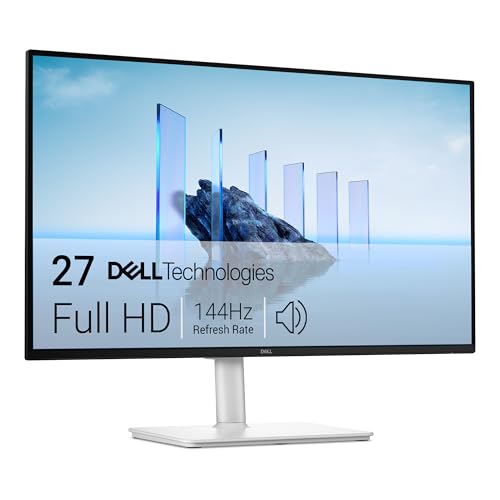
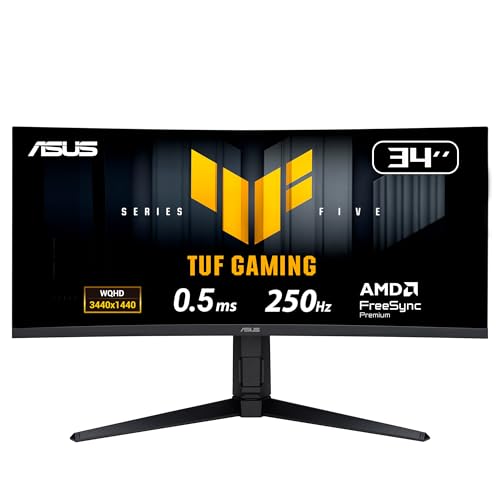
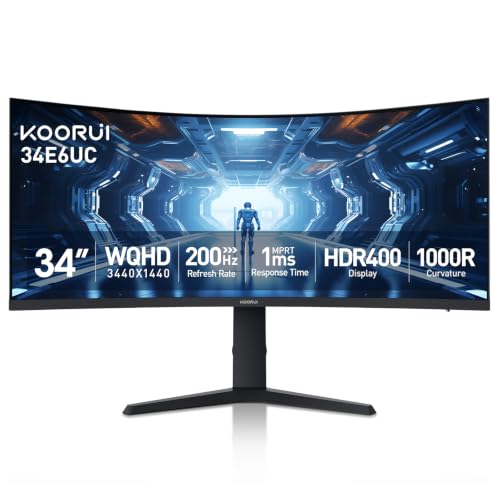
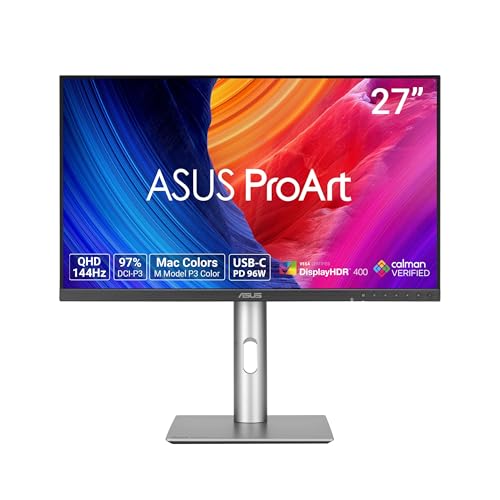
A 1440p screen gives you sharper text and more room than 1080p, without the heavy graphics demand of 4K. The best 1440p monitors under 400 pair that clarity with a fast refresh rate and a solid stand. This guide turns the spec sheet into a plain checklist, and the product table shows how the picks line up.
Start with how you spend most hours at the desk. Games reward speed and adaptive sync, office work rewards text clarity and simple docking, and photo work rewards honest color. The sections below match each use to panel, size, ports and price.



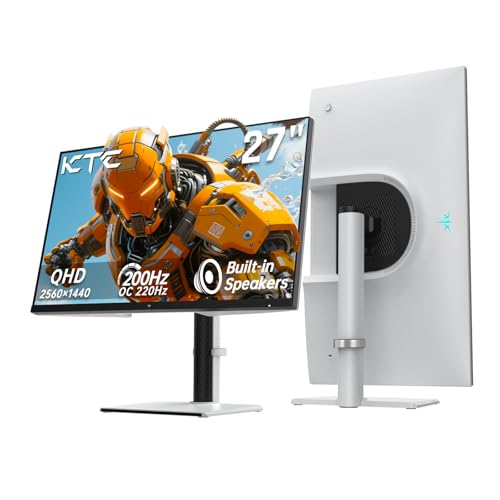
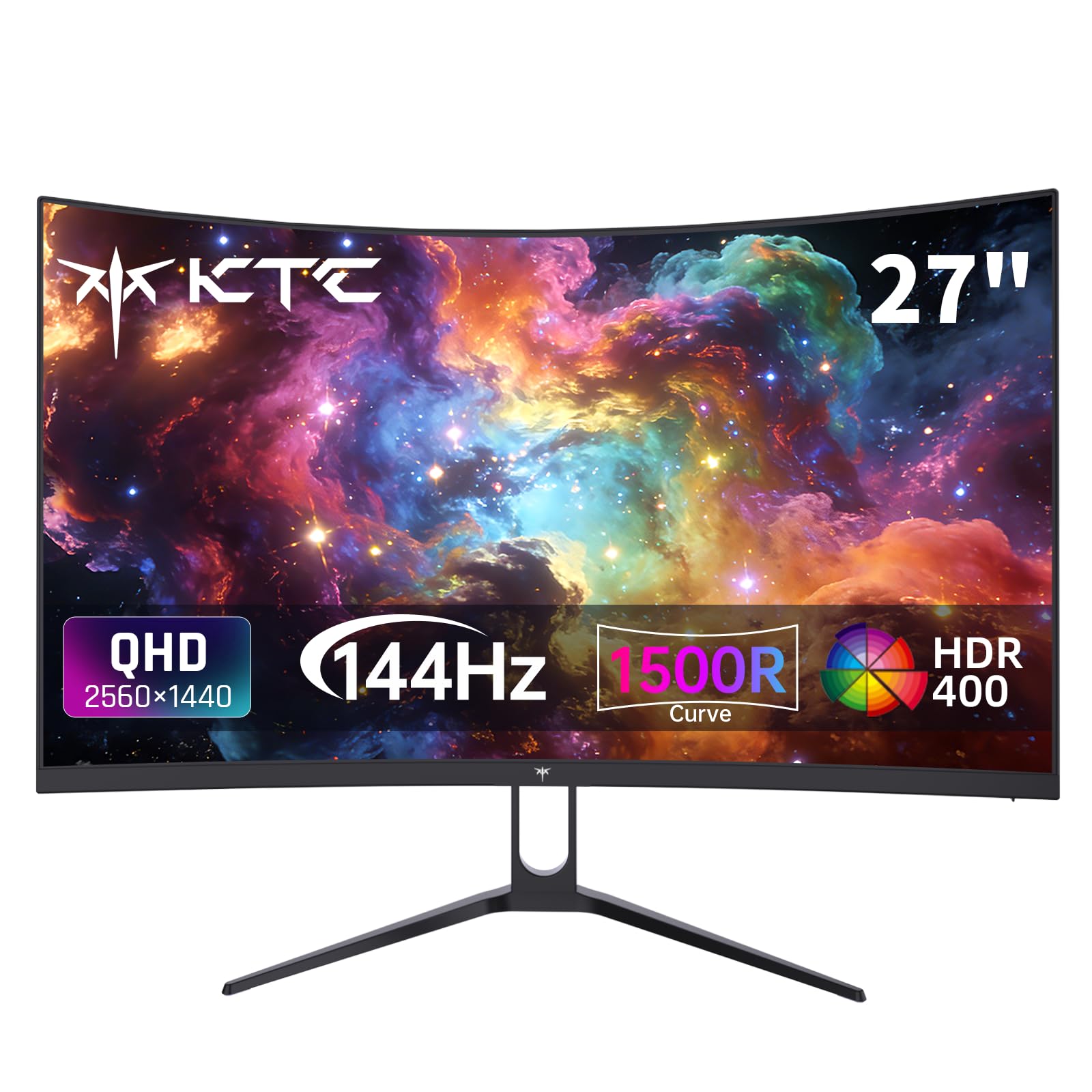
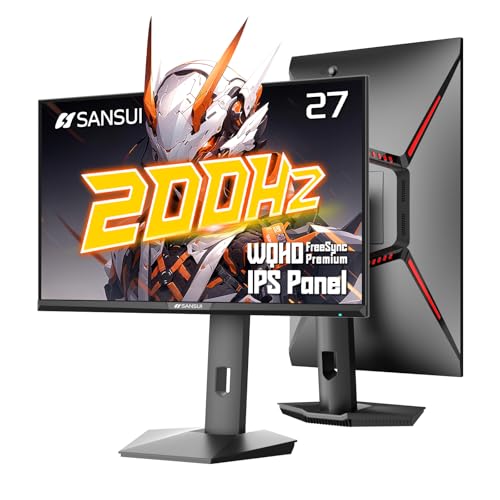


Who Should Buy a 1440p Monitor in This Budget?
Your main use sets the first filter, because every design in this budget trades one strength for another.
Gamers Upgrading From 1080p Without Overspending
You play fast games and want smoother motion without buying a new graphics card in the same month. Put refresh rate, adaptive sync and response time first, and favor a flat IPS panel for mixed use. For speed focused options at this price, see our guide to the best gaming monitors under 400.
Home Office and Hybrid Workers Who Read All Day
You split the day between documents, sheets, calls and browser tabs, and comfort matters more than raw speed. Choose sharp 27 inch text, a height adjustable stand and USB C charging for your laptop. For general desk screens at this price, see our guide to the best computer monitors under 400.
Students and Creators Who Need Good Color for Less
You edit photos, design class work or cut simple video and need color you can trust without studio prices. Choose an IPS panel with wide sRGB coverage and a matte finish that limits glare. A factory calibration note in the box is a good sign, and a calibration tool can come later.
Key Features to Compare
At around $400 or less, expect a strong 27 inch IPS or VA panel, 144 Hz to 180 Hz refresh and a useful stand. Premium hubs and deep HDR sit above this price, so judge value by the panel first.
Panel Technology and What It Changes on Screen
IPS panels keep color steady when you share the screen or sit off center, so they suit mixed work and play. VA panels give deeper blacks and stronger contrast for films and dark scenes, but fast motion can smear and viewing angles are narrower. OLED gives the finest contrast and fastest pixel response, yet it rarely fits this budget, and static office bars raise burn in concerns over years.
Screen Size and Pixel Density at 1440p
A 27 inch screen is the sweet spot for most desks, because 1440p at that size stays crisp. A 32 inch screen feels larger for games and video, but text looks a little softer and you need a deeper desk. A 24 inch model looks very sharp, yet menus can feel small. If resolution matters more than size, see our guide to the best 4k monitors under 400.
Motion Clarity and Tear Free Play at 144 Hz and Above
Refresh rate shows how often the picture updates, and 144 Hz or more makes scrolling, aiming and camera pans look smoother than 60 Hz. Response time shows how fast pixels change color, and lower values cut ghosting behind moving objects. Adaptive sync from FreeSync or G Sync matches screen timing to your graphics card, which reduces tearing. Console players should confirm 120 Hz support over HDMI.
Color Coverage, Brightness and HDR Limits
Look for full sRGB coverage for daily work, and wider DCI P3 coverage if you edit photos or video. Brightness of about 300 to 400 nits suits most rooms. HDR here adds some punch to highlights, but simple backlight control limits its depth next to a television. Treat HDR10 as a welcome extra, not the main reason to pick a model.
Ports for PCs, Consoles and Laptops
You need at least one DisplayPort input to reach full refresh rates on a PC, plus two HDMI inputs if a console or streaming stick shares the desk. USB C with about 65 watts of power delivery can charge a laptop and carry video on one cable, a valuable mix here. A USB hub adds daily ease, but it never outweighs panel quality.
Stand Adjustments and VESA Mounting
A stand with height, tilt and swivel adjustment lets you set the top of the screen near eye level and keep your neck relaxed. Pivot rotation suits readers and coders who want a vertical second screen. Check the VESA mount pattern, often 100 by 100 mm, if you plan to add an arm later. A tilt only stand is a false saving when an arm purchase becomes the fix.
Which Type of 1440p Monitor Fits Your Desk Best?
Brand names matter less than type here. The three types below cover most buyers in this budget.
Fast Flat IPS Monitors for Mixed Use
This is the default choice for most buyers, because it balances motion, color and price in one screen. Pick it when gaming, study and office tasks share one chair, or when room light changes through the day.
Curved VA Monitors for Films and Immersive Play
A gentle curve and high contrast make films and story driven games feel deeper in a dim room. Skip this type if you share the screen often or do layout work where straight lines must stay straight.
Ultrawide 1440p Monitors for Wide Timelines and Sheets
Ultrawide displays stretch 1440p across a wider panel, often 34 inches, so timelines, large sheets and two windows sit side by side. That width helps editing and steady multitasking, but these models often give up refresh speed or USB C charging. Measure desk width before you commit.
Quick Checklist for the Best 1440p Monitors Under 400
Run these questions before you pay, because the best 1440p monitors under 400 should pass each core test. If a model fails two or more, keep shopping or see our guide to the best monitors under 400 for a wider view.
- Is the panel type, IPS or VA, clearly named in the specs?
- Does the refresh rate reach at least 144 Hz over DisplayPort?
- Is adaptive sync listed for your graphics card family?
- Does the stand adjust for height, or is a VESA mount included?
- Is the USB C charging watt figure stated for your laptop?
- Is brightness listed at about 300 nits or higher?
- Does the warranty run for at least two years, with a clear dead pixel policy?
Common Mistakes to Avoid
These errors cost money or comfort long after checkout day.
- Paying extra for HDR badges on a dim panel leaves films washed out and wastes a tight budget.
- Choosing a 32 inch screen for a shallow desk puts the picture too close and invites neck strain.
- Assuming every HDMI port supports the full refresh rate can lock you to a lower rate than you paid for.
- Ignoring stand height to save money often leads to buying a monitor arm within months.
- Skipping dead pixel and warranty terms leaves you unprotected if bright spots appear early.
Care and Maintenance Tips for 1440p Monitors
Clean the screen with a dry or slightly damp microfiber cloth, and never spray liquid straight onto the panel. Turn the monitor off first, because dust and smears show clearly on a dark screen and gentle pressure protects the surface coating. Keep drinks back from the lower bezel.
Set brightness to match your room instead of running at full power all day, because a calmer level is easier on your eyes and on the backlight. Use built in panel care tools if your model offers them, and take firmware updates only from the manufacturer support page.
Frequently Asked Questions
Can you get a good 1440p monitor for under 400 dollars?
Yes, you can get a good 1440p monitor at this price, with strong color, 144 Hz speed and a solid stand. The smart cut is on extras such as speakers, rear lighting and large USB hubs, not on the panel itself. Watch for seasonal sales, because models just above this budget often drop into it for short periods.
How long does a 1440p monitor usually last?
A 1440p monitor usually lasts about five to eight years of daily use before brightness fades or parts begin to fail. The backlight dims slowly over time, so a screen that once felt bright at half power will need a higher setting later. Keeping vents clear helps the panel age more slowly and evenly.
What 1440p monitor size fits a small desk best?
A 27 inch 1440p monitor fits a small desk best, because it gives sharp text without forcing you to sit far back. Leave about 20 to 28 inches between your eyes and the screen, and check that the stand feet fit with room for a keyboard in front. Wall mounting can free depth on very narrow desks.
Is 4K worth choosing over 1440p for a desk monitor?
4K is worth it for some desk work, but 1440p is the better value for most buyers at this budget. A 4K screen shows finer detail in photos and text, yet it costs more and demands more graphics power in games. If you mostly write, browse and play, 1440p leaves budget room for a better stand or panel.
Does refresh rate matter for a 1440p monitor used for office work?
Yes, refresh rate still matters for office work, because scrolling documents and moving windows look calmer at 120 Hz or 144 Hz than at 60 Hz. The gain is comfort, not speed. You may need to set the higher rate by hand in your system display settings, because many computers default to 60 Hz.
Our Verdict
Start with the panel, then check motion for games and the stand for long days, and let ports settle close calls. Use the product table to compare the short list against those three tests. When the best 1440p monitors under 400 are judged that way, the right choice is the screen that fits your main use first and asks for the fewest fixes later.