
Best 144hz Monitors Under 300 for 2026: A Buyer Checklist
Disclosure: We may earn a commission when you buy through links on this page, at no extra cost to you. As an Amazon Associate I earn from qualifying purchases. Learn more
Pick the best 144hz monitors under 300 with a checklist for panel type, adaptive sync, resolution, ports and brightness.
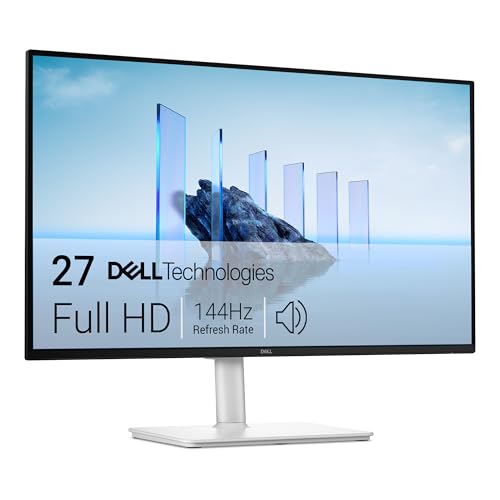
A 144Hz screen can make games and even plain scrolling feel calm and clear, but a low price can hide weak ports, a dim panel or a stiff stand. The best 144hz monitors under 300 balance panel quality, sync support and size instead of chasing one headline number. Use this checklist as you scan the product table.
Set your expectations first. At this budget you can expect a good IPS or VA panel, honest brightness and full 144Hz support on at least one port. You give up true high end HDR, most OLED panels and rich USB C hub features.



Who Should Buy a 144Hz Monitor on a $300 Budget
Your main use decides which trade offs you will notice. A competitive player, a console player and a student need different panels, sizes and ports, even at the same price.
Competitive PC Players Who Chase Clear Motion
You play shooters, racing games or fast sports titles and you notice blur and tearing. Choose a 24 to 25 inch IPS panel at 1080p, since your graphics card can hold high frame rates there and motion stays sharp. If you also play slower story games, see our guide to the best gaming monitors under 300 for a broader gaming view.
Console Players Who Want 120Hz Play at a Desk
Current PlayStation and Xbox consoles output up to 120Hz, so a 144Hz monitor runs console games at up to 120Hz when it accepts that signal over HDMI. A 27 inch screen at 1440p gives you a large view at desk distance. Check that the HDMI port accepts 120Hz at the native resolution, because some monitors limit console signals.
Students and Home Workers Who Mix Work and Play
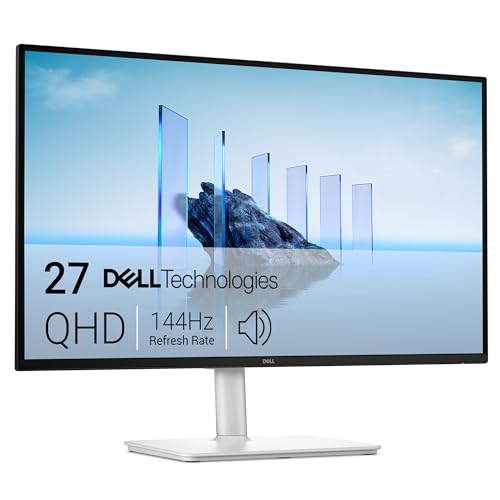
You read, write and use spreadsheets for hours, then play in the evening. A 27 inch IPS panel at 1440p gives you crisp text and room for two windows side by side. If refresh rate matters less than screen space, see our guide to the best pc monitors under 300 before you decide.
Key Features to Compare
Compare each model in the same order, from panel to stand, so a low price cannot hide a slow port or a dim screen.
Panel Technology, IPS, VA and OLED
IPS panels give you accurate color and wide viewing angles, so the picture holds up when you lean or share the screen. VA panels give you deeper blacks, often around 3000 to 1 contrast against about 1000 to 1 for IPS, but dark moving scenes can smear. OLED panels control each pixel and look superb in dark rooms, yet most cost well above $300. For most buyers here, IPS is the safe default and VA suits dark room use.
Matching Pixel Density to Screen Size and Graphics Load
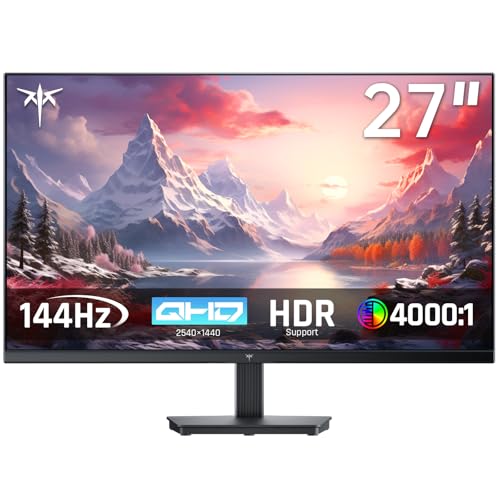
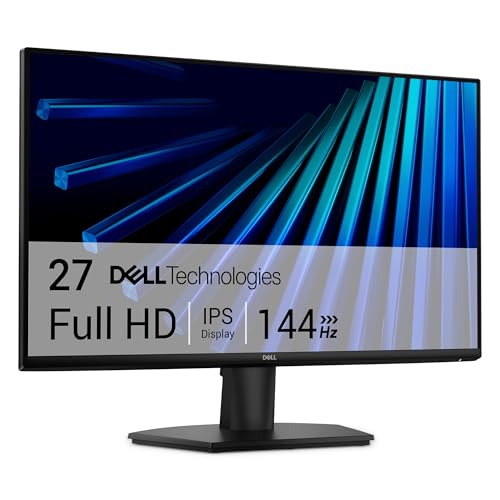
Resolution and size work as a pair. At 24 to 25 inches, 1080p looks clean at a normal desk distance and is easy to drive at 144 frames per second. At 27 inches, 1440p is the sweet spot, with sharper text and more workspace for a modest step up in graphics load. Large screen options at 32 inches suit flight and racing setups, but 1080p at that size looks coarse for reading.
Adaptive Sync and Response Time
Adaptive sync matches the refresh rate to the frame rate your device sends, which removes tearing without the lag of older fixed sync methods. Look for FreeSync support and G Sync compatibility, plus a sync range that starts near 48 Hz so slower scenes stay smooth. Response time claims need care, since a 1 ms figure often uses a special blur mode rather than normal gray to gray switching.
Daylight Readability and Modest HDR Labels
Most monitors in this class produce about 250 to 350 nits, and a few reach about 400 nits. For a bright room, choose 300 nits or more so daylight from a window does not wash out the picture. Many listings add HDR10 support or an HDR400 label, but without local dimming the HDR effect stays modest, so treat HDR at this price as a small bonus.
Checking Each Port Limit Before You Buy
DisplayPort is the most reliable path to full 144Hz at 1440p on a PC, so confirm at least one DisplayPort input. HDMI 2.0 covers 144Hz at 1080p and often at 1440p, while HDMI 2.1 is rare under $300 and matters mainly for consoles at higher resolutions. Some models cap one port below the headline rate, so check the manual for each port limit before you buy. USB C input and audio out are useful extras, not core ports.
Stand, VESA Mount and Desk Fit
A stand that only tilts forces your neck to do the adjusting. Height adjustment of about 4 to 5 inches, plus tilt and swivel, lets you place the top of the screen near eye level. If the stand is basic, a VESA mount in 75 by 75 mm or 100 by 100 mm lets you add an arm later. Measure desk depth too, since a deep foot can push the screen too close.
Monitor Types Compared and a Quick Buyer Checklist
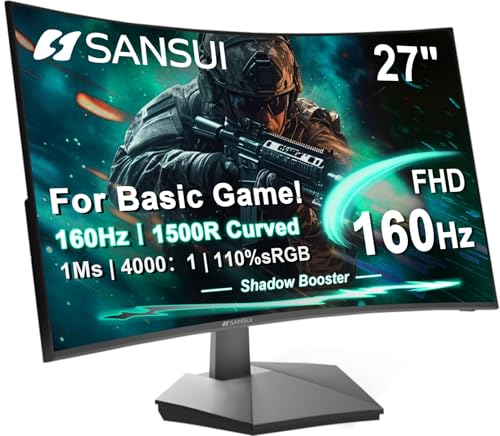
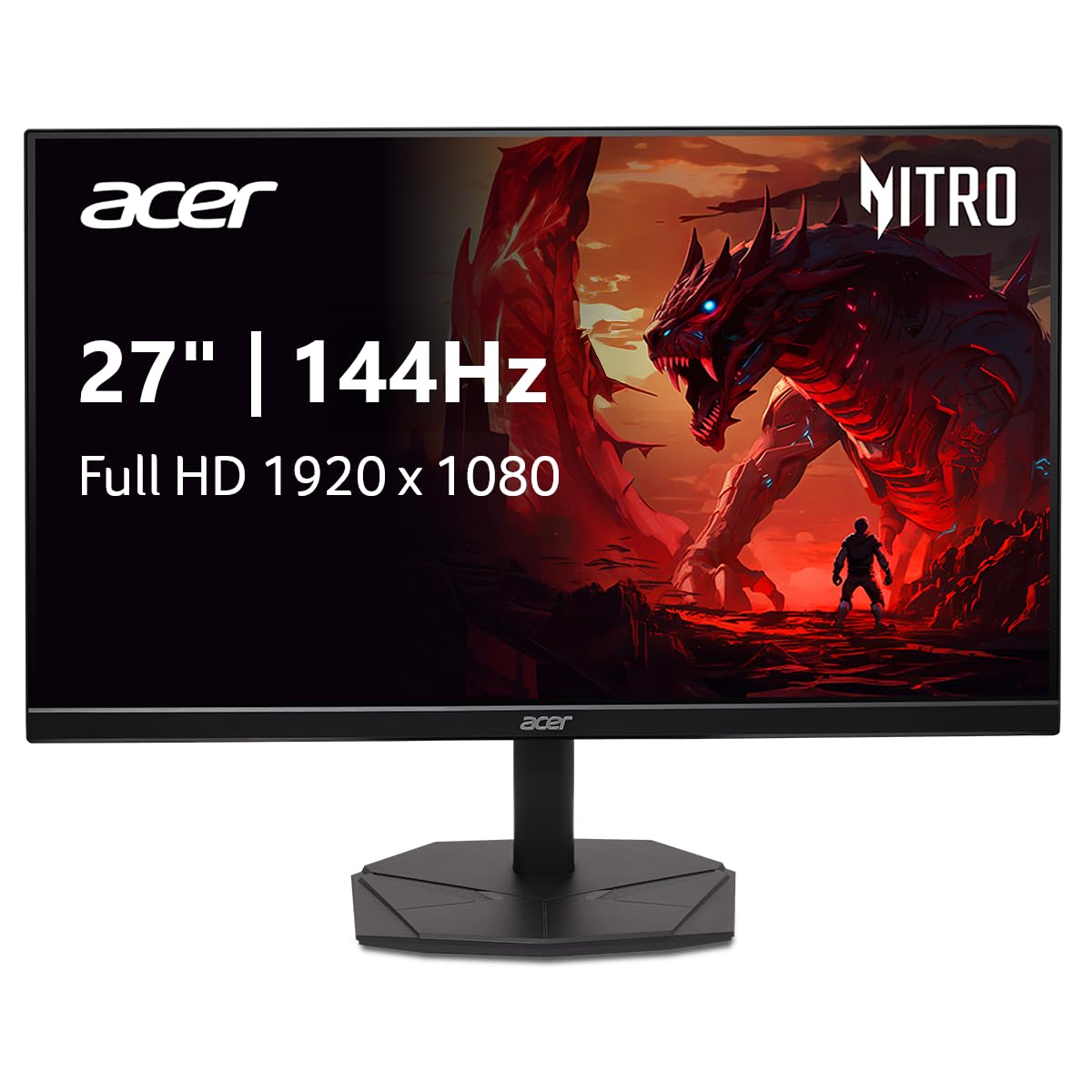
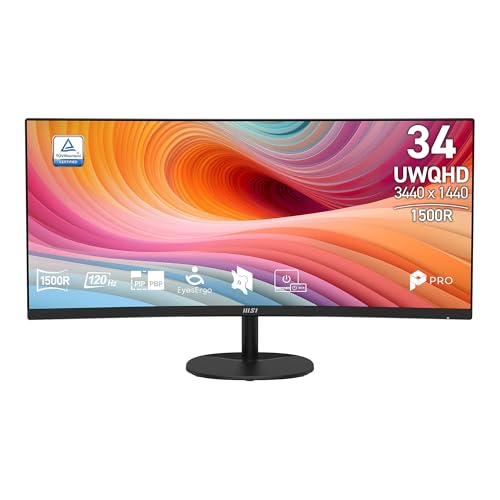
Shoppers comparing the best 144hz monitors under 300 usually choose between three combinations. Fast 1080p IPS models at 24 to 25 inches favor competitive play. Balanced 1440p IPS models at 27 inches favor mixed work and play. Curved VA models at 27 to 32 inches favor dark rooms and wide views. If you can drop the 144Hz demand, see our guide to the best monitors under 300 for more budget displays.
Run through these questions before you order. A no answer points to the spec to check again in the listing or manual.
- Does at least one port support 144Hz at the native resolution of the monitor?
- Is the adaptive sync range stated, and does it start at about 48 Hz or lower?
- Does the panel type match your room, IPS for bright rooms or VA for dark rooms?
- Is brightness at least 300 nits if your desk faces a window?
- Can you adjust the height, or does the monitor offer a VESA mount for an arm?
- Does the total stay under $300 once you add a DisplayPort cable if one is missing?
Common Mistakes to Avoid
These errors come from trusting the headline specs instead of the full listing.
- Trusting the 144Hz headline without checking each port leaves you capped at a lower rate on the input you use.
- Choosing a 32 inch screen at 1080p makes text and fine detail look coarse at a normal desk distance.
- Setting overdrive to its fastest level adds pale halos around moving objects and makes the picture look worse.
- Paying extra for an HDR label on a 250 nit panel buys a dim picture that struggles in a bright room.
- Ignoring a tilt only stand leads to neck strain and an extra arm purchase you did not budget for.
- Expecting built in speakers to carry films and games leaves voices thin and quiet at normal volume.
How to Make Your 144Hz Monitor Last Longer
Set the picture up once and leave it stable. Turn off the vivid picture mode, lower brightness to a level that matches your room, and use the standard color mode for accurate tones. A screen run at full brightness all day ages its backlight faster. Keep the rear vents clear so heat can escape.
Clean the screen with a dry microfiber cloth, or one made slightly damp with plain water, and never spray liquid straight onto the panel. Wipe gently without pressing, since pressure can damage the surface. If you own an OLED model, run its pixel refresh as the manual directs and avoid static images at full brightness for hours. Turn the monitor off when you leave for the day.
FAQ
Can you get a good 144Hz monitor for under $300?
Yes, you can get a good 144Hz monitor for under $300, with a solid IPS or VA panel and full adaptive sync. What you give up is premium HDR, OLED contrast and hub features. Before you order, read the dead pixel policy and warranty length in the listing. Those terms decide how easy a swap will be if your panel arrives with a fault.
Does a 144Hz refresh rate matter for people who do not game?
Yes, a 144Hz refresh rate still helps if you do not game, because scrolling, window dragging and cursor movement all look smoother. Long documents, large spreadsheets and timeline editing feel calmer when the screen redraws more often. The gain is about comfort rather than speed, since your reading pace stays the same.
Is 4K resolution worth it on a 144Hz monitor under $300?
No, 4K resolution is rarely worth chasing on a 144Hz monitor under $300, because real panels with both specs cost more. A 4K image also carries about four times the pixels of 1080p, so frame rates fall unless your graphics card is strong. At a desk, 1440p at 27 inches already looks sharp. Spend the savings on a better stand or a brighter panel.
Is IPS or OLED better for a 144Hz monitor under $300?
IPS is the better buy for a 144Hz monitor under $300 for most people, since OLED models with this refresh rate usually cost far more. Room light shapes the choice too. OLED blacks shine in a dark room, while IPS holds brightness and color well in a bright room and shows text cleanly all day.
How long does a 144Hz monitor under $300 usually last?
A 144Hz monitor under $300 usually lasts about five to eight years of daily use. The backlight slowly dims over that span, and buttons and ports collect most of the wear. Keeping brightness moderate and vents clear slows that decline. Keep your receipt and the box for the first weeks, since early faults are the ones a warranty swap handles fastest.
Final Thoughts
Start with the panel and the ports, then match size to your desk and your main use. A 27 inch 1440p IPS screen suits the widest range of buyers, while a smaller 1080p screen serves competitive play best. Check your shortlist against the product table.
When the panel, sync range and stand all fit your needs, the best 144hz monitors under 300 deliver smooth motion without forcing you past your budget. Buy for the desk and the games you have now, and the screen should serve you well for years.

