Best 1080p Gaming Monitors: A Buyer Checklist for 2026
Disclosure: We may earn a commission when you buy through links on this page, at no extra cost to you. As an Amazon Associate I earn from qualifying purchases. Learn more
Use this buyer checklist to compare the best 1080p gaming monitors by panel, refresh rate, response time, sync, ports, stands, and price band before buying.
Spec sheets make every gaming monitor sound fast, bright, and perfect. A checklist cuts through that: it gives you the same short set of checks to apply to every model you consider. This guide walks you through that checklist step by step, so you can spot the best 1080p gaming monitors for your setup without guessing.
Each item below explains what to check, what good looks like, and where makers cut corners. After the checklist you will find price bands, a quick yes or no self check, and the red flags that should send you back to the product table for another look. It also works for the broader class of best computer monitors for gaming, where the same checks apply.

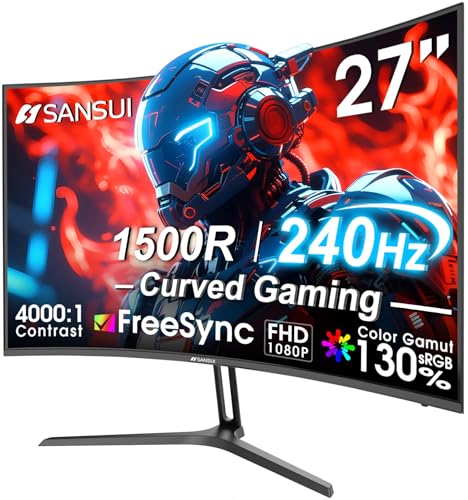


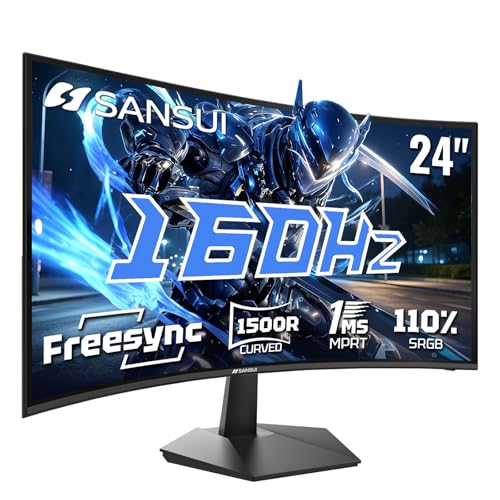
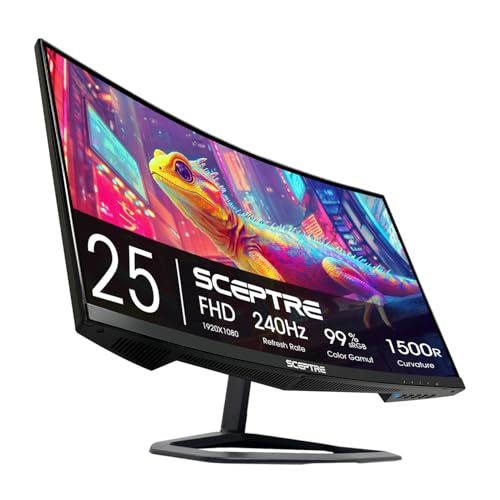
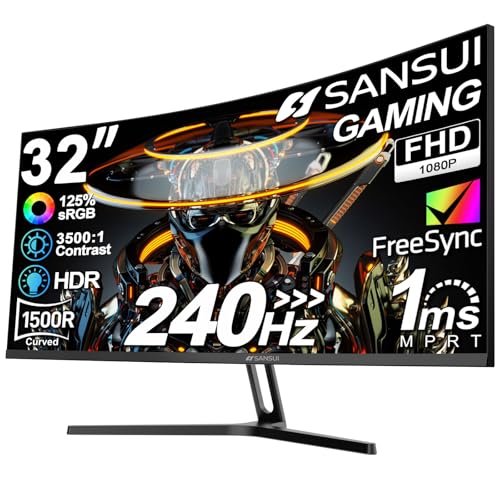
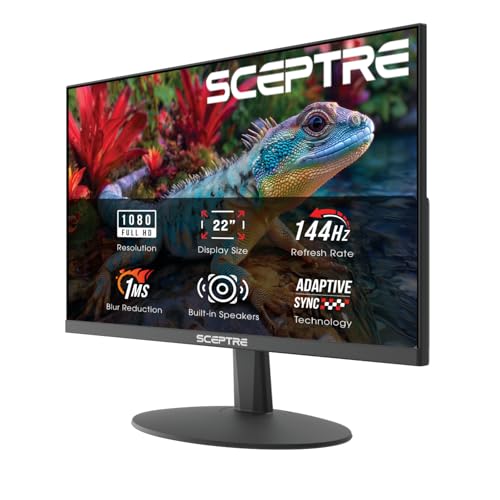
A Buyer Checklist for the Best 1080p Gaming Monitors
Work through these seven checks in order. The first two decide how games actually look in motion, and the rest decide whether the monitor fits your desk, your hardware, and your budget.
Refresh Rate and Response Time
Refresh rate sits at the top of the checklist because it governs motion clarity: at 144Hz the screen redraws 144 times a second, so fast pans and quick turns stay readable instead of blurring. Make sure your graphics card can push frame rates near that number in the games you play, because the screen can only show the frames it is given. The models that combine a high rate with a fast panel are covered in our guide to the best gaming monitors 1080p 144hz.
Response time is the second half of motion quality, and it needs a cautious read. The millisecond figure on the box is a maker figure, measured on the fastest pixel transitions with overdrive pushed hard. Real transitions are slower, and maximum overdrive can overshoot and leave bright inverse ghosting trails behind moving objects. A mid level overdrive setting is usually the honest sweet spot.
Panel Technology (IPS, VA, OLED, Mini LED)
Check the panel type before anything cosmetic: IPS is the balanced choice, with accurate color and wide viewing angles for shared screens. VA trades slower dark transitions for contrast that is roughly three times deeper, which suits dim rooms and slower paced games. OLED gives perfect blacks and near instant response at a premium price, with some burn in risk from static game interfaces. Mini LED is a backlight system for LCD panels that adds strong local dimming for HDR scenes.
Screen Size and Pixel Density
Most 1080p gaming monitors are 24 or 27 inches, and size changes sharpness at this resolution. A 24 inch screen packs its pixels at about 92 ppi, so the image looks tight at a desk, while at 27 inches density falls to about 82 ppi and individual pixels get easier to see, which some players accept in exchange for a bigger picture. Built in speakers, where fitted, are a weak point on nearly every model, so plan on headphones or desktop speakers for sound. If sharpness for text matters more than speed, compare the best 1080p monitors built for general use.
HDR and Brightness
Look for at least 300 nits of brightness if your room is bright, and read HDR badges carefully. HDR400 certification does not require local dimming, so dark scenes will still glow gray in places. Stronger HDR with real dimming zones does exist at 1080p, but it pushes the price toward the top band. For most checklist shoppers, enough brightness for daytime play matters more than the HDR logo.
Adaptive Sync and Gaming Features
Adaptive sync is a must have check: it matches the screen refresh rate to your frame rate and removes tearing without the lag of classic vertical sync. Confirm the monitor supports FreeSync or is G Sync compatible, and that sync works over the port you plan to use, since some models limit sync to DisplayPort. Extra gaming modes such as crosshair overlays are harmless bonuses, not reasons to buy.
Stand, Mounting, and Ergonomics
A gaming session lasts longer than a quick email check, so the stand matters. Height adjustment is the key feature, because tilt only stands often force a stack of books underneath. VESA 100 by 100 mm mounting lets you add an arm later. Be clear eyed about comfort claims too: no monitor cures eye strain, and what helps is a screen at arm's length, the top edge near eye level, brightness matched to the room, and a short break every hour.
Connectivity and Ports
Count the ports against your devices before you buy: a gaming PC wants DisplayPort for the full refresh rate with sync enabled. Consoles and laptops use HDMI, and most 1080p models run 144Hz over HDMI 2.0 without trouble. A USB C input with video support is a handy laptop bonus, though rarely vital at this level. Check that the box includes the cable you need, because some monitors ship with HDMI only.
What Your Money Gets: Three Price Bands
Prices for the best 1080p gaming monitors fall into three rough bands, and each one buys a different set of checklist items.
Starter Band: About $120 to $180
Panels here are honest 144Hz IPS or VA, stands tilt only, and HDR is a badge rather than a feature. Sync support is usually present, which keeps this band respectable. For a first gaming desk or a second screen, it covers the checklist basics without waste. Shoppers hunting value first can start with the best affordable gaming monitors and work up from there.
Mainstream Band: About $180 to $280
The extra money buys height adjustable stands, faster and better tuned panels, and wider sync ranges that stay smooth when frame rates drop. Quality control also tends to improve, with fewer dead pixels and less backlight bleed. Most players should shop here, because every checklist item can be satisfied at the same time.
Enthusiast Band: About $280 to $400
At the top you find 240Hz panels, stronger brightness, real local dimming on some models, and better build quality throughout. It is a luxury step at 1080p rather than a necessity. Competitive players who can feed very high frame rates are the ones who will actually feel the difference.
Quick Buyer Checklist
- Can my graphics card hold frame rates near 144 in the games I play most?
- Does the monitor support the sync type my card uses, over the port I will plug into?
- Is the panel IPS if I share the screen or play in a bright room?
- Does the stand adjust for height, or is there a VESA mount for an arm?
- At 27 inches, am I comfortable with softer text at about 82 ppi?
- Does the price leave room in my budget for the right cable and an arm if I need one?
- Is the warranty at least two years, with a clear dead pixel policy?
Red Flags to Watch For
- A response time claim with no measurement conditions named, which usually hides heavy overdrive artifacts.
- HDR in the product name but no brightness figure anywhere on the spec page.
- 144Hz promised, but the fine print limits that rate to one input you do not have.
- No VESA mount and a tilt only stand at a mainstream price.
- A one year warranty on a screen you plan to use every day for years.
Care and Maintenance Tips
Clean the screen with a dry microfiber cloth and light pressure, because household sprays can damage the matte coating. Turn off the vivid picture mode and set brightness to a level that suits your room, which also slows backlight aging over the years. If you chose an OLED model, run the built in pixel refresh when the screen prompts you, and avoid leaving a static desktop image on display for hours at a time.
FAQs
IPS vs OLED: which panel is better for 1080p gaming?
IPS is better for most budgets, with strong color, wide angles, and no burn in risk from game interfaces. OLED answers faster and shows true blacks, but at 1080p it is rare and expensive. One point many buyers miss: most OLED gaming monitors are 1440p, so choosing OLED often means changing your resolution and your graphics card budget too. Decide on the whole setup, not just the panel.
Is 4K worth it for gaming instead of 1080p?
Only with a powerful graphics card and a larger screen. At 24 inches the sharpness gain from 4K is small, while the frame rate cost is large, because the card must draw four times as many pixels. Most players get more enjoyment from high frame rates at 1080p than from prettier stills at 4K. Pick 4K when you sit close to a 32 inch screen and own the hardware to drive it.
How long does a 1080p gaming monitor last?
Expect about five to eight years of daily play before the backlight dims noticeably. Panels seldom die suddenly; they fade, and colors can drift slightly with age. In practice the monitor often outlasts its usefulness, because connection standards and sync features move on faster than the screen wears out. A longer warranty is still worth having for early failures in the first two years.
What size 1080p gaming monitor is best for a small desk?
A 24 inch model is the safest fit, since it keeps the picture sharp and leaves space for speakers and a keyboard. Measure the stand footprint before you order, because some wide feet reach 8 to 10 inches deep and crowd a shallow desk. If space is truly tight, choose a model with a VESA mount and put it on a slim clamp arm instead.
Does a high refresh rate help with work or videos, or only games?
Games gain the most, because they can render new frames as fast as the screen accepts them. Office work gains a little: scrolling documents and moving windows look smoother, and the cursor feels more precise. Videos gain nothing, since films and streams are delivered at 60 frames per second or less. If you never game, spend the money on screen size and ergonomics first.
Wrapping Up
Run the checklist in order and most models eliminate themselves: refresh and response for motion, panel and size for the picture, sync and ports for your hardware, and a stand your neck will thank you for. The best 1080p gaming monitors pass every line without drama. Compare your finalists in the product table and pick the one with no weak answers. Our wider guide to best gaming monitors applies the same checklist to higher resolutions when you are ready to step up.