
Best Smart Display for Video Calling: A Complete Buying Guide
Disclosure: We may earn a commission when you buy through links on this page, at no extra cost to you. As an Amazon Associate we earn from qualifying purchases. Learn more


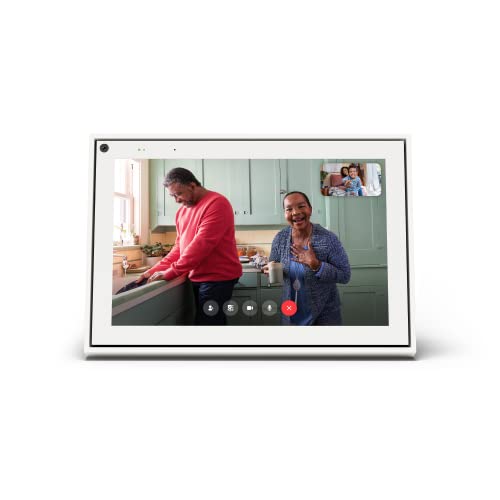
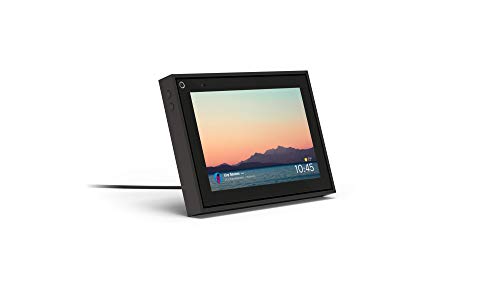

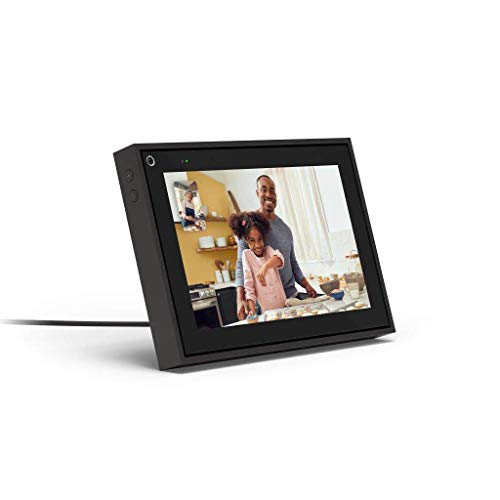
What Actually Determines Call Quality
Screen size gets most of the attention in marketing copy, but it is not what makes a call feel natural. The camera's field of view matters more, since a wide lens keeps you in frame even when you step back to grab a coffee mug or wrangle a toddler. Auto-framing, where the lens digitally pans and zooms to track movement, is the single feature that separates a genuinely useful smart display for video calling from a screen that just happens to have a camera bolted on.
Microphone quality is the second piece people underrate. Look for a far-field array with at least two microphones and some form of noise suppression, since a single built-in mic will pick up the dishwasher, the dog, and every echo in the room. Speaker output matters too, particularly if the display doubles as a music or podcast speaker outside of calls. Finally, check which calling platforms the device actually supports before buying, since some ecosystems lock you into a single app and won't reach a relative on a different brand's hardware. Battery-free, plug-in operation is standard across the category, so factor in where a power outlet actually sits before settling on a spot for the unit.
Countertop, Wall-Mounted, or Somewhere In Between
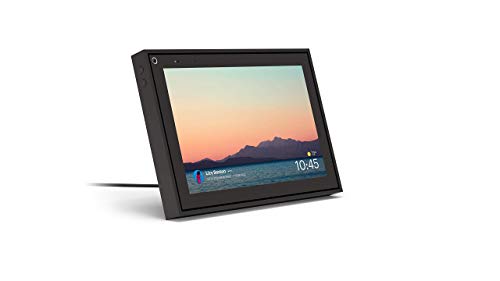
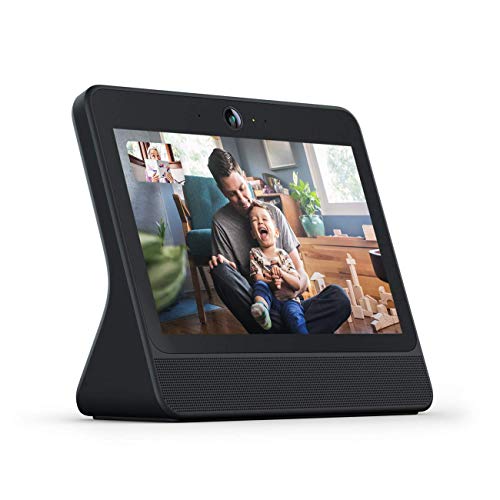
Smart displays generally fall into two physical categories, and picking the wrong one is the most common regret buyers report. A compact tabletop unit, usually under eight inches, works well on a nightstand or a small desk where counter space is tight. It is easy to move around and cheap enough to buy two or three for different rooms.
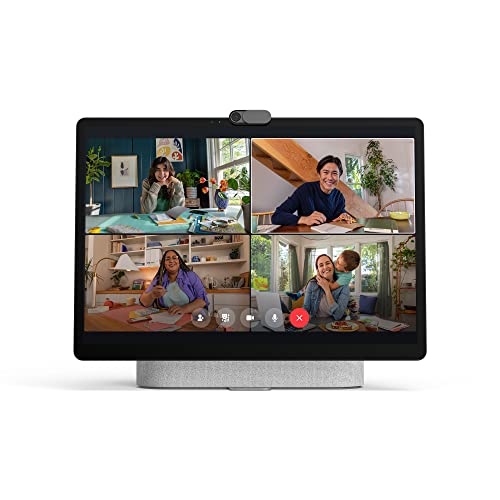
A larger tabletop model, often ten to fifteen inches, sits better on a kitchen counter or in a living room where several people gather for a call at once. A wall-mounted smart display is the third option, and it solves the counter-clutter problem entirely, though it requires either a compatible mount kit or professional installation and is harder to reposition once it is up. Choose based on how many people typically join a call and how much flat surface you actually have to spare.
Matching the Display to Where It Will Actually Live
The right unit changes a lot depending on who is using it. A kitchen counter display gets bumped, splashed, and used one-handed while someone is cooking, so a sturdy base and a simple, large-icon interface matter more than raw specs. A unit meant for a home office desk should sit at eye level and have a narrower footprint so it does not compete with a monitor and keyboard for space.
- Kitchen or common area: prioritize a wide camera angle and voice control, since hands are often busy
- Home office or work-from-home setup: prioritize a clean video feed, a headphone jack or Bluetooth pairing, and a compact stand
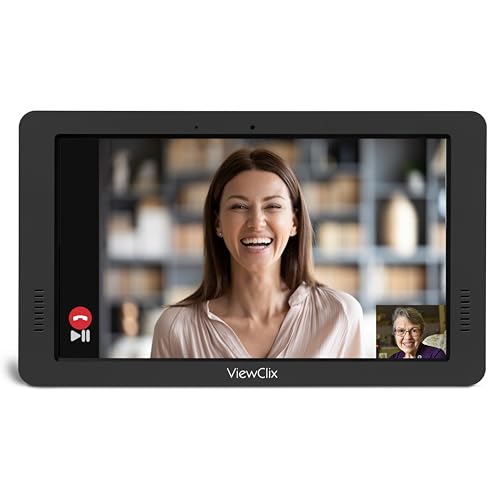
- An older relative's living room: prioritize one-tap or automatic call answering and the largest, clearest screen the budget allows
Buying for an elderly parent or grandparent deserves its own note, since the goal is minimizing steps rather than adding features. A model that can answer or place a call with a single tap, or even automatically, removes the friction that keeps people from using the device at all.
Setting It Up So Calls Actually Connect
A smart display is only as good as the network behind it, and choppy video is more often a router problem than a device problem. Placing the unit within strong signal range, or upgrading a weak mesh setup, fixes far more dropped-call complaints than buying a new display ever does. Wired ethernet backhaul for a nearby access point is worth considering in a house with thick walls or multiple floors. A quick speed test from a phone standing where the display will sit is a cheap way to confirm the signal is strong enough before committing to that spot.
Once it is online, spend a few minutes on lighting and placement rather than accepting the default spot. Facing a window puts the caller in silhouette, while a lamp placed slightly above and behind the camera evens things out. Account linking is also worth doing carefully, since inviting the right contacts up front avoids a confusing setup call later with a less tech-comfortable relative.
Camera and Microphone Privacy, Handled Right
A device that sits in a kitchen or bedroom with an always-available camera and microphone deserves a real look at its privacy controls, not just a glance at the spec sheet. A physical camera privacy shutter is the most reliable protection, since it blocks the lens mechanically rather than relying on software. A microphone mute switch that cuts power to the mic, rather than just muting it in an app, is the second thing worth confirming before purchase.
Shutters and mute switches only cover part of the picture, though, since the microphone can usually still listen for a wake word even with the camera closed. Reviewing the account's privacy settings, disabling any voice-history storage that is not needed, and keeping the device's software updated closes most of the remaining gap. For a household already running other connected cameras, it is worth comparing how that hardware handles the same privacy questions.
Smart Display or Just a Propped-Up Tablet?
A tablet in a stand can technically do video calling too, and for occasional use it is a reasonable substitute. The gap shows up in the details: a dedicated display tends to have a wider camera lens built for a room rather than a face, hands-free voice activation, and a stand designed to survive being bumped daily. A tablet also locks the screen or dims it on a schedule set for battery life, not for staying visibly available.
The tradeoff runs the other way on flexibility. A tablet can leave the room, join a call from a couch, or run any calling app installed on it, while a fixed display is stuck wherever it is plugged in and often limited to a smaller set of supported services. Households that already own a spare tablet and mainly want occasional calls may not need a separate purchase at all. Anyone doing daily calls from the same spot, especially with an older relative who benefits from a one-tap answer, will get more consistent results from a purpose-built display. The cost difference between the two options has also narrowed enough that budget alone rarely settles the decision anymore.
Frequently Asked Questions
Do smart displays work for video calls without a smartphone nearby?
Most models handle calls independently once set up and connected to Wi-Fi, since the calling app runs on the device itself rather than relying on a paired phone for every call.
Can a smart display call a regular phone number?
Some models support calling standard phone numbers in addition to app-to-app video calls, but this varies by brand and sometimes requires a paid add-on service, so check before assuming it is included.
How much bandwidth does a smart display need for smooth calls?
A stable connection of roughly 1 to 4 Mbps upload and download is generally enough for clear video, though a shared household connection with several devices active may need more headroom.
Is it safe to leave the camera uncovered all the time?
It is reasonably safe on a reputable device with up-to-date software, but a physical shutter still adds a layer of certainty that costs nothing to use when the camera is not needed.
Can two different brands of smart display call each other?
Cross-brand calling is limited, since most manufacturers build their calling features around their own app or a small set of partner services rather than an open standard.
What screen size is best for a shared family call?
Anything in the ten-inch range or larger tends to work best when more than two or three people are gathered around the device at once, since a smaller screen makes faces hard to distinguish from a few feet back.
Making the Call
The right choice comes down to who is on the other end of the calls and where the unit will sit, more than any single spec on a box. A busy kitchen wants a wide camera angle and voice control; a desk wants a clean feed and a small footprint; a relative who struggles with technology wants the fewest possible steps between a ringing call and a friendly face on screen. Get the placement, network, and privacy basics right first, and almost any well-reviewed model in the right size category will handle the rest.
Pair the display with a solid home network and, if privacy is a concern, a hardware shutter that is used consistently rather than left open by default. For readers building out a broader connected home around the display, a smart home hub can tie voice control and other devices together, a mesh router built for a larger home keeps calls from stuttering in far corners of the house, and a video doorbell camera is worth comparing for anyone weighing privacy features across multiple connected cameras. Anyone shopping specifically for an older relative might also look at a wifi-connected picture frame as a lower-friction companion device for sharing family photos between calls.

