Best MacBook Pro Docking Station: Which One Fits the Way You Work in 2026?
Disclosure: We may earn a commission when you buy through links on this page, at no extra cost to you. As an Amazon Associate I earn from qualifying purchases. Learn more

How to choose the best MacBook Pro docking station for students, travelers, creators and multi monitor setups.
A docking station turns a MacBook Pro into a full desk setup with one cable: monitors, keyboard, wired internet, drives and charging all connect at once. The catch is that Macs handle external displays differently than Windows laptops, and many cheap "dual monitor" hubs only mirror the same picture on a Mac. This guide to the best MacBook Pro docking station helps you match the right dock to your Mac, your monitors and the way you work.
We cover who should buy which type, the features to compare, common mistakes, setup tips and frequent questions. Use the power adapter that came with your dock, keep docks ventilated since they get warm under load and buy certified Thunderbolt or USB4 cables, since cheap cables can limit speed, charging or display output.




Who Should Buy Which MacBook Pro Docking Stations?
Your Mac's chip and how many monitors you use matter more than port count.
For Students and Everyday Users
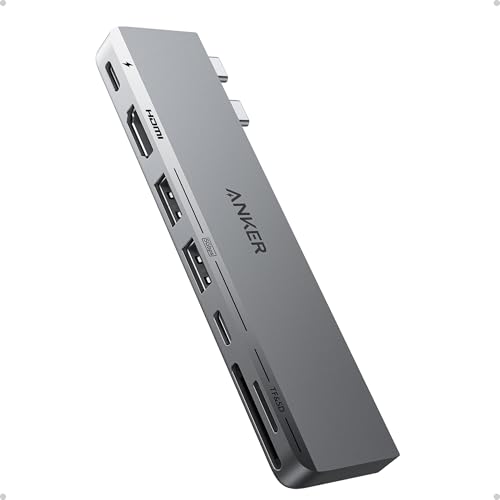
If you need one external monitor, a couple of USB ports and charging, a compact hub is enough. Anker's 547 USB-C Hub, a 7 in 2 Mac dock at around $55, plugs into both USB-C ports on the side of a MacBook and adds a 40 Gb/s multi function USB-C port with up to 100W charging and 5K output, a USB-C data port, two USB-A ports, HDMI at 4K 60Hz and SD and microSD slots. It is designed not to block the MagSafe port.
Prioritize a single 4K display, charging pass through and a compact size.
For Travelers and Commuters
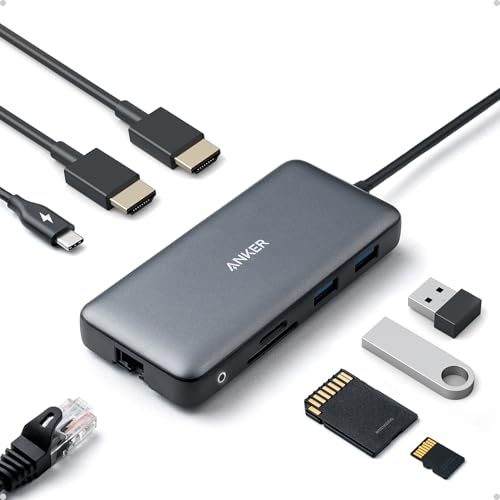
Travelers need light, bus powered hubs that slip into a bag. Anker's 8 in 1 hub, around $54, adds two HDMI ports, Ethernet, two USB-A ports, SD and microSD readers and up to 85W pass through charging from a single USB-C port. Anker notes that on macOS both external monitors show the same image, so it suits one extra screen or presentations.
Prioritize size, Ethernet for hotel rooms and an SD reader if you shoot photos.
For Creators and Power Users
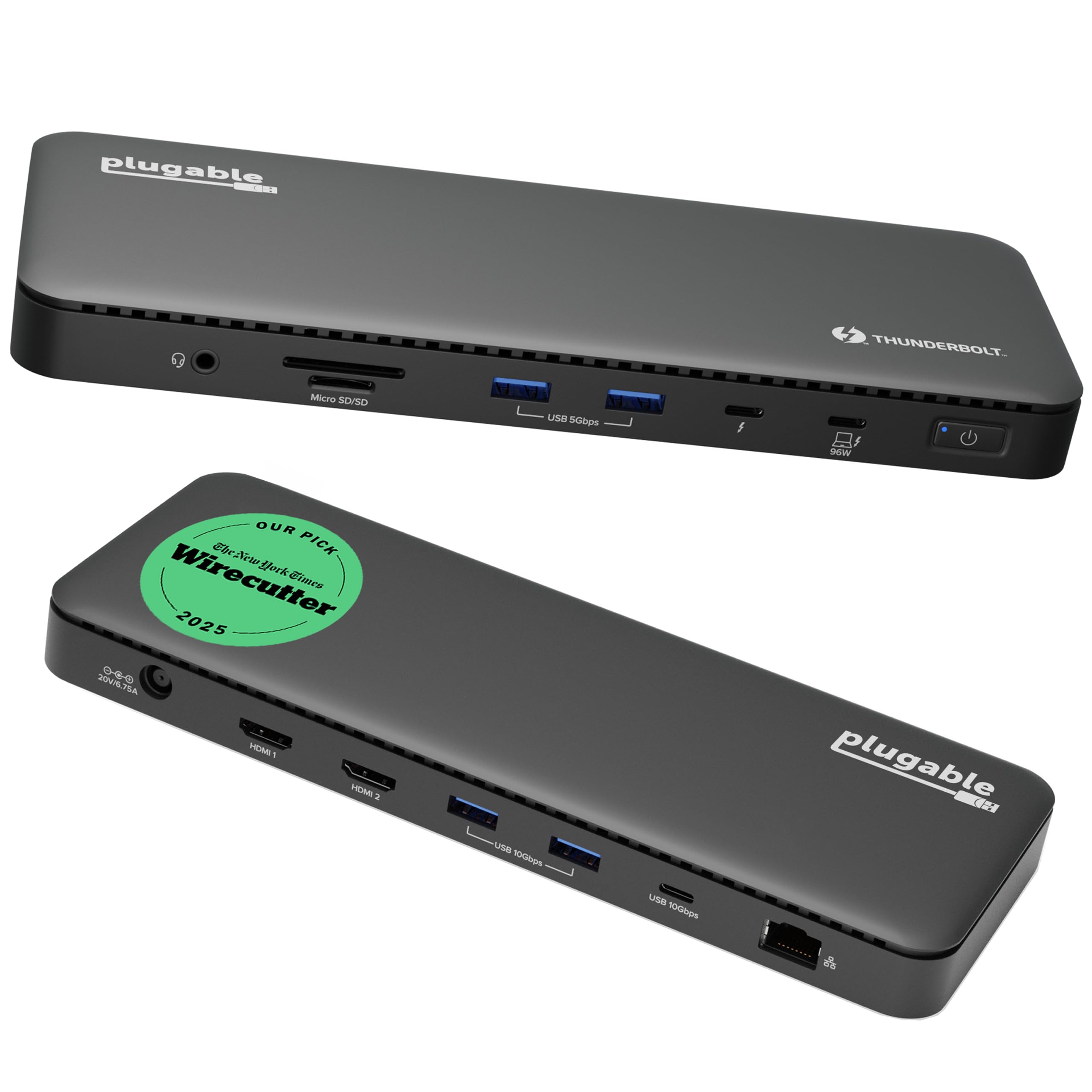
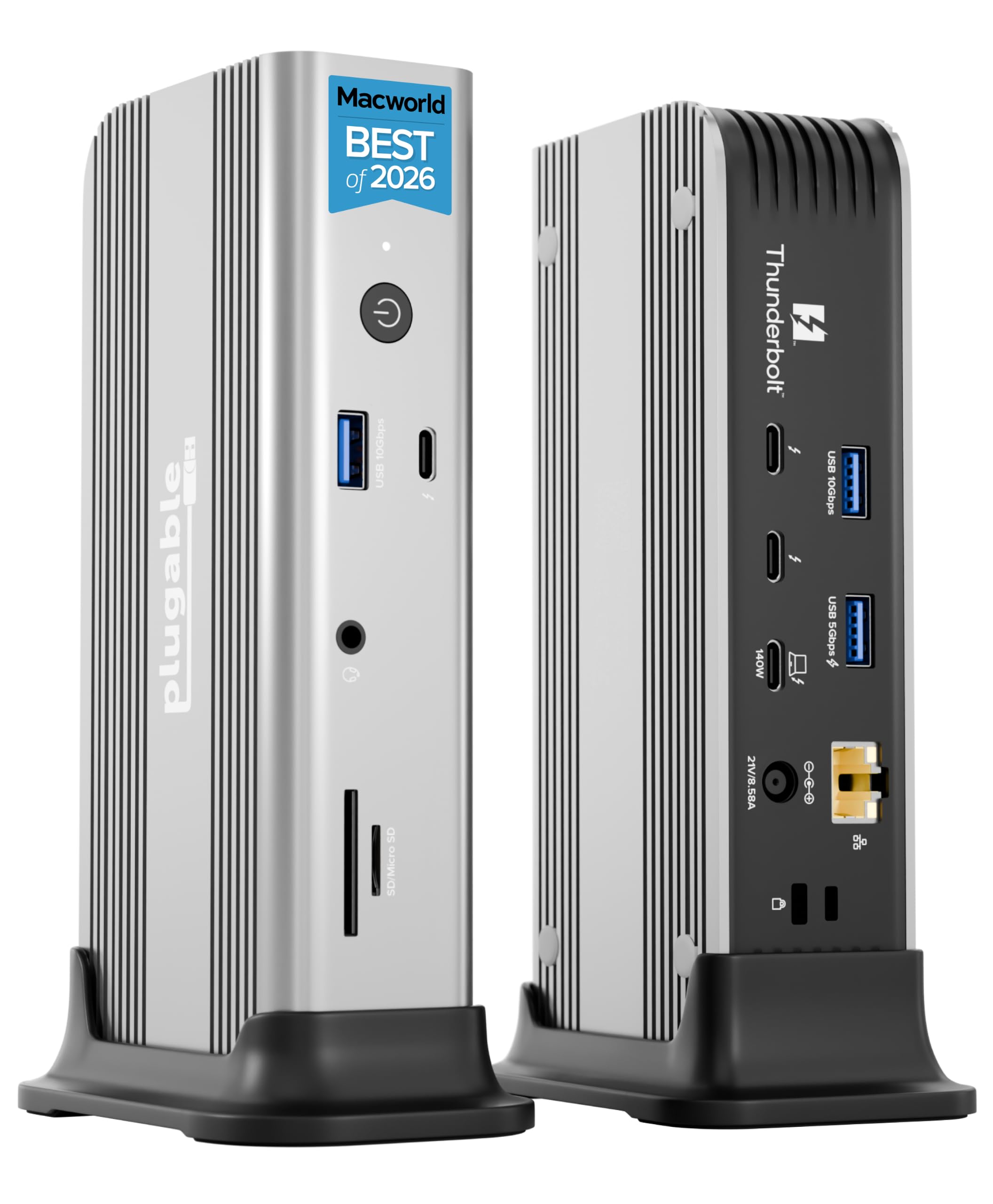
Video editors, photographers and developers with Pro or Max chip MacBook Pros need bandwidth for fast drives and multiple high resolution displays. CalDigit's TS4, around $380, offers 18 ports, 98W charging, three Thunderbolt 4 ports at 40 Gb/s, three USB-C and five USB-A ports at 10 Gb/s, 2.5 gigabit Ethernet and support for one 8K 30Hz or two 6K 60Hz displays. Plugable's Thunderbolt 5 dock, around $255, adds 140W charging for newer Macs.
Prioritize Thunderbolt 4 or 5, high wattage charging and downstream Thunderbolt ports.
For Base Chip MacBooks That Need Multiple Monitors
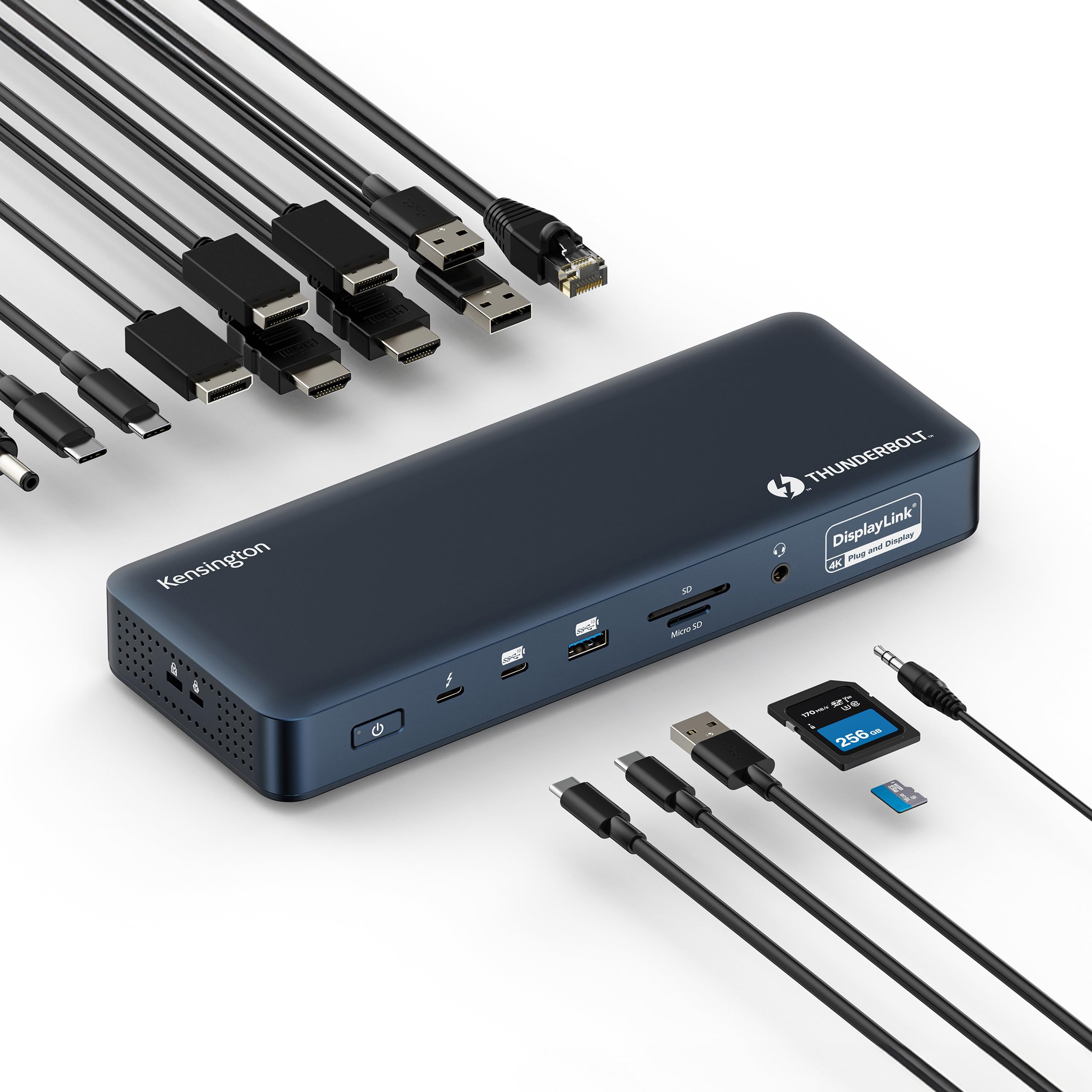
Base M1, M2 and M3 MacBooks support only one external display natively, which Anker and iVANKY both note in their listings. DisplayLink docks get around this with driver software. Kensington's SD5900T, around $261, is a Thunderbolt 4 DisplayLink dock that supports up to four 4K displays on M1 through M4 MacBooks, with 100W charging and SD card slots.
Prioritize DisplayLink support and install the DisplayLink Manager app before connecting monitors.
For Remote Workers With a Fixed Desk
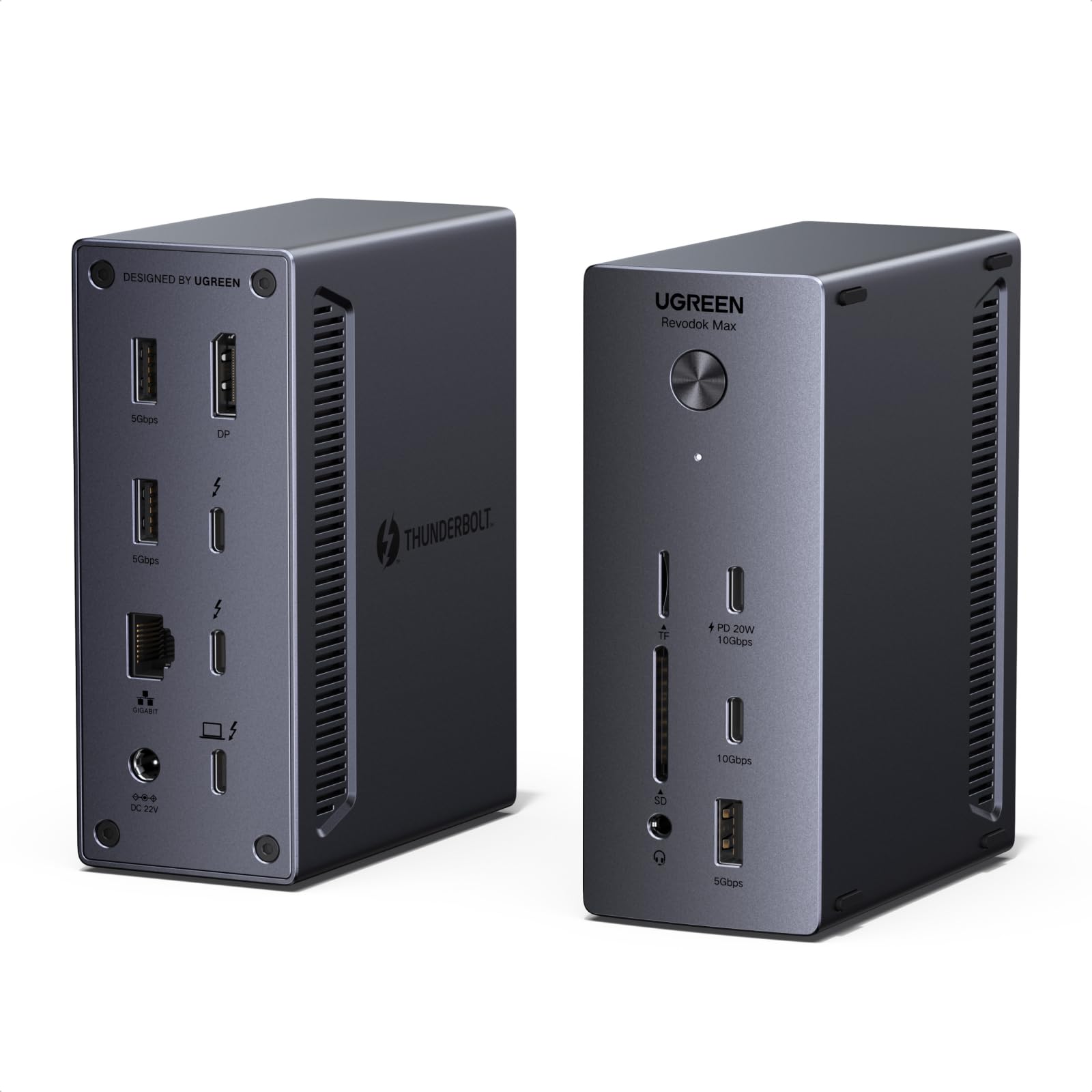
If your MacBook Pro lives on the same desk all week, a dock that stays plugged in and holds your accessories makes sense. OWC's 11 port Thunderbolt dock, around $230, provides 96W charging and three Thunderbolt 4 ports, and UGREEN's 13 in 1 Thunderbolt 4 dock, around $230, adds dual 4K 60Hz output and three Thunderbolt 4 ports at 40 Gb/s. One cable to the laptop connects your monitor, webcam, keyboard and wired network when you sit down.
Prioritize Ethernet, enough USB ports for a webcam and keyboard and a dock that sits neatly behind your monitor.
Key Features to Compare in the Best MacBook Pro Docking Station
Connection type, display support, charging power and ports matter most.
Connection Type: Thunderbolt 4, Thunderbolt 5 or USB-C
Thunderbolt docks, like CalDigit's TS4, Satechi's, Plugable's, UGREEN's and OWC's 11 port dock, run at 40 Gb/s and carry more displays and faster storage. Thunderbolt 5 docks, like Plugable's, double bandwidth for the newest MacBook Pros. USB-C hubs, like Anker's, cost less but share limited bandwidth among ports. Match the dock to your Mac's ports for full speed.
Display Support on macOS
macOS does not support MST, the technology many USB-C hubs use to drive two monitors, so those hubs mirror one image on both screens. True extended dual displays on a Mac need Thunderbolt docks with two video outputs, like Satechi's dual 4K 60Hz HDMI dock or UGREEN's dual 4K 60Hz dock, or a DisplayLink dock like Kensington's. Pro and Max chips support more displays than base chips.
Charging Power
Match dock wattage to your MacBook. A 14 inch MacBook Pro charges well at 96 to 100W, and larger 16 inch models benefit from 140W. CalDigit lists 98W, OWC 96W, Plugable's Thunderbolt 4 dock and Kensington 100W and Plugable's Thunderbolt 5 dock 140W. iVANKY's FusionDock delivers up to 96W to the laptop plus 18W to a USB-C device through its 180W adapter.
Ports and Data Speed
Count the devices you use daily. Look for Ethernet, like CalDigit's 2.5 gigabit port, SD card readers for photographers and enough USB-A ports for older accessories. CalDigit lists 10 Gb/s USB ports, while iVANKY's USB 3.0 ports run at 5 Gb/s. Extra downstream Thunderbolt ports let you daisy chain fast drives.
Size, Power Brick and Desk Setup
Thunderbolt docks need an external power brick, while compact hubs draw power from your Mac or a pass through charger. iVANKY's FusionDock sits beside the MacBook and plugs into both side ports. Under desk mounts are sold separately for docks like CalDigit's TS4 to keep cables tidy.
Price vs Value
USB-C hubs cost around $26 to $55, like Anker's. MacBook specific docks cost around $46 to $145, like MOKiN's and iVANKY's. Thunderbolt 4 docks cost around $200 to $300, like Plugable's, UGREEN's, OWC's and Satechi's, and premium docks like CalDigit's TS4 cost around $380.
Clamshell Mode and Sleep Behavior
Many people run a MacBook Pro closed, using only external monitors. Clamshell mode works when the Mac is charging, connected to an external display and paired with an external keyboard and mouse. Docks with reliable power delivery and wake support, like Thunderbolt docks, make this smooth. If the Mac fails to wake displays, update macOS and dock firmware, and reconnect monitors directly to the dock's video ports.
Common Mistakes to Avoid When Buying MacBook Pro Docking Stations
Buying an MST dual monitor hub for a Mac. Both screens will mirror instead of extend.
Ignoring your chip's display limit. Base M1 to M3 Macs need DisplayLink for two or more monitors.
Underpowering your Mac. A 60W dock charges a 16 inch MacBook Pro slowly under load.
Using the wrong cable. A charge only USB-C cable cannot carry Thunderbolt data or video.
Buying more ports than you need. Premium docks cost more; match ports to your setup.
Tips to Get the Most From Your MacBook Pro Docking Station
Use the included certified cable. Keep it short for full Thunderbolt speed.
Update macOS and dock firmware. Updates fix display and wake issues.
Connect monitors directly to video ports. Avoid adapter chains where possible.
Give the dock airflow. Do not bury it under papers.
Arrange displays in System Settings. Set your main display and resolution there.
Frequently Asked Questions
Thunderbolt dock or USB-C hub: which do I need?
Choose a USB-C hub if you need one external monitor and a few ports, and a Thunderbolt dock if you want two extended displays, fast storage or 2.5 gigabit Ethernet. Thunderbolt docks like CalDigit's TS4 run at 40 Gb/s, while hubs like Anker's cost far less.
Why do my two monitors show the same image?
Your dock likely uses MST, which macOS does not support, so both monitors mirror. Anker notes this on its 8 in 1 hub. Use a Thunderbolt dock with two video outputs or a DisplayLink dock to extend across two screens.
How many monitors can my MacBook Pro run?
It depends on the chip. Base M1, M2 and M3 MacBook Pros support one external display natively, while Pro and Max chips support two or more. DisplayLink docks, like Kensington's SD5900T, let base chip Macs drive up to four 4K displays through software.
Will a docking station charge my MacBook Pro?
Most docks charge your MacBook through the same cable. Check the wattage: around 96 to 100W suits most 14 inch MacBook Pros, and 140W suits 16 inch models under heavy load. Plugable's Thunderbolt 5 dock lists 140W.
How long should a MacBook Pro docking station last?
A quality Thunderbolt dock should last five years or more and move with you to your next Mac. Warranties help: Anker lists 18 months on its hubs and iVANKY 12 months. Buying Thunderbolt 4 or 5 keeps a dock useful longer.
Do these docks work with a MacBook Air?
Yes, Thunderbolt and USB-C docks work with MacBook Air models, but display limits are stricter. Base chip MacBook Airs support one external display natively, so dual monitor setups need a DisplayLink dock such as Kensington's SD5900T. Lower wattage docks charge a MacBook Air comfortably.
Wrapping Up
The best MacBook Pro docking station matches your Mac's chip, your monitors and the ports you use every day. Anker's 547 hub suits students and single monitor setups, CalDigit's TS4 and Plugable's Thunderbolt docks suit creators and power users and Kensington's SD5900T DisplayLink dock solves multi monitor limits on base chip Macs.
For more desk setup guides, see the best laptop stands, the best 4K monitors, the best computer monitor for working from home and the best wireless keyboard and mouse. Then compare current prices in the product table above.