
Best Computer Monitor for Working from Home: A Practical Buying Guide
Disclosure: We may earn a commission when you buy through links on this page, at no extra cost to you. As an Amazon Associate we earn from qualifying purchases. Learn more
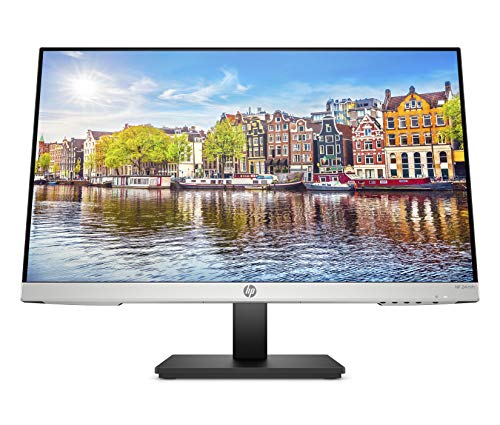

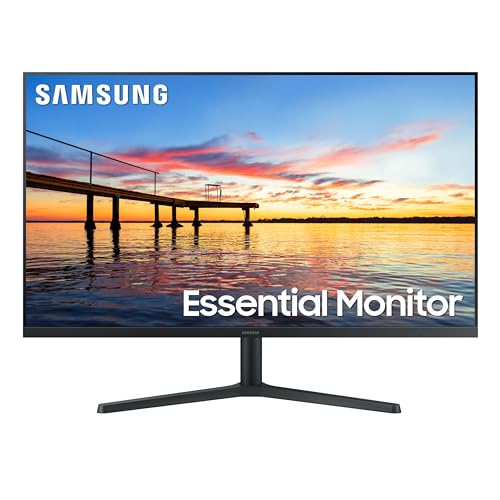
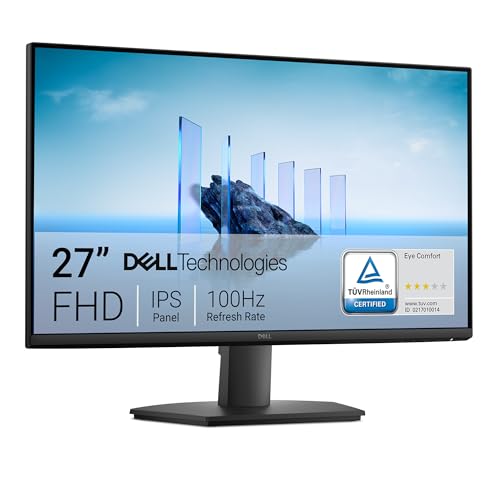
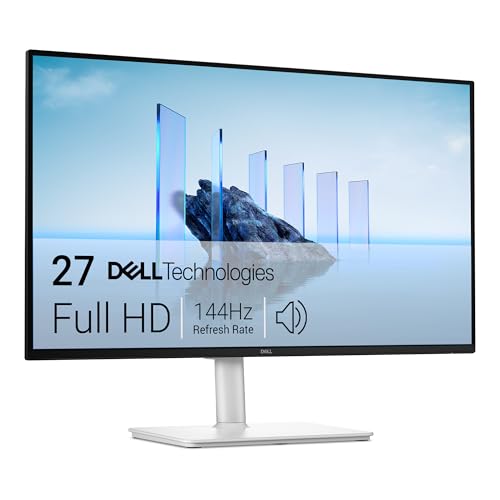
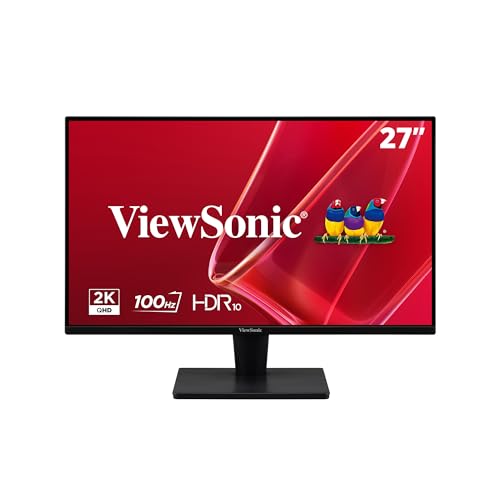
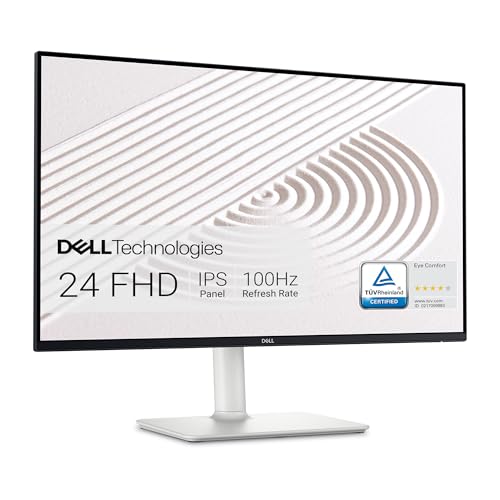
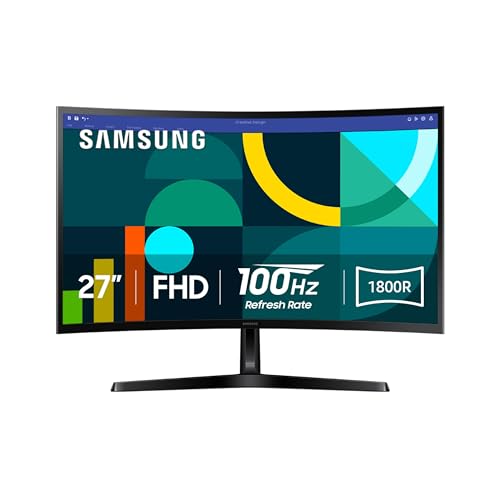
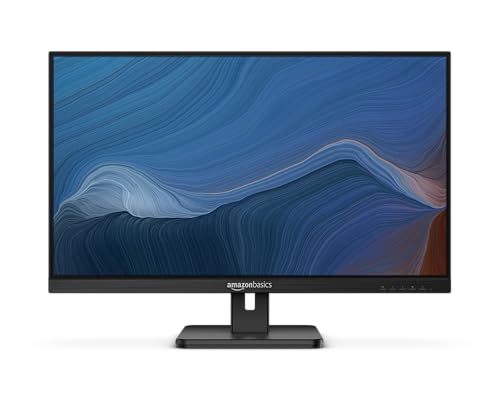
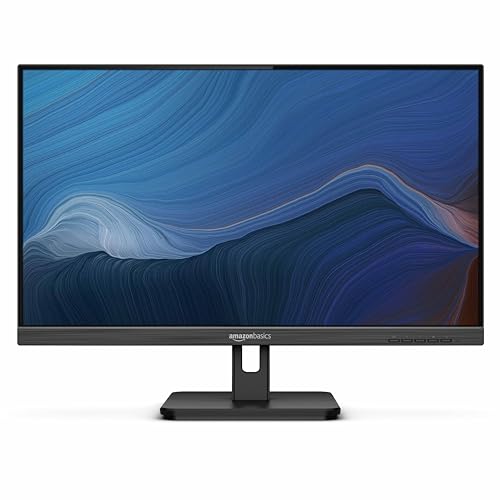
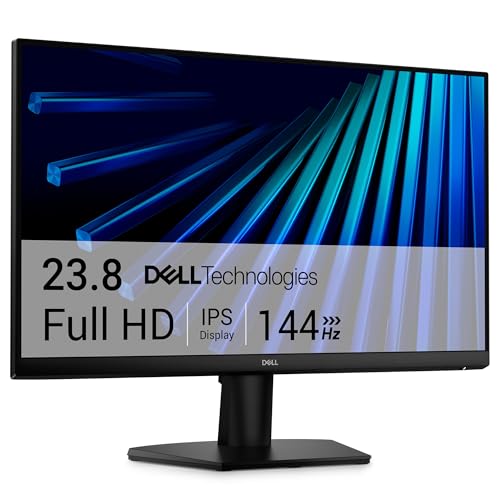
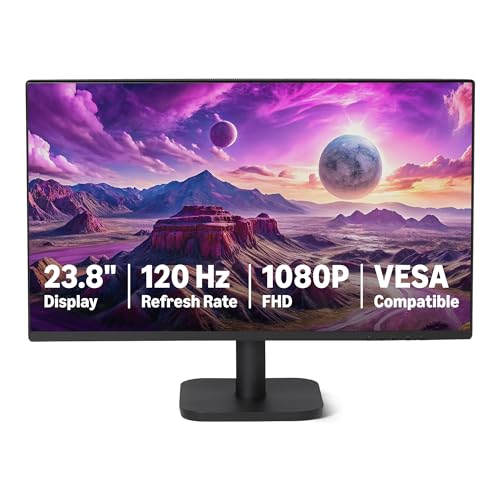
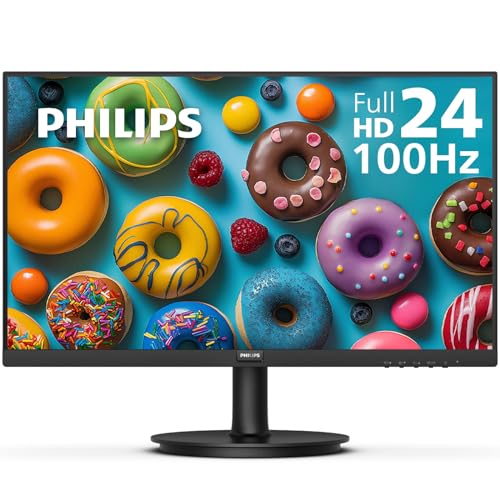

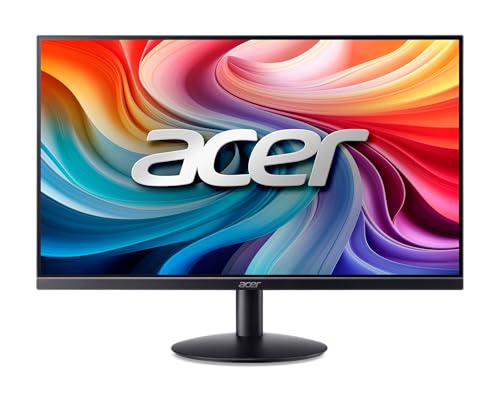
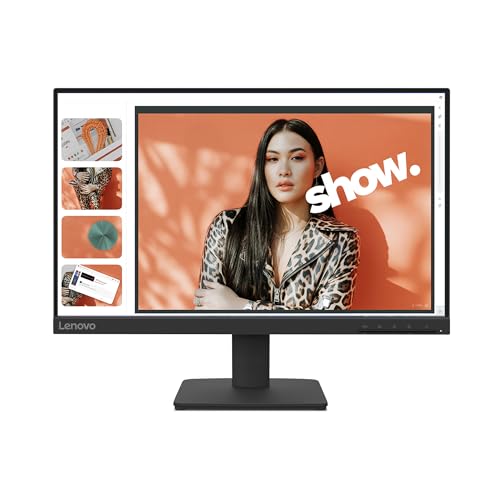
If you spend most of your day parked in front of a screen, your monitor affects your posture, your eyes, and honestly your mood by 5pm. Picking the best computer monitor for working from home is a different exercise than shopping for a gaming display. You care less about refresh rate and more about text clarity, comfortable viewing distance, and how well the screen fits your actual workflow of video calls, spreadsheets, and a dozen browser tabs. This guide walks through the factors that matter for everyday office work, from size and setup to ergonomics and eye comfort, so you can make a confident choice without getting lost in gaming-oriented spec sheets.
Screen Size and Desk Space: Finding Your Sweet Spot
Bigger isn't automatically better once you factor in your actual desk. A screen that's too large for a shallow desk forces you to sit farther back or crane your neck to see the corners, and one that's too small leaves you squinting at tiny text by mid-afternoon.
Matching Size to Your Desk Depth and Viewing Distance
As a general rule, sit roughly one and a half to two and a half times the screen's diagonal size away from it. On a standard home desk, that puts a 24 to 27-inch monitor in the comfortable zone for most people, while anything larger usually needs extra desk depth to avoid feeling overwhelming up close. Measure your desk before you shop rather than after.
What Your Daily Tasks Say About the Size You Need
If most of your day is email, writing, and video calls, a 24-inch screen is often plenty and keeps your eyes centered without much side-to-side movement. If that sounds like your routine, our roundup of the best 24-inch monitors covers the specs worth comparing once you've settled on this size. If you're regularly working across spreadsheets, design tools, or several documents at once, a 27-inch screen gives you meaningfully more room without becoming unwieldy on a typical desk.
One Big Screen or Two? Matching Your Setup to How You Multitask
This is one of the most common questions people run into once they move past just picking a size for a computer monitor for working from home. The right answer depends less on preference and more on how you actually split your attention during the workday.
When a Single Monitor Is Genuinely Enough
If your job is mostly linear, one task, one window, one call at a time, a single larger monitor keeps things simple and avoids the clutter of managing window placement across two screens. It's also the easier setup if your desk is small or you move your workstation often.
When Dual Monitors or an Ultrawide Make More Sense
If you're constantly referencing one document while writing in another, or keeping a video call open alongside your main work, dual monitors or a single ultrawide screen both solve the same problem: enough screen space to stop alt-tabbing all day. An ultrawide has a smaller footprint and no bezel gap down the middle, while two separate monitors let you angle each screen independently, which some people find more comfortable. If your workspace is genuinely tight on room, it's also worth weighing whether a compact all-in-one desktop paired with a single external display might suit your setup better than a sprawling multi-monitor rig.
Resolution and Display Quality That Actually Matter for Office Work
Resolution marketing tends to target gamers and video editors, which can make office shoppers second-guess whether they need to spend more than they should.
Resolution for Text Clarity, Not Gaming Performance
For everyday work, what matters is that text stays crisp at your normal viewing distance and that you have enough resolution to fit multiple windows side by side without cramming everything down to an unreadable size. A mid-range resolution handles this comfortably for most office tasks; you generally don't need the highest resolution on the shelf just to answer emails and build spreadsheets. If your work does lean into detailed image or video editing, it's worth reading a dedicated comparison like our 4K monitor guide to see whether that extra resolution is worth the cost for your specific tasks.
Panel Quality, Glare, and Blue Light for Long Sessions
An anti-glare coating matters more than most people expect once you're staring at a screen for eight hours next to a window. Look for consistent brightness, wide viewing angles so colors don't shift as you shift in your chair, and a flicker-free or blue-light-reducing mode you can enable during long stretches of screen time.
Ergonomics: Why Your Monitor's Stand Matters as Much as the Screen
A gorgeous display sitting at the wrong height will still leave you sore. This is the part of a home office setup people tend to skip, and it's the part your neck and shoulders will notice first.
Getting Height and Tilt Right to Protect Your Neck
The top of your screen should sit roughly at or just below eye level, with the whole display tilted slightly upward. Many people carry over habits from working on a laptop, where the screen sits low and forces the neck to bend forward for hours. That posture is one of the most common sources of neck and shoulder discomfort reported by remote workers.
Why an Adjustable Stand Beats a Fixed One Long Term
A stand that adjusts for height, tilt, and swivel lets you fix your posture in seconds instead of stacking books under a monitor to raise it. If you share a desk with someone else, or you switch between sitting and standing through the day, this adjustability stops being a nice-to-have and becomes something you'll actually use daily.
Video Calls, Webcam Placement, and Everyday Comfort
Video calls are a daily reality for most remote and hybrid workers now, and your monitor setup directly affects how you come across on camera.
Positioning Your Screen and Webcam for Better Calls
Keep your webcam at eye level and centered on whichever screen you're actively looking at during calls. If you run a dual-monitor setup, decide ahead of time which screen hosts your video calls and keep the webcam there consistently, rather than switching it back and forth, so you're not constantly looking off to one side.
Dealing with Glare from Home Office Windows and Lighting
Position your screen perpendicular to windows rather than facing them or with your back to them, both of which create glare or backlighting problems on calls. A monitor's anti-glare coating helps, but placement still does most of the work in a home office where you don't always get to choose the room layout.
Frequently Asked Questions
Is a 24-inch or 27-inch monitor better for working from home?
It depends on your desk and your tasks. A 24-inch screen suits email, writing, and calls on a smaller desk, while a 27-inch screen gives multitaskers more comfortable room without needing a much deeper desk.
Is it better to have one big monitor or two monitors for work?
Neither is universally better. Two monitors let you angle each screen independently, while one large or ultrawide screen keeps things simpler and uses less desk space. Base the choice on how much you multitask and how much room you actually have.
What resolution do I need for a home office monitor?
A mid-range resolution is enough for most office work, giving you crisp text and room for multiple windows. Higher resolutions mainly benefit detailed image or video work rather than everyday tasks like email and spreadsheets.
How do I stop my eyes hurting from my monitor?
Sit at the recommended viewing distance, keep brightness matched to your room lighting, use an anti-glare or blue-light-reducing setting, and take short breaks every 20 to 30 minutes to look away from the screen.
Where should I place my monitor to avoid neck pain?
Set the top of the screen at or just below eye level and tilt it slightly upward, so you're looking straight ahead or slightly down rather than tilting your head forward or craning it upward.
Is an ultrawide monitor good for working from home?
Yes, for people who multitask heavily and want a single seamless screen instead of managing two separate displays. It's especially useful when desk space doesn't comfortably fit two monitors side by side.
What connectivity do I need for a laptop docking setup?
If your laptop supports it, a single USB-C connection that handles video, data, and charging in one cable keeps your desk tidy and makes it easy to plug in and out each day. Otherwise, standard video inputs paired with a separate charging cable work just as well.
Making Your Decision
There's no single "best" answer here, only the setup that matches how you actually work. Start with your desk space and daily tasks, then prioritize resolution, ergonomics, and eye comfort over gaming-focused specs you're unlikely to use. Get those fundamentals right, and whatever screen you land on will hold up to years of daily use as the best computer monitor for working from home that fits your specific routine.