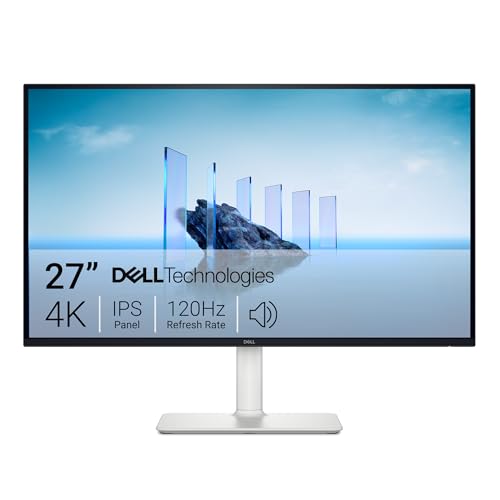
Best Computer Monitors with Camera: Our 2026 Checklist for Video Calls
Disclosure: We may earn a commission when you buy through links on this page, at no extra cost to you. As an Amazon Associate I earn from qualifying purchases. Learn more

Compare panel types, camera quality, ports and stands to choose the best monitors with a built in camera for calls, streaming and daily desk work.
Finding the best computer monitors with camera is really about two purchases in one frame. The screen has to suit your daily work, and the camera has to show you clearly without extra gear on your desk. This guide uses one checklist for both halves, so you can judge picture, sound, ports, and comfort together.
Start with how you spend your day. A manager in back to back calls needs a sharp camera and clear voice pickup, while a designer may care more about color and screen space. Then use the comparison table below to match a monitor type to your desk and budget.

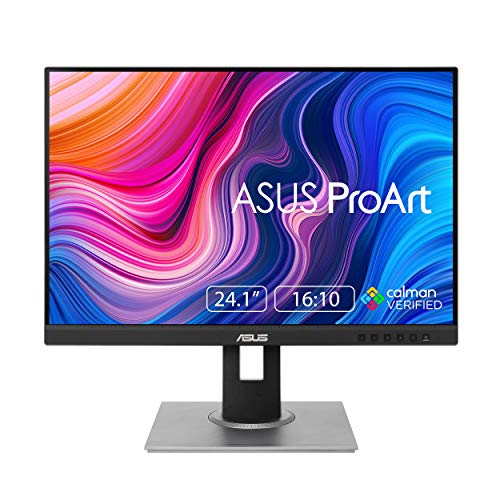
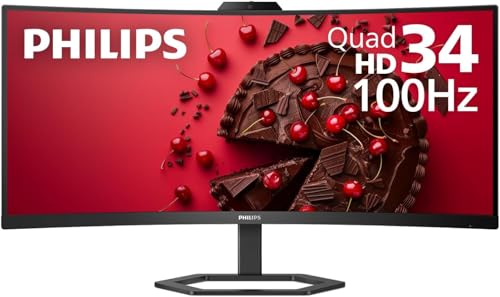
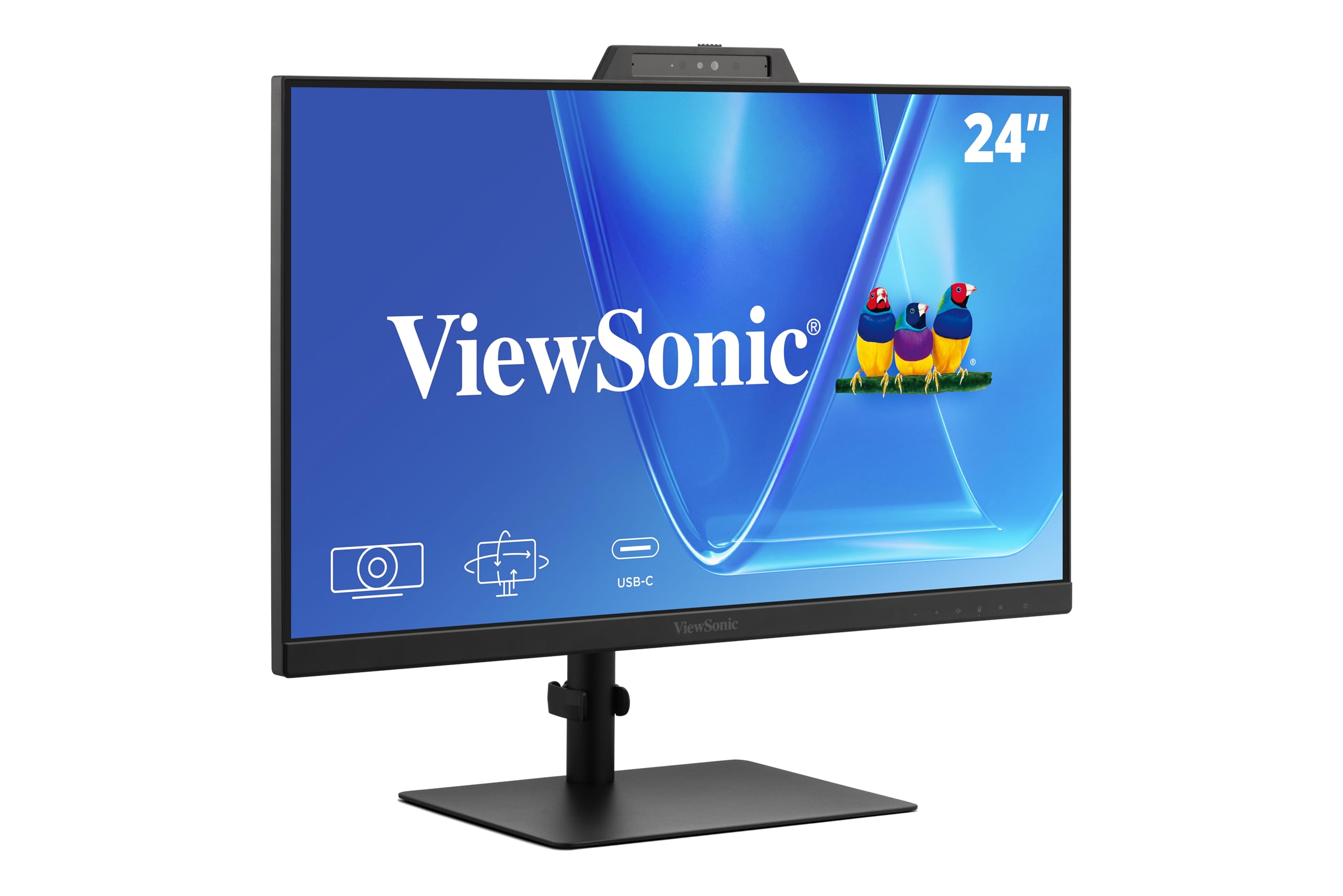

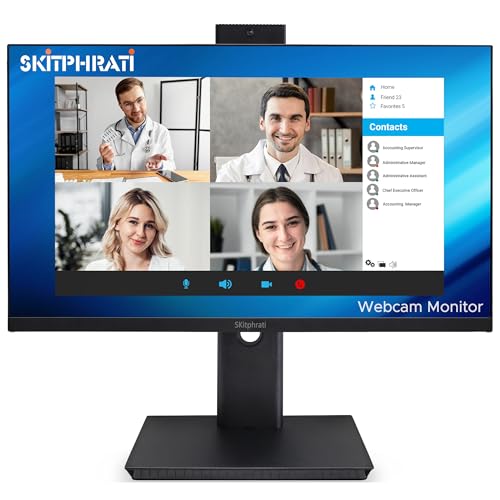

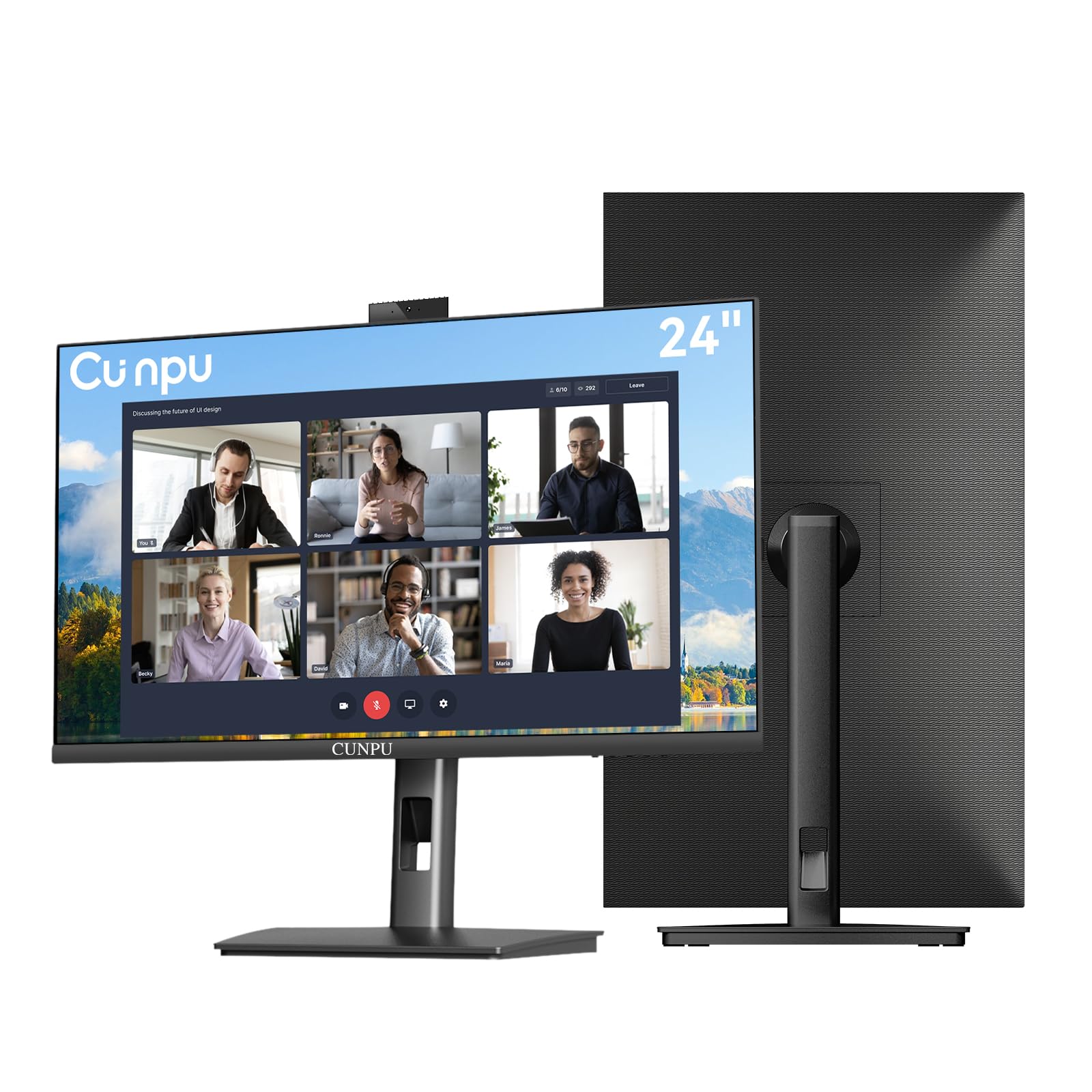
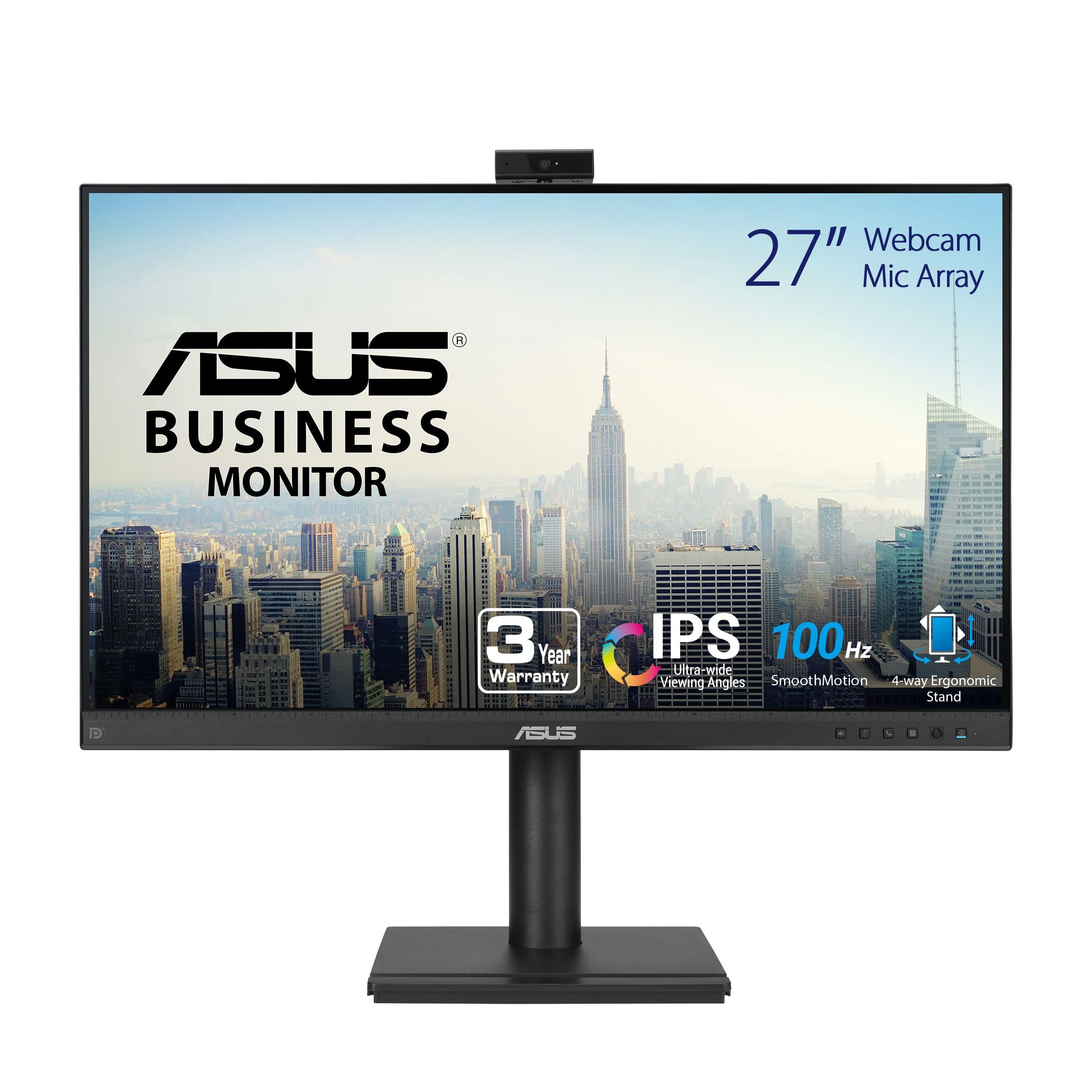

Who Should Buy a Monitor With a Built In Camera
Remote Workers Who Spend Most of the Day on Video Calls
You are the clearest fit for this product. A camera at the top center of your screen keeps your eyes close to the people you are talking to, so calls feel more natural than glancing down at a laptop camera. Look for 1080p resolution or higher and a stand that lifts the lens near eye level.
Creators and Presenters Who Share Their Screen Often
If you record lessons or lead training, you need a camera that holds detail when you move and a screen that shows fine text without strain. A wider field of view helps when you gesture toward a chart, but not so wide that you look tiny. Prioritize accurate color and clear speakers.
Hybrid Workers With One Small Desk at Home
A built in camera earns its place when desk space is tight. One screen replaces a separate camera, its cable, and often a small speaker, so setup takes seconds. Choose a 24 to 27 inch USB C model if your laptop supports it, since one cable can carry picture, sound, camera signal, and charging power.
Key Features to Compare on Camera Monitors
Camera Resolution, Field of View, and Low Light Handling
Camera resolution decides how sharp your face looks. A 1080p sensor is the sensible floor for work calls, while a 4K sensor gives you room to crop the image and still look crisp. Field of view around 75 to 90 degrees frames your head and shoulders without showing the whole room. In dim rooms, a larger sensor and good low light processing matter more than the headline number.
Microphones, Speakers, and Privacy Controls
Most camera monitors pair the lens with a built in microphone and basic speakers, enough for calls in a quiet room. Microphone arrays with noise reduction help when a fan or street sounds compete with your voice. A physical privacy shutter or a pop up lens gives you certainty the camera is off, and a clear light should show when it is live. If sound matters as much as picture, see our guide to the best computer monitor with camera and speakers.
Panel Type, Resolution, and Screen Size
IPS panels give stable color when you lean or share the screen, VA panels offer deeper contrast for video in a dim room, while OLED panels deliver the richest contrast and fastest motion handling at a higher price, with a small risk of burn in from static toolbars. HDR support brightens video highlights on better panels. Match resolution to size: 1080p suits 24 inches, 1440p suits 27 inches, and 4K earns its cost at 32 inches.
Refresh Rate, Response Time, and Adaptive Sync
Refresh rate, measured in hertz, is how often the picture redraws each second. A standard 60 to 75 hertz screen is fine for documents and calls, while 120 hertz or more makes scrolling and motion smoother. Response time shows how quickly pixels change, and lower numbers reduce blur in fast scenes.
Adaptive Sync, including FreeSync and G Sync, prevents tearing. Serious gamers should also see our guide to the best computer monitors for gaming.
Ports, USB C Power, and Hub Connections
Ports decide how tidy your desk stays. HDMI and DisplayPort carry the picture, and HDMI 2.1 matters mainly if you also connect a recent game console at high refresh rates. A USB C port with power delivery around 65 to 90 watts can charge most work laptops while sending picture, camera, and sound over one cable. Built in USB ports for a keyboard receiver reduce cable runs.
Stand Adjustment and VESA Mounting
Ergonomics shape both your posture and your camera angle. A stand with height and tilt adjustment lets you place the screen near eye level and point the lens straight at your face, rather than up from below. Swivel and pivot help when you share the screen or read long documents. If you prefer a monitor arm, confirm a VESA mount pattern, most often 100 by 100 mm.
Three Types of Camera Monitors Compared
The standard office monitor is where most buyers should start. It is usually 24 to 27 inches with a 1080p or 5 megapixel camera and modest speakers. It covers calls, email, and documents well, but its camera and panel are only average in dim rooms and color critical work.
The premium conferencing monitor adds a higher resolution camera, auto framing that keeps you centered as you shift, stronger microphones, and often a sensor that wakes the screen as you sit down. It suits people on camera for hours each day. Expect to pay roughly about $400 to $900.
The third option is a split setup: a regular monitor plus a separate camera. You can upgrade each part on its own schedule and place the camera exactly where you want it, at the cost of extra cables and clutter. If that freedom appeals to you, see our guide to the best computer cameras.
Final Checks Before Buying a Webcam Monitor
Run through these questions before you pay. They test any model that claims a place among the best computer monitors with camera options, and a no answer shows where to look next.
- Is the camera at least 1080p, with a field of view that frames you well?
- Does the monitor have a privacy shutter or a lens that retracts when idle?
- Will USB C power delivery match the wattage your laptop charger provides?
- Does the stand adjust for height and tilt, or is there a VESA mount?
- Are there enough USB ports for your keyboard, headset, and other devices?
- Does the panel resolution match the screen size at your viewing distance?
- Is the warranty at least two years, with clear terms for dead pixels?
Common Mistakes to Avoid
- Buying on camera megapixels alone, so you get a sharp lens paired with a dull screen.
- Ignoring the microphone, so callers hear a thin, echoing voice.
- Choosing a screen too large for your desk depth, so you sit too close and turn your head often.
- Skipping the privacy check, so the camera has no shutter and no light to show when it is active.
- Assuming every USB C port charges a laptop, so your battery drains during calls.
- Mounting the monitor on an arm before checking VESA size, so your bracket does not fit.
Care and Maintenance for Camera Monitors
Clean the screen with a dry or slightly damp microfiber cloth and light pressure, and never spray liquid directly onto the panel, because moisture can seep past the edges. Clean the camera lens the same gentle way, since a fingerprint softens every call. Keep the shutter closed off camera to block dust.
Set the picture mode to a standard or sRGB preset instead of a vivid mode, which pushes color past accurate levels. On an OLED model, run the built in pixel refresh when prompted and avoid static images at full brightness for hours. Check for firmware updates a few times a year for camera and microphone fixes.
FAQs About Choosing a Camera Monitor
Does refresh rate matter for non gamers who use a camera monitor?
Yes, a modest step up in refresh rate still helps non gamers. Moving from 60 to 75 or 100 hertz makes scrolling through long documents feel calmer and window dragging cleaner. It will not change how your camera looks to others, so treat it as eye comfort rather than video quality, and pay extra only if the price gap is small.
How long does a computer monitor with a camera usually last?
A computer monitor with a camera usually lasts about five to seven years of daily use. The backlight slowly dims, while the camera module rarely wears out because it has few moving parts. Useful life often ends sooner through software, since very old camera drivers may clash with new call apps. Standard USB video support extends that life, because it works without special drivers.
Is a 4K camera monitor worth it for video calls and office work?
A 4K camera monitor is worth it mainly if you sit close to a large screen or edit detailed work. Most call apps send your video at 1080p or lower, so a 4K panel improves what you see rather than what others see. Its clearest gain is text at 32 inches, where letters stay sharp without scaling. At 27 inches, 1440p usually matches that clarity for less.
What monitor size works best for a small desk used for video calls?
A 24 to 27 inch monitor works best for a small desk used for video calls. Measure desk depth first: you want roughly an arm length between your eyes and the screen, which on a shallow desk means the smaller size. A deep stand base can waste more space than the panel itself, so compare base depth in the specifications.
Should you choose IPS or OLED for a monitor with a built in camera?
Choose IPS for most desks and OLED only if your room and budget suit it. IPS panels handle bright rooms well and show static documents all day without concern. OLED looks better for evening video in a controlled room, but strong window light can wash out its picture, and its price rarely improves the camera. Let room lighting decide first.
Final Thoughts
Weigh the camera and the screen as one decision. Set your floor at a 1080p camera with a privacy shutter, a panel resolution that matches its size, height adjustment and USB C power if your laptop supports it. Compare your shortlist against the product table above and choose the best computer monitors with camera setup that fits your room and budget.