
Best Computer Monitor with Camera and Speakers: Which One Fits the Way You Use It in 2026?
Disclosure: We may earn a commission when you buy through links on this page, at no extra cost to you. As an Amazon Associate I earn from qualifying purchases. Learn more

Learn how to choose the best computer monitor with camera and speakers with clear guidance on webcams, microphones, speakers, panels, size, and ports.
A monitor that folds your webcam, microphone, and speakers into one screen can clear a desk fast, but only if each part is good enough for the calls and work you do daily. Shoppers looking for the best computer monitor with camera and speakers usually want fewer cables and less clutter, yet the screens in this group vary a lot in webcam clarity, voice pickup, and sound quality. This guide sorts the differences by use case first, so you can match the panel, camera, and audio to your routine before you look at the product table above.
There is no single model that suits every desk. A person who presents to clients all day needs a sharper camera and stronger voice pickup than a student who joins two classes a week, and a gamer needs a faster panel than either of them. The sections below explain the specs that matter and flag the mistakes that lead to returns.


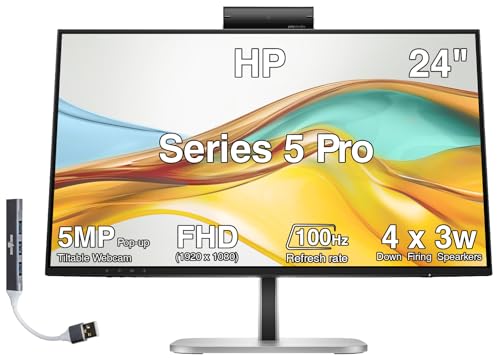
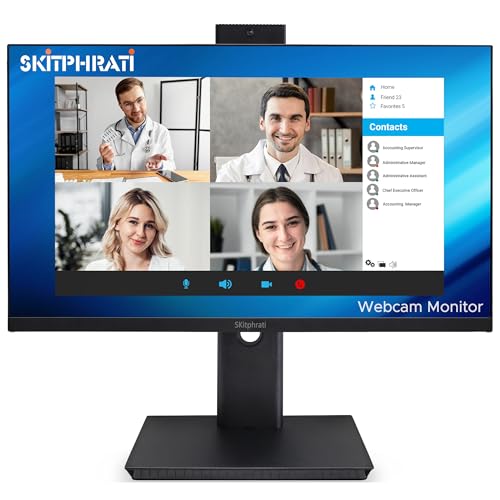
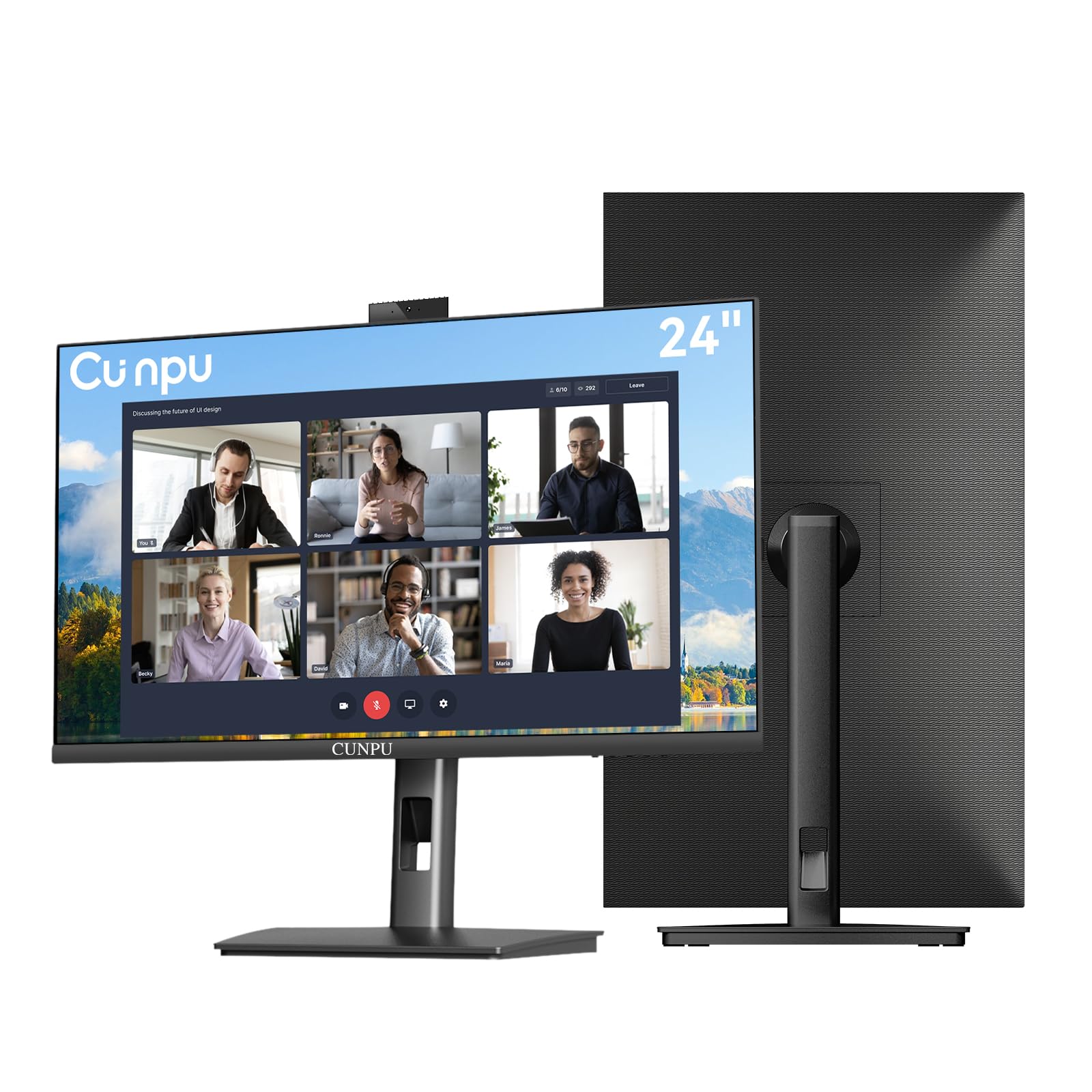


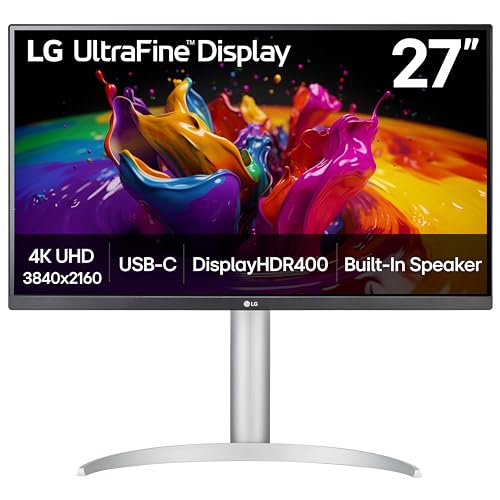
Who Should Buy Which Computer Monitors?
Start with how you spend your hours on screen. The product table above gives the quick spec view, while the groups below show which parts deserve your budget first.
For Remote Workers and Creators
If your calendar is full of client calls, team meetings, and recorded updates, treat the webcam and microphone as core parts rather than extras. Look for a 1080p camera at minimum, a microphone array that keeps your voice clear when you lean back, and speakers that stay easy to follow at modest volume. A USB C connection that carries picture, sound, camera data, and laptop charging over one cable keeps a home desk tidy. If the camera matters far more than the speakers, see our guide to the best computer monitors with camera.
For Travelers and Commuters
Some buyers split the week between a home office, a hot desk, and a second room. A compact 24 inch screen with a light stand, simple controls, and built in speakers makes daily moves easier. A single USB C cable matters even more here, because it feeds the panel, the camera, and the speakers while charging your laptop. A lens cover also earns its place, since a traveling screen should never leave its camera exposed by default.
For Gamers and Power Users
If you play fast games, edit video, or keep many windows open at once, the panel leads and the camera and speakers play a supporting role. Prioritize a refresh rate of 120 Hz or higher, adaptive sync support, and a 27 inch or 32 inch screen with room to breathe. The built in speakers still cover voice chat, cut scenes, and casual video well. Readers who play far more than they present can see our guide to the best computer monitors for gaming for refresh rate focused advice.
For Students and Everyday Users
For classes, homework, browsing, and streaming shows, balance matters more than any headline spec. A 24 inch or 27 inch screen at 1080p or 1440p, a clear 1080p camera for seminars, and speakers loud enough for lectures cover nearly everything a student does. Many budget displays in this group sound thin for music, yet they handle voices well, and voices are what classes and calls depend on. If you mostly want simpler audio and can rely on a laptop camera for rare calls, see our guide to the best computer monitors with speakers.
Key Features to Compare
With your group in mind, compare the parts below in order. Camera and audio quality decide how you look and sound to other people, while the panel, size, and ports decide how pleasant the screen feels during long hours.
Panel Technology (IPS, VA, OLED, and Mini LED)
The panel type shapes color, contrast, and viewing angles more than any other screen spec. IPS panels hold accurate color when you view them off center, which suits shared desks and photo editing. VA panels deliver deeper contrast for movies and dim rooms, though their color can shift at wide angles. OLED panels give true blacks and very fast pixel changes, but they cost more and need some care with static toolbars. Mini LED pairs an LCD panel with many small backlight zones for stronger brightness and contrast.
Webcam, Microphone, and Speakers
Camera resolution sets the ceiling for how sharp you can look. A 720p camera feels soft on a large call window, 1080p is the sensible baseline for work, and sharper 1440p or 5 megapixel cameras help when you record or present often. Field of view around 78 to 90 degrees frames your head and shoulders without showing the whole room. Microphone arrays with noise reduction keep keyboard sounds and room echo from swamping your voice. Built in speakers usually run about 2 to 5 watts per side, which suits voices and casual video but leaves music thin. Creators who record often can also see our guide to the best computer monitors with camera and microphone for deeper microphone guidance.
Size, Resolution, Ports, and Stand
Size and resolution work as a pair. A 24 inch screen suits 1080p at normal desk distance, a 27 inch screen pairs best with 1440p, and 32 inch screens earn their space with 4K for spreadsheets, timelines, and several windows side by side. One HDMI and one DisplayPort cover most desktops, while USB C with power delivery around 65 to 90 watts can charge a laptop and carry everything else at once. Finally, check that the stand adjusts for height and tilt, and look for a VESA mounting pattern if you plan to use a monitor arm.
Adaptive Sync and Gaming Features
Adaptive sync lets the panel match its refresh rate to the frames your graphics hardware produces, which reduces tearing and stutter. The two main families are G Sync and FreeSync, so confirm that the monitor works with your graphics card or console before you buy. HDMI 2.1 adds the bandwidth that gaming displays need for high refresh rates at 4K, while a low response time keeps fast moving scenes from smearing into ghost trails. Casual players will still be content at 60 or 75 Hz.
HDR and Brightness
HDR widens the gap between the darkest and brightest parts of an image. What matters most is real brightness and dimming control, not the HDR label on the box. Around 300 nits is comfortable for most rooms, while about 400 nits or more helps in bright spaces and makes HDR video look more convincing. Panels with local dimming, especially Mini LED and OLED models, use HDR far better than plain edge lit screens.
Why Choose a Computer Monitor With Camera and Speakers
Most people choose the best computer monitor with camera and speakers for simple reasons: one purchase, one cable path, and a camera that already sits centered where calls expect it. You skip the clip on webcam that slides around, separate speakers that eat desk corners, and the cable tangle that follows both. The trade is flexibility, because separate parts can be upgraded one at a time and the best separate webcams still beat most built in sets at their peak. This format suits tidy desks and shared workspaces. Shoppers comparing naming variations can also see our guide to the best monitors with camera and speakers, which approaches the same idea from a slightly different angle.
Common Mistakes to Avoid When Buying Computer Monitors
Most returns in this category come from a handful of avoidable checks that take only a few minutes before you order.
- Choosing by screen price alone and ignoring the webcam leaves you looking soft and unfocused on every client call.
- Assuming every built in speaker set sounds alike leads to lectures and calls that are hard to follow in a noisy room.
- Buying a large 32 inch 1080p screen for close desk work makes text look grainy because too few pixels cover too much area.
- Skipping the port check means your laptop cannot send picture, sound, and camera data over the single cable you expected.
- Forgetting a privacy cover or mute control forces you to unplug cables or cover the lens by hand between calls.
- Ignoring the stand adjustment range leaves the camera pointing at your chin and your neck sore by the end of the day.
Tips to Get the Most From Your Computer Monitor
Placement does more for your calls than any camera spec. Raise the screen until the lens sits near eye level, and face your main light source instead of sitting with a bright window behind you. In the picture settings, turn off the vivid mode that many screens ship with, since it pushes color and sharpness past natural levels. On OLED models, run the pixel refresh cycle the maker provides so the panel can even out wear over time.
Care for the parts that make this product different from a plain screen. Wipe the display and the camera lens with a clean microfiber cloth only, and never spray liquid straight onto either surface. Clear dust from the speaker grilles with a soft dry brush so voices stay crisp, and slide the lens cover shut when the camera is idle. In your call apps, select the monitor microphone and speakers as the defaults and make one short trial recording, because apps often keep an old device selected.
Frequently Asked Questions
Does refresh rate matter for a computer monitor with camera and speakers used for office work?
For documents, email, and video calls, a 60 Hz refresh rate is fully adequate. Higher rates make scrolling and window movement feel smoother, which some people find easier on the eyes. Your call picture smoothness depends on the camera frame rate and your connection speed rather than the panel, so spend on the camera first if meetings dominate your schedule.
Is 4K resolution worth it on a computer monitor with camera and speakers?
4K earns its cost mainly on 32 inch screens or when you read dense text, edit images, or arrange many windows. On a 24 inch desk screen, 1080p or 1440p usually looks just as clean at normal viewing distance. Remember that a 4K panel says nothing about the camera, since many 4K models still carry a 1080p webcam, so check both numbers separately.
What size computer monitor with camera and speakers should you get for your desk?
Measure your desk depth first, because comfort depends on viewing distance more than on the diagonal alone. A 24 inch screen suits shallow desks where you sit close, 27 inches fits most standard desks, and 32 inches needs deeper space so the corners stay in easy view. Also measure the stand footprint and the space behind the screen for cables.
IPS or OLED: which panel is better for a computer monitor with camera and speakers?
IPS is the safer default for office work, because it handles static toolbars and documents all day at a lower price with no burn in worry. OLED wins on contrast and motion clarity, which suits mixed use with films and games after hours. One practical catch is availability, since fewer OLED models include a camera and speakers, so your shortlist may be much shorter if those parts matter most.
How long does a computer monitor with camera and speakers usually last?
The panel itself often serves well for many years of daily use, with brightness fading only gradually. The camera and microphone tend to age faster in practical terms, because call standards and software expectations keep rising even while the hardware still works. When you compare models, check the warranty length for the panel and electronics, and favor screens whose camera can be covered.
Final Thoughts
Begin with your group. Presenters should fund the camera and microphone first, gamers should fund the panel and its sync support, and students should protect value while keeping voices clear. Glance back at the product table above to confirm size, ports, and camera resolution side by side before you decide. Chosen that way, the best computer monitor with camera and speakers for you is simply the model whose webcam, microphone, speakers, and panel each fit the way you already work, play, and learn.


