Best Computer Monitors for Work From Home in 2026: What Your Money Gets You at Every Price
Disclosure: We may earn a commission when you buy through links on this page, at no extra cost to you. As an Amazon Associate I earn from qualifying purchases. Learn more

Compare best computer monitors for work from home by price band: what each band really buys, which features earn their cost, and which extras to skip.
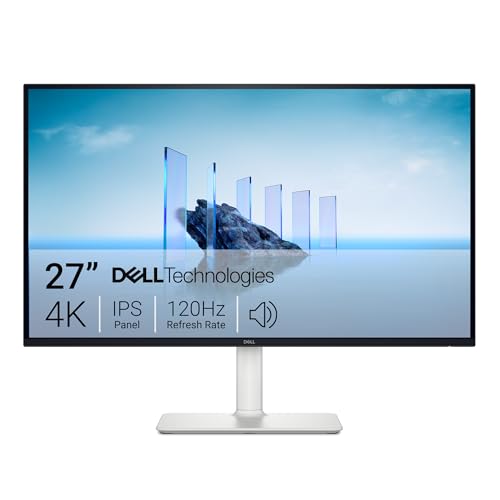
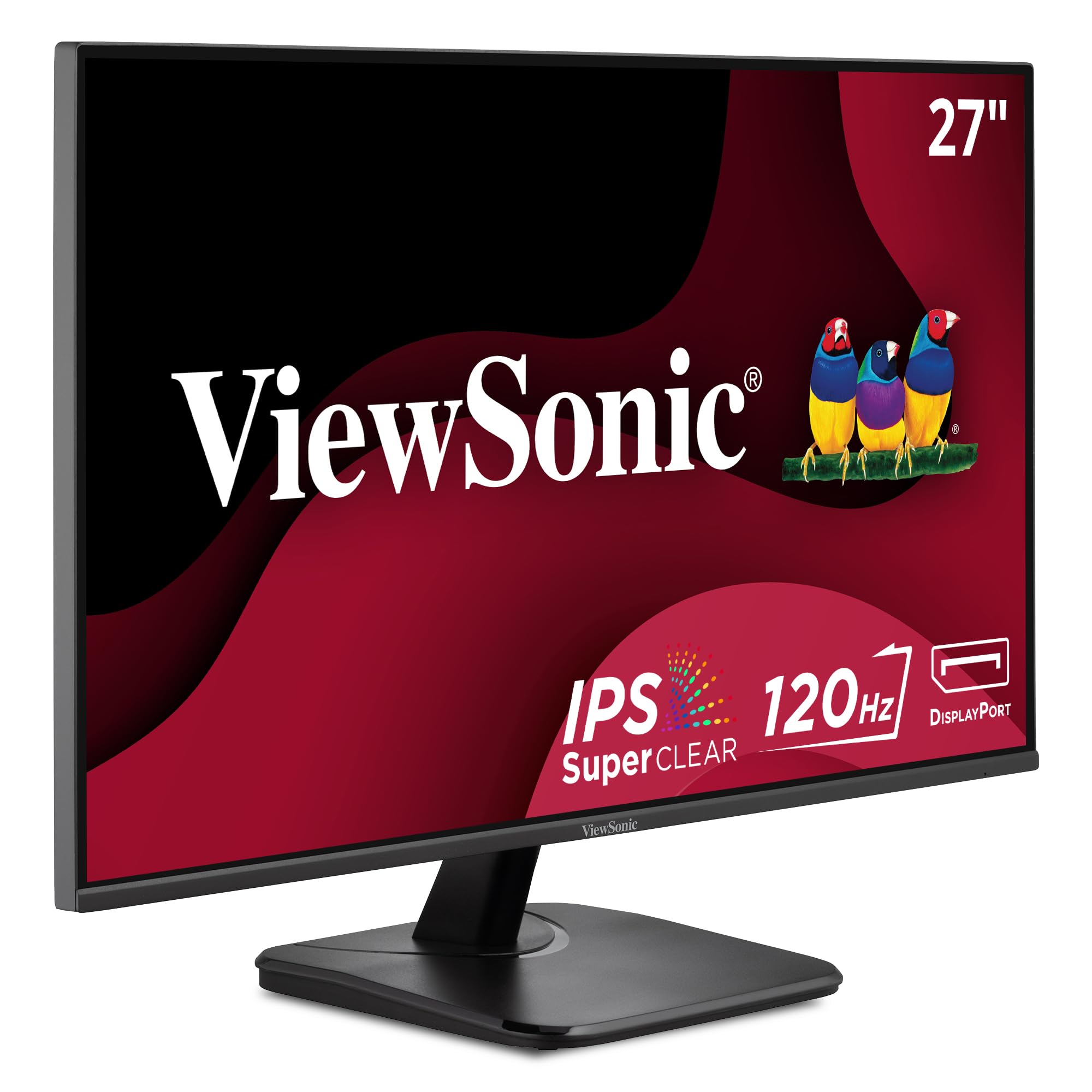
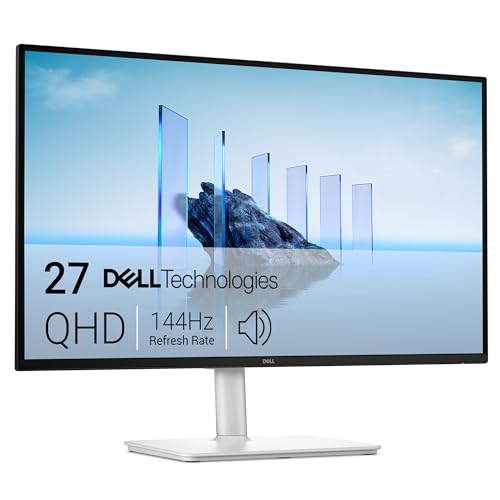
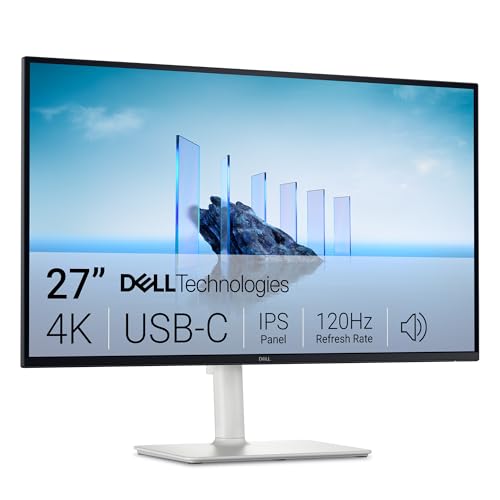
Home office monitors run from about $100 to more than $700, and the price gap buys real differences, though not always the ones the box shouts about. The best computer monitors for work from home are the ones that fit your desk, your work, and your working day, in that order. A work from home screen is a desk purchase before it is a panel purchase: measure the depth and width of the desk you already own, because a screen that crowds out your keyboard and notebook fails no matter how sharp its picture is. The comparison table below lines up the main classes side by side.
This guide is organized by money. It walks through three price bands and what each one actually adds, then separates the features worth paying for from the ones you can skip, and closes with the running costs that follow a monitor home.





What Each Price Band Buys You
Prices below are the bands where most home office monitors sell in any given week. Treat them as classes, not promises: a sale can pull a middle band screen into entry money for a few days, and the product table above tracks the live figures.
The Entry Band, About $100 to $180
Expect 24 inch screens at 1080p, basic stands that tilt but do not lift, and one or two inputs. Text is readable, colors are honest, and for documents, email, and video calls this band is genuinely enough. What you give up is height adjustment, sharpness on small fonts, and spare ports. If your work is mostly words in a browser or a document, this band leaves money free for a better chair or keyboard.
The Middle Band, About $180 to $350
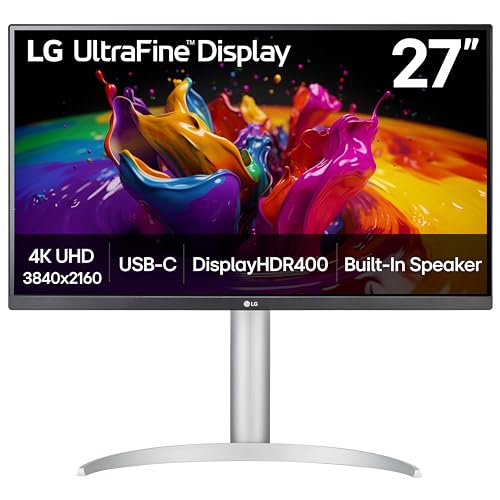
This is where most home offices should land, with screens growing to 27 inches at 1440p, so text edges turn crisp and two windows sit side by side without crowding. Height adjustable stands arrive here, along with USB C inputs that carry picture and laptop power on a single cable. Colors improve for anyone who edits photos on the side. The step up from the entry band is the one you will feel every single day.
The Top Band, About $350 to $700
Money here buys size and finish: 32 inch 4K panels, wide curved screens that wrap a spreadsheet across your view, and strong factory color accuracy for design work. Readers drawn to one sweeping screen can compare the class in our guide to the best curved monitors for work from home, which trades some edge sharpness for immersion. Diminishing returns are real in this band. Past it, you pay for bragging rights more than for working comfort.
Features Worth Paying For (and Ones to Skip)
Desk Space and Screen Size
Desk fit decides this purchase more than any panel figure. A 24 inch screen suits desks about 20 to 22 inches deep, while a 27 inch screen wants about 24 to 28 inches of depth so your eyes stay a comfortable distance away. Ultrawide screens stretch to 34 inches across and demand a desk that wide, plus room left over for speakers or a notebook, so measure first, including the stand footprint, which budget listings often hide. A screen that forces your keyboard to the very edge of the desk costs you posture all day long.
Panel Technology
IPS panels are the safe default for work: colors stay true when you lean back or share the screen, and text stays even from edge to edge. VA panels give deeper blacks for video but can smear dark text scrolling over light pages. OLED looks superb and costs the most, with a small risk of image retention from static toolbars. Treat maker brightness and contrast figures as maker numbers measured under ideal conditions, not as a promise about your spare room.
Refresh Rate and Response Time
Office work lives at 60Hz, and a jump to 75Hz or 100Hz makes scrolling through long documents feel calmer without costing much. The headline 144Hz and 240Hz figures belong to play, and our guide to the best computer monitors for gaming covers that class in full. Response time numbers on the box are measured with heavy overdrive settings you would never use at a desk, so read them as marketing rather than as a work spec. For documents, panel type matters more.
Features That Matter for Work From Home
Sharp text is the core work feature: 1440p on a 27 inch screen renders letters with clean edges that stay easy to read at small sizes. A wide brightness range and a matte finish help in bright rooms, and a low minimum brightness helps at night. No display treats eye strain, though. Breaks, room light, and viewing distance do more for tired eyes than any panel feature, so treat flicker and blue light wording as comfort extras, not as medicine.
Stand, Mounting, and Ergonomics
A stand that lifts is worth real money, because the top of the screen should sit near eye level and cheap fixed stands rarely manage that on a standard desk. Tilt alone is not enough. Look for height travel of about 4 to 5 inches, or a VESA mount pattern so an arm can do the job later. A monitor arm also frees the desk surface under the screen, which small home desks notice fast.
Setups for Specific Work Styles
Most home workers share a desk with the rest of the household, and that wider household class is covered in our guide to the best home computer monitors. The setups below are narrower: they start from how the working day is actually spent.
Best Computer Monitors for Work at Home
The small word at changes the brief. A screen that lives at home faces mixed light, a laptop that comes and goes, and calls taken from the same chair as the spreadsheets. Prioritize a single USB C cable that charges the laptop, a camera friendly height for calls, and brightness that copes with a sunny room. If your desk sits in an office instead, see our guide to the best computer monitors for work for the broader workplace class.
Two Screens Side by Side
Writers, analysts, and support staff who live in two windows at once often do better with a matched pair than with one giant panel. The class is covered in our guide to the best work from home dual monitors, but the short version is simple: buy two of the same screen so color and height match, keep both at 1440p if the budget allows, and budget for a dual arm from the start.
Long Term Costs to Factor In
The screen price is only the first payment. A monitor arm runs about $30 to $100, a longer USB C or DisplayPort cable about $15 to $30, and a basic calibrator for color work about $100 to $200. Power draw is small but real: a 27 inch screen used eight hours a day costs a few dollars a month in most states. Panels usually serve five to eight years, so a three year warranty is worth more than a small discount, and when the product table above lists two screens at the same price, the longer warranty is the better buy.
Frequently Asked Questions
What features matter most in computer monitors for work from home?
Desk fit, sharp text, and a stand that lifts matter most. After those, a USB C input that charges your laptop removes a daily tangle of cables, and that convenience is the point buyers most often miss before ordering. Panel type and refresh rate, the figures boxes lead with, change a working day far less than a screen that sits at the right height.
Does refresh rate matter for non gamers working from home?
A little, and only a little. Moving from 60Hz to 75Hz or 100Hz makes scrolling and window dragging feel smoother, which some readers find calmer across a long day of reading. Nothing in office software needs 144Hz, and the money saved by staying at 100Hz or below usually buys a larger or sharper panel, which your eyes will notice far more.
Is 4K worth it for a work from home monitor?
At 32 inches and above, yes, because the extra pixels keep text crisp on a big screen. At 27 inches, 1440p already renders letters cleanly, and 4K mostly adds cost plus a scaling setting to manage. One caution: older laptops can struggle to drive 4K at full refresh over a basic cable, so check your port before paying for pixels your computer cannot feed.
IPS vs OLED: which is better for a work from home monitor?
For most desks, IPS is the safer buy. It costs less, shows static toolbars and documents all day without image retention worries, and keeps colors steady from off angles when a partner glances at the screen. OLED wins on contrast for video and design previews, but its price and its care rules around static images make it a specialist choice for work.
What monitor size should I get for my desk at home?
Match the screen to desk depth before anything else. Desks about 20 to 22 inches deep suit 24 inch screens, desks around 24 to 28 inches deep suit 27 inch screens, and a 32 inch screen wants about 30 inches of depth so the picture does not overwhelm your field of view. If you sit closer than an arm length away, even a sharp screen will feel tiring by afternoon.
How long do computer monitors for work from home last?
Most panels serve five to eight years of daily work before brightness fades or a backlight fails. The stand and the ports usually age first: a wobbling hinge or a dead USB C port is the common reason home workers replace a screen that still shows a fine picture. Keeping the vents dust free and avoiding full brightness all day stretches that life at no cost.
The Bottom Line
Choose the band first, then the desk fit, then the panel. For most readers the middle band, a 27 inch 1440p screen with a stand that lifts, is where best computer monitors for work from home money is best spent. Entry screens serve document work honestly, and top band screens earn their price only when size or color work demands them. Compare the finalists in the product table above before you order.