Best Computer Monitors for Work: A Buying Guide for 2026
Disclosure: We may earn a commission when you buy through links on this page, at no extra cost to you. As an Amazon Associate I earn from qualifying purchases. Learn more
Choose a work monitor by the job in front of you: documents, design or meetings. Compare size, sharpness, docking, stands and sound with honest spec notes.
A work monitor is the tool you look at for most of your waking hours, yet most people choose one by screen size and price alone. The right screen depends on the job in front of it: a spreadsheet marathon, a day of reading, or back to back video calls each ask for something different. This guide organizes the best computer monitors for work by task first, then by the specs that actually support each task.
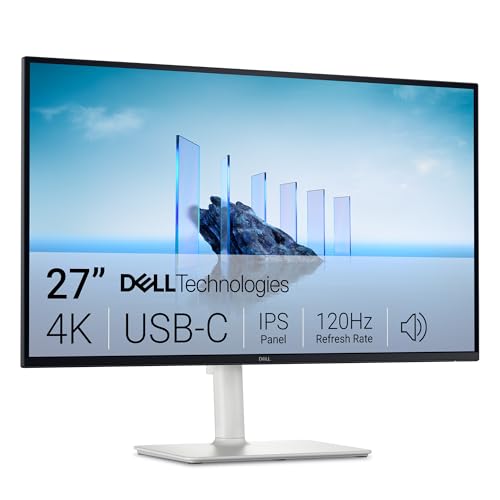
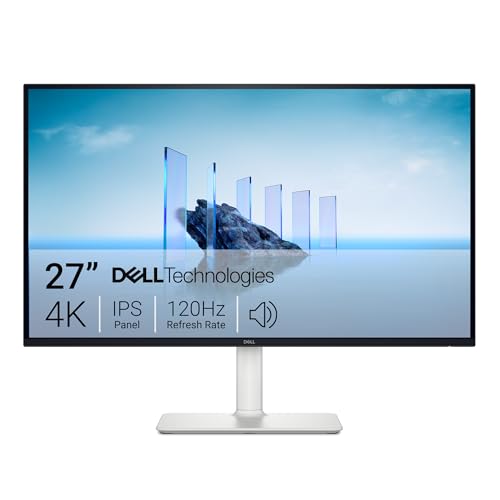
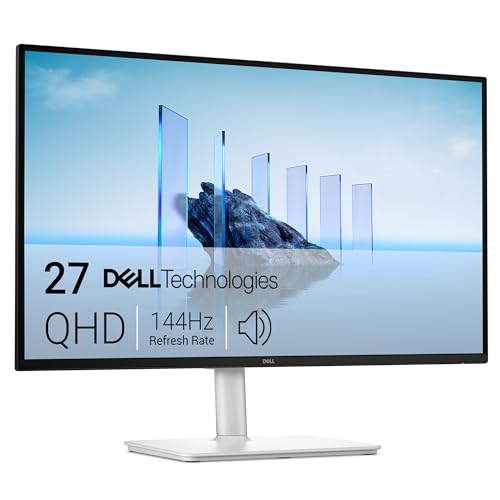
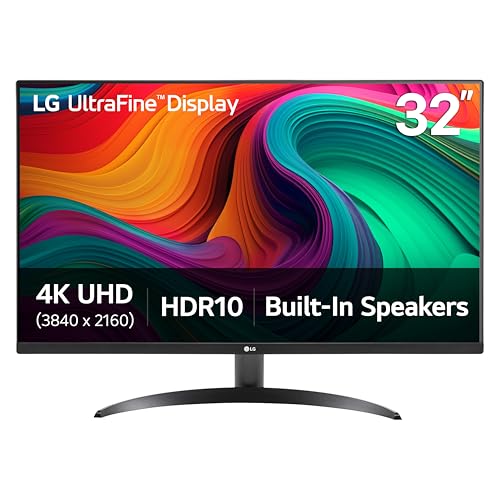
You will not need every feature on the specification sheet, and a few headline numbers mean less than they appear to. Work through the job sections below, note the two or three factors that match your day, and then check your shortlist against the comparison table below before ordering.
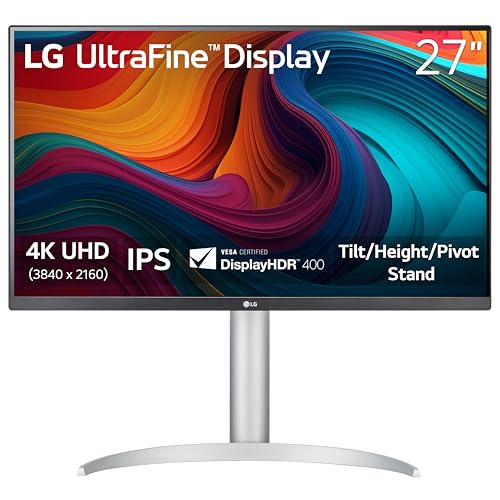

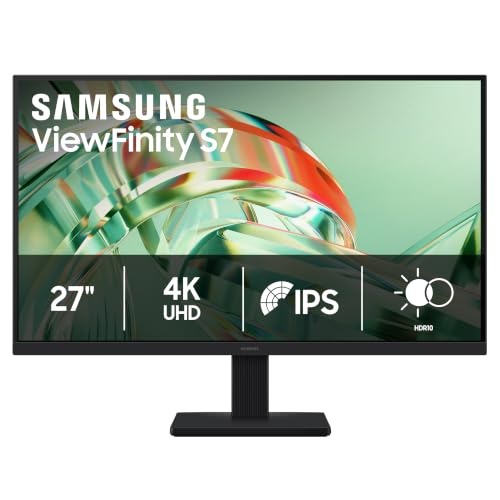
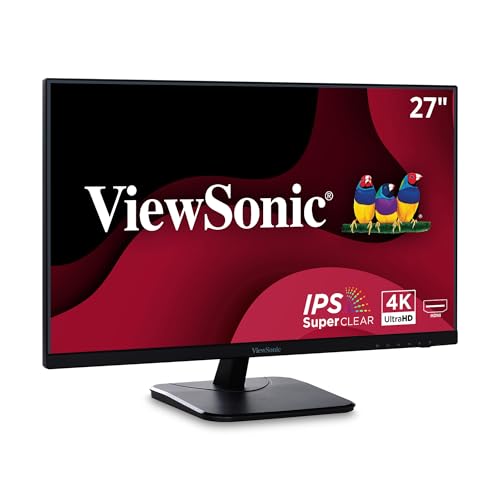

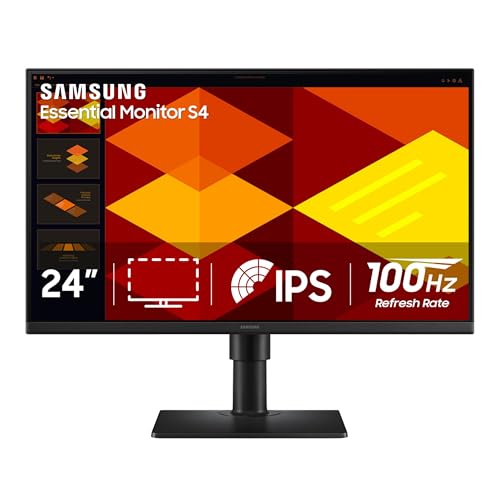

Start With the Job You Actually Do
Documents, Email and Spreadsheets All Day
Document work wants width and sharp text at a normal sitting distance. A 27 inch screen at 1440p has become the common answer because two full windows sit side by side without overlap, and letters stay crisp at about 60 to 80 cm. More visible columns mean less scrolling through a budget sheet, and a wider view of a document means fewer trips to the zoom control.
If your employer issues a standard screen and you are upgrading your home desk to match that routine, our guide to the best computer monitors for office work compares screens chosen purely for this kind of desk work. Whatever you pick, favor a stand that adjusts in height, because paperwork days are long and your neck keeps score.
Reading and Writing for Long Stretches
Readers and writers ask for calm rather than spectacle. A matte, low glare finish keeps window reflections out of the page, and brightness you can lower to match a softly lit room matters more than a huge maximum figure. Height adjustment earns its keep here too, since the top of the screen should sit near or slightly below eye level during hours of steady reading.
Two smaller features help more than expected. A pivot stand that rotates the screen upright turns long reports and contracts into a natural page shape. And scaling the text size up in your system settings beats leaning toward the screen, because your posture stays put while the letters grow.
Design, Photo and Video Work
Creative work is where honesty matters most: an uncalibrated affordable panel is not color critical equipment, whatever the box implies. For color critical jobs, the real purchase is the panel class itself, meaning wide color coverage and good uniformity, plus a calibration path such as support for a hardware colorimeter. Without that pairing, colors you approve on screen can drift when they reach print or another display.
Viewing angles matter in this work because colleagues review over your shoulder. Resolution also pulls its weight, since a 4K canvas leaves room for toolbars around a timeline or a layout. If your color needs are light, a mid priced IPS screen serves well; if clients pay for exact color, budget for the calibration tool alongside the screen.
Calls and Meetings as Half the Job
When meetings fill half the calendar, the camera and speaker question decides the shortlist. Shoppers comparing the best computer monitors for work with speakers usually want a desk with no extra boxes on it, and for call audio that trade is reasonable: voices come through clearly even on modest built in speakers, and a built in microphone keeps the setup to one device.
The limits show up in shared rooms. Built in microphones pick up the whole space, so an open office still calls for a headset, and a monitor's fixed camera cannot move to eye level the way a separate webcam on a small tripod can. Decide by your room: private office, built in is tidy and sufficient; shared space, separate audio gear wins.
Screen Size, Resolution and Panel Classes
Size and Resolution in Desk Terms
Pair size with resolution, never shop one without the other. A 24 inch screen at 1080p is workable for single documents but cramped for two windows. A 27 inch screen at 1440p is the balanced desk standard, and 32 inches pairs sensibly with 4K for people who keep many windows open. Remember that a monitor can only show what arrives: an older laptop whose port tops out at a lower resolution will feed a big screen a small picture, so match the output of your machine to the input you plan to use.
Whatever pairing you choose, run the panel at its native resolution once it arrives. Feeding a screen a lower resolution than its panel and letting it stretch the picture is a common cause of the fuzzy text people blame on the monitor itself. If the resulting text feels small, enlarge it with your system's display scaling instead, which keeps every letter built from the full pixel grid.
Panel Classes Without the Marketing
IPS panels are the work default because color and brightness hold steady when you shift in your chair. VA panels trade some of that steadiness for deeper contrast, which flatters video but can smear dark moving content. TN panels are cheap and fast yet wash out at angles, and OLED panels deliver superb contrast at prices and burn in risks that rarely suit static office screens. Backlight evenness varies from unit to unit at every price, and that variation shrinks as you pay more, which is one honest reason premium screens look calmer on plain white pages.
Brightness, HDR Badges and Other Shelf Talk
Brightness is the feature that decides whether a screen survives a sunlit room. Makers quote it in nits, and the figure that matters is sustained full screen brightness, not a peak reached in a small corner of the picture. A shaded home office is comfortable at modest brightness, while a desk facing large windows wants a panel with real headroom, plus the matte finish from the comfort section to keep reflections down.
HDR badges deserve a cooler head. On affordable office monitors, an HDR label often means the screen accepts an HDR signal, not that it can show the contrast HDR promises; that takes local dimming and high peak brightness, which live in pricier classes. For documents, mail and spreadsheets the badge changes nothing at all, so let it carry no weight in a work purchase and spend the money on resolution or a stand instead.
Choosing a Shape: One Screen, an Ultrawide or Two Screens
A single 27 inch screen remains the low fuss default: one stand, one cable for the picture, and a view your eyes cross in a glance. It suits focused work where one document leads and everything else waits its turn. Most desks, most jobs and most budgets are honestly served by starting here.
An ultrawide stretches that idea into a 34 inch curve of continuous space, good for timelines, wide spreadsheets and a document flanked by reference material. Our guide to the best curved computer monitors for work covers the gentle curve class built for long days rather than for gaming. Note two drawbacks before buying: screen sharing on calls shows your whole wide strip to colleagues, and the desk needs real depth so the ends of the curve stay at a comfortable distance.
Two separate screens draw a hard border between tasks, which suits a reference document parked on one side and your writing on the other. Setting up two matched screens is covered in our guide to the best dual computer monitors for work. The costs are plain: two stands or one dual arm, two cables to manage, and a wider desk footprint than either alternative.
Stands, Glare and the Comfort Habits That Matter More
A fixed stand is the most common false economy in this category. Desks, chairs and people come in different heights, and a screen that cannot rise will be propped on whatever is nearby. Look for height and tilt adjustment at minimum, and treat a VESA mount pattern as an escape hatch that lets you add an arm later. Your future self, working late on a long document, will notice the difference daily.
No panel feature cancels out eight hours without a break. Sit about an arm's length from the screen, set brightness near the brightness of the room instead of at maximum, and look away toward something distant on a regular rhythm. Place the screen so windows sit to the side rather than behind you or behind the screen, and glare stops being a daily negotiation.
Docking a Work Laptop Without a Desk Full of Bricks
Many work monitors now carry a USB C input with power delivery, which turns the screen into the dock. One cable carries the picture to the monitor and charging power back to the laptop, while the monitor's USB ports run your keyboard, mouse and webcam. At the end of the day you unplug a single cable and the whole desk goes quiet.
Two checks make this work. Confirm the wattage the monitor can deliver covers what your laptop expects, because a hungry laptop on a weak supply drains slowly while it works. And if a home desktop shares the same screen, choose a monitor with a second input you can switch in its menu, so both machines stay connected. Where a monitor lacks these ports, a separate dock does the same job for extra money and one more box.
If the laptop belongs to your employer, add one more check before spending: ask the IT team whether outside docks and monitor firmware are allowed on managed machines. Some workplaces restrict which accessories can connect, and a quick question beats owning a docking monitor your laptop refuses to use at full resolution. Screens without docking features face no such questions, which is one quiet advantage of the simpler classes.
Gaming Numbers on a Work Screen
Refresh rate is the gaming spec that genuinely crosses over. A standard 60 Hz screen is fine for documents, but a higher refresh class makes scrolling and pointer movement feel smoother, which some people value during long reading days. It is a comfort upgrade, not a productivity multiplier, so pay for it only after size, resolution and stand are right.
Other gaming figures deserve skepticism in a work purchase. A response time printed on one box and the same number printed on another rarely come from the same test method, so treat both as rough class labels rather than measurements you can rank. Adaptive sync, which smooths game frame rates, does nothing for a spreadsheet, so a work only buyer can safely ignore it. If the same screen doubles for games after hours, our guide to the best computer monitors for gaming compares the classes built for that second job.
Mistakes That Follow Buyers Back to the Desk
- Buying by diagonal size alone, then discovering the resolution leaves text fuzzy at your actual sitting distance.
- Ordering a fixed stand monitor for a shared desk, where every user needs the screen at a different height.
- Paying for a wide gamut panel to read email and spreadsheets, where the extra color range never shows itself.
- Forgetting to check your laptop's port, so the new monitor's best input is one your machine cannot feed.
- Setting the screen far too low or too high, a mistake your neck pays for by the end of the week.
Care That Keeps a Work Monitor Clear
Clean the screen with a dry or barely damp microfiber cloth and nothing stronger; household glass sprays can strip the anti glare coating and leave permanent streaks. Power the monitor down before cleaning so smudges show clearly against the dark screen. Support cables so their weight does not hang from the ports, dust the rear vents when you clean the desk, and check the maker's site once in a while for firmware updates, which USB C models occasionally need for stable docking.
While the screen is new, spend five minutes in its picture menu. Monitors often ship in a vivid or showroom mode that crushes detail and tires the eyes; a standard or text mode with a neutral color temperature is easier to work under all day. Note the settings you settle on, because a factory reset during troubleshooting will wipe them, and rebuilding a comfortable picture from memory is needlessly slow.
Work Monitor Questions Answered
Is a bigger monitor always better for office work?
No, bigger helps only when your desk gives the screen enough distance. At a shallow desk, a 32 inch panel pushes its corners far into your peripheral vision, so you turn your head all day to read what a 27 inch screen would have kept in one glance. Measure your desk depth first: roughly an arm's length of viewing distance suits 27 inches, and larger screens earn their space only on deeper desks.
Do I need a 4K monitor for documents and spreadsheets?
Most document work does not need 4K. At 27 inches and a normal sitting distance, 1440p already renders letters with clean edges, and system scaling can enlarge text on either resolution. The 4K premium pays off for photo and layout work, very fine detail, or a 32 inch screen where 1440p pixels grow visible. Spend the difference on a better stand first if your work is words and numbers.
Can one monitor serve both my work laptop and a home desktop?
Yes, most work monitors accept two or more inputs and switch between them from the on screen menu. The smoother route is a model with a built in KVM switch, which moves your keyboard and mouse to whichever computer is showing with one button press. Without that feature, a small USB switch costing about $15 to $30 does the same job. Either way, both machines stay cabled and the changeover takes seconds.
Are built in monitor speakers good enough for meetings?
For hearing other people, yes: speech stays clear at desk distance even through small speakers. The weak point is your own voice, because a microphone built into a monitor sits off axis and collects room echo. If you present often, place a separate camera or microphone at eye level near the screen's top edge; that placement improves how you sound and look more than a higher resolution camera mounted low ever will.
How long does a work monitor usually last?
A work monitor commonly stays useful for five to eight years of daily use. The backlight dims gradually across that span, so a screen bought with brightness to spare remains comfortable in its later years, while one that started dim feels tired much sooner. Dead pixels and backlight faults usually appear early if they appear at all, which is why the first weeks matter: report faults inside the return window rather than living with them for years.
Final Thoughts
Buy in this order: name the job, match size and resolution to your desk distance, insist on a stand that adjusts, and only then spend on extras like docking or a higher refresh rate. The product table above gathers current options that fit those priorities across budgets. Choose the best computer monitors for work by the work itself, and the screen will keep earning its place long after the specification sheet is forgotten.