
Best Computer Monitors for Eyes: A Comfort Checklist for 2026
Disclosure: We may earn a commission when you buy through links on this page, at no extra cost to you. As an Amazon Associate I earn from qualifying purchases. Learn more

A comfort checklist covering panel type, brightness, flicker control, glare and desk setup for the best computer monitors for eyes.
If long days at a screen leave your eyes tired, dry, or strained, the monitor itself may be part of the problem. The best computer monitors for eyes are not defined by one flashy specification. They combine gentle brightness, steady light output, readable text, and a setup that lets you sit at a comfortable distance. Use the product table above as a starting point, then work through the checklist in this guide before you buy.
This guide focuses on comfort, not gaming speed or studio color work. You will learn which features genuinely help tired eyes, which claims to ignore, and how to match screen size and resolution to your desk. Comfort is personal, so the right choice depends on your room light, your daily tasks, and how many hours you spend looking at the screen.

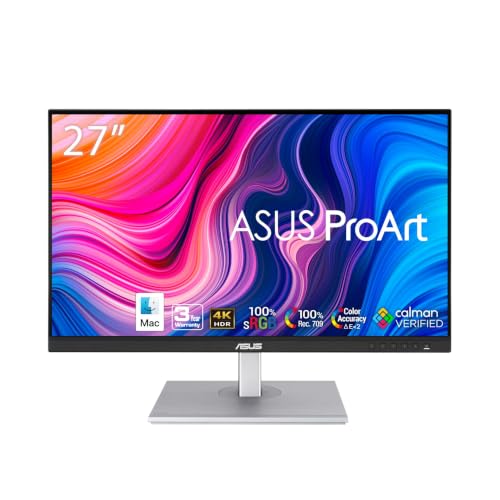
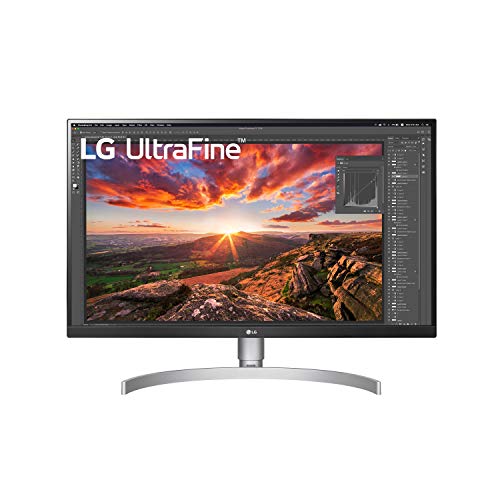

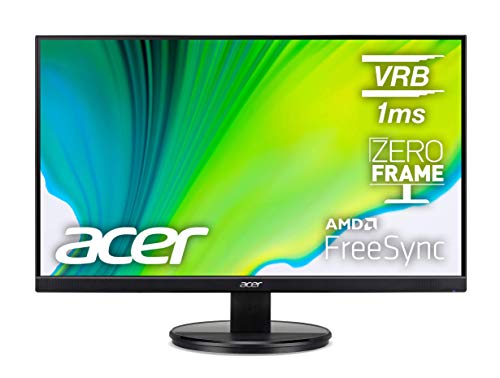


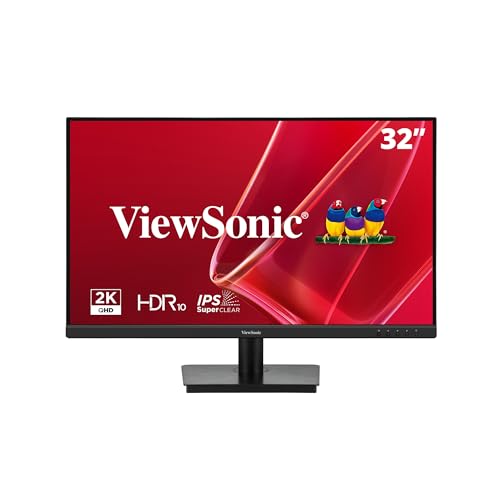
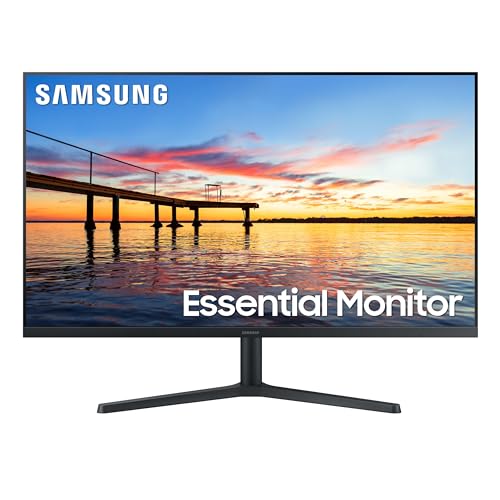

Who Should Buy Which Monitor for Eye Comfort?
Different eye comfort needs point to different monitors. Start with your main use, then check the features that matter most for that use.
People Who Read Documents All Day
If your day is mostly text, email, and spreadsheets, prioritize sharp text and a matte screen. A sharp image lets you read at a comfortable size without leaning forward, and a matte finish cuts reflections from windows and lamps. A screen between 24 and 27 inches with a resolution that keeps text crisp is a sensible starting point for most desks.
People Sensitive to Glare and Bright Rooms
If your desk faces a window or sits under strong overhead light, glare control matters more than peak brightness. Look for a matte coating, a screen you can tilt away from light sources, and brightness controls that adjust in small steps. A monitor hood is rarely needed at home, but moving the screen so light falls from the side rather than from behind it often helps more than any single feature.
People Who Work Late Into the Evening
Evening screen users should look for a low brightness range, a warm color temperature setting, and flicker free backlighting. A screen that can go dim enough for a dark room is just as important as one that can go bright enough for daylight. If you often work after sunset, a monitor with a built in low blue light mode can make the screen feel gentler, though it is not a substitute for breaks.
Key Features to Compare
Use these factors to compare monitors side by side. No single factor guarantees comfort, but together they explain why one screen feels easier to use for hours than another.
Panel Technology
Panel type affects color, contrast, and viewing angle. IPS panels are a popular all round choice because colors stay consistent when you move your head, which matters if you share your screen or shift position during the day. VA panels often show deeper blacks, which can suit darker rooms, but colors and sharpness can shift more at an angle. OLED panels offer superb contrast, yet they cost more and need care to avoid static images staying on screen.
For most eye comfort buyers, a good IPS panel is the safe middle ground, balancing consistent color with a sensible price.
Brightness and Contrast
Brightness should match your room, not impress on a spec sheet. A screen that is much brighter than its surroundings forces your eyes to adapt constantly, which can feel tiring. Look for a monitor that reaches at least a moderate brightness for daylight use and can also dim low enough for evening work. Good contrast helps text stand out from the background, so you can read at lower brightness without squinting, and you should adjust brightness by room light rather than leaving it at maximum all day.
Flicker Control and Low Blue Light Modes
Some screens dim by flickering the backlight very fast, which a small number of people notice as fatigue or headaches. Flicker free designs avoid that method and dim the light steadily instead. A low blue light mode shifts colors toward warm tones, which many people find gentler in the evening. Treat these features as comfort aids, not medical treatments, and see an eye care professional rather than relying on a monitor setting if you notice persistent eye pain, headaches, or vision changes.
Resolution and Screen Size
Resolution and size work together. A larger screen with low resolution shows large, soft text, while a small screen with very high resolution can make text tiny unless you scale it up. For a typical desk, a 24 inch screen with 1080p resolution gives readable text, while a 27 inch screen benefits from 1440p for sharper letters. Ultrawide screens suit people who keep several windows open, but they need more desk depth so you can sit far enough back to see the whole width without turning your head constantly.
Stand, Mounting, and Ergonomics
Ergonomics shape comfort as much as the panel does. A stand that adjusts height, tilt, and swivel lets you place the top of the screen near eye level and keep your neck neutral. If the included stand is limited, a VESA mount lets you use an arm or a wall mount instead. Check the range of height adjustment before buying, especially if you are tall, short, or share the desk with someone else.
A monitor that forces you to stack books under it is a sign the stand does not fit your setup.
Connectivity and Everyday Use
Connectivity affects how cleanly the monitor fits your desk. HDMI and DisplayPort cover most computers, while USB C can carry video and charge a laptop through one cable, which reduces clutter. Built in speakers are handy for video calls but rarely sound good enough for music, so do not pay extra for them if you already use headphones or external speakers. A simple on screen menu with a joystick or clear buttons makes brightness and color changes far less frustrating than a row of tiny unmarked buttons.
A Buyer Checklist for Eye Comfort
Run through these questions before you order. If you answer no to several, keep looking.
- Can the brightness go low enough for evening use and high enough for your brightest room?
- Does the screen use flicker free dimming, and does it offer a low blue light mode?
- Is the coating matte, and can you tilt the screen away from windows and lamps?
- Does the stand adjust height and tilt enough to put the screen at eye level?
- Is text sharp at your normal sitting distance without leaning forward?
- Do the ports match your computer, including USB C if you want one cable docking?
- Is the warranty long enough, and is support easy to reach if a fault appears?
Spending Levels Without the Hype
Comfort does not require the most expensive screen, but very cheap screens often cut the features that matter most, such as a height adjustable stand or flicker free dimming. At a modest budget of about $150 to $300, you can usually find a sharp IPS screen with a matte finish and decent ergonomics. Spending about $300 to $600 generally buys higher resolution, better color consistency, and a more flexible stand. Above that range, you are mainly paying for larger sizes, ultrawide formats, or premium panel types rather than basic eye comfort.
For a closer look at screens built for play rather than long reading sessions, see our guide to the best computer monitors for gaming. If strain is your main concern rather than general comfort, our guide to the best computer monitors for eye strain explains the same factors with a narrower focus on tired eyes. Readers who want a simpler shortlist can also compare the best computer monitors for your eyes and the best monitors for eyes before deciding.
Red Flags to Watch For
Be cautious when a listing leans on vague comfort claims without numbers. Phrases such as eye care display or comfort certified mean little unless the listing also names the panel type, brightness range, and flicker control method. Very short warranties, missing VESA support, and stands with no height adjustment are practical warning signs. Reviews that repeat identical wording across many listings, or that promise the screen will cure headaches or improve vision, should be ignored.
No monitor can promise that, and persistent symptoms deserve professional advice.
Tips to Get the Most From Your Computer Monitor
Once the monitor arrives, turn off vivid or shop display modes, which push brightness and saturation far higher than comfortable home use needs. Set brightness to match the room, then adjust color temperature toward warm in the evening. Clean the screen with a microfiber cloth only, since paper towels and harsh cleaners can damage coatings. If you chose an OLED screen, use its pixel refresh feature as directed and avoid leaving the same static image on screen for many hours.
Finally, follow the 20 20 20 habit: every 20 minutes, look at something about 20 feet away for about 20 seconds.
Frequently Asked Questions
What features matter most in computer monitors for eyes?
Sharp text, steady flicker free light, and a matte finish matter most for everyday comfort. A height adjustable stand and a brightness range that suits both daylight and evening use come next, because they let you set the screen at a natural viewing position. Resolution and panel type support those basics, but they do not replace them. If you must choose, pick the screen you can position and dim comfortably over the one with the longest spec list.
How long do computer monitors for eyes last?
Most monitors last many years with normal daily use, and the backlight usually fades gradually rather than failing suddenly. A screen used for long workdays may show dimming or uneven brightness after several years, which is a sign to replace it rather than push brightness higher. Keep vents clear, avoid leaving static images on OLED screens for very long periods, and update firmware when the maker offers it. A longer warranty is worth weighing when prices are close.
Does refresh rate matter for non gamers?
Refresh rate matters less for reading and office work than for fast games, but it is not meaningless. A standard 60Hz screen is fine for documents, email, and video calls. A higher refresh rate can make scrolling and mouse movement feel smoother, which some people find more pleasant during long sessions. Do not pay a large premium for very high refresh rates if your main goal is eye comfort, since brightness control and ergonomics will affect you more each day.
Is 4K worth it for eye comfort?
4K is worth it on larger screens, where it keeps text sharp at comfortable sizes, but it is less important on a 24 inch screen viewed from a normal distance. The benefit depends on scaling: if your system scales text properly, 4K gives crisp letters; if it does not, text can look tiny and tempt you to lean forward. For a 27 inch or larger screen, 1440p or 4K both work well. For smaller screens, spend the difference on a better stand or a flicker free panel instead.
What size should I get for my room or desk?
Choose size by desk depth, not by ambition. A 24 inch screen suits shallow desks and closer seating, while a 27 inch screen needs a little more depth so you can sit back and take in the whole image. Ultrawide screens need still more room and work best when you regularly keep two or three windows open side by side. Measure your viewing distance first, then check the screen width against your desk, since a screen that forces constant head turning will feel tiring no matter how good its panel is.
Final Thoughts
The most comfortable monitor is the one that fits your room, your tasks, and your sitting position, not the one with the boldest claims. Prioritize sharp text, steady light, glare control, and a stand that puts the screen at eye level, then choose size and resolution to match your desk. If you take one idea from this guide, let it be this: the best computer monitors for eyes are the ones you can use for hours without noticing the screen itself. Check the product table above against the checklist here, and see an eye care professional if eye pain or vision changes persist.

