Best Computer Monitors for Dual Screen: A First Time Buyer's Guide for 2026
Disclosure: We may earn a commission when you buy through links on this page, at no extra cost to you. As an Amazon Associate I earn from qualifying purchases. Learn more

Shopping for the best computer monitors for dual screen for the first time? Learn the key terms, compare specs, and avoid common rookie mistakes today.
Buying two monitors at once feels different from buying one. You are building a pair that must match in size, color, height, and connections, and that is where most first time buyers get stuck. This guide walks you through the best computer monitors for dual screen shopping step by step, in plain language.
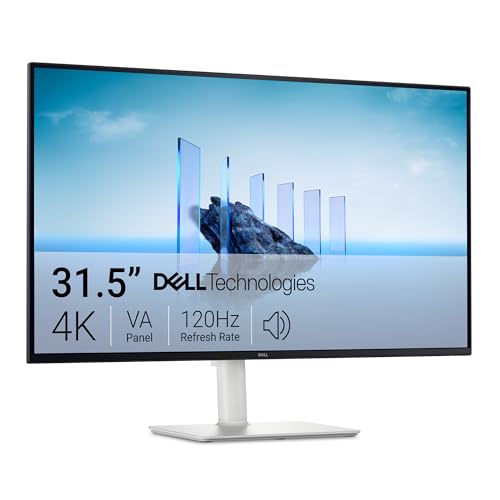
Start with the basics, then move through the specs that change your daily experience. As you read, compare what you learn with the product table above, which gathers key details of current models in one place.


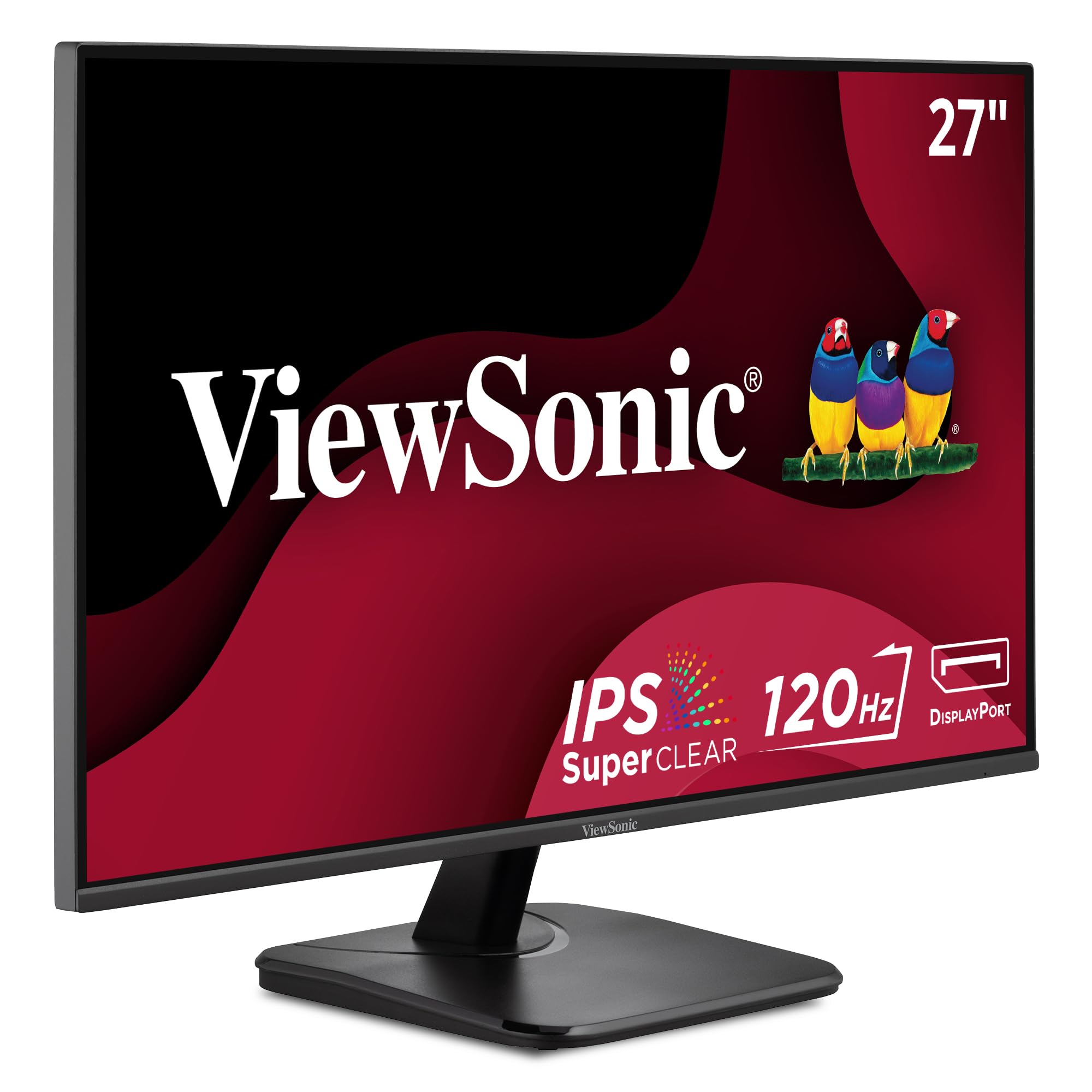
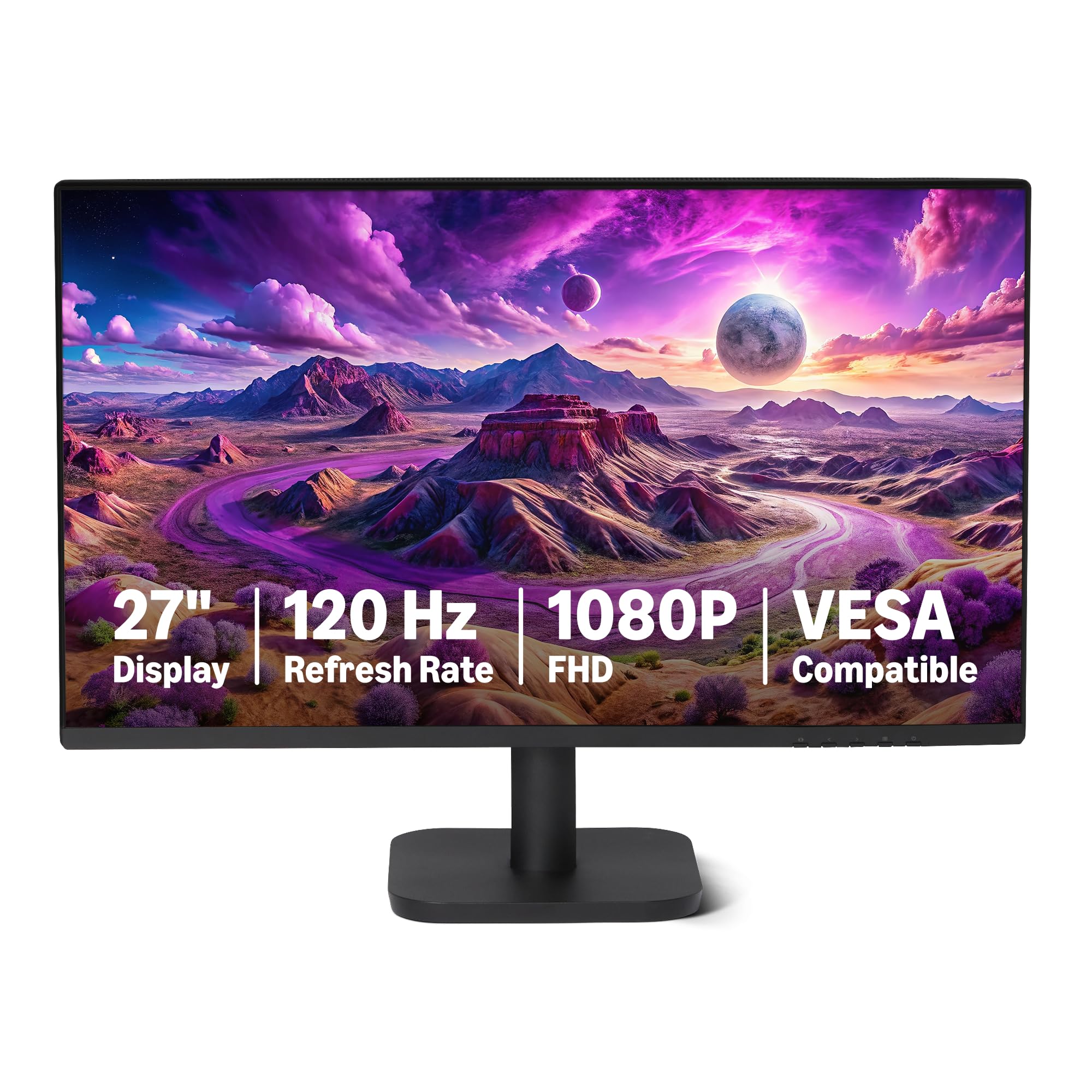
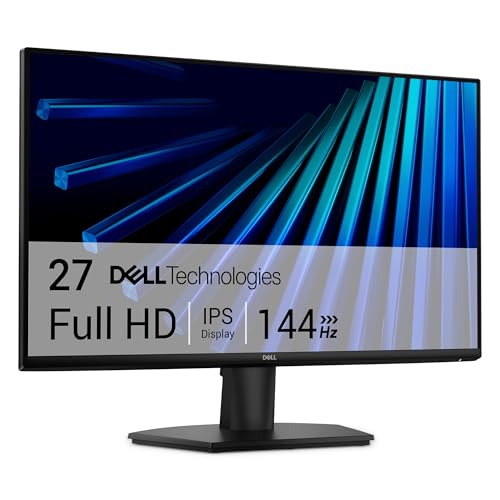

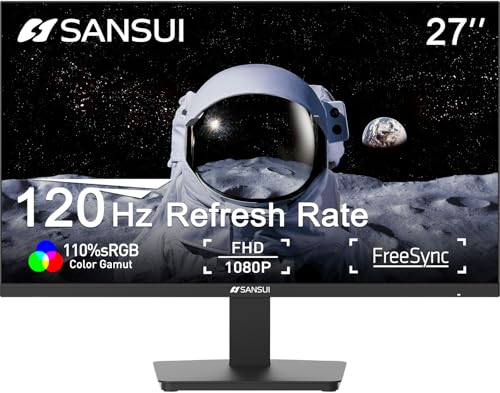
Computer Monitors 101: The Basics
A computer monitor is the display that shows the picture your computer creates. Your computer sends the image through a cable, usually HDMI or DisplayPort, and the monitor lights up millions of tiny pixels in the right colors to form text, photos, and video. A dual screen setup means two monitors connected to the same computer, so your desktop stretches across both screens instead of stopping at one.
That extra space changes how you work. Keep email open on the left screen while writing on the right, or watch a lecture on one side and take notes on the other. Your computer treats the two displays as one wide workspace, and you drag windows between them. For pairing options first, see our guide to the best dual screen monitors.
Three terms will follow you through this guide. Resolution is the number of pixels, written like 1920 by 1080, and more pixels mean sharper text. Size is measured diagonally in inches. Panel type describes the technology behind the picture, shaping color, contrast, and viewing angles. When you judge the best computer monitors for dual screen use, those three terms plus your available ports do most of the deciding.
Key Specs Explained in Plain English
Spec sheets look intimidating, but only a handful of numbers decide whether a pair suits you. Each topic below explains the term, what it feels like in daily use, and what to aim for.
Features That Matter for Dual Screen
Matching matters more with two monitors than with one. Buy the same model twice whenever you can, because identical screens line up in height and show colors the same way. Thin frames around the picture, often called bezels, matter too, because the gap in the middle nearly disappears when two thin framed screens sit side by side. Connections deserve a close look as well. Your computer needs two free video outputs, so count the HDMI and DisplayPort sockets on your laptop or desktop first. Some monitors also offer USB C input, which can carry the picture and charge a laptop through one cable. Readers comparing matched pairs can also see our guide to the best dual computer monitors.
Panel Technology: IPS, VA, OLED, and Mini LED
IPS panels are the safe starting point for most buyers. Colors stay accurate when you view the screen from the side, which matters because your second monitor always sits at a slight angle, and prices stay reasonable. VA panels offer deeper blacks and stronger contrast, so films look richer, though colors can shift more at wide angles. OLED panels light each pixel on its own, giving perfect blacks and vivid color, but prices run higher and a fixed image shown for many hours can leave a faint mark called burn in. Mini LED is a backlight upgrade on some LCD models, where many tiny backlights dim in zones to lift contrast closer to OLED levels without the same burn in concern.
HDR and Brightness
Brightness is measured in nits, and it decides how well the screen fights glare from windows and lamps. For a typical home office, about 250 to 350 nits is comfortable. If your desk faces a bright window, aim around 400 nits and look for a matte surface that spreads reflections. HDR, short for high dynamic range, lets a monitor show brighter highlights and deeper shadows in the same scene. HDR10 is the common baseline format, while Dolby Vision appears mainly on premium displays. Treat HDR as a bonus unless the monitor reaches about 600 nits, where the effect becomes clearly visible.
Adaptive Sync and Gaming Features
Adaptive sync keeps the monitor in step with the changing frame output of a game, which prevents the torn, split image that appears when the two fall out of sync. FreeSync works with most graphics hardware, and G Sync is the matching system built around compatible graphics cards and certified displays. For a dual setup, check that both monitors support the same system, so play feels equally smooth on either screen. HDMI 2.1 carries high resolution pictures at fast refresh rates, which players need for 120 frames per second play. VRR is the general name for adaptive sync on consoles, and ALLM switches a display into its lowest delay mode when a game starts.
Stand, Mounting, and Ergonomics
Two monitors take up serious desk space, so the stand matters as much as the picture. Look for stands that adjust in height and tilt, so the top of each screen sits near eye level. Swivel helps you angle each screen slightly inward, forming a gentle curve. Check also for VESA mounting holes on the back. VESA is a standard pattern of screw holes, most often 75 by 75 mm or 100 by 100 mm, that lets you attach the screen to a desk arm or wall mount, which frees the surface underneath and makes alignment far easier. To plan your layout before ordering, see our guide to the best monitors for dual screen setup.
Refresh Rate and Response Time
Refresh rate, measured in hertz, is how many times per second the screen redraws the picture. A standard 60Hz monitor feels fine for documents and video, while rates such as 144Hz or 165Hz make mouse movement, scrolling, and games look smoother. Current consoles top out at 120Hz, so a 120Hz or 144Hz screen covers console play fully. Response time describes how fast pixels change color, measured in milliseconds, and lower is better, because slow pixels can leave faint trails behind moving objects, sometimes called ghosting. Aim for 5 milliseconds or less for casual gaming. For office work alone, response time matters far less than comfort features.
Best Computer Monitors for Specific Needs
Most pairs are bought for work, but gaming and 4K each change which specs deserve your money, and each has a trap that catches first time buyers.
Best Gaming Monitors for Dual Screen: Tips for First Time Buyers
If you shop for the best gaming monitors for dual screen play, put refresh rate and adaptive sync first, ahead of size. A pair of 27 inch 1440p screens at 144Hz or higher gives sharp pictures and smooth motion without demanding an extreme graphics card. Match both monitors to the same refresh rate, because a slow side screen beside a fast main screen makes dragging windows between them feel uneven. Many players game on one screen while chat, maps, and streams live on the second. For more on speed focused features, see our guide to the best computer monitors for gaming.
Best 4K Monitors for Dual Screen: Tips for First Time Buyers
Choosing the best 4k monitors for dual screen work is mainly about sharpness and scale. 4K packs 3840 by 2160 pixels onto each screen, so text and photos look exceptionally crisp. That density pays off most at 27 inches or larger, where the picture stays sharp without making interface elements tiny, and scaling settings can enlarge text and icons to a comfortable size. Check your computer before you commit, because driving two 4K screens asks more of your graphics hardware, and older laptops may limit one output to a lower resolution. Measure your desk too, since two 32 inch monitors span well over four feet.
Rookie Mistakes to Avoid
- Buying two different models to save a little money, because mismatched color, brightness, and stand height will bother you daily.
- Skipping the port count on your computer, because a laptop with one video output cannot drive two monitors without a dock or adapter.
- Choosing size by excitement instead of desk measurements, because oversized screens force you to sit too close and turn your head constantly.
- Ignoring stand adjustment on budget models, because a fixed stand at the wrong height leads to neck strain during long sessions.
- Forgetting cables in the budget, because the box may include only one cable type, and the second monitor often needs a longer cable.
Getting Started: Setup and First Use
Unbox both monitors and place them on the desk before connecting anything, so you can judge the fit with your chair in its normal position. Attach the stands or arm mounts, set the screens side by side with the inner edges touching, and angle each one slightly toward you. Connect power, then run one video cable from each monitor to your computer, and your system should detect both displays automatically.
Next, open your display settings and confirm the layout matches your desk. Drag the two screen icons so their positions mirror the real monitors, and choose your main display. Then adjust the picture. Most monitors arrive in a vivid mode that pushes color and brightness too far for daily use. Switch to a standard or sRGB mode, set brightness so white documents look like paper rather than a lamp, and match both screens using the same sample image on each.
If you chose OLED models, learn the pixel refresh routine in the settings menu. This short cycle helps keep the image even over time, so run it when prompted. Finally, work for an hour before changing anything else, because small tweaks after real use beat endless first day adjustments. The product table above helps here, since its stand and port details show which accessories your pair may still need.
Computer Monitors: Your Questions Answered
What features matter most in computer monitors for dual screen setups?
Matching panels, thin bezels, and the right ports matter most in a dual screen setup. Two identical monitors keep color and brightness consistent, thin frames shrink the gap between screens, and your computer needs two suitable video outputs. Height adjustable stands or VESA mounts come next, since alignment affects comfort all day. One point many buyers miss is brightness matching between different brands, so compare the nits rating on both models if you cannot buy an identical pair.
IPS vs OLED: Which panel suits a dual screen computer monitor setup better?
IPS suits most dual screen setups better because it costs less, shows accurate color at an angle, and carries no burn in risk during long workdays full of fixed toolbars. OLED looks better for films and games, with perfect blacks and richer contrast. A practical middle path is an OLED main screen for entertainment paired with an IPS second screen for documents, which balances quality, price, and peace of mind.
How long do computer monitors in a dual screen setup usually last?
Computer monitors in a dual screen setup usually last about five to eight years of regular use. The backlight slowly dims over time, so an older screen may look slightly warmer or dimmer beside a newer one. That change is one more reason to buy both screens together rather than adding a second years later. Keeping brightness moderate instead of maximum can slow the dimming and help the pair age evenly.
What monitor size should I choose for a dual screen desk setup?
Most desks suit two 24 inch or 27 inch monitors in a dual screen setup. A 24 inch pair fits desks around four feet wide and keeps everything within easy view. A 27 inch pair gives more room for documents shown side by side but needs a deeper desk, so you can sit far enough back. Measure your desk, add the widths of both screens plus a small margin, and let that total decide.
Does refresh rate matter for non gamers using dual screen monitors?
Refresh rate matters less for non gamers, but a modest step up still feels pleasant. Moving from 60Hz to 75Hz or 100Hz makes scrolling and dragging windows between screens look smoother, which some people find easier on the eyes during long reading sessions. It will not change picture quality in still work like email or spreadsheets, so treat it as a comfort bonus and spend first on panel quality and stand adjustment.
Is 4K worth it for a dual screen computer monitor setup?
4K is worth it for a dual screen setup if you edit photos or video, read fine detail, or work with large spreadsheets at 27 inches or more, because sharper text reduces the grainy edges you notice during long reading sessions. It is harder to justify for email and browsing alone, where 1440p looks nearly as clean and costs less. Two 4K screens also need a computer with the graphics power and ports to drive both at full resolution.
Final Thoughts
Your first dual setup does not need to be perfect. It needs to be matched, comfortable, and connected correctly. Buy the same model twice, check that your computer has two video outputs before you order, choose IPS unless you have a clear reason to pay for OLED, and give the stand or a VESA arm real thought too.
When you are ready to compare models, return to the product table above and match its sizes, panels, and ports against the targets in this guide. The best computer monitors for dual screen for you are simply the pair that fits your desk, your computer, and your daily tasks. Check the product page before ordering.