
Best Computer Monitors for Designers 2026: Types Compared and How to Choose
Disclosure: We may earn a commission when you buy through links on this page, at no extra cost to you. As an Amazon Associate I earn from qualifying purchases. Learn more

Panel type, color accuracy and resolution explained for photo, print, video and web work: the best computer monitors for designers by use.
Choosing among best computer monitors for designers is confusing because every type promises better color, sharper text, and smoother motion. A photo editor, a print designer, and a web designer do not need the same screen, and a monitor that excels at games may be a poor fit for color critical work. This guide compares each type side by side so you can match the screen to the work you do most.
The short version is that color accuracy, resolution, and comfortable viewing matter more than headline refresh rates for most design work. Use the type comparison below to narrow the field before comparing specifications.


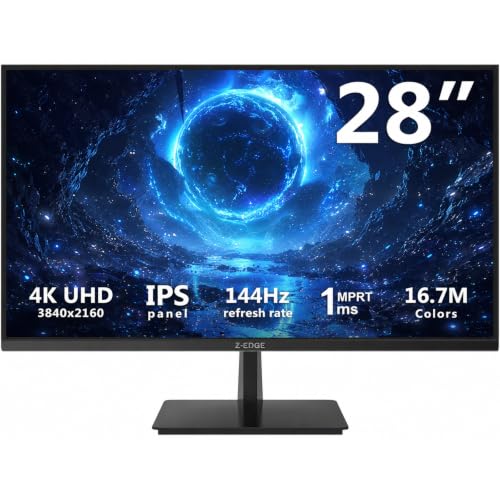

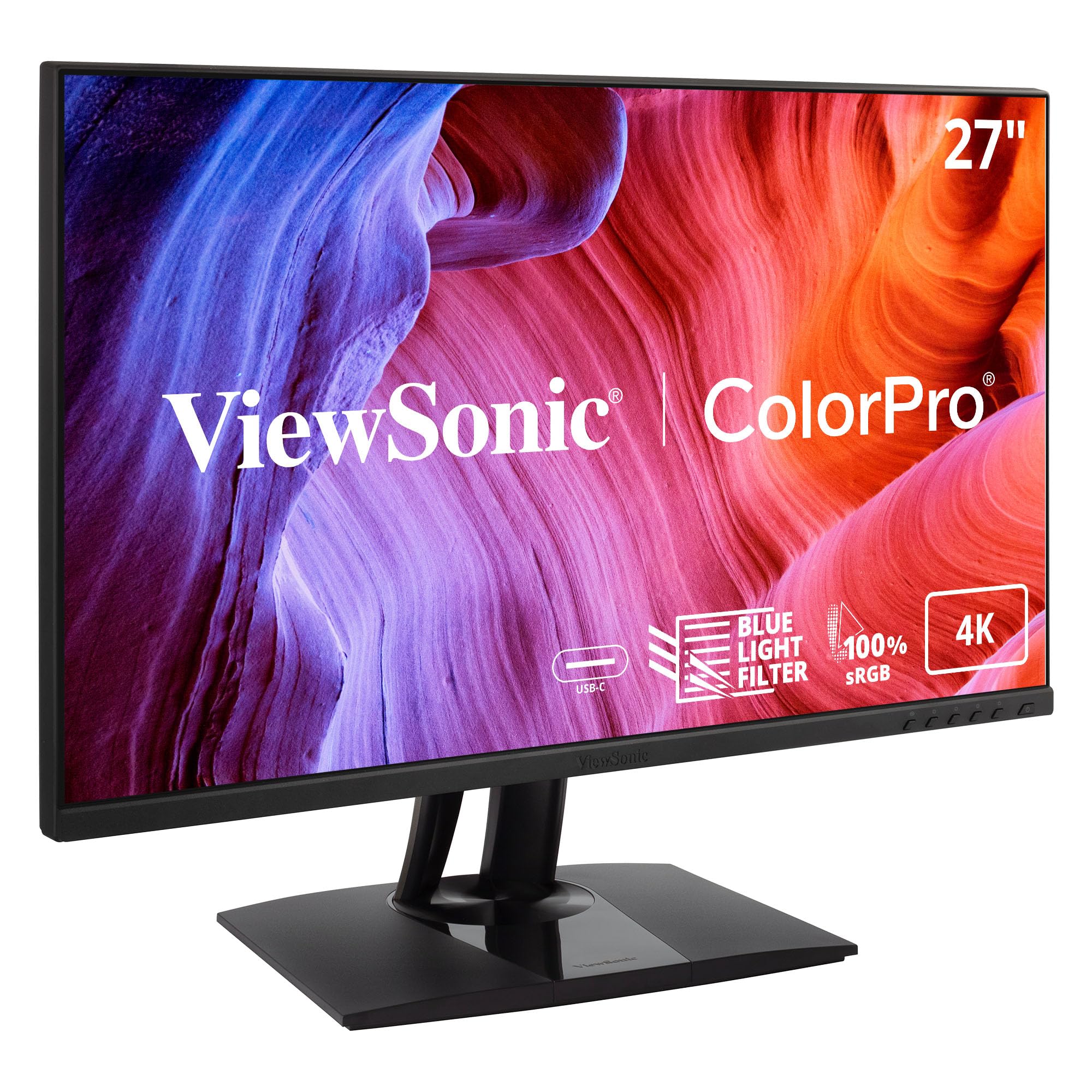
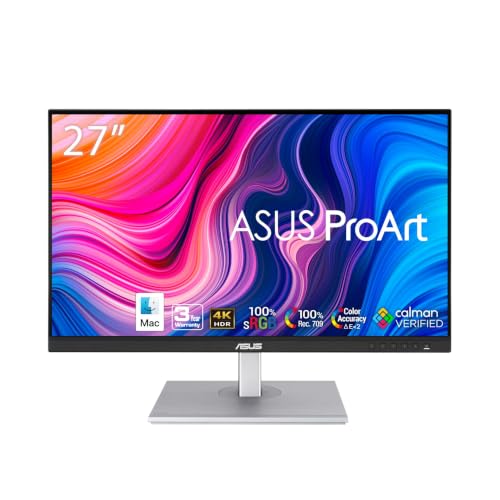

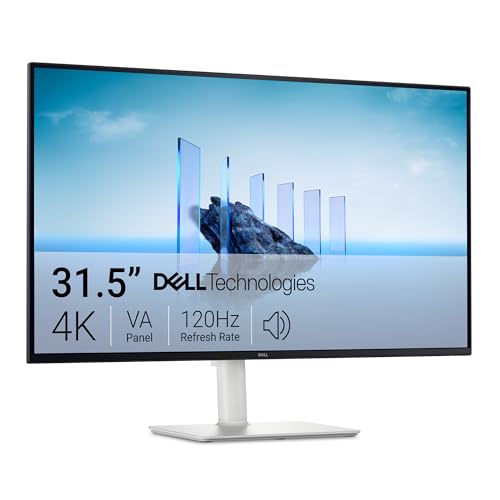

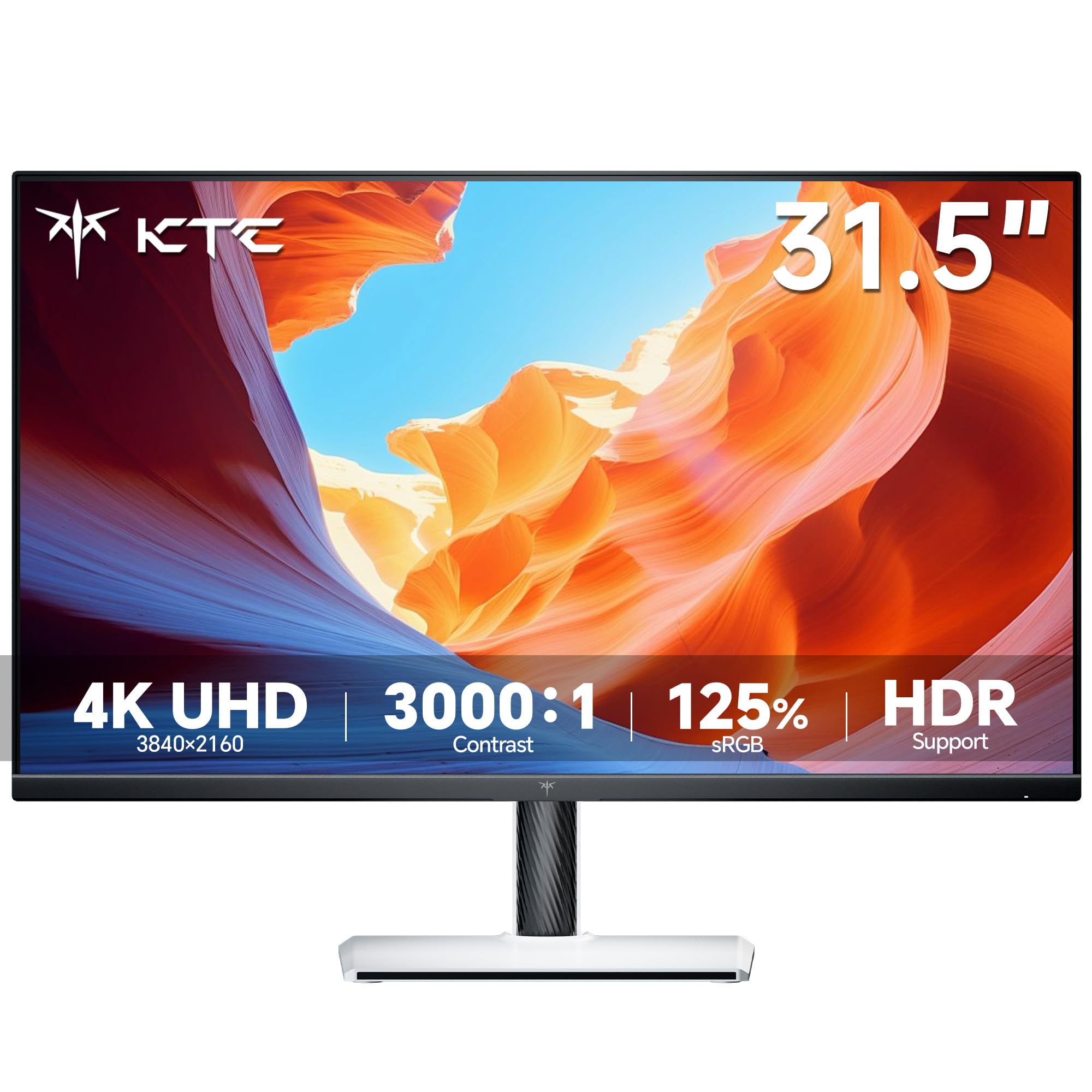
Types of Computer Monitors Compared
The table below gives a quick overview of each type; the sections that follow explain who each type suits and where its limits sit.
| Type | Best For | Pros | Cons | Typical Price |
|---|---|---|---|---|
| Productivity and ultrawide displays | Layout, timelines, and multitasking | Wide workspace, fewer windows to juggle | Needs desk width, some apps scale poorly | around $300 to $900 |
| Gaming displays | Motion work and fast previews | High refresh rates, quick response | Color accuracy varies widely | around $200 to $800 |
| OLED displays | Photo and video color work | Deep blacks, rich contrast, wide color | Higher price, burn in care needed | around $600 to $1,500 |
| Large screen options | Detailed work at a comfortable distance | Roomy canvas, large text and panels | Needs viewing distance and desk space | around $400 to $1,200 |
Productivity and Ultrawide Displays
Productivity and ultrawide displays give you a wide canvas that fits a timeline, a tool panel, and a preview side by side. This layout suits layout work, video editing, and web design, where juggling windows slows you down. The trade off is desk width: an ultrawide screen needs a wide desk and a viewing distance that lets you take in the whole width without turning your head constantly. Some older apps also scale poorly across a very wide screen, so check that your main tools handle the aspect ratio well. If your work lives in one app at a time, a standard wide screen may serve you just as well for less money.
Gaming Displays
Gaming displays prioritize high refresh rates and quick response times, which make motion look smooth and reduce blur in fast previews. That speed can help with animation previews and video scrubbing, but it is not the same as color accuracy. Many gaming displays cover a narrower color range or ship with vivid settings that flatter images rather than showing them honestly. If you choose this type, look for a model with a wide color gamut, a factory calibration report, and a color accurate mode you can switch on. Otherwise, you may enjoy the motion and still mistrust the colors.
OLED Displays
OLED displays produce deep blacks and rich contrast because each pixel makes its own light, which gives photo and video work a depth that other panels struggle to match. Color and contrast usually impress right away, and viewing angles are wide. The trade offs are price and care: OLED screens cost more, and static interface elements left on screen for very long periods can cause image retention. Use pixel refresh features, vary your content, and avoid leaving the same bright toolbar on screen all day. For color critical photo and video work, the image quality often justifies the extra care.
Large Screen Options
Large screen options suit designers who work with fine detail and want text, panels, and canvases at a comfortable size. A bigger screen reduces squinting and scrolling, which helps during long sessions. The catch is viewing distance: a very large screen at close range forces constant head movement and can tire your neck. Measure your desk depth before choosing, and aim for a size you can view comfortably with your whole canvas in sight.
Productivity and Ultrawide Displays vs Gaming Displays: Which Should You Choose?
Compare these two types on five points: workspace, color, motion, price, and desk fit. Ultrawide displays win on workspace, since a single wide screen replaces separate windows more cleanly than a fast standard screen. Gaming displays win on motion, with higher refresh rates that make animation and video previews smoother. Color is a closer call: a well calibrated gaming display can be accurate, but ultrawide productivity screens more often ship with color focused tuning. Price favors gaming displays at the lower end, while desk fit favors whichever shape your desk can hold. Choose the ultrawide if your work is layout heavy and your desk is wide, and choose the gaming display if motion previews matter most and you verify its color credentials first.
How to Choose the Right Computer Monitor
Once you know your type, use these factors to compare models within it. Each factor below matters for design work in a different way, so weigh them by the work you do most rather than treating every specification as equal.
Panel Technology
Panel technology shapes color, contrast, and viewing angle. IPS panels are the usual safe choice for design work, with consistent color across a wide viewing angle. VA panels offer stronger contrast but can shift color at an angle, which matters if clients or colleagues view your screen from the side. OLED panels give the deepest blacks and richest contrast but cost more and need burn in care. Mini LED backlights improve contrast on LCD panels and sit between standard LCD and OLED on price. For most designers, an IPS panel with good color coverage is the dependable starting point.
Color Accuracy and Coverage
Color accuracy decides whether what you see matches what your client or printer sees. Look for wide color gamut coverage, a low Delta E figure, and a factory calibration report if the maker provides one. A wide gamut matters most for photo and print work, while web work is usually judged in a narrower standard color space. A monitor only shows colors accurately if it is calibrated, so budget for calibration if your work is color critical. Check the color mode too, since a vivid shop mode will mislead you even on an accurate panel.
Resolution and Screen Size
Resolution and screen size work together: a high resolution on a small screen gives sharp text but tiny interface elements, while the same resolution on a large screen gives room to breathe. For most design work, a 27 inch screen at 4K resolution or a 32 inch screen at 4K resolution hits a good balance of sharpness and usable space. Larger screens need more viewing distance, and smaller screens may force you to scale interface elements up, which wastes the extra pixels. Match size to your desk depth first, then choose the highest resolution that keeps text readable at your normal scaling.
HDR and Brightness
HDR, or high dynamic range, lets a screen show brighter highlights and deeper shadows at the same time, which matters for video and photo work. True HDR needs high peak brightness and local dimming, so a basic HDR label alone does not guarantee a good HDR picture. Check peak brightness in nits and whether the screen has meaningful local dimming rather than a single backlight. For print and web work, HDR matters less than accurate standard dynamic range color, so do not pay a large premium for HDR if your output never uses it.
Comfort and Eye Strain
Comfort matters during long design sessions, and several features help. An adjustable stand that sets height, tilt, and rotation lets you place the screen at eye level, which reduces neck strain. A matte coating cuts reflections from windows and lamps, while flicker free backlighting and a low blue light mode can make evening sessions feel easier on the eyes. Take regular breaks, blink often, and look away from the screen every twenty minutes or so. These habits help general comfort only and are not medical advice: if you notice persistent eye pain, vision changes, headaches, or worsening discomfort, see an eye care professional rather than relying on a monitor feature.
Connections and Ergonomics
Check connections before you buy, especially if you use a laptop. A USB C connection that carries video, data, and charging over one cable keeps a desk tidy and suits laptop based designers. DisplayPort and HDMI cover most desktop setups, while extra USB ports save you from reaching behind a computer for drives and calibration devices. A stand with height, tilt, swivel, and pivot adjustment lets you set the screen once and keep it there, and VESA mounting opens the door to monitor arms if desk space is tight.
Setup and Care Tips
Start by turning off vivid or shop modes and choosing the most accurate preset, then calibrate if your work is color critical. Place the screen at eye level and at a distance where you can read text without leaning forward. Clean the screen with a microfiber cloth only, and avoid harsh cleaners that can damage coatings. For OLED screens, run pixel refresh features as the maker directs. Recheck calibration every few months, since panels drift over time.
Frequently Asked Questions
What features matter most in computer monitors for designers?
Color accuracy, resolution, and comfortable viewing matter most, ahead of headline refresh rates. Look for wide color gamut coverage, a low Delta E figure, and a resolution that keeps text sharp at your normal scaling. An adjustable stand and a matte coating also matter, since they affect how comfortably you can work for hours. Refresh rate and gaming features help only if your work involves motion previews, so treat them as bonuses rather than priorities for still image and layout work.
What size should I get for my room or desk?
Choose a size your desk depth can support at a comfortable viewing distance. A 27 inch screen suits most desks, while a 32 inch screen needs a deeper desk so you are not sitting too close. Ultrawide screens need width as well as depth, so measure both dimensions before ordering. If the screen forces you to turn your head constantly or lean back to see the edges, it is too large or too close for your space, whatever its specifications claim.
How long do they last?
A well made monitor can last many years, with lifespan depending on usage, brightness settings, and panel type. Running at very high brightness shortens backlight life, while OLED screens need care around static images to avoid retention. Keep brightness at a comfortable level rather than maximum, and let the screen sleep when unused. If colors drift over time, recalibration usually restores accuracy long before the panel itself fails, so budget for periodic calibration rather than early replacement.
Does refresh rate matter for non gamers?
Refresh rate matters little for still image, layout, and print work, where a standard 60Hz screen shows static images just as well as a faster one. It matters more for animation previews, video scrubbing, and smooth cursor movement, where a higher rate reduces judder. Most designers should prioritize color accuracy and resolution first, then treat a higher refresh rate as a welcome extra. Paying a large premium for speed alone rarely improves still image work.
IPS vs OLED: which is better?
IPS is better for dependable, low maintenance color work, while OLED is better for deep blacks, rich contrast, and the most striking photo and video image. IPS panels cost less, resist image retention, and hold color well across viewing angles. OLED panels deliver superior contrast but cost more and need care with static interface elements. Choose IPS if you want a workhorse screen you can leave on all day, and choose OLED if your work is color critical and you will follow the maker's care guidance.
Is 4K worth it?
4K is worth it for most designers because it keeps text sharp and gives photo and layout work room for fine detail. The benefit is clearest on screens of 27 inches and above, where lower resolutions start to show pixels. On very small screens, the gain is harder to see and interface scaling may waste the extra pixels. If your budget forces a choice, favor a color accurate screen at a slightly lower resolution over a 4K screen with poor color, since accuracy affects your output more than pixel count alone.
Wrapping Up
The best choice among best computer monitors for designers is the type that matches your work: ultrawide for layout heavy multitasking, OLED for color critical photo and video, and a well calibrated IPS screen as the dependable all rounder. Prioritize color accuracy, resolution, and comfortable viewing, verify connections and desk fit, and check the product table above once you have a short list. A screen chosen this way serves your work for years rather than impressing for a week.
For related guidance, see best computer monitors for gaming if motion previews matter to you, and best computer monitors for graphic designers for a closer look at graphic work. If workspace is your priority, best monitors for designers covers the wider field, while best portable computer monitors suits designers who work away from their main desk.

