Best Computer Monitors for Eye Strain for 2026: Types Compared and How to Choose
Disclosure: We may earn a commission when you buy through links on this page, at no extra cost to you. As an Amazon Associate I earn from qualifying purchases. Learn more
Flicker control, brightness, panel choice and screen size compared to help you choose the best computer monitors for eye strain.
Long hours at a desk can leave your eyes tired, dry, or sore, and the screen in front of you plays a real part in that feeling. If you are shopping for best computer monitors for eye strain, the choice can feel confusing because almost every screen claims to be easy on the eyes. This guide compares the main types side by side so you can judge them on comfort features that matter, not on marketing claims.
The type table below gives a quick view of each type, its strengths, and its typical price. After that, you will find detail on resolution, panel technology, ergonomics, and the comfort settings that help during long sessions. Use those sections to match a screen to your desk, your work, and your budget.


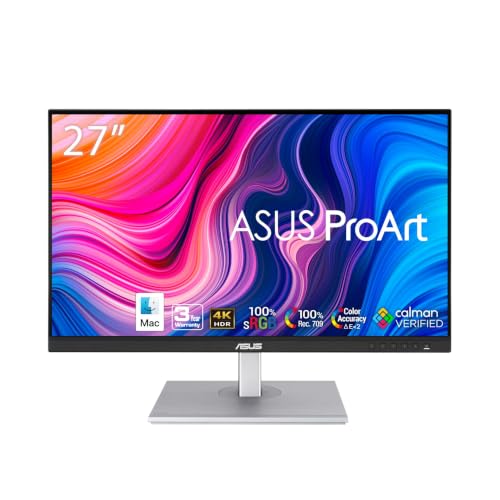
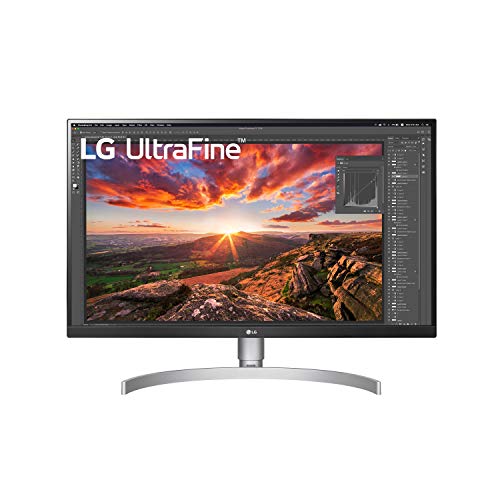


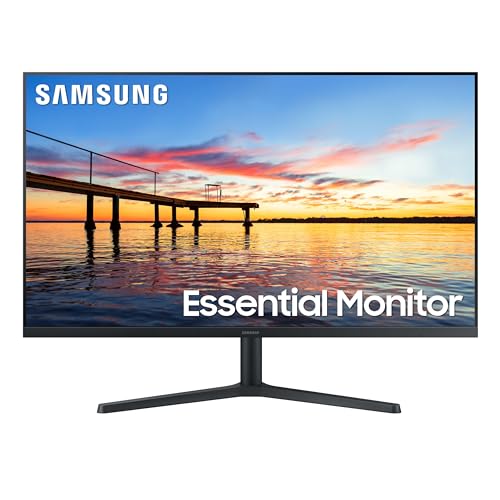
Types of Computer Monitors Compared
Each type below handles light, motion, and color in a different way, and those differences change how a screen feels after several hours. A bright, glossy panel in a sunny room can cause glare even if its resolution is excellent. A dim, flickering backlight can tire your eyes even if its colors look rich. The table that follows the intro sums up the tradeoffs, and the sections below explain each type in plain terms.
| Type | Best For | Pros | Cons | Typical Price |
|---|---|---|---|---|
| Gaming displays | Fast motion and mixed use | Smooth motion, quick response | Comfort settings vary by model | About $150 to $500 |
| OLED displays | Deep contrast and rich color | True blacks, wide viewing angles | Higher price, burn in care needed | About $500 to $1,200 |
| Productivity and ultrawide displays | Documents and multitasking | Wide workspace, fewer window switches | Large footprint, higher cost | About $250 to $800 |
| Large screen options | Shared viewing and spacious desks | Big text, roomy layout | Needs distance, can dominate a small desk | About $300 to $900 |
Gaming Displays
Gaming displays are built for fast motion, so they usually offer high refresh rates and quick response times. Smooth scrolling can feel easier on the eyes during video, games, and fast window movement because the image updates more often and looks less choppy. Many of these screens also include adaptive sync, which matches the refresh rate to the source and reduces tearing.
Comfort is not automatic with this type, so check the backlight and brightness controls before you buy. Look for flicker free backlighting, a low blue light mode, and a brightness range that goes low enough for evening work. A screen that only looks good at full brightness will feel harsh in a dim room. Players who want more detail on speed can read our guide to the best computer monitors for gaming.
OLED Displays
OLED displays control light at the level of each pixel, which gives deep blacks and strong contrast without a separate backlight shining through dark areas. Text can look crisp against a dark background, and colors often look vivid without needing very high brightness. Wide viewing angles also help if you shift position during the day.
The main tradeoff is care and cost. OLED panels can cost more than other types, and static images left on screen for very long periods can leave a faint mark over time. Built in pixel refresh routines help, and varying your content helps too. If you often leave the same toolbar or document open for hours, weigh that habit against the contrast advantage.
Productivity and Ultrawide Displays
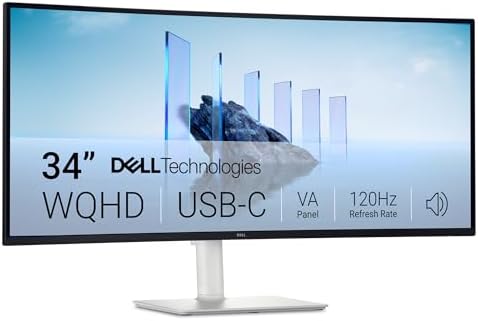
Productivity and ultrawide displays give you a wide workspace that fits two documents side by side without constant switching. That layout can reduce the small eye movements and refocusing that come with jumping between windows. For writers, editors, spreadsheet users, and coders, the extra width often feels calmer than a tall stack of overlapping windows.
Size and curve deserve attention here. A very wide screen on a shallow desk can force your eyes to travel far to the edges, which can feel tiring rather than helpful. Measure your desk depth and viewing distance first, and choose a gentle curve or a flat panel that keeps the edges within a comfortable glance.
Large Screen Options
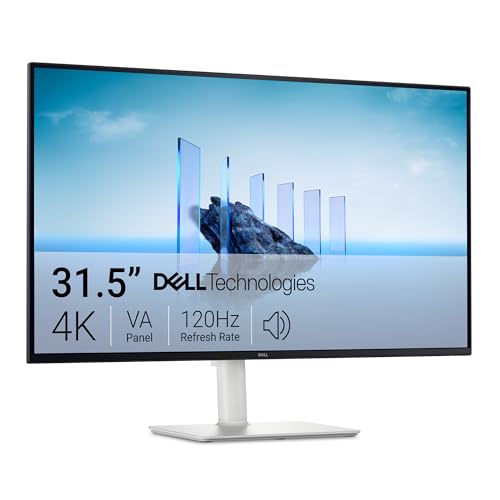
Large screen options suit people who want bigger text and a roomy layout without leaning forward. Bigger text at a comfortable distance can reduce squinting, and a spacious layout keeps menus and toolbars within easy reach. These screens also work well when two people need to view the same document or design.
Distance is the key limit. A large screen placed too close can force constant head movement and make the edges hard to see at once. As a rough guide, sit far enough back that you can see the whole screen with small eye movements and little head turning. If your desk is shallow, a mid size screen may feel more restful than a very large one.
Gaming Displays vs OLED Displays: Which Should You Choose?
Compare these two types on motion, contrast, brightness control, price, and daily care. Gaming displays usually win on smooth motion and value, while OLED displays usually win on contrast and viewing angle. If your day mixes fast video with long reading sessions, a gaming display with strong comfort settings may serve you better. If your work centers on photo editing, video color, or dark room viewing, the contrast of OLED may matter more.
Brightness control deserves equal weight in both cases. A screen that can dim smoothly, avoids visible flicker, and offers a warm color preset will feel better at night than a brighter screen with fewer controls. Price also matters: the money saved on a gaming display can go toward a better stand, a matte screen filter, or proper desk lighting, all of which affect comfort too.
How to Choose the Right Computer Monitor
Start with your desk, your distance, and your main tasks, then judge each screen against those facts. Resolution, panel type, stand adjustment, and comfort settings all interact, so no single spec tells the whole story. The sections below walk through each factor in the order most buyers find useful. For a broader comparison, see our guide to the best monitors for eye strain.
Resolution and Screen Size
Resolution and size work together. A 27 inch screen at 1440p usually gives sharp text at a normal desk distance, while a 32 inch screen often benefits from 4K to keep text crisp. Smaller screens can work well at 1080p, but text may look soft if you sit close. Match the pixel density to your distance rather than chasing the highest number alone.
Adaptive Sync and Gaming Features
Adaptive sync, HDMI 2.1, variable refresh rate, and auto low latency mode matter most when the source changes frame rate often, as in games and some video. These features reduce tearing and stutter, which can make motion feel smoother and less distracting. For plain document work, they matter far less, so do not pay extra for them if you rarely play games or watch fast video.
Stand, Mounting, and Ergonomics
A good stand lets you set the top of the screen near eye level and tilt it slightly back, which keeps your neck in a neutral position. Height adjustment, tilt, swivel, and VESA mounting all help you reach that position without stacking books under the base. If you share a desk or switch between sitting and standing, a mount with easy height adjustment is worth the extra cost.
Panel Technology (IPS, VA, OLED, Mini LED)
IPS panels usually offer accurate color and wide viewing angles, which suit shared desks and color aware work. VA panels often give stronger contrast at a lower price, but viewing angles can narrow. OLED panels give the deepest blacks and fast response, while Mini LED backlights improve contrast on LCD panels without the same burn in concern. Choose the panel that fits your lighting and your color needs, not the one with the longest spec list.
Features That Matter for Eye Strain
Comfort features deserve a close look because they shape how a screen feels over a full day. Flicker free backlighting avoids the rapid brightness pulsing that can tire sensitive eyes. A low blue light mode warms the color at night, and a matte coating cuts reflections from windows and lamps. Automatic brightness can help too, as long as it changes smoothly rather than jumping between levels.
Breaks and lighting matter as much as any setting. Place the screen so windows sit to the side rather than behind it, keep room lighting even, and pause to look away at regular intervals. If your eyes feel dry, blink fully more often and keep water nearby, since dry air and focused staring both reduce blinking.
See an eye care professional if discomfort persists, since a screen change alone cannot fix an underlying vision problem. Our guide to the best monitors to reduce eye strain covers more comfort settings in detail.
Best Computer Monitors for Specific Needs
Best Gaming Computer Monitors for Eye Strain: Which Type Works Best
Gaming use adds three comfort needs on top of ordinary office work: smooth motion during fast scenes, low input lag so controls feel responsive, and a brightness range that works in both bright and dark rooms. A fast IPS or OLED gaming display with flicker free backlighting and a warm color preset usually covers all three. Avoid screens that only reach comfortable brightness at extreme settings, and check the low brightness mode if you often play at night.
How to Make Your Computer Monitor Last Longer
Care habits extend the life of any screen type and keep its image looking steady. Calibrate picture settings and turn off vivid mode, since an overly bright and saturated picture can tire your eyes and wear the panel faster. On OLED screens, run pixel refresh when prompted and vary your content so static elements do not sit unchanged for hours.
Clean screens with a microfiber cloth only, and avoid harsh cleaners that can damage coatings. Keep the screen out of direct sunlight and away from heat sources, and power it down when you leave for long stretches.
For eye comfort, pair those habits with sensible use. A screen that lasts longer is one you can keep at comfortable brightness rather than pushing to maximum to overcome glare. If glare keeps forcing brightness up, fix the lighting first with a shade, a repositioned lamp, or a matte filter. Small changes in placement often do more for comfort than a new screen alone.
Frequently Asked Questions
What features matter most in computer monitors for eye strain?
Flicker free backlighting, smooth brightness control, a matte coating, and a warm color mode matter most for long sessions. These features reduce glare, avoid harsh brightness jumps, and let you lower blue light in the evening. A stand with height adjustment also matters, since a screen at the wrong height forces neck strain that feels like eye strain. Judge comfort features together rather than trusting any single label on the box.
Is 4K worth it?
4K is worth it on larger screens and for detailed work such as photo editing, design, and dense spreadsheets, where sharper text reduces squinting. On a smaller screen at a normal distance, the gain over 1440p is harder to notice, and the extra cost may be better spent on a better stand or lighting. Consider your viewing distance first, since a 4K screen viewed from too far away gives little visible benefit.
How long do they last?
Most monitors last many years with normal use, and panel type affects the details more than the headline lifespan. LCD panels usually fade gradually rather than failing suddenly, while OLED panels need pixel care to avoid image retention over time. Brightness set far above room level, heat, and constant static images all shorten useful life. A moderate brightness setting and regular power off periods help any screen last longer.
What size should I get for my room or desk?
Choose a size that fits your viewing distance and lets you see the whole screen with small eye movements. A 24 inch or 27 inch screen suits most desks, while a 32 inch screen needs more depth to feel comfortable. Measure from your eyes to the screen position, then check that the edges sit within easy glance range. If the screen dominates the desk or forces head turning, step down a size.
IPS vs OLED: which is better?
IPS is usually better for bright rooms, shared desks, and buyers who want accurate color without special care routines. OLED is usually better for dark rooms, deep contrast, and rich color, as long as you accept higher cost and pixel care. Neither type guarantees comfort on its own, since brightness control, coating, and placement matter just as much. Choose based on your room lighting and your willingness to follow care routines.
Does refresh rate matter for non gamers?
Refresh rate matters less for non gamers, but it is not irrelevant, since higher refresh rates make scrolling and window movement look smoother. For reading and document work, a standard rate with good brightness control often feels just as restful as a very high rate. Spend the difference on ergonomics, lighting, or a larger workspace if your work rarely involves fast motion.
Our Verdict
For most buyers, the best balance comes from a screen with flicker free backlighting, smooth brightness control, a matte coating, and a stand that sets the screen at eye level. Panel type and resolution should follow your room, your distance, and your main tasks, not the other way around. Check the product table above, compare the types on the factors in this guide, and choose the best computer monitors for eye strain for your desk and your daily routine.