Best Computer Monitors for under 100: The Buyer Checklist We Use for 2026
Disclosure: We may earn a commission when you buy through links on this page, at no extra cost to you. As an Amazon Associate I earn from qualifying purchases. Learn more
Use this checklist to compare the best computer monitors for under 100 by panel, size, ports and stand, and find solid value without overspending.
At this price, the difference between a satisfying screen and a frustrating one comes from whether the panel, size, ports, and stand fit your daily work. This guide walks you through the best computer monitors for under 100 using a simple evaluation checklist, so you can judge any listing on the comparison table below with confidence.
You will learn what is realistic at this budget, which features deserve your money, and which extras you can skip, plus red flags and care steps that keep a screen clear for years.

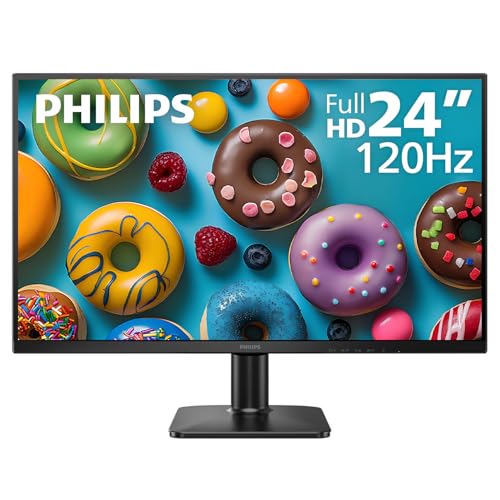
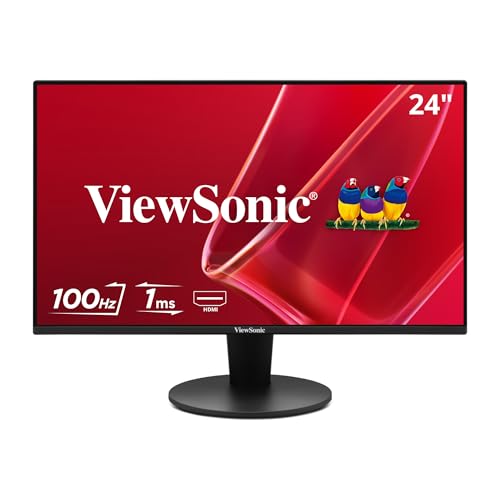

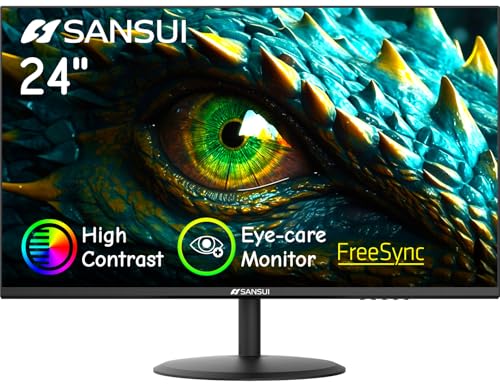
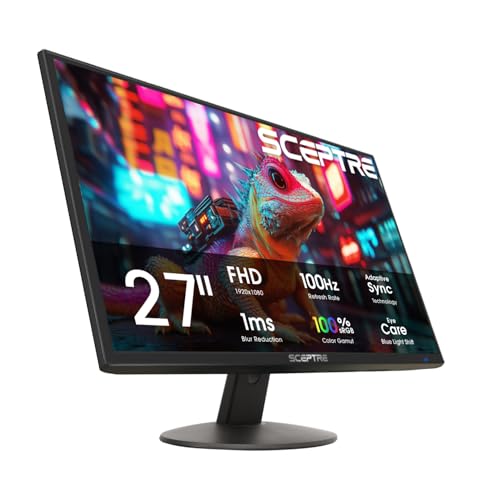
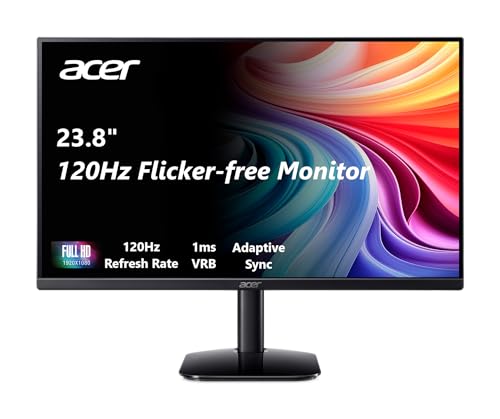
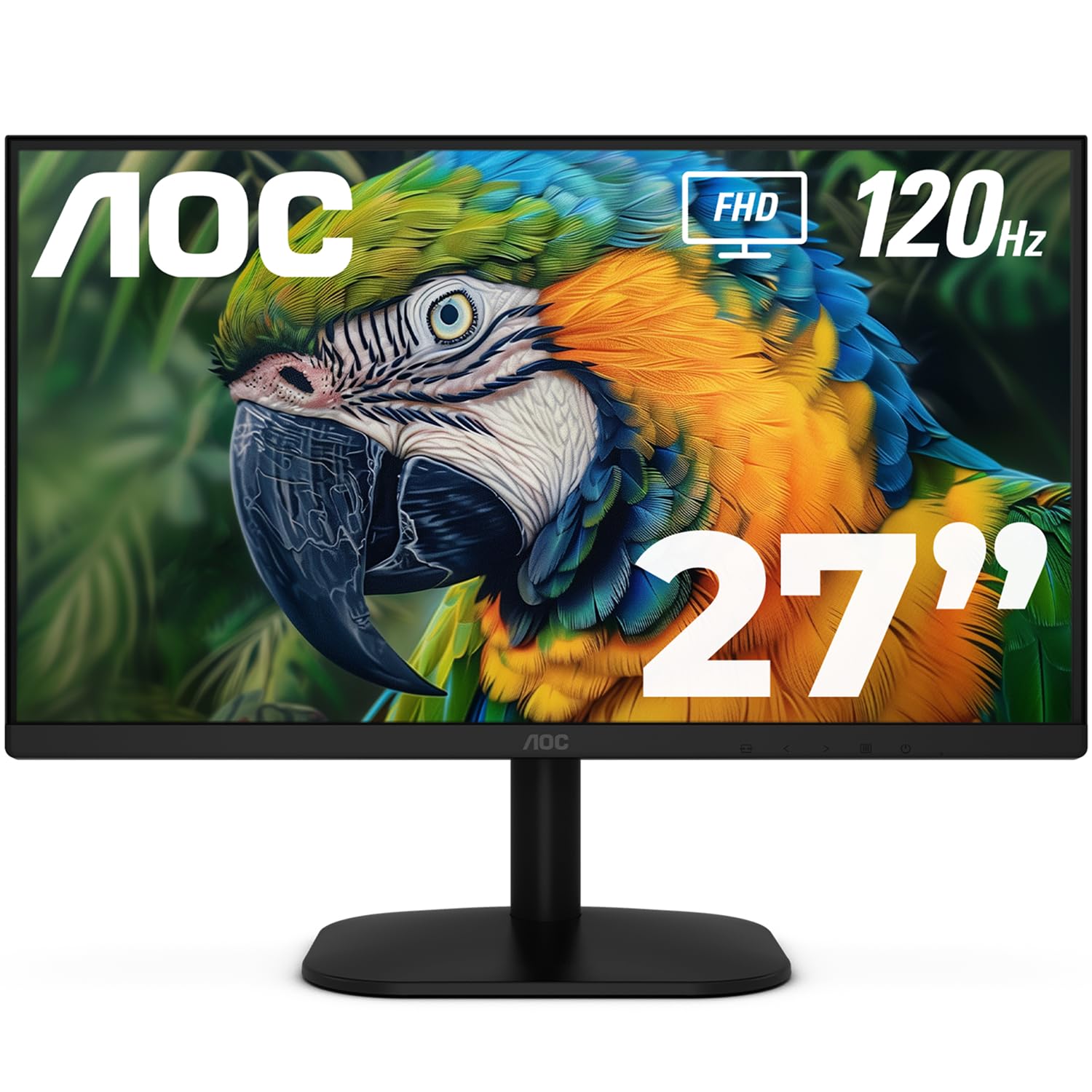
How to Evaluate Computer Monitors on a Tight Budget
Use the sections below as a scorecard, and judge each screen on the factors that matter most for your desk. A student writing papers needs readable text and a comfortable stand more than fast gaming specs, while a casual player needs the opposite balance. Score each listing in the product table above against these points before price.
What You Can Realistically Get Under $100
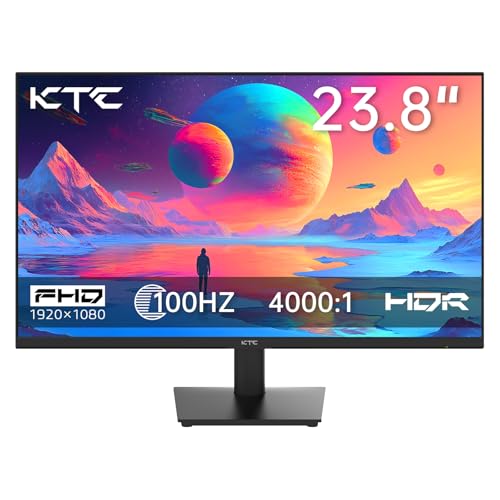
Expect a screen of about 22 to 24 inches with 1080p resolution, a basic stand, and one or two video inputs at around $100 or less. Height adjustment, USB hubs, and premium color coverage are usually cut, though slim bezels are common. Do not save money by accepting dim output or a wobbly base, because you will notice both every day. If your needs already exceed this level, see our guide to the best computer monitors under 200 to understand what the next tier adds.
Panel Technology and Picture Quality
IPS panels give you the most consistent color when you shift position or share the screen, which suits office work, school, and photo viewing. VA panels usually show deeper blacks and stronger contrast, so movies and dark scenes look richer, though color can shift more at an angle. TN panels are the oldest budget option and can look washed out from above or below. OLED and Mini LED screens sit far above this budget, so distrust any such listing at under $100.
Refresh Rate and Response Time
Most screens at this level refresh at 60 Hz or 75 Hz and feel smooth for documents, browsing, and video. Some budget gaming models reach 100 Hz, a modest but visible step up in fast moving scenes. Response time describes how quickly pixels change color, and a lower number means less visible blur behind moving objects. Treat extreme claims with caution, because brands measure this figure differently.
Ports, Speakers, and Extra Features
Check that the monitor has the port your computer offers, most often HDMI or DisplayPort, and confirm whether a matching cable comes in the box. VGA still appears on older office machines, so keeping it can save you an adapter. Built in speakers are usually thin sounding, fine for alerts and calls but weak for music. If sound matters at your desk, see our guide to the best computer speakers under 100 for a fuller setup.
Stand, Mounting, and Ergonomics
Many budget stands only tilt, so the screen may sit too low and cause a slouch. Look for VESA mounting holes, usually in a 100 by 100 mm pattern, because they let you add an arm later and set the height properly. The top of the screen should sit near eye level, about an arm length away, on a base that does not wobble when you type.
Adaptive Sync and Gaming Features
Adaptive sync lets the monitor match its refresh rate to the frame rate your graphics card produces, which reduces visible tearing and stutter in games. FreeSync is the version you will most often see at this price, and many recent graphics cards can use it over an HDMI cable. It does not raise your frame rate, so a weak computer still limits game smoothness. Readers who play fast competitive titles should see our guide to the best computer monitors for gaming for the higher refresh options built for that use.
Resolution and Screen Size
A 1080p screen shows 1920 by 1080 pixels, which looks sharp for text and video on a 22 to 24 inch panel at desk distance. At 27 inches the same pixel count spreads out, so letters look larger but a little less crisp up close, which can still suit viewers who sit farther back. True 1440p and 4K panels cost more than this budget in almost every case, so prioritize a good 1080p panel over a stretched size.
How to Choose Between Similar Models Under $100
Listings for the best computer monitors for under 100 often look nearly identical, with the same size and resolution and only small differences buried in the details. The guidance below replaces guesswork with three practical comparisons you can make in minutes, and the weaker option in a pair usually becomes obvious.
Match the Panel to Your Main Task First
Start with the job you do most, not the longest feature list. Choose IPS if you read, write, browse, or edit photos, because steady color and clear text repay you in every session. Choose VA if evening movies and dark games dominate, because stronger contrast makes shadow detail easier to see in a dim room.
Then confirm the basics still pass, including brightness of about 250 nits or more and a matte coating that tames window light. If you want a second view of this same budget class, see our guide to the best monitors under 100 for another angle on the category.
Check Ports, Cables, and Your Current Computer
List the outputs on your computer before you order, including any laptop dock or adapter you already rely on. Two HDMI inputs suit a desk shared between a laptop and a console, while one input is fine for a single machine. Confirm the included cable matches both ends, because a missing cable can erase the saving on a cheaper listing.
Compare Warranty, Returns, and Panel Policies
Read the fine print that spec tables skip. A longer warranty has real value on a budget screen, and a clear return window protects you if the panel arrives with dead pixels or uneven backlight. Check how the seller defines an acceptable pixel fault, because policies vary and one bright dot near the center can bother you for years. Save the box for the first week, so a return stays simple if something feels wrong.
Quick Buyer Checklist
Run through these questions before you order. A good candidate should earn a yes on nearly all of them, and any no should point to a feature you truly do not need.
- Does the panel type fit your main task, IPS for text and color or VA for contrast and movies?
- Is the size about 22 to 24 inches, so 1080p text stays sharp at your desk distance?
- Does the monitor have the exact video port your computer uses, with the right cable included?
- Is brightness listed at about 250 nits or higher for a room with normal daylight?
- Does the stand feel stable, and are VESA holes present if you plan to add an arm later?
- Is the refresh rate at least 60 Hz, with adaptive sync if you play games?
- Do the warranty terms and return window give you time to spot panel faults?
- Does the total stay at under $100 once you add any cable or adapter you still need?
Red Flags to Watch For
Some listings hide weak hardware behind bold claims. Walk away, or at least slow down, when you spot the warning signs below on a screen priced at under $100.
- The resolution is written in vague marketing words with no pixel count, which often means the panel falls short of true 1080p.
- The listing promises HDR but gives no brightness figure, so the label adds cost without a picture you can actually see improve.
- Response time claims look extreme while the refresh rate stays at 60 Hz, a mismatch that suggests numbers chosen for advertising.
- The warranty is very short and the seller lists no clear policy for dead pixels, leaving you stuck with faults you notice on day one.
- Review text praises the screen but never mentions ports, stability, or brightness, which can signal padded feedback.
Care and Maintenance Tips
Clean the screen only when it is off and cool, using a dry microfiber cloth and light pressure. For stubborn marks, dampen the cloth with water and wipe gently, and never spray liquid on the panel or use paper towels, glass cleaner, or rough fabrics that can scratch the coating.
Once a month, check that stand screws and mount bolts feel snug and the video cable sits fully seated, since loose cables cause flicker that owners often mistake for panel failure. Use the picture menu to set a comfortable brightness instead of maximum output, since a lower setting eases eye fatigue and reduces heat. When you move the monitor, lift it by the stand with both hands, never by pressing on the screen surface.
Frequently Asked Questions
Can you get a good computer monitor for under $100?
Yes, a good computer monitor for under $100 is realistic for school, office work, and casual entertainment. The key is accepting 1080p resolution and a simple stand while insisting on a sound IPS or VA panel. Check your screen for dead pixels and uneven backlight during the first evenings, while a return is still easy, because unit quality varies.
How long do computer monitors under $100 last?
Computer monitors under $100 typically last about five to seven years of regular use before brightness fades or a part fails. The backlight usually ages first, so a screen that needs ever higher brightness settings is showing its age. Keeping vents clear and avoiding maximum brightness can stretch that lifespan, and a surge protector guards against power spikes.
What size computer monitor under $100 should you choose for a desk?
Choose about 24 inches if your desk is at least about 24 inches deep, because that size balances sharp 1080p text with comfortable viewing distance. Shallower desks suit about 22 inches, which keeps the edges of the screen in easy view without head turning. Measure the stand footprint too, since a wide base can crowd a keyboard tray.
IPS or VA: which panel is better for a computer monitor under $100?
IPS is better for most buyers of a computer monitor under $100 because its color stays accurate when you view the screen from an angle or share it with a coworker. VA wins for film fans who watch in a dark room and value deep blacks more than viewing angles. One extra check helps either way: choose a flicker free backlight, because flicker can tire your eyes during long reading sessions.
Does refresh rate matter for a computer monitor used by nongamers?
Refresh rate matters less for nongamers, but a step from 60 Hz to 75 Hz still makes scrolling documents and moving windows feel a little smoother. It will not change how text, photos, or streamed video look, because those sources do not send extra frames for the screen to show. If both cost the same at under $100, take the faster one, but never trade panel quality or brightness for it.
Is 4K resolution worth it on a computer monitor under $100?
No, 4K resolution is not worth chasing on a computer monitor under $100, because genuine 4K panels with decent color and brightness cost far more than this budget allows. Listings that hint at 4K at this price usually mean the screen can accept a 4K signal and scale it down, not display it in full detail. Put the money toward a better 1080p panel instead, and you will see the benefit in every window you open.
Final Thoughts
The smartest way to shop this budget is to score each screen the same way: panel first, then size and resolution, then ports, stand, and warranty. Use the product table above to compare your finalists, run the quick checklist, and skip any listing that raises those red flags. Chosen that way, the best computer monitors for under 100 can give you a clear, comfortable screen for work, study, and everyday entertainment without stretching your budget.