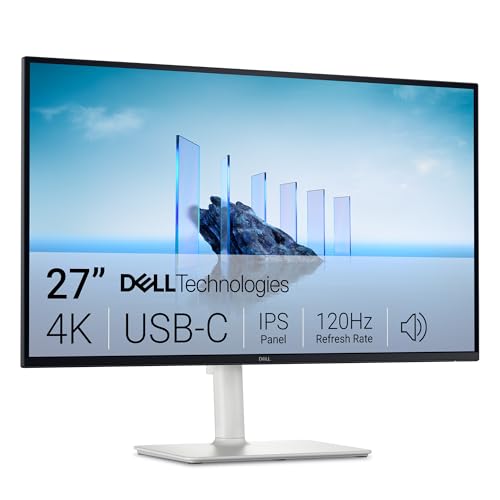
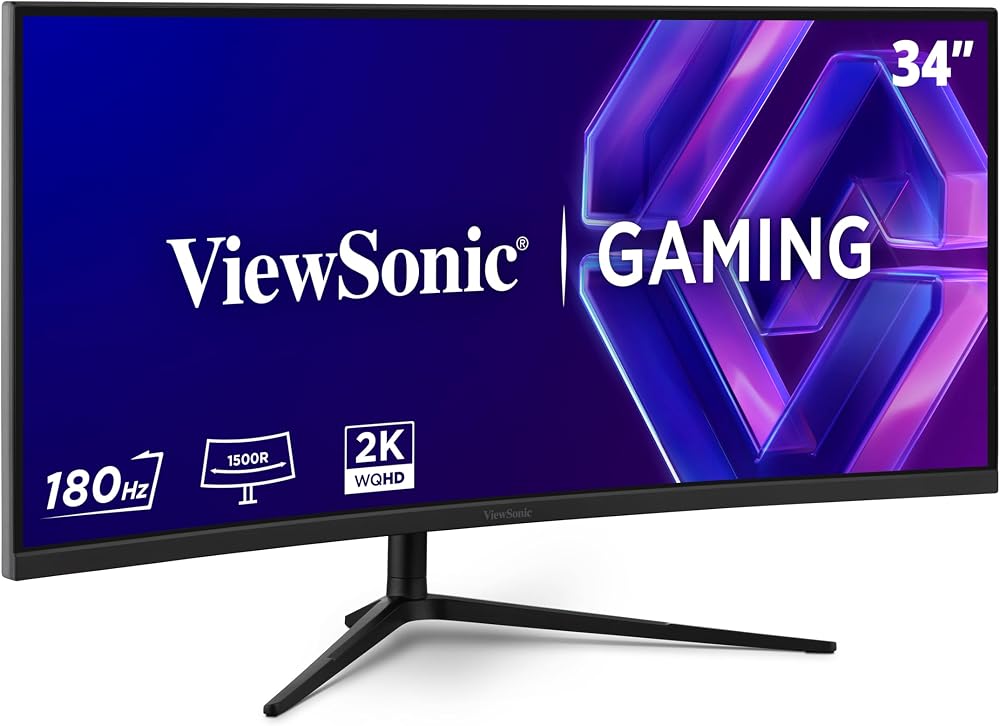
Best Computer Monitors for Excel: A First Time Buyer's Guide for 2026
Disclosure: We may earn a commission when you buy through links on this page, at no extra cost to you. As an Amazon Associate I earn from qualifying purchases. Learn more
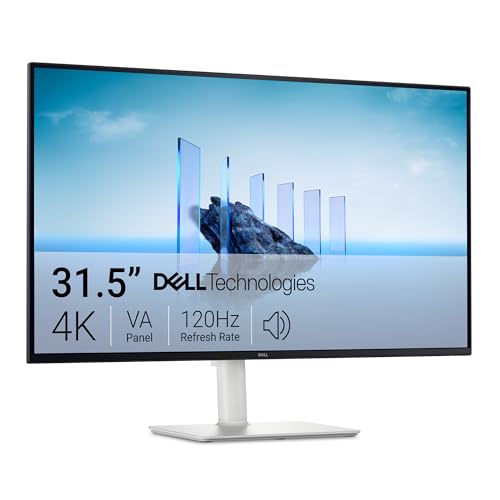
Spreadsheet work rewards space and sharp text. A first time buyer guide to the best computer monitors for excel, from size to ports.
If you spend your workday inside spreadsheets, your screen matters more than almost any other part of your setup. The best computer monitors for excel make rows, columns, and tiny cell values easy to read for hours at a time. They give you room to see a full budget model without constant scrolling, and they keep text sharp enough that a long day of data entry does not end with tired, strained eyes.
This guide is written for first time buyers, so every term is explained in plain English before it is used in buying advice. You will learn how size, resolution, panel type, and ports work together, which extras are worth paying for, and which ones you can safely skip. Start with the product table above to see how current options differ, then read on to understand what those specs actually mean for spreadsheet work.


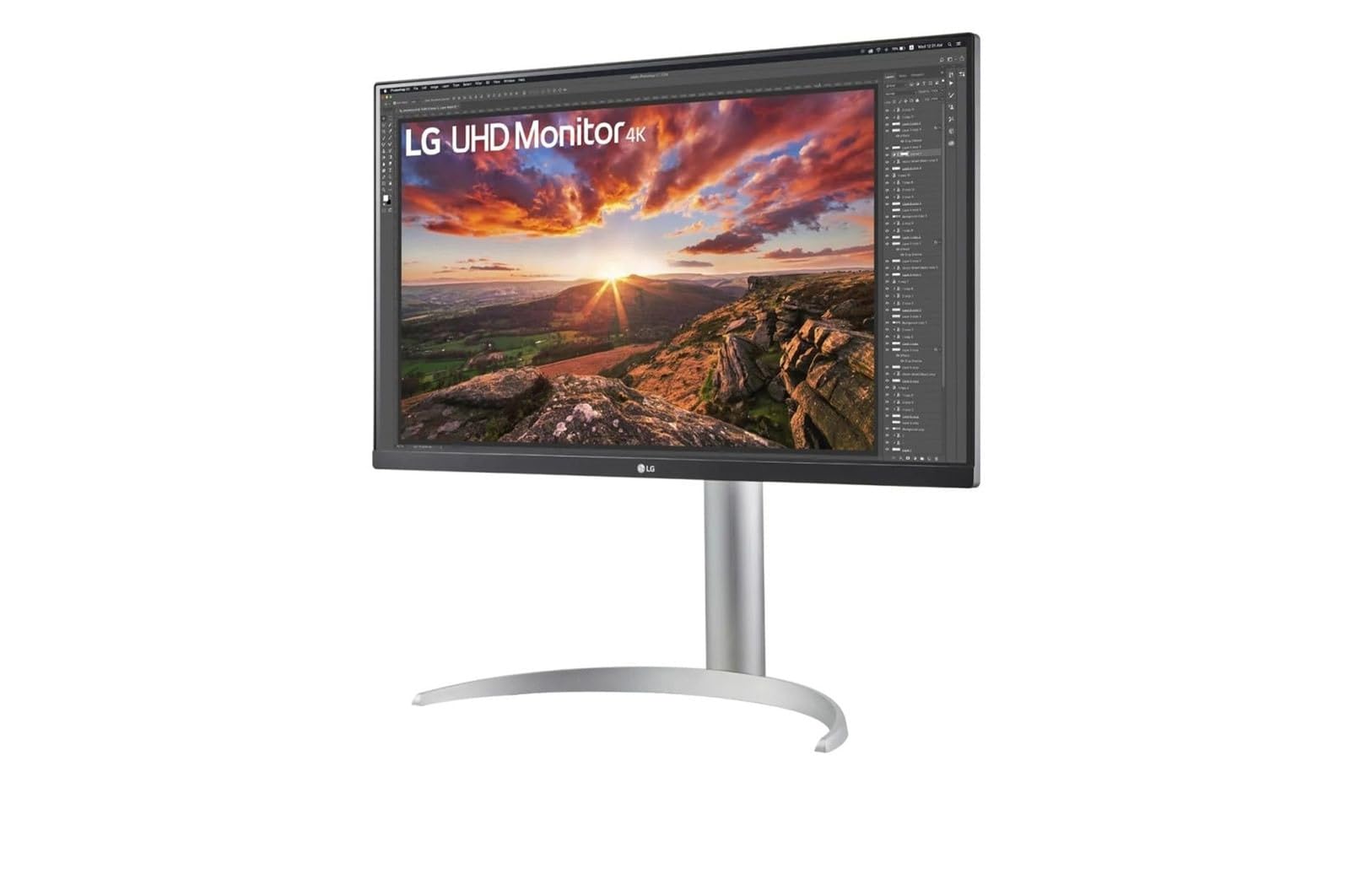
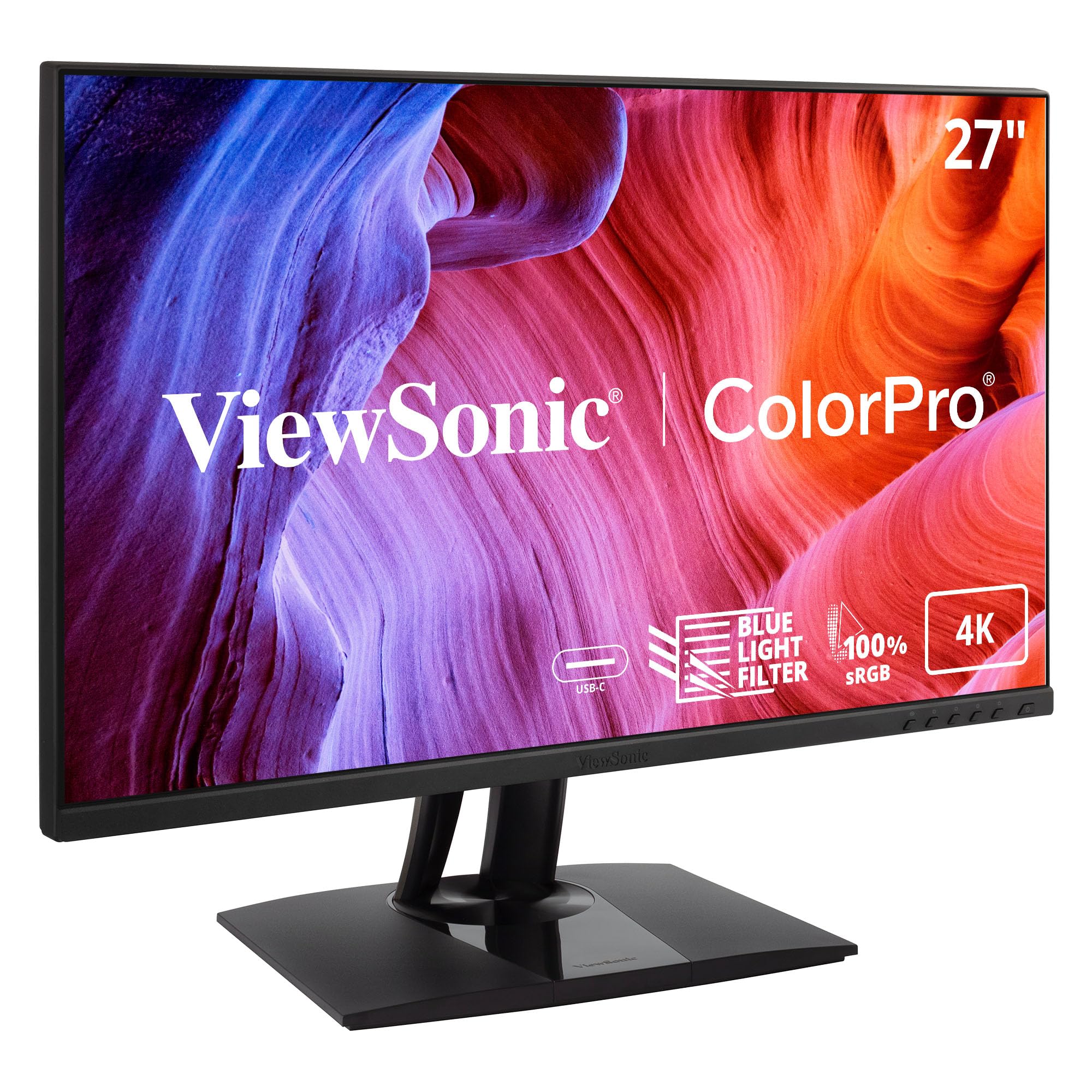
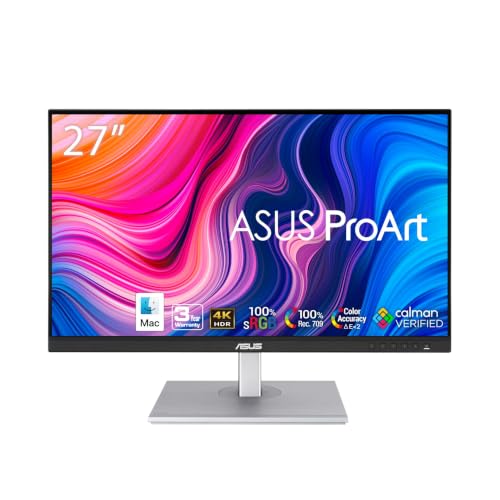


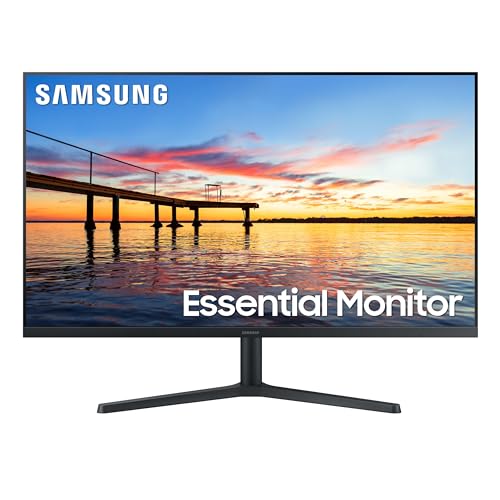

Computer Monitors 101: The Basics
A computer monitor is the display that shows the picture your computer creates. Your laptop or desktop sends a video signal through a cable, and the panel turns that signal into the image you see. The panel itself is a grid of millions of tiny pixels, and each pixel lights up in a set color to form text, charts, and gridlines. More pixels packed into the same space means finer detail, which is why resolution plays such a big role in how crisp a spreadsheet looks.
Most monitors also include a stand, a set of ports on the back, and simple on screen menus for brightness and color settings. Some add built in speakers or a USB hub, but the core job never changes: show a clear, stable image at a comfortable size. If you want a narrower look at spreadsheet focused choices after learning the basics here, see our guide to the best monitors for excel.
Why upgrade from a laptop screen at all? A typical laptop display squeezes your workbook into a small area, so you see fewer columns and spend the day zooming in and out. A larger external monitor lets you park a data sheet on one side and a summary chart on the other, or stretch one wide model across the whole screen. That extra space is the single biggest reason spreadsheet users buy a dedicated monitor.
Key Specs Explained in Plain English
Monitor listings throw around a lot of numbers, but only a handful affect daily spreadsheet work. The sections below walk through each one, explain what it changes on screen, and give you a sensible target for Excel use. Keep the product table above open as you read, and you will be able to match each spec to the best computer monitors for excel with confidence.
Features That Matter for Excel
Spreadsheet work rewards three things above all: space, sharpness, and comfort. Space means enough screen area to see many columns at once, and ultrawide productivity displays push this furthest by stretching the picture wider than a standard screen. Sharpness comes from pairing resolution to size, covered in detail below. Comfort comes from a matte finish that cuts reflections, brightness you can lower for evening work, and flicker free backlights with low blue light modes that feel gentler during long sessions. An adjustable stand that raises, tilts, and swivels the screen rounds out the list, since posture matters when you sit with a workbook open all day.
Panel Technology: IPS, VA, OLED, and Mini LED
The panel is the part of the monitor that produces the picture, and each type has trade offs. IPS panels offer accurate color and wide viewing angles, so a chart looks the same when you lean back or share the screen with a coworker. VA panels deliver deeper contrast and darker blacks, though fast scrolling text can smear slightly. OLED panels produce perfect blacks and rich color, but static content is a concern, because a fixed ribbon menu and gridlines sitting in one place for hours raise the risk of burn in over time. Mini LED is a backlight upgrade rather than a panel type, using many small light zones to boost brightness and HDR impact, usually at a higher price.
Refresh Rate and Response Time
Refresh rate, measured in hertz, is how many times per second the screen redraws the picture. A standard 60 Hz monitor is perfectly fine for spreadsheets, since cells and text sit still most of the time. Higher rates such as 120 Hz or 144 Hz make scrolling through a long sheet feel smoother and keep the pointer easier to follow, which some heavy users genuinely appreciate. Response time, measured in milliseconds, describes how fast pixels change color, and it matters far more for fast games than for Excel. If your desk doubles as a gaming station after hours, see our guide to the best computer monitors for gaming to weigh those speed specs properly.
Resolution and Screen Size
Resolution counts the pixels on screen, and it should always be matched to size. At 24 inches, 1080p looks acceptable, though text is not especially fine. At 27 inches, 1440p is the sweet spot for Excel, giving you noticeably sharper text and more usable rows and columns without tiny fonts. At 32 inches, 4K shines, letting you fit a huge model on screen while text stays readable, especially with Windows scaling set to 125 or 150 percent. A 34 inch ultrawide at 1440p vertical resolution is another strong route, trading height for a wide view that suits side by side sheets. Sit about an arm length from the screen, and pick the pairing that keeps text comfortable at that distance.
Connectivity and Ports
Ports decide how the monitor connects to your computer and what else it can do. HDMI is the most common input and works with nearly every laptop and desktop. DisplayPort is common on desktops and handles high resolutions and refresh rates well, and HDMI 2.1 adds similar headroom for 4K at fast refresh rates. USB C is the most convenient option for laptop users, since one cable can carry the picture, charge the laptop, and connect accessories through a built in USB hub. Before you buy, check the outputs on your own computer and count the ports you need, including a spare HDMI for a second device. Most mounts follow the VESA standard, often 100 by 100 mm, if you plan to use a monitor arm.
Adaptive Sync and Gaming Features
Adaptive sync, sold under names like FreeSync and G Sync, matches the screen refresh rate to the signal so motion stays smooth without tearing. For spreadsheets it changes almost nothing, because a static grid does not tear, though it can help video playback look cleaner. HDR support is similar: it makes movies and games look richer, but it does little for a white workbook, and a poorly tuned HDR mode can even make text look washed out. Treat both as pleasant extras if they come included, not as reasons to pay more. Buyers who split time between work and play can compare priorities in our guide to the best gaming monitors.
Rookie Mistakes to Avoid
First time buyers tend to repeat the same handful of errors. Each one below is easy to dodge once you know it exists.
- Buying a very large screen with low resolution, so text looks soft and blocky instead of crisp at your normal sitting distance.
- Ignoring the stand and choosing a model with tilt only adjustment, which leaves the screen too low and strains your neck during long sessions.
- Skipping the port check on your laptop, so the new monitor arrives and you discover you need an adapter you do not own.
- Choosing a glossy screen for a bright room with windows behind you, which fills the display with reflections that fight the gridlines.
- Paying extra for gaming extras like adaptive sync and extreme refresh rates when the monitor will only ever show spreadsheets.
- Leaving Windows scaling at the default on a 4K screen, which makes menus and cell text far smaller than they need to be.
Getting Started: Setup and First Use
Setup takes about fifteen minutes. Attach the stand to the panel until it clicks, or mount the monitor on a VESA arm if you bought one. Connect the cable that matches both your computer and the monitor, with USB C being the simplest choice for most laptops. Turn everything on, then open your display settings and confirm the resolution is set to the native value listed on the box, since a lower setting makes text look blurry.
Next, set Windows scaling so text feels comfortable, then open a familiar workbook and adjust brightness until white cells match the light in your room rather than glowing. In the monitor menu, switch the picture mode away from vivid, which oversaturates color and can make charts misleading, and choose a standard or reading mode instead. Position the top of the screen at or just below eye level. Shoppers who care about a tidy desk can also browse the best looking computer monitors for slim bezels and cleaner cable routing ideas.
For daily care, dust the screen with a dry microfiber cloth and never spray cleaner directly onto the panel. Keep vents clear so heat can escape, and if you chose an OLED model, run the built in pixel refresh when the monitor prompts you, since that routine helps protect the panel during years of static spreadsheet use. If you later want a second screen for travel or a small desk, see our guide to the best portable computer monitors for lighter options that pair well with a laptop.
Computer Monitors: Your Questions Answered
What features matter most in a computer monitor for Excel work?
Sharp text, generous screen space, and an adjustable stand matter most for Excel work. Pair 1440p resolution with a 27 inch screen, or go ultrawide if you live in wide models with many columns. One point worth adding: a second smaller monitor can beat one large screen for some people, because you can keep email or a source document open beside your main workbook without shrinking either window. Try arranging your current windows side by side to judge which layout suits your habits before you commit.
Does refresh rate matter for a computer monitor if you never play games?
No, a high refresh rate is not required if you never play games, and a standard 60 Hz screen handles spreadsheets perfectly well. The real benefit of 120 Hz or above for office work is feel: scrolling through thousands of rows looks smoother, and it is easier to keep your eye on one row as the sheet moves. Treat it as a comfort upgrade worth having if the price gap is small, not as a must have feature worth stretching your budget for.
Is a 4K computer monitor worth the extra cost for spreadsheets?
Yes, a 4K monitor is worth it when the screen is 32 inches or larger and you work with dense models all day. The extra pixels keep text fine and readable even when you fit a large workbook on screen at once. One caution for first time buyers: older laptops with basic graphics may struggle to run a 4K external screen alongside the built in display, causing fans to spin up and windows to stutter. Check your laptop graphics specs before paying the 4K premium.
What computer monitor size fits a typical home desk?
A 27 inch monitor fits most home desks well, since desks are commonly about 24 to 30 inches deep. That depth leaves room for a keyboard and notebook while keeping the screen at a comfortable viewing distance. Before ordering, measure the stand footprint as well as the screen, because deep stands can eat the space where your keyboard belongs. A VESA monitor arm solves that problem neatly by lifting the screen off the desk surface entirely.
IPS vs OLED: which panel is better for a computer monitor used with Excel?
IPS is the safer choice for a monitor that shows Excel all day, thanks to sharp text, even brightness, and no burn in risk from static toolbars. OLED looks stunning for video and mixed use, but two spreadsheet specific quirks count against it: the risk of burn in from fixed screen elements, and automatic brightness limiting that can dim a mostly white workbook. If your work mixes spreadsheets with plenty of media, OLED can still make sense, but pure spreadsheet users should stick with IPS.
How long does a computer monitor for Excel usually last?
A computer monitor used for office work usually lasts about five to eight years before the backlight dims enough to notice. There are no moving parts to wear out, so gentle daily use is rarely the limiting factor. When you compare listings, check the warranty length and the dead pixel policy, since those differ between brands and matter more than small spec gaps. Keeping brightness at a moderate level instead of maximum also slows backlight aging over the years.
Final Thoughts
For a first purchase, keep the decision simple: match resolution to size, choose an IPS panel with a comfortable matte finish, and make sure the stand and ports fit your desk and your laptop. Those three choices do more for daily spreadsheet comfort than any gaming extra. The product table above pulls current options together so you can compare pairings at a glance. With the basics in this guide, you are ready to pick from the best computer monitors for excel with confidence and get back to the numbers that matter.