Best Computer Monitors for Architects: A Buying Guide for 2026
Disclosure: We may earn a commission when you buy through links on this page, at no extra cost to you. As an Amazon Associate I earn from qualifying purchases. Learn more
Accurate color, sharp linework and comfortable ergonomics: a checklist for choosing the best computer monitors for architects.
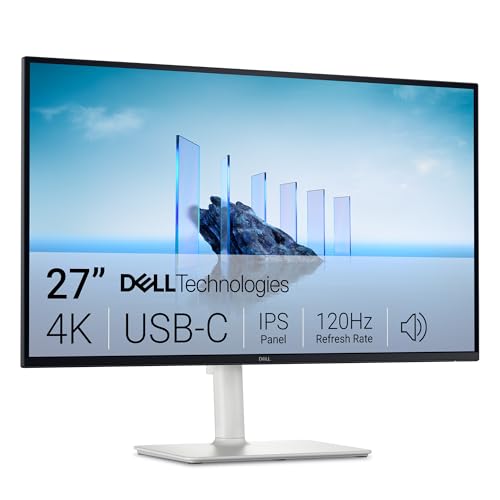
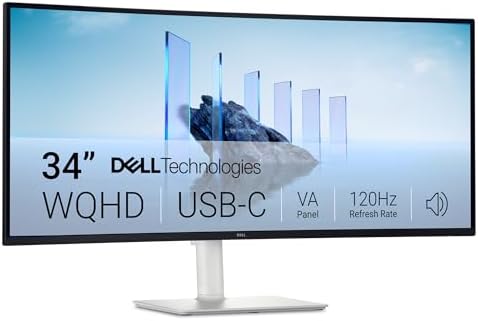
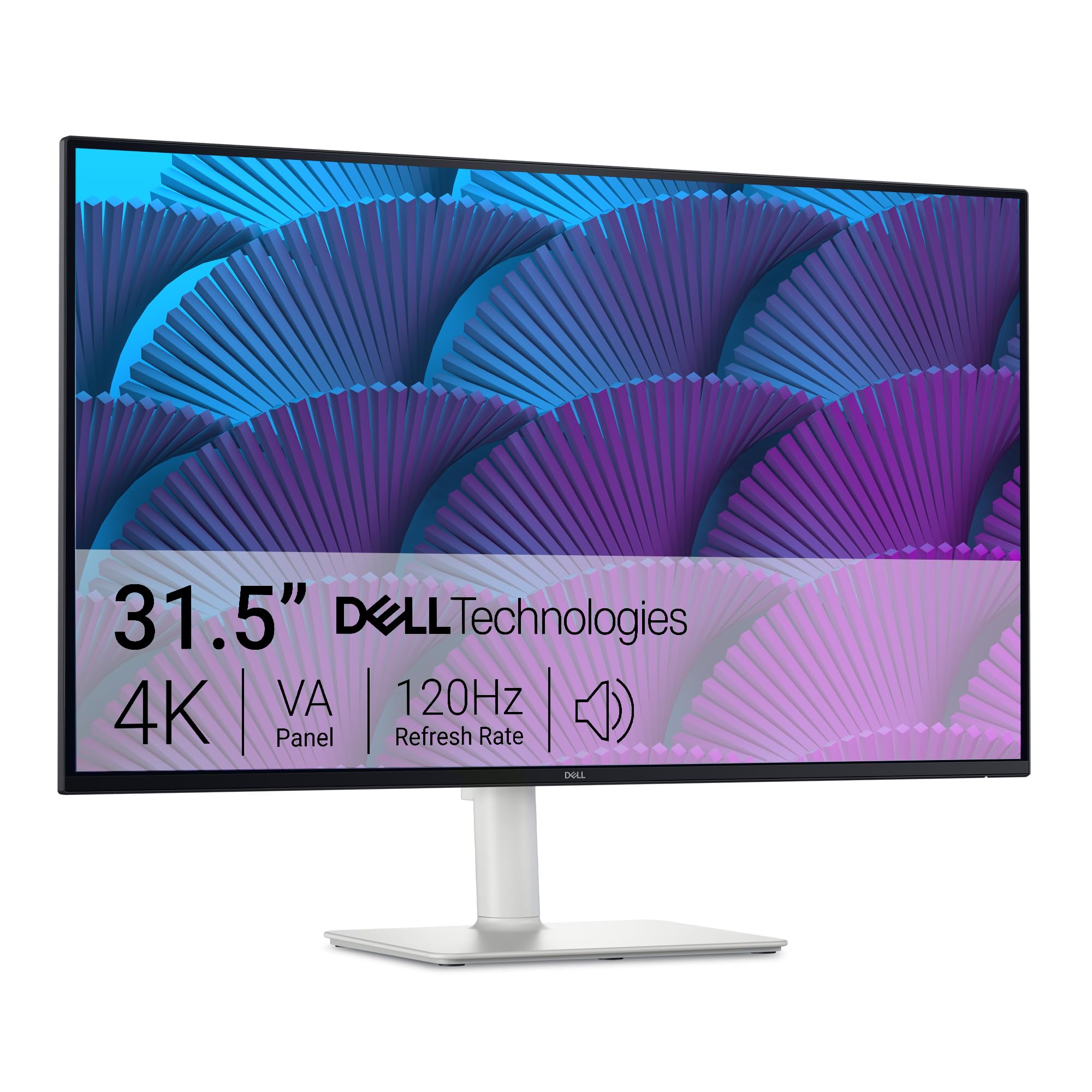
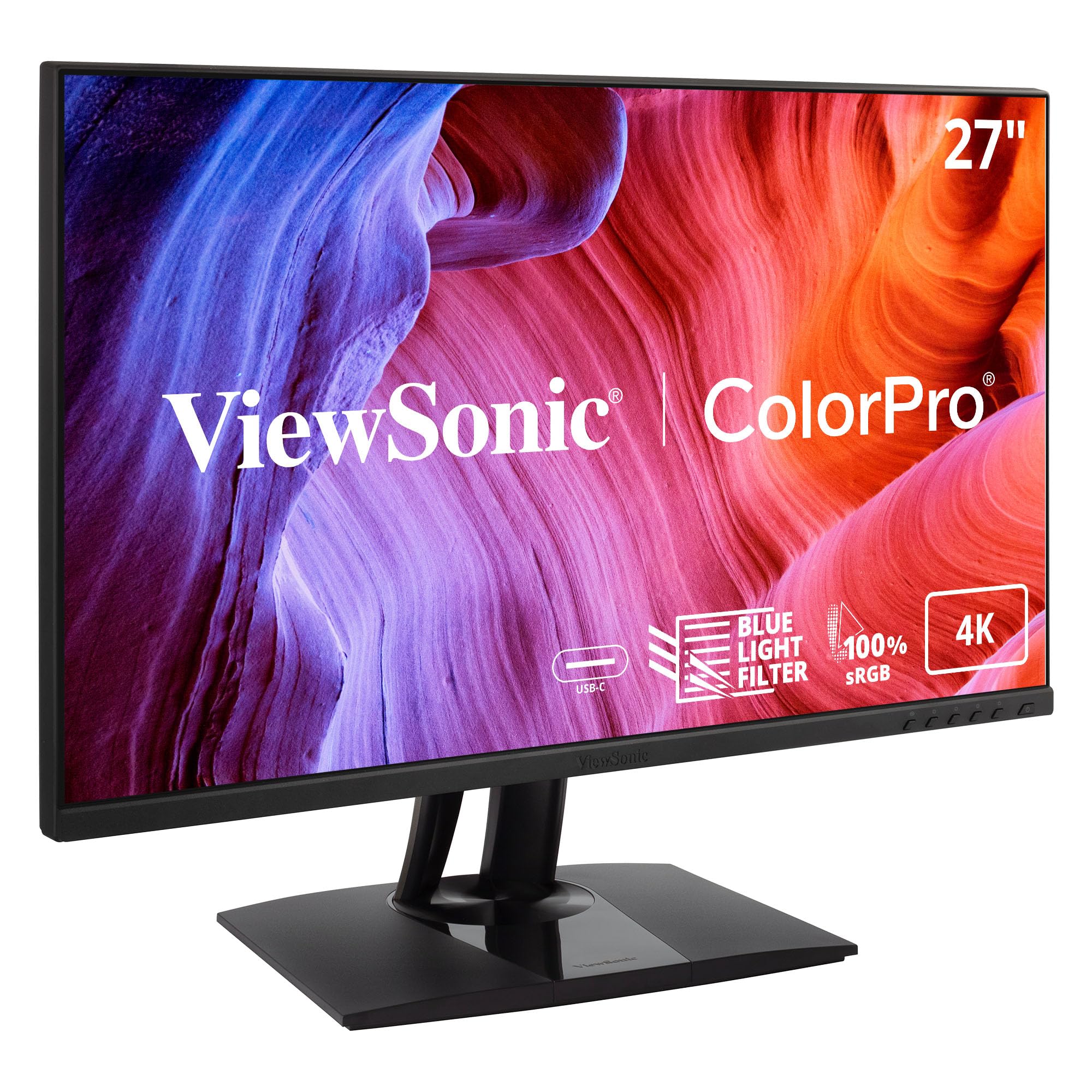
Choosing a monitor for architecture work is different from choosing one for email or spreadsheets. Floor plans, sections, and 3D models reward sharp text, accurate color, and enough space to keep toolbars and drawings visible at once. When you shop for the best computer monitors for architects, judge each model by how it handles linework, renderings, and long days at the desk. The product table above gathers the key specs side by side so you can spot strong candidates quickly.
This guide turns those priorities into a simple checklist you can apply to any listing. You will learn which panel types protect color accuracy, what resolution suits your desk depth, and how stand adjustments and ports affect comfort. By the end, you will know which tradeoffs matter for drafting, which matter for presentations, and which specs you can safely ignore to save money.




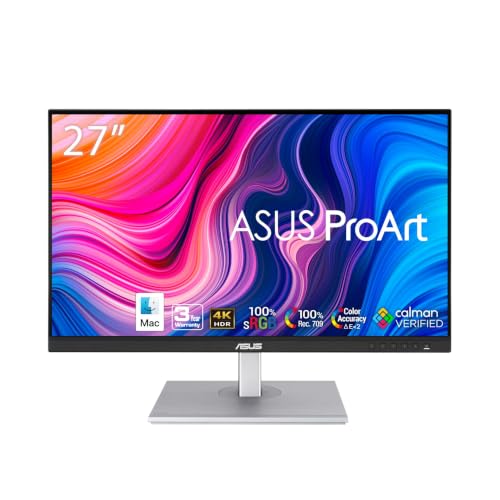

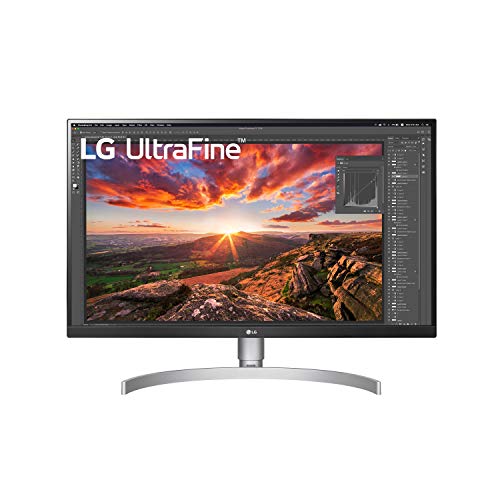
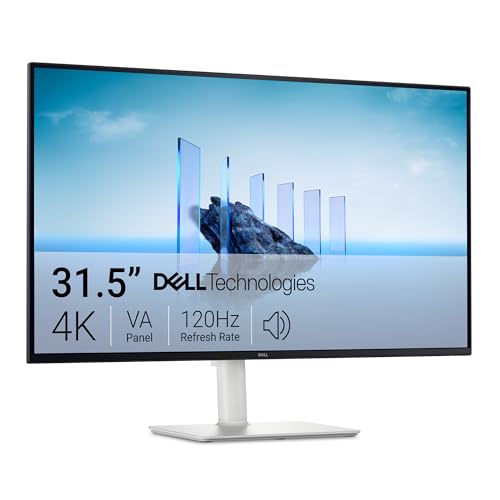
Key Features to Compare for Architecture Work
Use the product table above as your starting point, then work through the criteria in this section. This checklist explains what separates the best computer monitors for architects from ordinary office displays: consistent color, fine detail at normal viewing distances, and ergonomics that hold up through long drafting sessions. A model that scores well on every point below will serve most studios well.
Features That Matter Most for Architects
Architecture software fills the screen with thin lines, small text labels, and layered colors that must stay distinct. Look for wide color coverage of at least the full sRGB range, plus strong Adobe RGB or DCI P3 coverage if you produce renderings for clients. A matte finish helps in bright rooms because reflections can wash out pale lines. If you want a second opinion focused only on drafting, see our guide to the best monitors for architects.
Panel Technology: IPS, VA, OLED, and Mini LED
IPS panels are the default choice for most architects because color stays consistent when you lean in or view the screen from the side. VA panels offer deeper contrast for dark scenes, but color can shift at wide angles. OLED and Mini LED models deliver striking contrast for presentations, yet OLED carries a burn in risk when static toolbars stay on screen all day. For daily CAD work, a quality IPS panel usually gives the most balanced result.
Stand, Mounting, and Ergonomics
You will sit with this screen for hours, so height, tilt, swivel, and pivot adjustments matter as much as resolution. A stand that raises the top of the screen near eye level helps posture, and VESA mounting lets you use an arm to reclaim desk space for drawings. Thin bezels also make two screen setups look tidy in a client facing studio. If design matters as much as specs, see our guide to the best looking computer monitors.
Adaptive Sync and Gaming Features
Adaptive sync matches the refresh rate to the output of your graphics card, which keeps panning across a large model smooth and free of tearing. Technologies such as FreeSync and G Sync are nice bonuses for architects, though they matter far more for play than for drafting. HDMI 2.1 ports also help if you connect a console or a newer laptop. If your desk doubles as a gaming setup, see our guide to the best computer monitors for gaming.
Resolution and Screen Size
Resolution decides how much detail you see without zooming. A 27 inch screen at 4K shows crisp linework and readable small text, while the same size at 1440p gives larger interface elements. Screens from 32 inches upward suit deep desks where you sit farther back. Ultrawide displays shine when you keep a drawing open beside reference photos, because one wide canvas removes the bezel gap in the middle.
Refresh Rate and Response Time
Most architecture work runs comfortably at 60 Hz, and even a modest step up makes orbiting a 3D model feel smoother. Response time describes how fast pixels change, and lower figures reduce ghosting when you pan quickly across a plan. Gamers chase extreme figures, but architects gain more from spending on color accuracy and resolution first. Treat a high refresh rate as a comfort upgrade rather than a requirement, unless you notice lag or blur in daily use.
HDR and Brightness
HDR support helps renderings and walkthrough videos show both bright windows and shadowed corners with detail intact. Look for a peak brightness of about 400 nits or more if your office gets strong daylight, and check that HDR modes do not oversaturate colors you rely on for material choices. For printed work and screen sharing, accurate standard mode color matters more than dramatic HDR effects.
Buying Guidance for Different Architecture Workflows
With the criteria clear, match them to the work you do most. The three paths below replace guesswork with priorities, so you can weigh the product table above with your own projects in mind. Most architects lean toward one path, then borrow one or two priorities from another.
Guidance for CAD and BIM Drafting
If drafting fills your day, put resolution, text clarity, and ergonomics first. Choose 4K at 27 inches or larger, set scaling so dimension labels stay readable, and pick a stand or arm that holds the screen steady at eye level. A second smaller screen for email and specifications can keep the main canvas clean. Your eyes will thank you when one blurry label could otherwise hide a costly drafting error.
Guidance for Rendering and Client Presentations
Presentation work rewards color coverage, contrast, and screen size, because clients judge materials and light from what they see. Favor panels with wide gamut coverage, a factory calibration report, and brightness that holds up in a lit meeting room. Confirm colors in an accurate picture mode before meetings, since dramatic modes can shift finishes. Large screens help groups follow along without crowding around a laptop.
Guidance for Small Desks and Hybrid Work
Compact studios and shared desks call for smaller footprints and simple connections. A 24 or 27 inch monitor with USB C power delivery can drive your laptop and charge it through one cable, which keeps the desk clear. For site visits and client offices, a portable second screen extends your workspace anywhere. If that travel setup appeals to you, see our guide to the best portable computer monitors for lighter travel options.
Quick Buyer Checklist
Before you order, answer each question below. A yes on the first five matters most, and any no points to a spec worth a second look.
- Does the panel cover the full sRGB range, with wider coverage if you present renderings to clients?
- Is the resolution high enough that small text and thin lines stay sharp at your normal sitting distance?
- Can the stand adjust in height, or does the monitor offer VESA mounting for an arm?
- Do the ports match your laptop, including USB C or HDMI for a simple one cable setup?
- Is the screen finish matte enough for the light in your room?
- Does brightness reach about 400 nits so daytime work stays clear near windows?
- Will the screen size fit your desk depth without crowding drawings, a keyboard, and a mouse?
- Does the warranty cover the panel long enough to protect a busy studio schedule?
Red Flags to Watch For
Some listings look strong until you read them closely. Treat the signs below as reasons to pause, compare another model, or ask the seller direct questions before you commit.
- Vague color claims with no gamut figures often hide a narrow panel that makes renderings look dull and flat.
- A missing VESA mount can trap you with a wobbly fixed stand and no option to add an arm later.
- Very low brightness paired with a glossy finish usually means washed out lines in any room with windows.
- Short warranties with unclear dead pixel terms can leave you paying for defects that appear early in ownership.
- Listing photos that show only viewing angles and never text or plans may be hiding poor sharpness at normal distances.
Setup and Care Tips for Your Monitor
Start setup in an accurate picture mode rather than a vivid store mode, which pushes color beyond what your drawings will show in print or on client screens. Set brightness so white paper on your desk matches white on screen, then adjust software scaling until labels feel easy to read. Place the screen about 24 to 30 inches away, with the top edge near eye level, and route cables so the stand can move freely.
Clean the panel only with a dry or slightly damp microfiber cloth, and never spray liquid directly on the screen or press hard on smudges. Run the built in pixel refresh on OLED models when the monitor prompts you, and keep vents clear so heat can escape. Recheck your calibration every few months, because backlights shift slowly with age and a small adjustment restores trusted color balance.
Frequently Asked Questions
What features matter most in computer monitors for architects?
Accurate color, high resolution, and a comfortable stand matter most, because they shape every drawing you produce. Beyond the guidance above, check the stated panel uniformity and the dead pixel policy before ordering, since a bright spot near the center of a plan is distracting all day. A monitor that nails those basics will feel right long after faster or flashier specs stop mattering.
Is IPS or OLED better for computer monitors for architects?
IPS is better for most architects who draft all day, because static menus and toolbars carry no retention risk and colors stay steady at wide angles. OLED wins for presentation work where deep contrast makes renderings glow. If you choose OLED, vary your content and hide taskbars when possible, since changing what stays fixed on screen lowers the chance of lasting marks over time.
Is 4K resolution worth it on computer monitors for architects?
Yes, 4K is worth it for most architects, because plans stay sharp and you zoom less often while checking details. The tradeoff is performance, since your laptop or graphics card must push far more pixels than an HD screen needs. Confirm your computer can output 4K at a smooth rate before ordering, or the sharper picture may arrive with sluggish pans and stutters.
Does refresh rate matter on computer monitors for architects who do not game?
Refresh rate matters only a little when you do not game, because drafting and modeling stay clear at 60 Hz. A higher rate can make cursor movement and model orbiting feel calmer, which some users find easier on the eyes. Spend first on panel quality and resolution, then treat refresh above 60 Hz as a comfort extra if the budget still has room afterward.
What monitor size should architects choose for a desk setup?
Most architects do best with 27 to 32 inches, because that range balances drawing space with a normal desk depth. Measure your desk before ordering and leave room for a keyboard, drawings, and speakers, since a screen that crowds the surface becomes tiring to use. If your desk is shallow, a monitor arm mounted at the back edge can return several inches of space.
How long do computer monitors for architects typically last?
Computer monitors for architects typically last many years of daily use, often well beyond the warranty period. Brightness fades gradually and colors drift, so periodic recalibration keeps older panels trustworthy for client work. Watch for flicker, uneven backlight patches, or a power supply that needs repeated restarts, since those signs suggest it is time to plan a replacement. When a panel can no longer hold accurate color, its drafting value is gone even if it still lights up.
Final Thoughts
The right monitor comes down to three checks: accurate color you can trust, resolution that keeps plans sharp, and ergonomics that support long focused days. Match those checks to your workflow, compare your shortlist against the product table above, and you will land on best computer monitors for architects that fit your studio without overspending on gaming extras. Prices and availability can change, so check the product page before ordering.