Best Computer Monitors for Dual Setup in 2026: A Practical Buying Guide
Disclosure: We may earn a commission when you buy through links on this page, at no extra cost to you. As an Amazon Associate I earn from qualifying purchases. Learn more

Matching size and resolution, counting ports, stands and desk depth: plain advice for the best computer monitors for dual setup.
A second screen is one of the cheapest ways to make a desk feel bigger, but a pair of monitors only helps when the two halves behave like one workspace. Mismatched sizes, the wrong cables, and a computer with too few outputs turn a simple upgrade into a week of small annoyances. This guide walks through the checks in the order that matters, so the best computer monitors for dual setup for your desk are chosen by fit and ports first and by picture claims last.
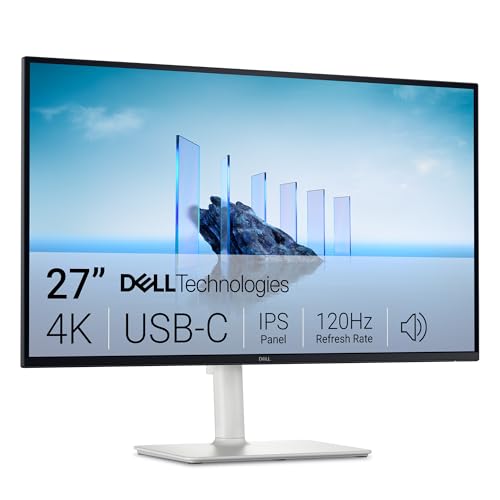
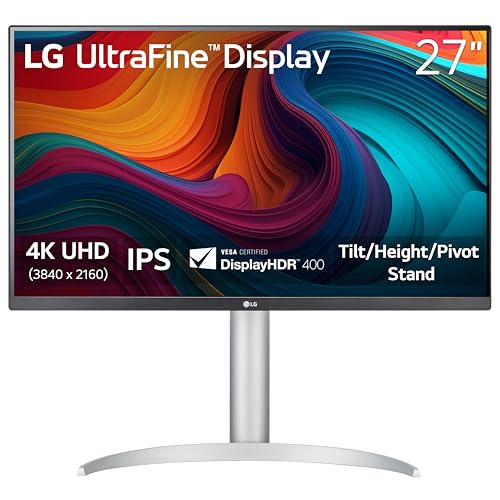
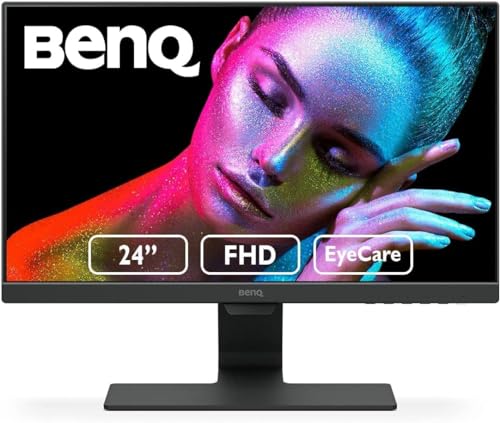
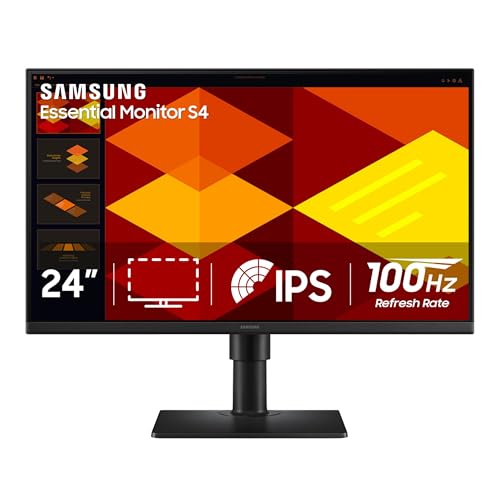
Below you get classes, matching rules, and setup checks that apply to any brand. The product table above lets you compare current monitors, and the sections after it explain how to choose two screens that work as a system.


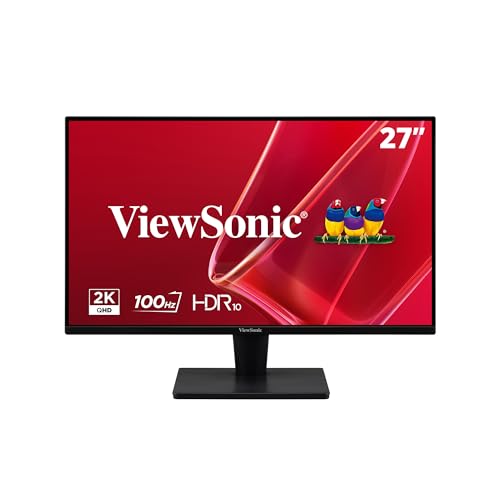
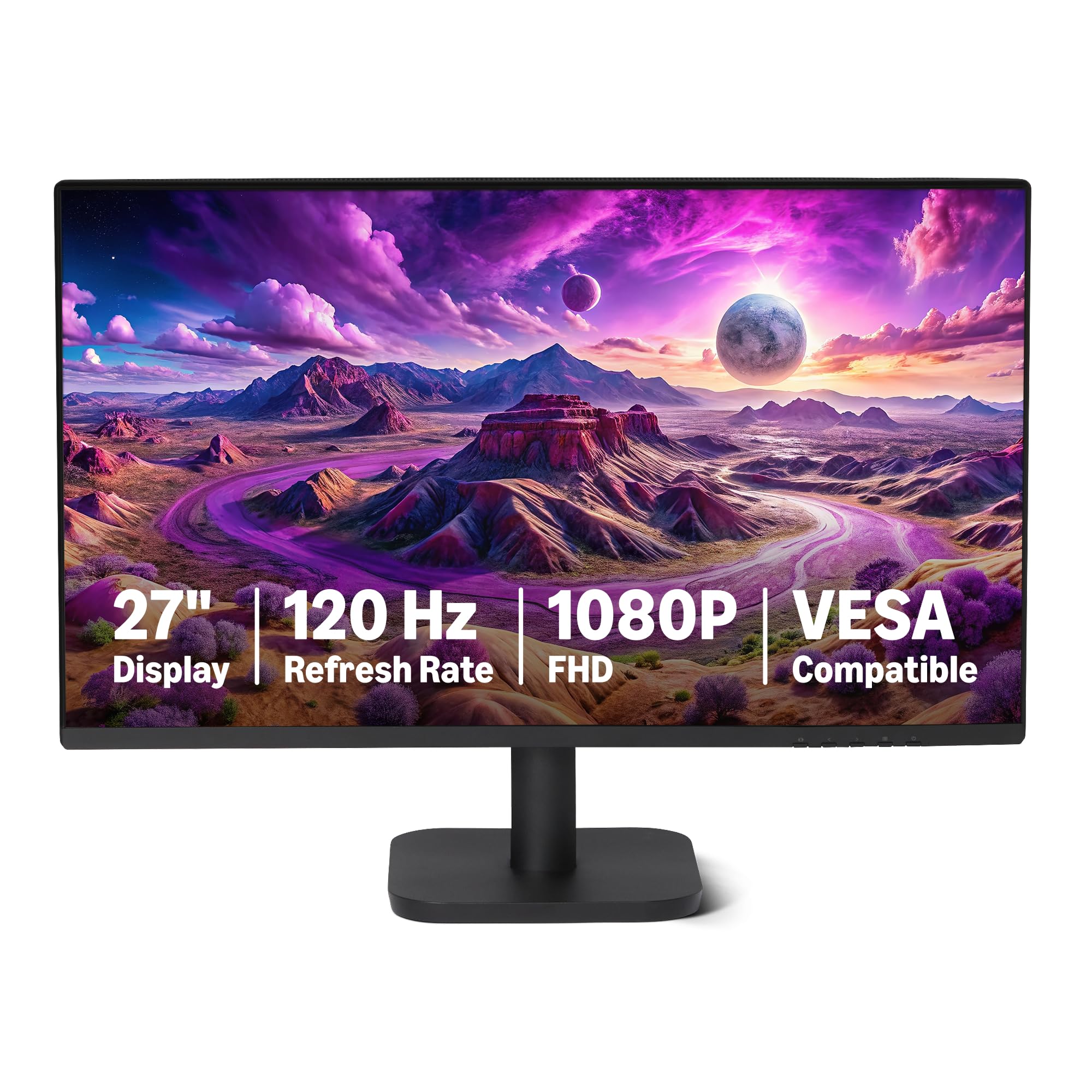
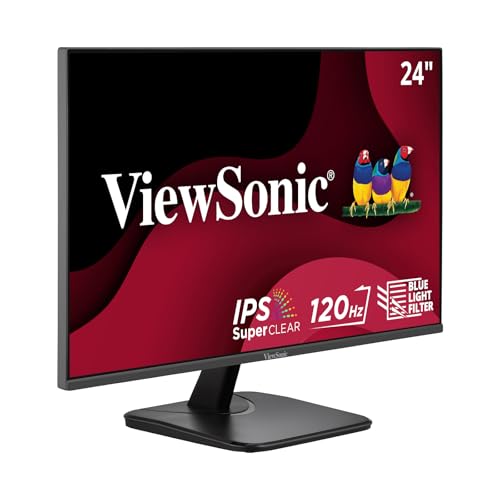

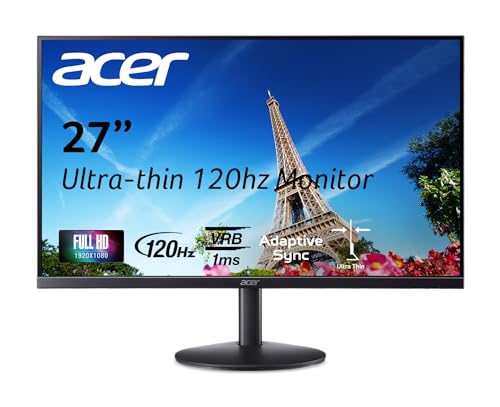
Two Screens or One Wide Screen: The First Decision
Before comparing any pair, settle the fork in the road: two standard screens or one very wide screen. Two screens give you a natural seam for snapping windows into place, a spare screen if one fails, and the freedom to angle each half toward you. One wide screen removes the seam and the second stand, but it asks for a deeper desk and usually costs more than two plain screens of similar total width.
Most work desks still favor the pair, especially when one screen holds reference material while the other holds the main task. Players split both ways, since some games stretch across a wide screen while others run better on one panel with chat or guides on the second. If the pair is your answer, the guide to best dual computer monitors compares the frames built for that job in more detail.
What Each Budget Class Buys You
Dual setups are bought twice, so small price steps double fast. These three classes describe what a pair at each level honestly provides, with prices given per screen.
The Plain Office Pair
Budget pairs built for documents, mail, and browser work usually sell for about $120 to $200 per screen. You get a clear standard resolution picture, basic stands, and panels that look fine straight on but wash out at wide angles. The main limits are fixed stand height on many models and chunky frames that make the center seam more noticeable. For text based work at a normal desk, none of those limits matters much day to day.
The Work and Play Pair
The middle class, at about $250 to $400 per screen, is where pairs start to feel matched and comfortable. Expect slimmer frames, height adjustable stands, better color for photo work, and faster refresh rates that make games and scrolling smoother. This is also the class where USB C connections and wider color coverage appear, which simplifies cables on modern laptops. Most mixed use desks land here and stay satisfied for years.
The Matched Step Up Pair
Premium pairs at about $450 to $700 per screen buy refinement rather than a different job: very thin frames, wide and accurate color, high refresh rates with adaptive sync, and bright HDR presentation. They suit video editors, designers, and players who want both screens to look identical under close work. The honest limit is that the second screen rarely needs the same premium treatment as the main one, so many buyers step up only the primary display.
How to Choose Monitors for a Dual Setup
A pair is a small system, and systems fail at their connections. These are the checks that decide whether two good monitors become one good workspace.
Features That Matter for Dual Setup
A dual setup asks for things a single screen never does. Thin frames matter because two frames meet in the middle of your view, and identical panels matter because a color shift between halves is impossible to ignore once seen. A VESA mount pattern on both screens keeps the door open to a dual arm later. None of these features sells a single monitor, yet together they decide whether a pair feels unified.
Size and Resolution Matching
Matching size and resolution is the rule that protects your eyes and your patience. When both screens share a size and resolution, text stays the same size across the seam and the pointer crosses at the same height. Common pairings are two 24 inch screens at 1080p for compact desks and two 27 inch screens at 1440p for roomier ones, while 4K pairs suit close, detailed work. Sit about an arm's length away, and let that distance, not the diagonal number, settle the size.
| Pairing | Screen size | Resolution | Desk depth guide |
|---|---|---|---|
| Compact pair | 24 inch | 1080p | About 24 inches |
| Mainstream pair | 27 inch | 1440p | About 28 inches |
| Detailed pair | 27 to 32 inch | 4K | About 30 inches |
Panel Technology: IPS, VA, OLED, and Mini LED
Panel type decides viewing angle and contrast, the two things a side screen exposes most. IPS panels hold color well at an angle, which suits the turned second screen, while VA panels give deeper contrast but can shift color off center. OLED panels deliver the strongest contrast and response, with a standing reminder to vary content against burn in. Mini LED is a backlight upgrade on other panel types that improves brightness control for HDR work.
HDR and Brightness
For a pair, matching brightness matters more than peak brightness. Two screens set near the same level, often around 250 to 350 nits for indoor work, keep your eyes from readjusting at every glance across the seam. True HDR impact needs much higher peaks and local dimming, which sit in the premium class. Treat HDR badges on budget pairs as a compatibility note rather than a picture upgrade.
Ports and Cables: Count Before You Buy
The hidden limit of every dual setup is the computer, not the monitors. Count the video outputs on your computer or dock before ordering, because each screen needs its own feed unless the connection supports daisy chaining over DisplayPort. HDMI and DisplayPort are the standard pair of choices, and USB C can carry a picture on machines that support it. Our walkthrough of the best setup for dual monitors covers the wiring order once the boxes arrive.
Adaptive Sync and Gaming Features
If games share the desk, adaptive sync keeps motion smooth by matching the screen's refresh rate to the game's frame rate, and it is worth having on at least the main screen. High refresh rates, fast response claims, and HDMI 2.1 ports all live in the gaming classes and add cost to both screens if you match the pair. Players weighing those features can compare them in the guide to best computer monitors for gaming.
Stands, Mounting, and Desk Depth
Stands decide whether two screens sit level, and level screens are what make a pair feel like one surface. Height adjustable stands on both screens are the simplest route, while a dual arm cleans the desk and lines screens up precisely, at the cost of a firm desk edge to clamp to. Desk depth matters more with two screens, since each screen sits a little angled and still needs its viewing distance. If the desk itself is the constraint, the guide to best computer desk for dual monitors covers depth and width minimums.
Types of Computer Monitors
Within a pair, the type of each screen can still vary, and the guide to best monitors for dual screen setup sorts more pairings than this quick tour. The four types below cover most desks.
Large Screen Options
Screens of 32 inches and up give each half the area of a small desk on its own. They reward a deep desk and punish a shallow one, since sitting too close forces constant head turning. As a second screen for timelines or dashboards, one large panel can replace two small ones.
Budget Displays
Budget displays trade stand adjustment and color range for a low price, and in a pair those trades show twice. They remain a fair choice for text, code, and reference material. Spend the savings on a dual arm and the pair gains the adjustment the stands left out.
Gaming Displays
Gaming displays chase refresh rate and response, and as the main screen of a pair they carry the fast half of the desk. The second screen rarely needs the same speed, so a mixed pair is common. Watch only that both screens share a size, so the fast panel does not tower over its partner.
OLED Displays
OLED displays lead on contrast and motion clarity, and they make video and games look rich on either half of a desk. Their care needs are real, including pixel refresh cycles and varied content to limit burn in. In pairs they are usually the step up pick for the main screen first.
Best Computer Monitors for Specific Needs
Best Computer Monitors for a Dual Setup
The most common real case behind this search is a buyer who already owns one good screen and wants to add its partner. Matching that existing screen matters more than any spec, since a near twin in size, resolution, and panel type keeps the pair feeling unified. If the original screen is old, replacing both with a matched pair is often cheaper than hunting down its twin. Check the ports on your computer first, because the second screen has nowhere to plug in without a free output.
How to Make Your Computer Monitors Last Longer
Two screens age side by side, and a few habits keep them looking matched.
- Turn off the vivid picture mode and set both screens to similar brightness, which eases wear and keeps the pair looking alike.
- Run the built in pixel refresh on OLED screens when the monitor prompts you, and vary what the screen shows during long days.
- Clean both screens with a dry microfiber cloth only, since paper towels and household sprays can mark the coating.
- Use quality cables rated for your resolution and refresh rate, because a cheap cable is the most common cause of flicker that gets blamed on the screen.
- Let the screens sleep when you step away instead of running a bright static desktop all day.
Computer Monitors: Your Questions Answered
What features matter most in computer monitors for a dual setup?
Matching comes first: the same size, resolution, and panel type on both sides, so text and color stay consistent across the seam. Thin frames and a VESA mount pattern come next, because they decide how close the screens sit and whether an arm can hold them. After that, check the practical basics of stand height adjustment and enough ports on your computer. Picture extras like HDR matter less in a pair than the matching itself.
How long do computer monitors usually last?
Most monitors stay useful for about five to eight years of daily work, and the backlight usually fades before the panel fails outright. In a pair, aging shows as a brightness or color gap between the two screens, which is why matched models bought together age most gracefully. Good cables, moderate brightness, and sleep settings all stretch that span. When one half of an old pair dies, replacing both is often the cleaner path.
Does refresh rate matter for non gamers using two monitors?
Yes, a little, though the reason is comfort rather than speed. A higher refresh rate makes scrolling text and moving windows look steadier, which some readers find easier on the eyes during long documents. It is not a requirement for office work, and standard rates serve most desks well for years. If the budget forces a choice, put the faster screen where your eyes spend the most time and let the second screen stay standard.
What monitor size should I get for my desk?
Let the depth of the desk answer: a shallow desk of about 24 inches suits 24 inch screens, while a deeper desk opens the door to 27 inch pairs. Two screens also need width, roughly 45 to 55 inches of clear surface for a comfortable angled pair. Measure the desk with stands in mind, since wide feet eat into the space your keyboard needs. When the numbers are tight, smaller screens on an arm beat larger screens crowded at the wrong distance.
Is 4K worth it on a dual setup?
4K earns its price when your work is full of fine detail, such as photo editing, design, or dense spreadsheets read at close range. For general office work, 1440p pairs give most of the sharpness at a gentler price and ask less of the computer driving them. Remember that two 4K screens double the pixels your machine must push, so check that your computer can feed both at full rate before choosing them.
The Bottom Line
A good dual setup is decided less by any single screen than by how the pair agrees with each other and with your desk. Match size, resolution, and panel type; count the outputs on your computer before you spend anything; and leave enough desk depth for a proper viewing distance. The product table above lines the classes up for a final comparison, and the best computer monitors for dual setup for most desks will be a matched pair chosen in that order, not the two most impressive screens sold separately.