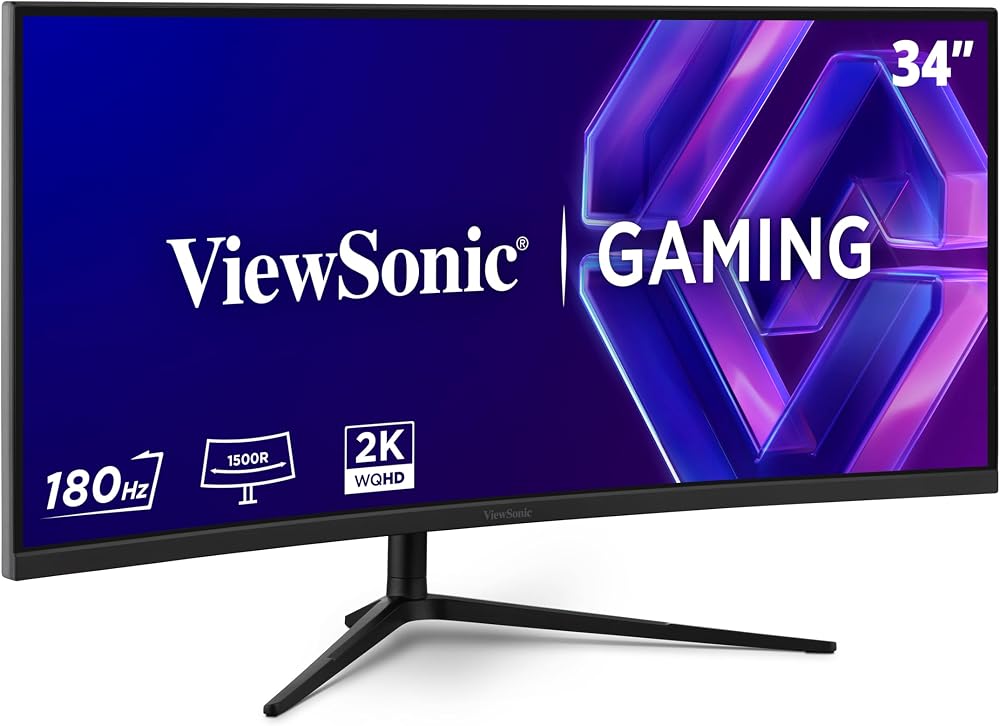
Best Computer Monitors for Coding: A First Time Buyer's Guide for 2026
Disclosure: We may earn a commission when you buy through links on this page, at no extra cost to you. As an Amazon Associate I earn from qualifying purchases. Learn more
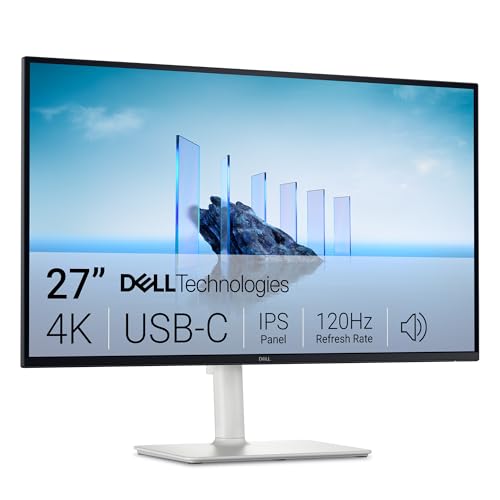
A plain English guide to the best computer monitors for coding: sharp text, comfortable stands and the ports that matter for first time buyers.
Buying your first monitor for programming can feel confusing because every listing leads with numbers and acronyms. Start with how you actually work. You read dense text for hours, keep an editor beside documentation, and switch between windows all day. As you compare best computer monitors for coding options, the product table above gives you a quick starting point.
This guide explains the basics in plain English, then walks through the specs that change your daily comfort and focus. By the end, you should be able to read a product page with confidence and choose a screen that suits your desk, your laptop, and your budget.

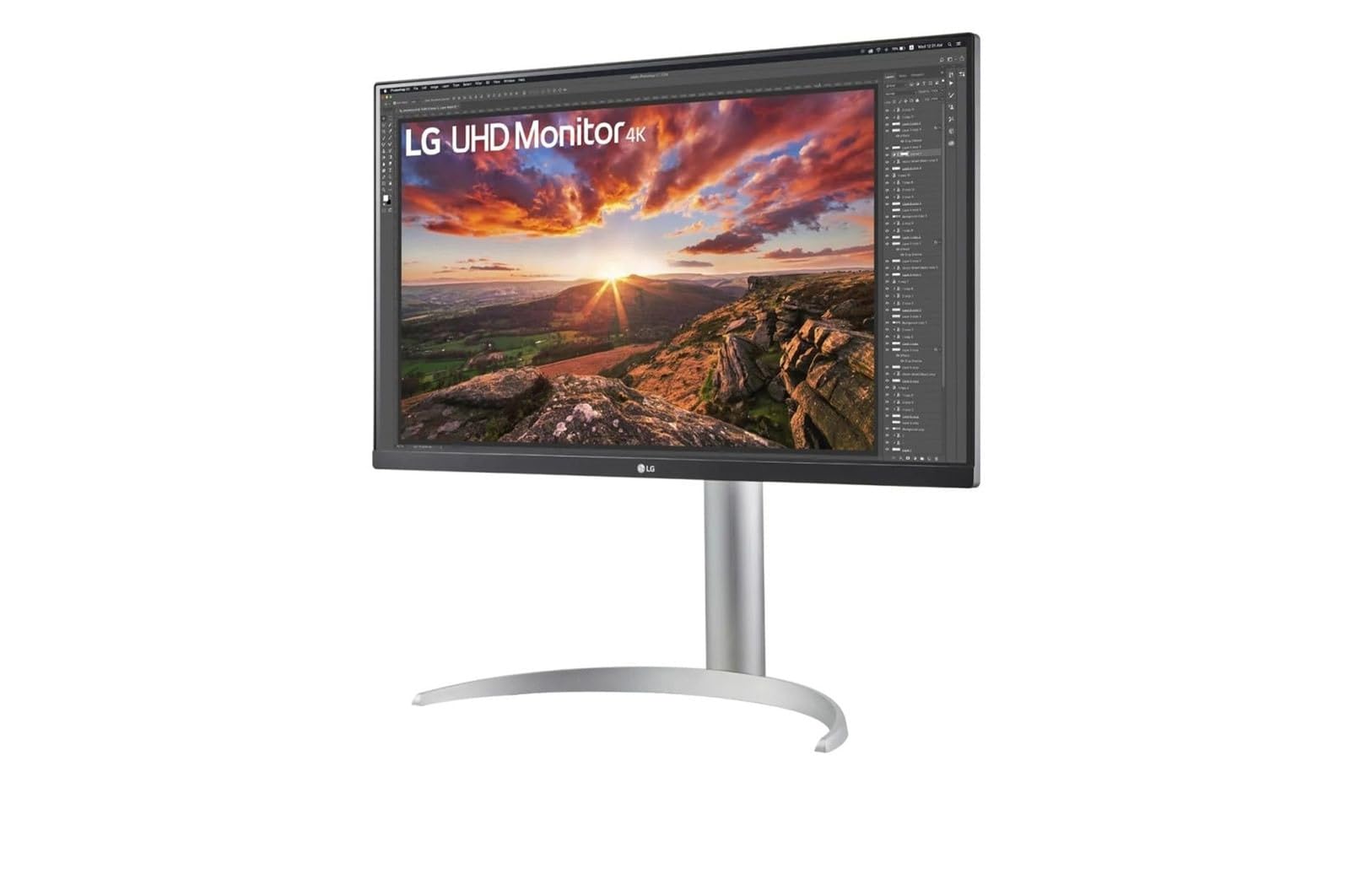
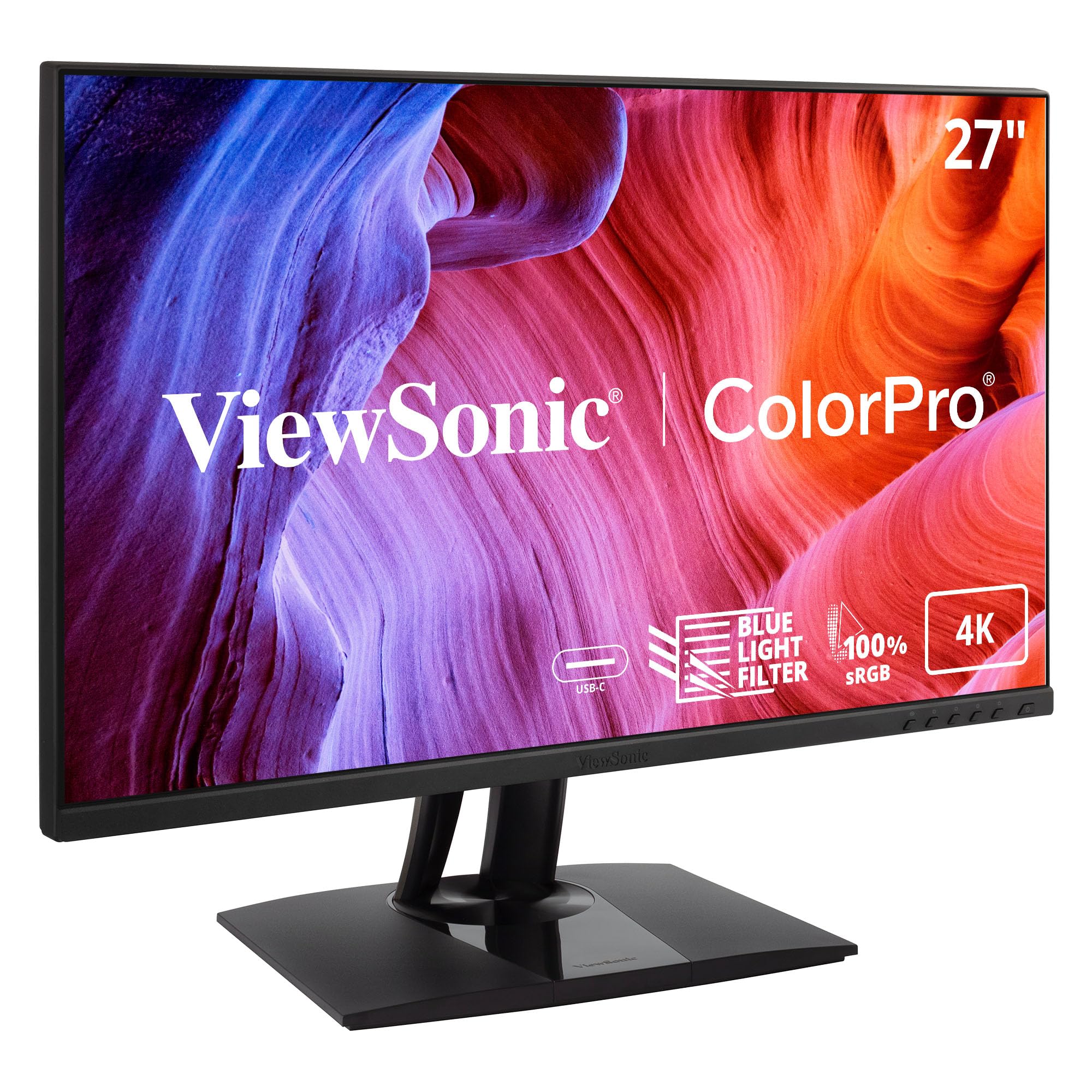
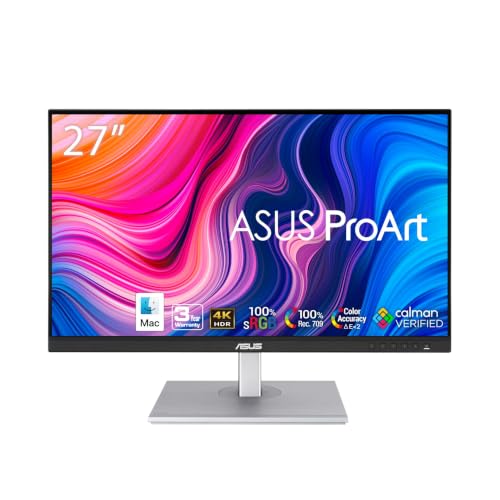
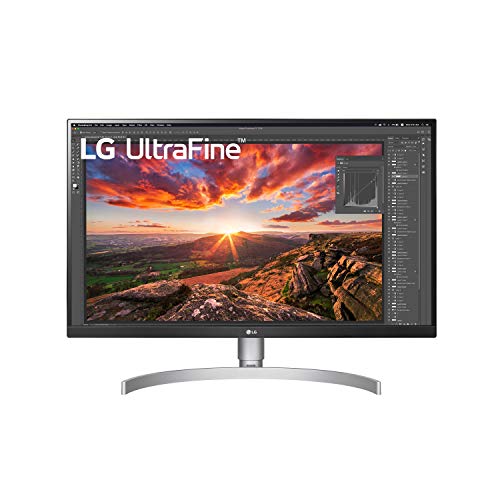
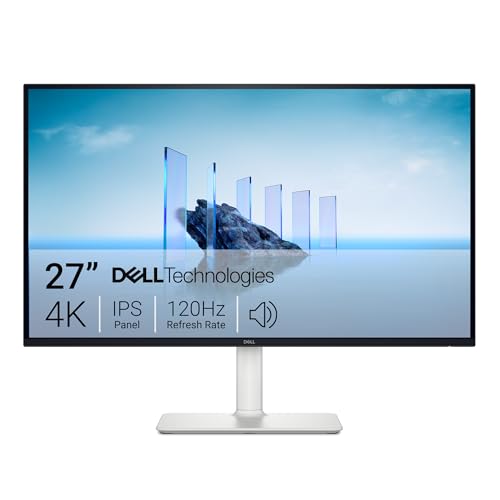


Computer Monitors 101: The Basics
A computer monitor is the display that shows the picture your computer creates. Your laptop or desktop sends image data through a cable, usually HDMI or DisplayPort, and the panel lights up millions of tiny pixels to form text, images, and video. More pixels generally mean sharper characters and cleaner edges around letters.
For coding, sharpness matters more than cinematic drama. You stare at small fonts, line numbers, and terminal output for long stretches. A screen that renders text cleanly at a comfortable size can reduce squinting and make it easier to spot a misplaced bracket in your editor.
Size alone does not tell the whole story. A large screen with too few pixels spreads the image thin, while a smaller screen with more pixels can look crisp but may make interface elements tiny until you apply scaling. That balance is the foundation for every later choice. Check ports too, and confirm whether a USB C port can carry video and charge your laptop through one cable. If you plan to use an arm later, look for VESA mounting holes on the back panel.
Key Specs Explained in Plain English
The product table above is easier to use once you know which numbers deserve attention and which ones are mostly marketing decoration. Text clarity and ergonomics come first for programming, while motion specs and HDR matter only when they match how you also use the screen outside work.
Features That Matter for Coding
The most important coding features support reading and window management. Look for crisp text at your normal font size, a matte surface that cuts reflections, and brightness controls that go low enough for evening work. Flicker free backlighting and a low blue light mode can also help a screen feel calmer during long sessions, though regular breaks still matter.
Think about how many windows you keep open at once. If you usually show an editor, a browser, and a terminal together, screen area and sensible scaling will help more than extreme color accuracy. As you sort the best computer monitors for coding by budget, treat budget displays with strong text clarity as better value than flashy extras. For a coding specific comparison, see our guide to the best monitors for coding.
Panel Technology: IPS, VA, OLED, and Mini LED
IPS panels are the safe starting point for most first time buyers. They offer clear text and stable colors when you lean to one side or share the screen with a colleague. Their contrast is modest, so black areas can look dark gray in a dim room, but that trade is acceptable for most editors and browsers.
VA panels deliver deeper contrast, which can make dark themes look richer, yet some models smear dark moving content. OLED gives perfect blacks, but static toolbars raise burn in concerns over years of fixed layouts. Mini LED improves backlight control and HDR impact, though it usually costs more than plain IPS.
Stand, Mounting, and Ergonomics
A good stand should adjust for height so the top of the screen sits near eye level or slightly below it. Tilt helps you remove glare, swivel helps when you share the screen, and pivot lets you rotate the panel into portrait orientation for long files. A fixed stand that only tilts often forces a posture that becomes tiring by afternoon.
VESA mounting gives you a way out if the included stand disappoints. Most arms use a standard hole pattern on the back of the monitor, so confirm the pattern and weight limit before you buy one. Cable routing clips also keep power and video leads from drifting across your keyboard area.
Appearance can matter in a shared room. Slim bezels and a tidy back panel make a setup feel calmer without changing performance. If design is a high priority, see our guide to the best looking computer monitors after you settle the core specs.
Resolution and Screen Size
Resolution describes how many pixels the panel shows, and it decides how much detail and workspace you get. At 24 inches, 1080p can look acceptable, but at 27 inches the same pixel count often makes text look soft. A 1440p panel at 27 inches is a popular middle ground because it adds room for side by side windows while keeping text readable.
4K raises pixel density further, so letters look especially smooth and you can fit more content on screen. At 27 to 32 inches, most people use scaling to make text larger, which keeps the sharpness benefit without tiny fonts. Make sure your laptop can drive 4K at the refresh rate you expect over the port you plan to use.
Ultrawide displays stretch the picture horizontally and can replace two smaller monitors for code, logs, and documentation. A common 34 inch ultrawide gives broad workspace but less vertical height than some buyers expect. Measure your desk depth first, because a screen placed too close makes you turn your head to read the far edges.
HDR and Brightness
Brightness is measured in nits, and about 300 to 400 nits is plenty for most indoor desks near a window. What matters more for coding is the low end of the range and how evenly the panel lights. If brightness only feels comfortable at the maximum setting, glare may become distracting during long reading sessions.
HDR expands the gap between dark and bright parts of an image, but a label alone does not guarantee a strong effect. Basic HDR support changes little without local dimming zones that can darken one region while another stays bright. Dolby Vision is far less common on desk monitors than on TVs and is not a priority for programming.
Refresh Rate and Response Time
Refresh rate, measured in hertz, is how many times the picture updates each second. A standard 60Hz screen is fine for typing and reading, while 75Hz to 120Hz can make scrolling through long files feel smoother. Response time describes how quickly pixels change color, and very low numbers matter far more for fast games than for an editor.
Adaptive sync helps when frame output varies, mainly during games, by matching the display update to the source. HDMI 2.1 provides enough bandwidth for high resolution at higher refresh rates on supported hardware. If you play games after work on the same screen, see our guide to the best computer monitors for gaming to compare motion focused tradeoffs.
Rookie Mistakes to Avoid
First time buyers often chase the biggest number on the box and overlook the details that decide daily comfort. Watch for these common errors before you order.
- Choosing a large 1080p screen for close desk work, so text looks fuzzy and you lose the sharpness coding needs most.
- Judging by screen size alone and ignoring pixel density and scaling, so windows either feel cramped or appear far too small.
- Accepting a fixed stand with almost no height adjustment, so poor posture turns a good panel into a tiring one.
- Paying extra for bold HDR or extreme refresh claims that your work will never use, so money leaves the features that matter.
- Forgetting to check ports, cable length, and laptop charging support, so the new monitor needs adapters or extra cords on day one.
Getting Started: Setup and First Use
Place the box on a clear surface and keep the foam over the screen while you attach the stand. Follow the maker directions, then connect power and one video cable before you add anything else. Sit in your normal chair and adjust height and tilt before judging picture quality.
Next, open your operating system display settings and confirm the monitor runs at its native resolution. Set scaling so editor text feels comfortable, then pick the standard or sRGB picture mode instead of a vivid mode that oversaturates colors. Lower brightness until white pages feel like paper rather than a lamp.
Arrange windows the way you really work, with your editor in the main area and documentation to the side, and try portrait rotation if you read long files often. If you travel with a laptop, see our guide to the best portable computer monitors for a lighter second screen option.
If you chose an OLED panel, learn its built in pixel refresh routine and run it as the maker directs. Save the box until you are sure the size and stand suit your desk, because returning a large screen without its packaging is awkward.
Frequently Asked Questions
What features matter most in computer monitors for coding?
Sharp text, comfortable brightness, and a height adjustable stand matter most in computer monitors for coding. Start with resolution that suits the screen size, then check for a matte finish and flicker free backlighting. Ports matter too, especially if one USB C cable can send video and charge your laptop. A tidy cable route behind the stand also keeps the desk clear.
Does refresh rate matter on a computer monitor for coding if you do not game?
Refresh rate matters only modestly on a computer monitor for coding if you do not game. Typing and reading look the same at 60Hz, but scrolling through a long file can feel smoother at 90Hz or 120Hz. The upgrade is a comfort bonus rather than a requirement. Spend on resolution and stand quality first, then consider higher refresh if the price gap is small.
Is 4K worth it on a computer monitor for coding?
Yes, 4K is worth it on a computer monitor for coding when your budget and laptop support it well. Text looks smoother, and scaling lets you tune interface size without giving up clarity. The extra workspace helps when you compare files or keep reference pages open. Keep in mind that 4K costs more and can make an older laptop work harder.
How long do computer monitors for coding usually last?
Computer monitors for coding usually last about five to eight years with normal desk use. Backlight brightness can fade gradually over time. Before you buy, read the warranty terms for dead pixels and backlight defects, because policies differ a lot between brands. Keeping brightness moderate instead of pinned at maximum can slow wear.
What size computer monitor for coding should you get for your desk?
For most desks, a 27 inch computer monitor for coding at 1440p or 4K is the easiest size to live with. It gives real workspace without constant head movement at a viewing distance of about two to three feet. Measure desk depth before you consider anything wider, and remember that a monitor arm can reclaim space under the screen.
IPS vs OLED: Which panel is better for a computer monitor for coding?
IPS is usually the better panel for a computer monitor for coding because it handles static content without burn in worry. Some OLED panels use pixel layouts that can add slight color fringing around small letters, which certain readers notice in editors. OLED still wins for deep blacks and media after hours. Choose IPS for a work first screen, and OLED when entertainment shares top billing.
Our Verdict
For a first purchase, focus on the basics that shape every workday: sharp text at a sensible size, a stand that places the screen at a healthy height, and ports that match your computer without a pile of adapters. Use the product table above to compare finalists against those priorities.
When you narrow the field to two or three models, reread the stand details, warranty terms, and cable support one more time. The right best computer monitors for coding choice is the one that feels clear, calm, and comfortable through a full day of real work.