
Best Computer Monitors under 300 in 2026: Matching the Right Model to Your Routine
Disclosure: We may earn a commission when you buy through links on this page, at no extra cost to you. As an Amazon Associate I earn from qualifying purchases. Learn more
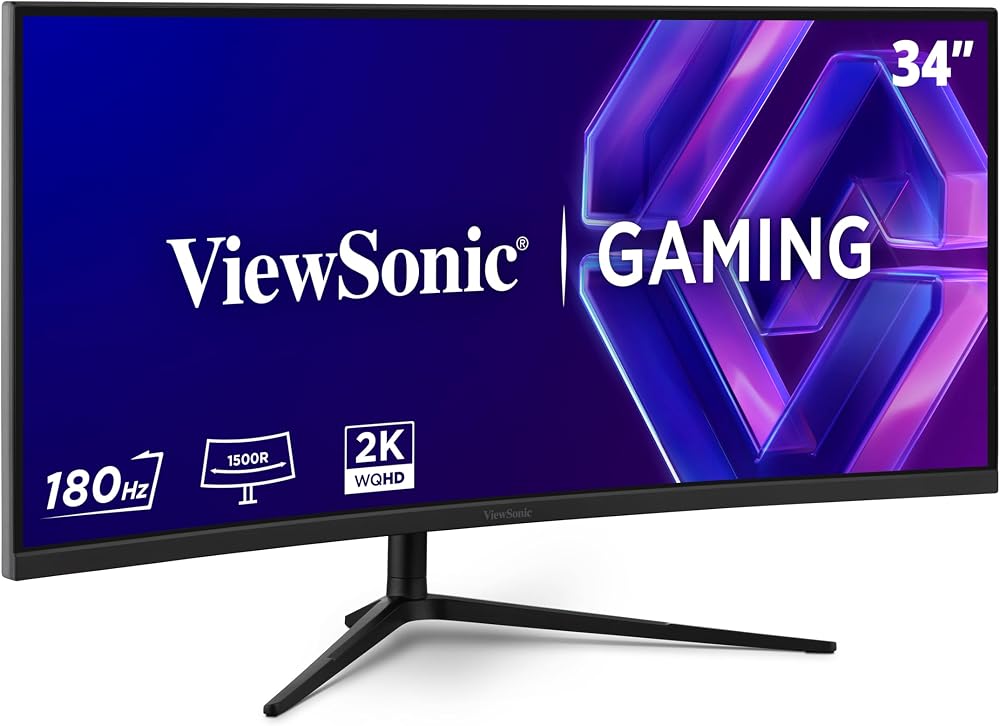
Find a solid screen under $300 for work, study, gaming, or everyday use, with guidance on panel type, size, ports, and realistic trade offs at this price.
There is no single screen that suits every desk at this price, because a student, a remote worker, and a casual gamer need different strengths from the same budget. Best computer monitors under 300 should therefore be judged by fit for your routine, not by one headline number. A screen that excels for documents may feel dull for games, while a fast screen may lack the ports or stand range a home office needs.
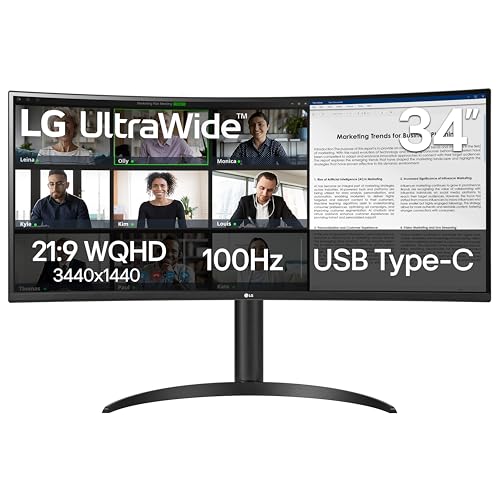
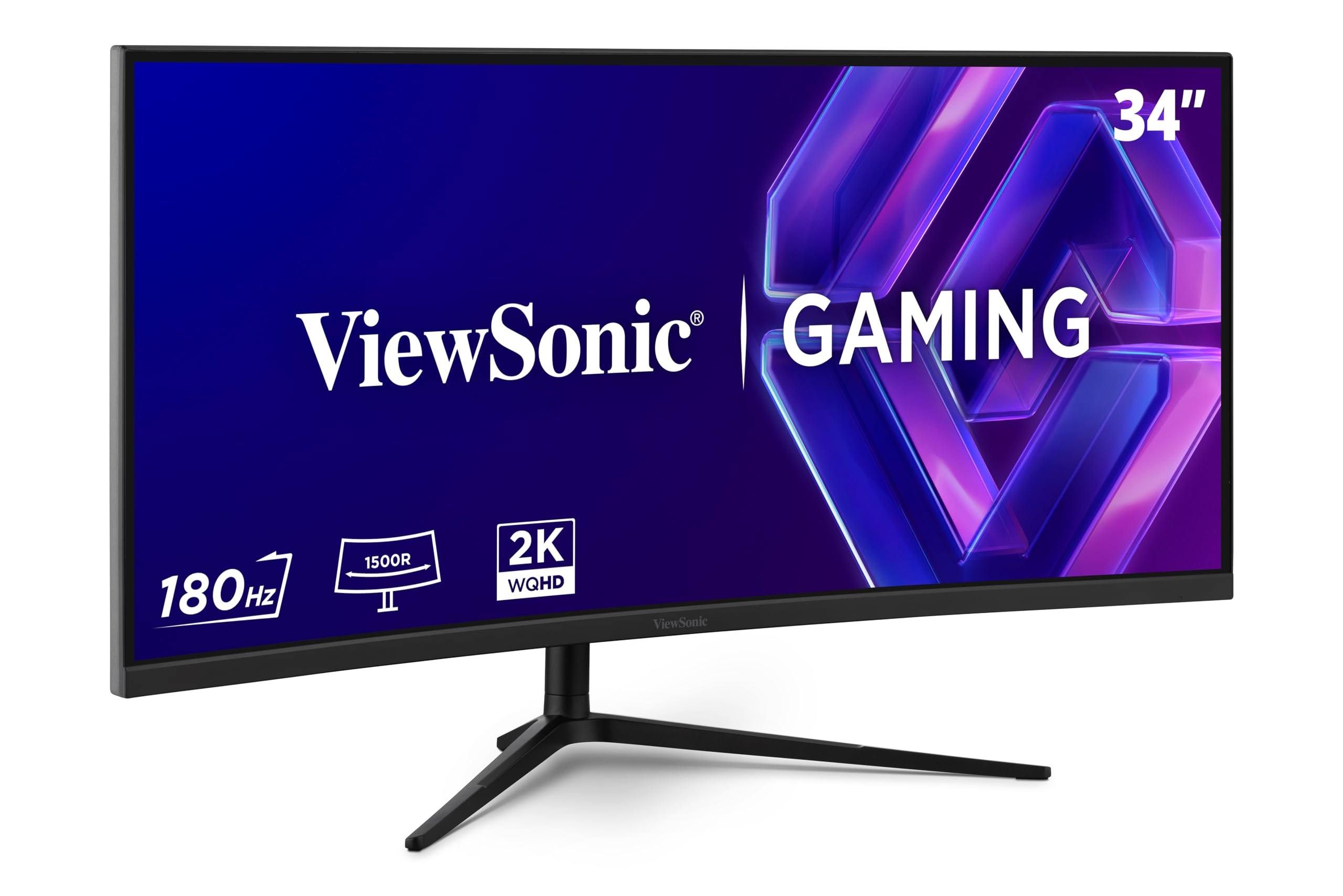
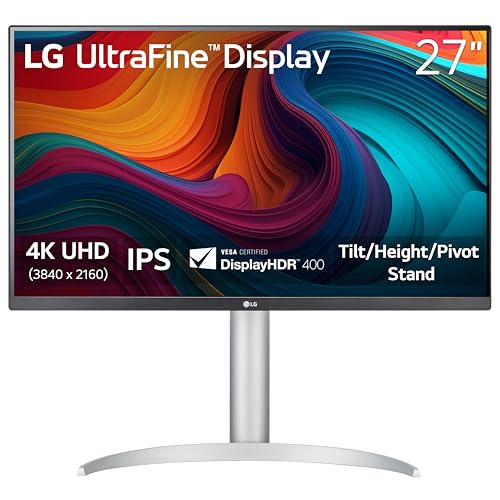
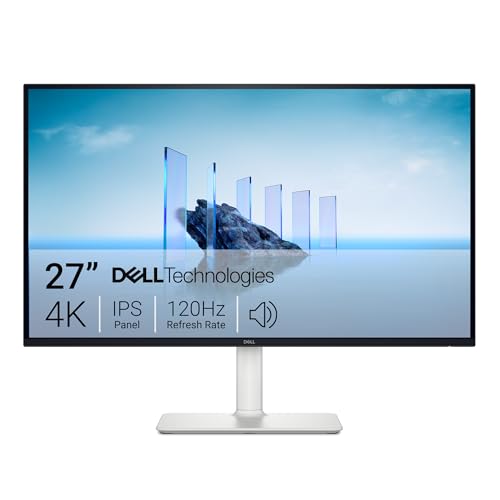
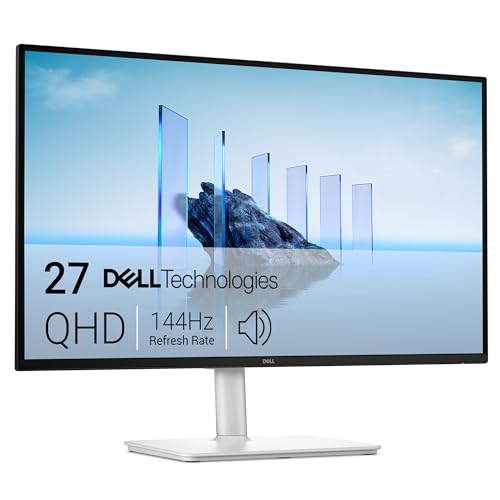
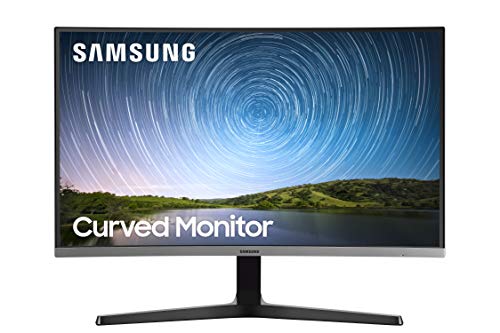
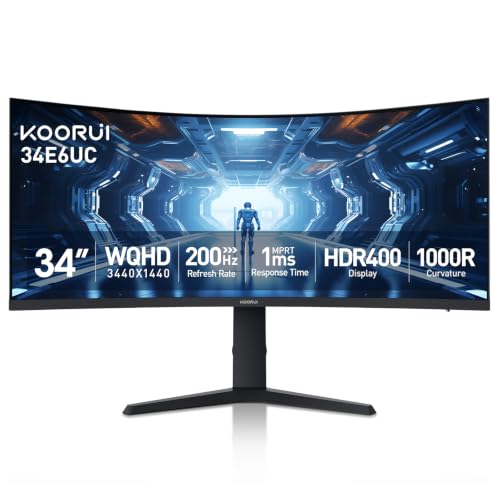
This guide starts with your routine, then explains the features that matter at this price and the trade offs you should expect. The product table above gives a quick starting point for the choices discussed in the sections that follow. Use it to narrow your shortlist, then check size, ports, and panel type before you buy.



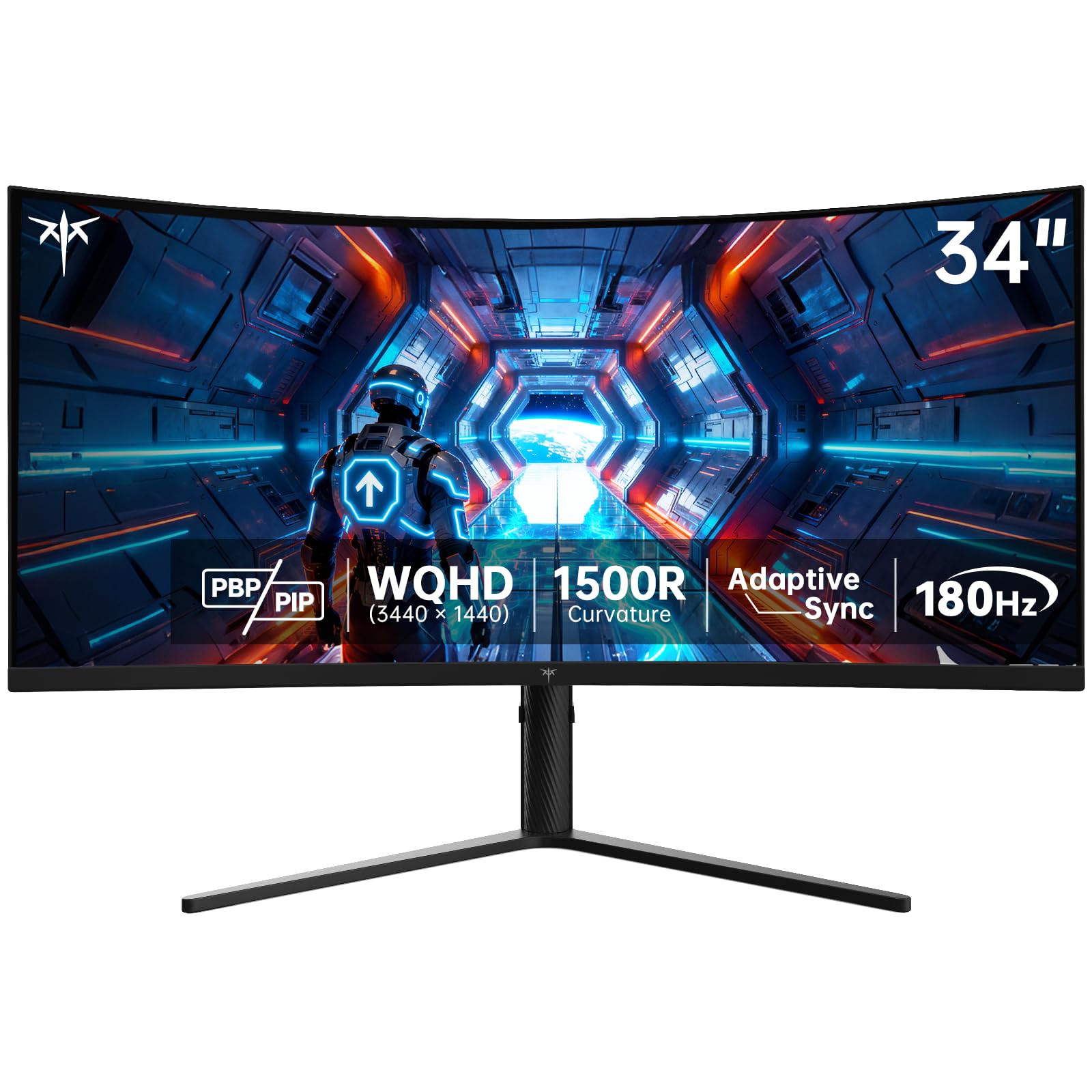
Who Should Buy Which Computer Monitors?
Your daily routine decides which features deserve priority. The four groups below cover most buyers at this price. Read the group that matches your day, then use the feature section to check the details that group needs most.
For Remote Workers and Creators
Remote workers spend long hours reading, writing, and joining video calls, so text clarity, a comfortable viewing height, and steady brightness matter more than speed. A 24 inch or 27 inch screen with an IPS panel usually gives the clearest text and the widest viewing angle at this price. Look for height adjustment or VESA mounting, since a screen set at eye level reduces neck strain during a full workday. Ports matter too, because a laptop dock, a webcam, and a headset may all need a place to connect.
Creators who edit photos or video on a budget should still check color handling, even when a screen cannot match a professional display. A screen with a decent sRGB range and a standard color mode will serve social sharing and basic editing better than a vivid preset that oversaturates color.
For Gamers and Power Users
Gamers and power users need smooth motion and quick response, so refresh rate and response time deserve attention here. A screen with a 100 Hz or higher refresh rate feels smoother than a standard 60 Hz screen, and adaptive sync can reduce tearing when frame rates vary. At this price, expect a Full HD resolution in most cases, since higher resolutions often push cost or speed beyond the budget. For a closer look at speed focused choices, see our guide to best computer monitors for gaming.
Power users who run many windows at once should also weigh size and resolution together. A larger screen with Full HD resolution shows more at once, yet text can look less sharp than on a smaller screen with the same resolution. If you multitask heavily, a 27 inch screen with good text clarity may serve better than a very large screen that stretches the same pixel count too far.
For Travelers and Commuters
Travelers and commuters need a screen that packs easily, weighs little, and connects with one cable. A portable screen suits this group better than a large desktop screen, since it fits in a bag and draws power from a laptop in many setups. Durability matters, because a screen carried daily faces bumps and pressure that a desk screen never meets. Look for a protective cover or case, a firm hinge or kickstand, and a cable setup that does not strain the port.
Commuters who work in varied light should also check brightness and glare handling. A matte finish helps in bright rooms and near windows, while a very dim screen can frustrate outdoor or train use. Keep weight in mind too, since a screen that feels light at home can feel heavy after a full day in a bag.
For Students and Everyday Users
Students and everyday users need a reliable screen for reading, writing, streaming, and video calls, without paying for features they will rarely use. A 24 inch Full HD screen with an IPS panel covers most of these tasks well at this price, and it leaves budget for a decent stand or a second cable. Simplicity is a strength here, because fewer settings mean less time spent tuning and more time spent working. If you need a broader overview of cheaper options in this family, see our guide to best monitors under 300.
Everyday users should still check eye comfort, since reading and streaming can fill many hours. A screen with adjustable brightness, a low blue light mode, and flicker free dimming can ease long sessions. See an eye care professional for persistent eye pain or vision changes, and take regular breaks regardless of screen type.
Best Computer Monitors for Specific Needs
One budget wording deserves a clear note, because shoppers often use looser language when they search. The term below is simply another way of stating the same price limit, yet it points to a practical buying stance.
Best Computer Monitors under 300 Bucks
Shopping with a firm bucks limit means ranking essentials first and treating extras as bonuses. Put panel type, size, and ports ahead of decorative lighting, built in speakers, and extra USB ports you may never use. A screen that covers those essentials well will feel better daily than a screen that spreads the budget thin across many minor features. Set aside a small reserve for a cable or mount if your desk needs one, rather than spending every dollar on the panel alone.
Key Features to Compare
The features below explain what you actually get at this price and where makers save cost. Read them in order, then return to your user group and rank them for your routine.
Panel Technology
IPS panels suit most buyers at this price because they keep color and contrast steady when viewed from an angle, which helps when you share the screen or sit slightly off center. VA panels offer deeper blacks and strong contrast, yet color and detail can shift more at an angle. OLED panels rarely appear at this price, and when they do, they often bring a smaller size or fewer ports.
What You Can Realistically Get Under $300
Under $300, expect Full HD resolution, a 24 inch or 27 inch size, an IPS or VA panel, and a basic stand with tilt adjustment. You may also find a higher refresh rate on gaming focused screens, or USB C input on screens aimed at laptop users.
Do not expect 4K resolution with wide color coverage, premium build, and a full ergonomic stand in one screen at this price. Makers save cost by trimming one of those areas, so decide which trim you can accept.
Connectivity and Ports
HDMI covers most laptops, consoles, and streaming devices, while DisplayPort suits many desktops and higher refresh rates. USB C can carry video and data over one cable for a laptop, which keeps a desk tidy and suits commuters.
Count the devices you will connect before you buy, and check whether the screen includes the cable you need. If you plan to step down further in price later, see our guide to best computer monitors under 200 to compare what changes at a lower budget.
Stand, Mounting, and Ergonomics
Stand range varies widely at this price, from tilt only bases to stands with height, swivel, and pivot adjustment. Height adjustment matters most for long workdays, since it lets you set the screen at eye level without adding a riser.
VESA mounting offers a second path, letting you use an arm that frees desk space and sets exact height. Check the stand footprint too, because a wide base can crowd a small desk even when the screen itself fits.
Common Mistakes to Avoid When Buying Computer Monitors
- Judging by price alone, which can leave you with a poor panel or a stand that does not fit your desk.
- Ignoring panel type, since IPS, VA, and OLED differ in color, contrast, and viewing angle.
- Choosing a size that is too large or too small for your desk depth and viewing distance.
- Forgetting to check ports, which can force cable swapping or an extra adapter.
- Skipping warranty and return terms, which matter when a screen arrives with a fault.
Tips to Get the Most From Your Computer Monitor
Good setup can lift a budget screen well above its price. Turn off vivid mode, since it pushes color and brightness beyond natural levels and can hide detail. Calibrate picture settings with a simple test image that shows shadow and highlight steps, and set brightness to match your room rather than leaving it at maximum.
Use pixel refresh on OLED screens as the maker directs, and clean the screen with a microfiber cloth only. Keep vents clear and avoid placing the screen in direct sun, which can heat the panel and wash out the image.
Computer Monitors: Your Questions Answered
Can you get a good computer monitor under $300?
Yes, you can get a good screen under $300 for work, study, streaming, and casual gaming, provided you match the screen to your routine. A Full HD IPS screen in the 24 inch to 27 inch range covers most everyday tasks well at this price. You will give up some premium traits, such as 4K resolution with wide color coverage or a full ergonomic stand, yet the core experience remains solid. The key is to rank panel, size, and ports first and to treat extras as bonuses.
What do you give up at this price?
You mainly give up resolution, color range, and stand range, since makers trim one or more of those areas to hold the price. A budget screen may offer Full HD rather than 4K, a standard color range rather than a wide professional range, and tilt only adjustment rather than full height control.
Build quality may also feel lighter, and ports may be fewer. None of these trims ruins everyday use, yet they matter when you edit for print or work very long hours. Knowing the trim in advance helps you choose the compromise that hurts least.
Should I expect 4K under $300?
Do not expect a strong 4K screen under $300, since 4K panels with good color and a solid stand usually cost more. A very cheap 4K screen may cut color range, brightness, or ports to reach the price, which can offset the resolution gain.
For most buyers, a well made Full HD screen serves better than a compromised 4K screen at the same price. If 4K matters for your work, it is wiser to raise the budget than to accept a weak panel. For that higher tier, see our guide to best computer monitors under 500.
Does panel type matter under $300?
Panel type matters even under $300, because it shapes color, contrast, and viewing angle in daily use. IPS suits most buyers with steady color from an angle, while VA suits dark room viewing with deeper blacks. The difference shows in text clarity, photo tones, and shared viewing, not only in games.
Check the panel type before you buy, and favor IPS when you share the screen or edit photos for sharing. A good panel can make a budget screen feel far more capable than its price suggests.
How long do they last?
Most budget screens last many years with steady use, though brightness and color can drift over time. Gentle brightness, regular rest periods, and clean power help extend useful life, while heat and constant maximum brightness can shorten it. When color drifts, a simple settings reset and recalibration often restores a usable image.
Plan a replacement when brightness falls unevenly, when dead pixels distract from work, or when ports fail. A screen that still serves your routine well does not need replacing simply because newer models exist.
What size should I get for my room or desk?
A 24 inch screen suits small desks and close viewing, while a 27 inch screen suits standard desks with enough depth to sit back comfortably. Measure desk width and depth before you choose, and leave room for a keyboard and any notebook or tablet. If you must turn your head to see the edges, the screen is too large or too close. For shared desks or very tight rooms, a smaller screen with a good panel often serves better than a larger screen that crowds the space.
Our Verdict
Start with your routine, then rank panel type, size, and ports in that order. A Full HD IPS screen in the 24 inch to 27 inch range covers most work, study, and casual gaming needs under this budget, while gamers should add refresh rate to the top of the list. Best computer monitors under 300 reward a clear priority list more than a search for one perfect screen, so compare the product table above, check stand range and ports, and keep a small reserve for a cable or mount. For comfort, set brightness to match your room, take breaks, and see an eye care professional for persistent eye pain or vision changes.


