
Best Computer External Hard Drives for Every Need: How to Pick the Right One for 2026
Disclosure: We may earn a commission when you buy through links on this page, at no extra cost to you. As an Amazon Associate I earn from qualifying purchases. Learn more
Choose the best computer external hard drives by use case: capacity, speed, portability, and compatibility explained in a clear, practical buying guide.
There is no single external drive that suits everyone, because your files decide what matters. A photographer filling cards every weekend needs speed and room to grow, while a student backing up essays needs something small, simple, and cheap to replace. Shoppers comparing best computer external hard drives often start with price, but the smarter starting point is your main job for the drive.
This guide works by use case. First you will match traveler, student, and creator needs to the right drive style, then compare the features that separate those styles, and finally avoid the mistakes that leave people with a full, slow, or incompatible drive. Use the comparison table below alongside each section as you narrow your choice.



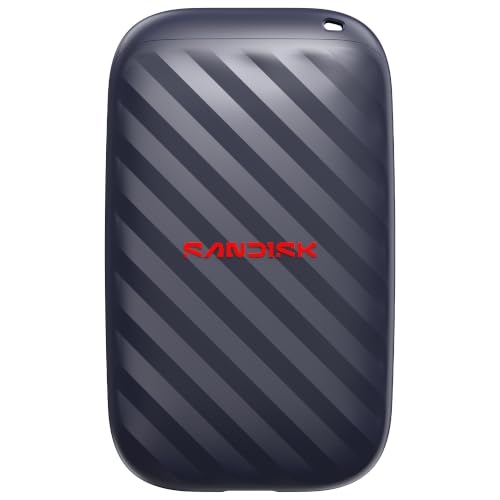
Who Should Buy Which Computer External Hard Drives?
For Travelers and Commuters
If your drive rides in a bag every day, size, weight, and toughness outrank raw capacity. Look for a slim drive that draws power from the USB cable alone, with no separate power brick to pack. A rubberized edge or a rated drop resistance gives real protection against the bumps of commuting, and capacities around 1 to 2 TB cover documents, photos, and a healthy music or video library.
Speed still matters at the airport or between classes. A solid state drive copies a folder of photos in a fraction of the time a spinning drive needs, and it has no moving parts to damage in transit. Travelers who want the underlying technology explained can compare options in our guide to the best computer hard drives before deciding how rugged they need to go.
For Students and Everyday Users
Students and home users mostly need a reliable backup target at a friendly price. A portable spinning drive around 2 to 4 TB offers the lowest cost per terabyte and handles coursework, family photos, and system backups without drama. It will sit on a desk most of the time, so extreme toughness matters less than simple, dependable operation.
Look for a drive that works the moment you plug it in, with backup software or clear instructions for the backup tool built into your operating system. Students should also confirm the drive works with the computers at school or the library, since a drive formatted for one system may appear read only on another. Everyday users comparing naming and formats will find our guide to the best external hard disk drives a useful companion.
For Remote Workers and Creators
Remote workers and creators move large files daily, so speed and capacity both climb the priority list. Video editors, photographers, and designers should look at 4 to 8 TB of space or a fast solid state drive for active projects, with a second larger drive for archives. Fast connections, meaning USB 3.2 or Thunderbolt on supported computers, keep big transfers from eating the workday.
Reliability habits matter as much as hardware here. Keep project files on the fast drive, finished work on the archive drive, and a copy of critical client work somewhere separate. Photographers with card based workflows can dig into capacity planning in our guide to the best external hard drives for photography, which focuses on field backup routines.
Key Features to Compare
Capacity and Drive Type
Capacity is measured in terabytes, and the right size depends on your files, not on what is on sale. Documents and photos for most people fit in 1 to 2 TB, video collections grow into 4 to 8 TB quickly, and full system backups should be at least as large as your computer internal drive. Buying roughly double your current need is a practical rule that delays the next purchase.
Drive type splits into spinning hard drives and solid state drives. Spinning drives cost far less per terabyte and suit backups and archives. Solid state drives cost more but transfer files much faster, resist drops better, and stay silent. Many buyers end up owning one of each, using each where it performs best.
Speed and Connection
The connector and interface decide how fast files actually move. USB 3.2 connections are standard on modern drives and are plenty for backups and media playback. Thunderbolt ports, found on many newer laptops, unlock the full speed of fast solid state drives. An older USB 2.0 port will bottleneck any modern drive, so check your computer ports before paying for speed it cannot use.
Cables matter more than people expect. Use the cable that ships with the drive, since cheap substitute cables sometimes limit speed or drop the connection mid transfer. If your laptop only has USB C ports and the drive ships with an older style cable, budget for the correct cable or an adapter from day one.
Compatibility (PC, Mac, Console)
File system format decides which devices can read and write the drive. Drives formatted as exFAT work across Windows and Mac computers and suit most people who switch between systems. NTFS is the Windows default and is often read only on a Mac without extra software, while APFS is tuned for modern Macs. Game consoles accept external drives for game storage but apply their own rules, so check your console requirements before formatting.
The good news is that reformatting is free and takes minutes, though it erases the drive, so do it before loading files. If you plan to share the drive between a work PC and a home Mac, choose exFAT at setup and save yourself a weekend of copying files back and forth. Buyers weighing formats for larger home storage setups can also review our guide to the best external storage hard drives.
Portability and Build Quality
Portable drives are small enough for a jacket pocket and run entirely from the USB cable. Desktop style drives are larger, hold more, and need a wall outlet, which makes them a stay at home choice for big archives. Build quality shows in the enclosure: a rigid shell, a short sturdy cable socket, and a clear activity light all signal care in design.
For drives that travel, look for published drop ratings and a snug case. For drives that live on a desk, ventilation and a stable flat base matter more. Either way, treat the connector as the fragile point; repeated yanking on the cable loosens sockets long before the storage inside wears out.
Common Mistakes to Avoid When Buying Computer External Hard Drives
- Buying on price alone. The cheapest drive per terabyte can still be the wrong drive if it is slow, fragile, or formatted for a system you do not own.
- Undersizing capacity. A drive that fills within a year forces a second purchase and messy file splitting. Estimate your library growth and buy about double your current usage.
- Ignoring your computer ports. A fast drive on an old slow port performs like a slow drive. Check connector types and interface versions before you pay for speed.
- Treating one drive as a backup plan. A single copy is not a backup. If the drive fails or is stolen, everything on it is gone, so keep important files in at least two places.
- Skipping the warranty check. Warranty length, commonly one to three years, hints at maker confidence. Register the drive and keep the receipt with your other computer records.
Care and Maintenance Tips
Always eject the drive through your operating system before unplugging it, because pulling the cable during a write can corrupt files. Keep the drive on a flat, ventilated surface while large transfers run, and avoid stacking heavy objects on the enclosure. For portable drives, use a padded case and keep the cable loosely coiled rather than tightly wrapped around the body.
Once or twice a year, run the drive maker health check tool if one is offered, confirm your backups actually open, and delete or archive files you no longer need. A backup you have never tested restoring from is a hope, not a plan, so open a few random files from the drive each season to confirm they read correctly.
Frequently Asked Questions
How much storage do I actually need?
Most households do well with 2 to 4 TB. Add up your current photos, videos, and documents, then at least double that number to cover growth and full system backups. Video creators should think in terms of project size: a single long project can consume hundreds of gigabytes with raw footage, so 8 TB or a fast project drive plus an archive drive is a more realistic plan.
Should I choose a hard drive or a solid state drive?
Choose a spinning hard drive for cheap bulk storage and backups, and a solid state drive when speed or travel durability matters. Solid state models copy large folders far faster and tolerate drops because nothing moves inside. The trade off is price per terabyte, which remains much higher. Many people pair a small fast drive for daily work with a large hard drive for archives, which balances both needs.
What connection speed should I look for?
USB 3.2 is the practical standard and is fast enough for backups, media libraries, and everyday file work. Choose Thunderbolt only if your computer has the port and you regularly move very large files, such as video editors do. Remember that the slowest link wins: an old port or a poor quality cable will cap the speed of even the fastest drive, so match the whole chain to your computer.
Will an external hard drive work with Mac and console?
Yes, with the right format. Format the drive as exFAT to move files between Windows and Mac computers freely. Consoles accept external drives for storing games, but each console applies its own formatting and limits, and a drive dedicated to a console usually cannot double as a computer backup without reformatting. Decide the drive main job first, then format it once for that job.
Wrapping Up
The right drive comes from matching three things: your main use case, enough capacity with room to grow, and a connection your computer can fully use. Travelers should prize toughness and compact size, students should prize simple value, and creators should prize speed plus a real backup routine. Compare your shortlist with the product table above, and choosing among the best computer external hard drives becomes a calm, practical decision instead of a gamble.
