
Best Cloud Storage Hard Drives Made Simple: A Clear Buying Guide for 2026
Disclosure: We may earn a commission when you buy through links on this page, at no extra cost to you. As an Amazon Associate I earn from qualifying purchases. Learn more

Shopping for the best cloud storage hard drives for the first time? Learn the terms, compare options, and avoid rookie mistakes with this easy guide.
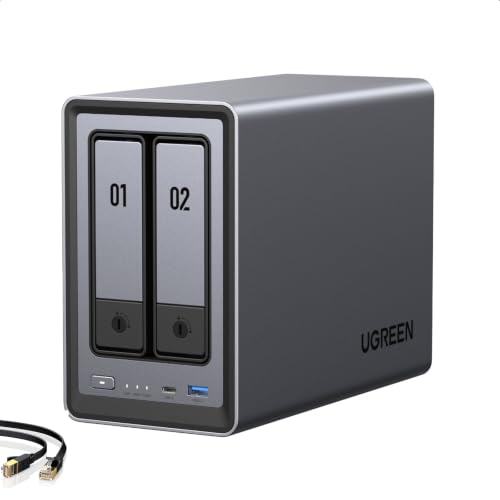
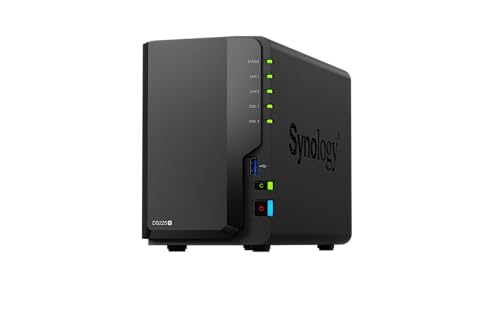
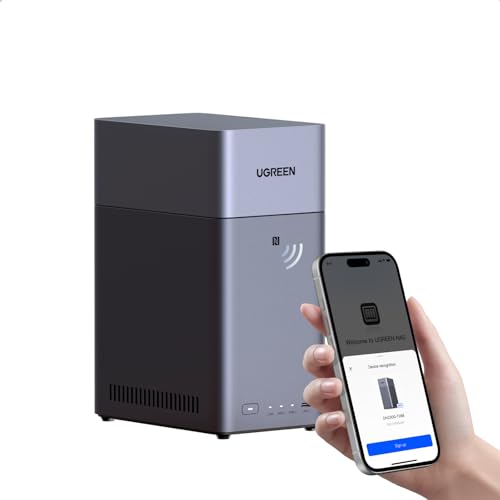
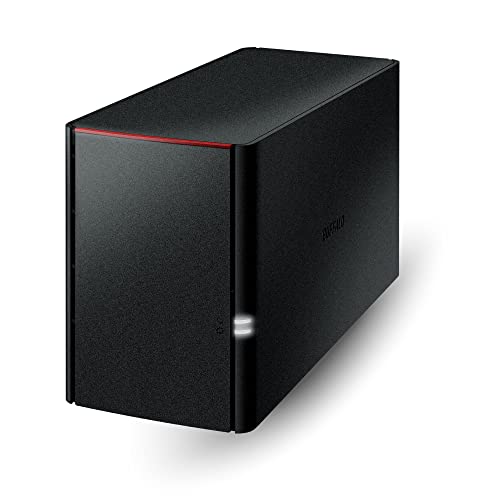
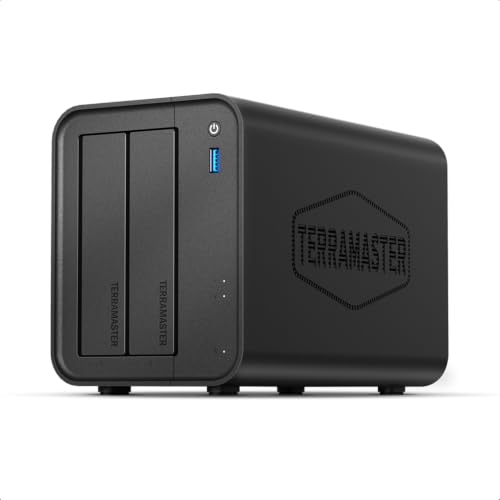
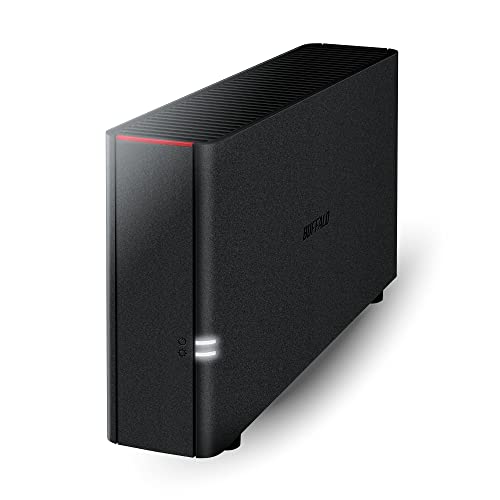
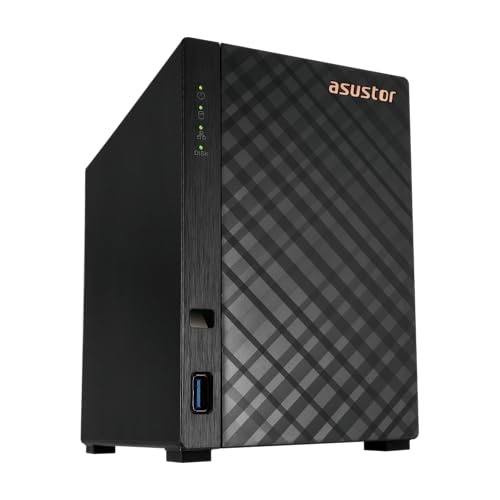
A cloud storage hard drive sounds like a contradiction, but it is really a simple idea: a hard drive that lives in your home and behaves like your own private cloud. Your photos, documents, and backups sit on a box next to your router, yet you can open them from your phone anywhere in the world. If this is your first time shopping for the best cloud storage hard drives, this guide starts with the basics, explains every key term in plain English, and walks you through setup and the mistakes that trip up beginners. Skim the comparison table below first, then read on at your own pace.



Cloud Storage Hard Drives 101: The Basics
A cloud storage hard drive is an external drive, or a small network storage box, that connects to your home router instead of plugging into one computer. Because it sits on your network, every device you own can reach it: phones, tablets, laptops, and smart TVs. The maker provides an app and a private web address, so your files are available away from home without any monthly subscription in most cases. You pay once for the hardware, typically around $150 to $400 depending on capacity, and the storage is yours.
Three terms explain most of the category. Capacity is how much the drive holds, measured in terabytes, where 1 TB stores roughly 250,000 photos. A bay is a slot for a drive inside the box; two bay models can mirror your data onto a second drive for safety. Remote access means reaching your files from outside your home network through the app. Readers who only need storage on one desk computer may prefer the simpler options in our guide to the best hard drives for storage, but anyone with several devices benefits from the network approach.
Key Specs Explained in Plain English
Intended Use and Who It Is For
Start with your main job for the drive, because it decides everything else about the best cloud storage hard drives for you. Families usually want automatic phone photo backup and a shared folder everyone can reach. Home workers need fast document access and version backup for important files. Media collectors want enough capacity for a movie library and smooth streaming to a TV. Write your main job down before you shop, and let it outrank every other feature. A single user backing up one laptop can choose a simple, compact model, while a household of five should start with a two bay unit and room to grow.
Safety and Certifications
Safety here has two sides: keeping your data safe and keeping your account safe. For data, look for models that support mirrored storage, where two drives hold identical copies, so one drive failing never loses your files. For accounts, insist on two step sign in, encrypted connections, and automatic security updates. Check that the power supply carries standard electrical certifications for your country, and place the unit where air can circulate, since heat is the quiet enemy of hard drives. If a maker has stopped issuing updates for a model, skip it, however low the price. Owners planning a full network setup can compare enclosure styles in our guide to the best cloud hard drives.
Size, Weight, and Fit for Your Space
These units are small, usually about the size of a hardcover book for single drive models and a shoebox for two bay versions, but they need the right spot. They must sit near your router for a wired connection, stay out of direct sunlight, and rest on a stable shelf where they will not be knocked. Drives make a faint hum and clicking sound in use, so a bedroom shelf is a poor choice if you are a light sleeper. Measure your shelf space, plan cable slack, and confirm there is a free power outlet nearby before ordering. Compact options suit renters and small apartments where the router lives in the living room.
Maintenance and Long Term Costs
Ownership costs stay low but are not zero. Hard drives wear out, so budget for a replacement drive every four to six years, and sooner if the software reports health warnings. Electricity use is modest, roughly like a small LED bulb running all day, which adds only a few dollars a year. There is usually no subscription, though some brands charge for optional extra cloud backup of the box itself. Spend ten minutes every few months checking the health report in the app, confirming backups completed, and clearing files you no longer need. That small habit is the difference between a drive that serves a decade and one that surprises you.
Ease of Use and Setup
Beginner friendly models guide you through setup in the app: plug in power, connect the network cable, scan a code, and create your account. The whole process should take under thirty minutes with no networking knowledge. Judge ease of use by the app, not the box, because the app is what you will touch daily. Look for clear backup status, simple sharing links for family, and search that finds files by name. If the app reviews for a model complain about confusing menus, believe them. Our guide to the best external storage hard drives covers the simpler plug in alternatives if a network model still feels like too much.
Picking the Right Drive for Different Uses
Best Hard Drives for Cloud Storage: Tips for First Time Buyers
When people search for the best hard drives for cloud storage, the word for is the important part: the drive must be built for network duty, not pulled from a desktop. Drives designed for network storage are rated for running all day, every day, and they handle vibration from a neighboring drive in the same box. For a first purchase, choose a two bay unit with drives rated for network use, sized at twice your current data, and made by a brand that still updates its software. That combination covers photo backup, family sharing, and media streaming without forcing an upgrade in two years. Specialized uses go further still: photographers should see our guide to the best hard drives for photo storage for capacity planning by file type.
Rookie Mistakes to Avoid
- Buying capacity for today only. Photo libraries grow every year, so a drive that is 80 percent full on day one becomes a problem within months. Buy at least double your current data.
- Treating mirroring as a full backup. A mirror protects against drive failure, not against theft, fire, or accidental deletion. Keep one extra copy of irreplaceable files somewhere else.
- Skipping the password and update settings. A network drive is reachable from the internet, so a weak password or old software is a real risk. Turn on two step sign in and automatic updates during setup.
- Placing the unit in a hot or dusty spot. Heat and dust shorten drive life. A cool, clean shelf with airflow is part of the purchase, not an afterthought.
- Never trying a restore. Copy a folder back once during your first week. Knowing the restore works turns a future failure into a minor errand.
Getting Started: Setup and First Use
Begin by reading the quick start guide before you plug anything in, because the order matters: some models want the network cable connected before power. Place the unit by the router, connect both cables, and wait for the status light to settle. Install the app, create your account with a strong password, and let the software update itself before you move a single file. Next, set up automatic backup for your phone photos and your main computer folders, then share one test folder with a family member. During the first week, check the app every couple of days to confirm backups are completing, and clean and inspect the unit monthly: dust the vents, confirm cables are snug, and glance at the drive health report. Readers building a larger system later can explore our guide to the best hard drives for nas storage when they outgrow a beginner box.
FAQs
What features matter most when buying cloud storage hard drives?
Capacity with room to grow, mirrored storage on two bay models, and a clear, well maintained app matter most. After that, look for automatic photo backup, two step sign in, and a brand that publishes regular software updates. Fancy extras like media transcoding only matter if you plan to stream video to many devices. For a first purchase, reliability and simple software beat a long feature list every time.
How do I maintain a cloud storage hard drive?
Maintenance takes minutes a month. Check the drive health report in the app, confirm your backups show recent completion dates, and install software updates when offered. Keep the vents dust free and the unit on a stable, cool shelf. Once a year, restore a few files to prove the backup works. When the software warns that a drive is aging, replace that drive promptly; on mirrored models the swap is simple and your data stays safe throughout.
How long does a cloud storage hard drive last?
The box itself often lasts seven years or more, while the spinning drives inside typically serve four to six years of always on use. Lifespan depends on heat, dust, and how full the drives run, so a cool shelf and free space both help. Plan on replacing drives one at a time as the health reports advise, rather than replacing the whole unit. That approach keeps costs low and your library continuously protected.
Are expensive cloud storage hard drives worth it?
They are worth it when the extra money buys a second drive bay, drives rated for network use, and software that will be supported for years. Those three things directly protect your files. Extra spending on speed beyond your home network, or on business features a household never touches, is not worth it. For most families the mid range, roughly around $250 to $400 with drives included, is the sensible ceiling for a first unit.
How much should I spend on a cloud storage hard drive?
Most first time buyers should budget about $150 to $400 total. The lower end buys a single drive unit suited to one person, while the upper end buys a two bay mirrored model with generous capacity for a family. Remember to count the drives themselves: some boxes are sold empty and cost less upfront but need drives added. Compare the full working price, box plus drives, before deciding which option is truly cheaper.
Wrapping Up
Buy for your main job, size the capacity at twice your current data, and favor a mirrored two bay model with software the maker still updates. Set it up carefully, turn on automatic backup and two step sign in, and run a restore in the first week. Compare the shapes and capacities in the product table above, and you will choose the best cloud storage hard drives for your home with no rookie regrets.


