
Best Company for Hard Drives: Seagate, WD, Toshiba and More for 2026
Disclosure: We may earn a commission when you buy through links on this page, at no extra cost to you. As an Amazon Associate I earn from qualifying purchases. Learn more
Compare the best company for hard drives on reliability, warranty, drive types, and value so you can choose storage that protects your photos and files.
A hard drive holds files you cannot easily replace, so the company behind it matters as much as the capacity printed on the box. Warranty handling, drive family design, and software support all differ by maker, and those differences show up when a drive starts clicking or a backup fails. This guide compares the best company for hard drives by reliability record, warranty, drive types, and everyday value, so you can match a brand to your files and budget.
The product table at the top of the page shows internal drives, portable drives, and solid state options from several makers. The sections below explain what each company does well and where it asks for a compromise.


What Makes the Best Company for Hard Drives?
Four traits matter most for storage makers. First, a clear warranty with a simple replacement process, since a drive is only as useful as the help you get when it fails. Second, honest labeling of drive type, recording method, and speed, so you know whether a cheap drive is built for backups or constant use. Third, useful free software for health checks, backup, and optional encryption. Fourth, a range that covers desktop, portable, and solid state needs without confusing names.
Hard Disk Drives vs Solid State Drives
Hard disk drives (HDDs) store data on spinning platters and give the most space for the money, which suits photo libraries, video archives, and backups. Solid state drives (SSDs) have no moving parts, start instantly, and are much faster, which suits operating system drives and active projects. Many buyers use an SSD for daily work and a large HDD for archives, so a maker with strong offerings in both is a convenient choice.
Internal vs External Drives
Internal drives go inside a desktop and connect through a data cable and power from the computer. External drives plug in over USB and come ready to use, with either a portable pocket size body or a desktop body that needs a power adapter. Portable models are convenient for travel and quick backups, while desktop models offer the best capacity for the price. Check that the interface matches your computer, and use a USB 3 port for reasonable speeds.
Warranty, Software, and Encryption
Compare warranty length and what it covers, especially data recovery offers some makers bundle with selected drives. Look for health monitoring tools and backup software that make regular copies easy. Hardware encryption or password protection helps if you carry personal files, but remember that a lost password can lock you out, so store it safely.
Top Hard Drive Companies at a Glance
Prices in the table range from low cost portable drives to high capacity desktop models and fast solid state options. The profiles below cover the main makers, with each one's strength, weakness, and best fit. For a wider look at how drive quality differs, see our guide to the best quality hard drives.
Seagate
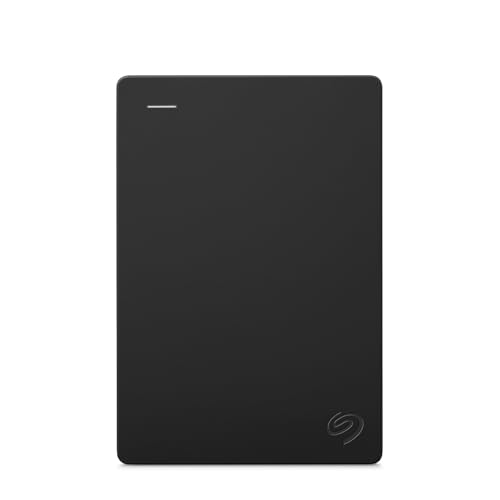
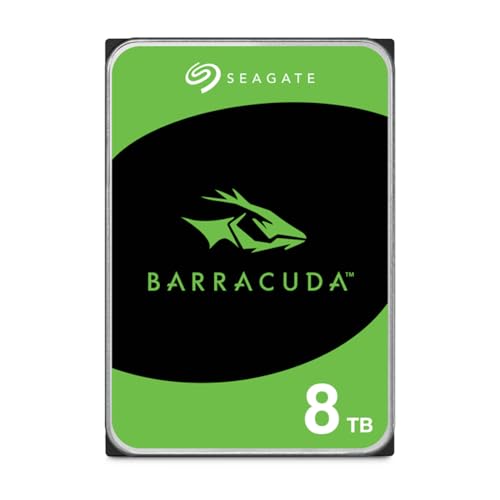
Seagate sells some of the most popular portable and desktop drives, with a very large range of capacities and a simple One Touch and Expansion lineup. Pricing is competitive, and many external drives include a recovery service offer. Reliability varies by drive family, so choose a model designed for your use rather than the cheapest option. Seagate suits home backups, game storage, and large archives where capacity per dollar matters.
Western Digital
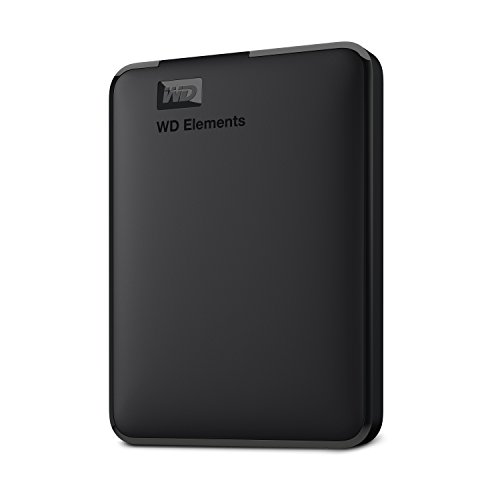
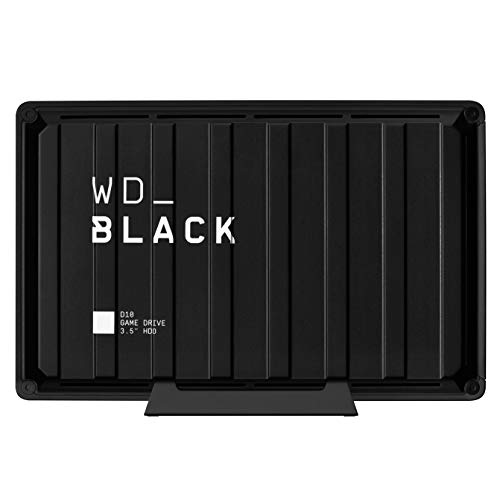
Western Digital (WD) offers Elements drives for simple storage, My Book drives with built in password software, and WD_BLACK models for gaming. Its range also includes internal drives and solid state options. Software is helpful, and labeling is clear. Prices are fair rather than lowest, and some low end models use slower recording methods. WD suits buyers who want a recognized name, simple setup, and options for both archive and gaming use.
Toshiba
Toshiba's Canvio portable drives are known for simple design, steady performance, and low prices. They offer a small, light body that slips into a bag and works with common computers and consoles. Software extras are limited, and the plastic body feels basic. Toshiba suits students and travelers who want an affordable, no frills drive for documents and photos.
Samsung
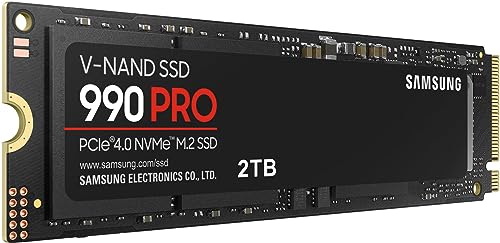
Samsung leads in solid state drives, with fast portable T series models and internal NVMe drives that suit video editing, gaming, and fast backups. Build quality is excellent, and its tools are polished. Cost per terabyte is higher than hard drives, so it makes sense for active work rather than bulk archives. Samsung suits creators and gamers who value speed and a compact, durable drive.
SanDisk
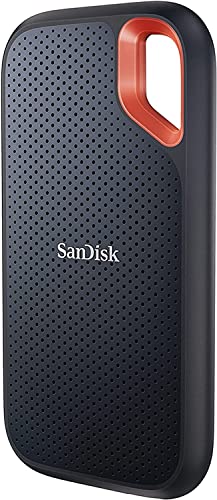
SanDisk makes rugged portable SSDs that resist drops, dust, and splashes, which suits photographers and travelers. Models are easy to use and widely available. Speeds are good but vary by series, and prices run higher than basic portable hard drives. SanDisk suits people who carry data around and want a durable pocket drive. If you want a wider look at external options, see our guide to the best companies for external hard drives.
How to Choose Between Brands
Choose the drive type first, then the brand. Decide whether you need an internal drive for a desktop, a portable drive for travel, or a desktop external drive for large backups. Then match capacity to your needs, leaving room to grow, and compare price per terabyte across two or three makers. Always check the exact model name, since a maker may sell both a durable drive and a bargain drive under similar names.
Look at warranty length and replacement terms, and read owner feedback for patterns such as noisy drives or short life. A reliable rule for any important file is to keep at least two copies on separate drives, plus an off site or cloud copy. A good drive is a safety step, but it is not a backup plan by itself. For a deeper look at spinning drives, see our guide to the best hard disk drives and the best hdd hard drives.
Common Mistakes to Avoid
- Buying the cheapest large drive without checking the drive type, which can mean slow writes or a design meant for light use.
- Relying on a single drive for important files, with no second copy.
- Using a USB 2 port or a poor cable, which makes transfers painfully slow.
- Ignoring the power source of desktop external drives, which need their own adapter.
- Skipping the warranty registration, which makes claims harder later.
Care and Everyday Use
Keep drives cool and dry, avoid drops and shocks, and always eject an external drive safely before unplugging it. Spinning drives are sensitive to movement while running, so place them on a stable surface. Check drive health from time to time with the maker's tool or the system's disk utility, and replace a drive that shows warning signs rather than waiting for it to fail. Keep drives away from magnets, heat, and water.
Frequently Asked Questions
Which company makes the most reliable hard drives?
No maker is flawless. Seagate, Western Digital, and Toshiba all produce dependable drives in the right model families, and Samsung and SanDisk are well regarded for solid state drives. Reliability depends more on the specific model and how you use it than on the logo, so match the drive family to your workload and keep backups.
Should I buy an HDD or an SSD?
Buy an SSD for your main drive and active projects, because it is much faster and has no moving parts. Buy an HDD for large archives, because it gives far more storage per dollar. Many people use both, with an SSD for daily work and an HDD for backups.
How much storage do I need?
For photos, documents, and light video, 1 to 2 TB is enough for many people. Video editors, gamers with large libraries, and families who back up several devices often need 4 TB or more. Choose a size that leaves room to grow, since adding a second drive later costs more than buying a bit extra now.
How long do hard drives last?
Many hard drives work for several years, and some last much longer, but all drives eventually fail. Heat, shocks, and heavy use shorten life. Replace a drive that makes new noises or reports errors, and keep backups so a failure does not cost you files.
Are portable drives safe for backups?
They work well for backups when you keep a second copy somewhere else. A portable drive can be lost, dropped, or stolen, so avoid keeping it as your only copy. Encrypt it if it holds sensitive files, and store the password safely.
Final Thoughts
Pick the drive type for the job and the maker whose warranty and software suit you. Seagate and Toshiba offer low cost capacity, Western Digital offers broad range, Samsung offers fast SSDs, and SanDisk offers rugged portable storage. The best company for hard drives is the one whose model fits your files and workload, so compare the options in the product table at the top of the page and keep a second copy of anything important.

