Best 4TB External Hard Drives: Which Type Is Right for You in 2026
Disclosure: We may earn a commission when you buy through links on this page, at no extra cost to you. As an Amazon Associate I earn from qualifying purchases. Learn more

Portable, desktop and rugged drives compared to help you choose the best 4tb external hard drives.
A single 4TB external drive can hold years of photos, documents and video, but the type you pick decides how safe and how fast that storage feels. The best 4tb external hard drives match the way you work: a pocket sized drive for a laptop bag, a plug in desktop drive for always on backup, or a rugged drive that survives rough handling. This guide explains the differences and the checks that matter, and the product table below puts the options side by side.
Start with where the drive will live and what it will hold, because those two answers narrow the choice faster than any speed number.

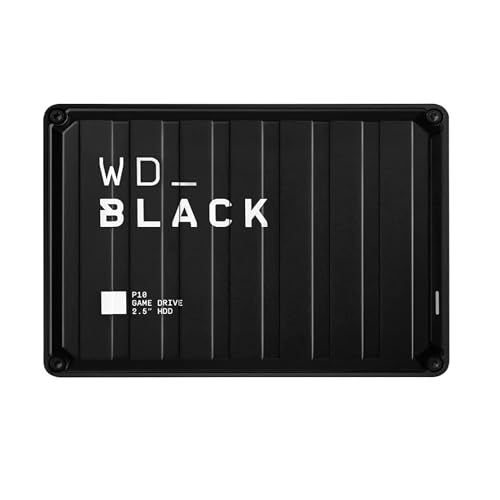
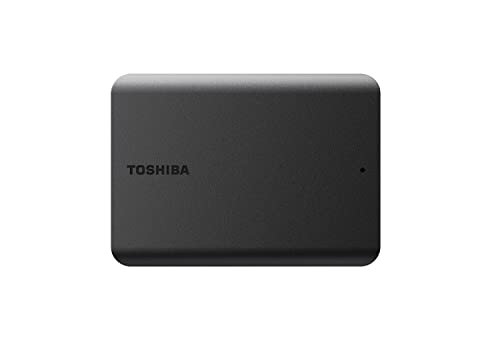


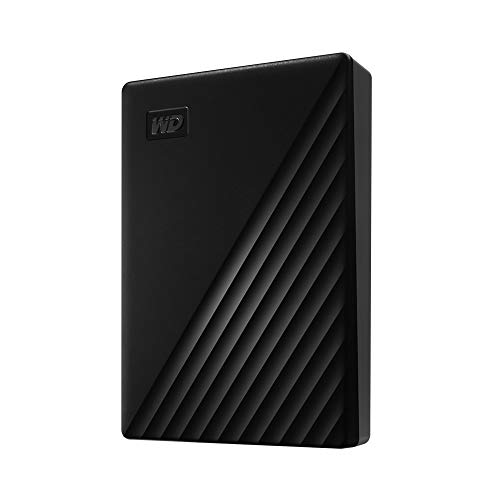

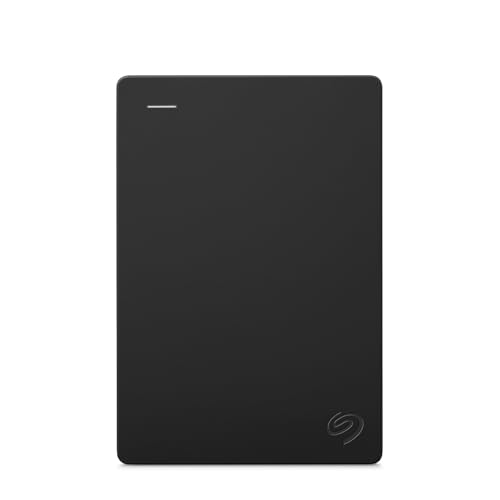
Best 4TB External Hard Drives: Types Compared
Three types cover most buyers. They share the same capacity, but power, size and toughness differ, and so does price.
Portable Hard Drives
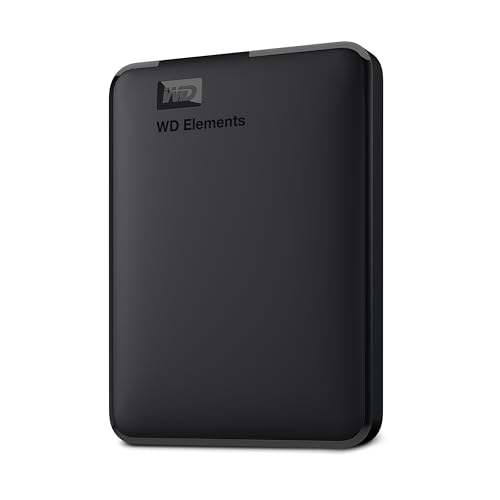
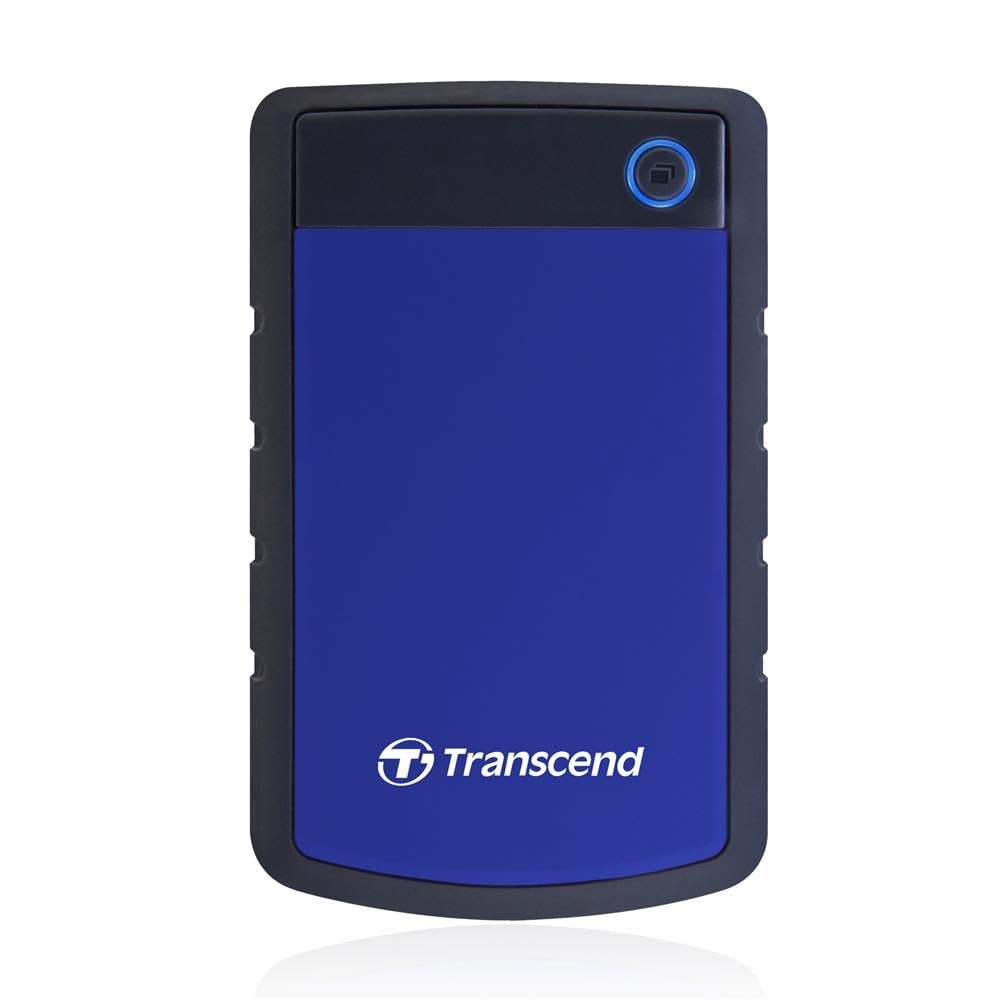
A portable drive is a slim case that draws power from the USB cable, so there is no power brick to carry. It suits laptop backup, travel and students who move between rooms. Most 4TB portable drives use a 2.5 inch mechanical disk, which keeps the price low but means the drive is sensitive to drops while it spins. Expect to pay about $90 to $150.
Desktop Hard Drives
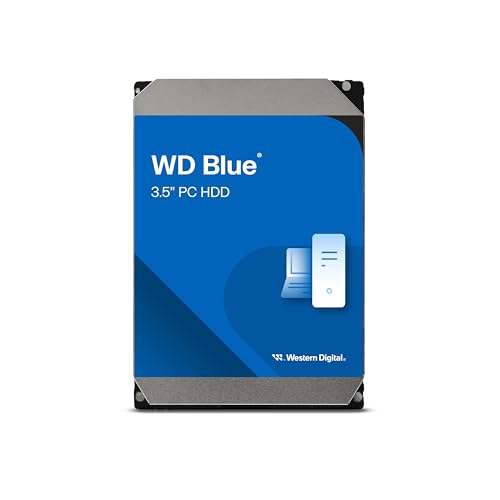
A desktop drive uses a larger 3.5 inch disk and a separate power adapter. It usually runs cooler, often costs less per terabyte and suits a fixed spot beside a computer or router for automatic backups of a family library. It is not made for carrying around. Expect about $100 to $170.
Rugged Drives
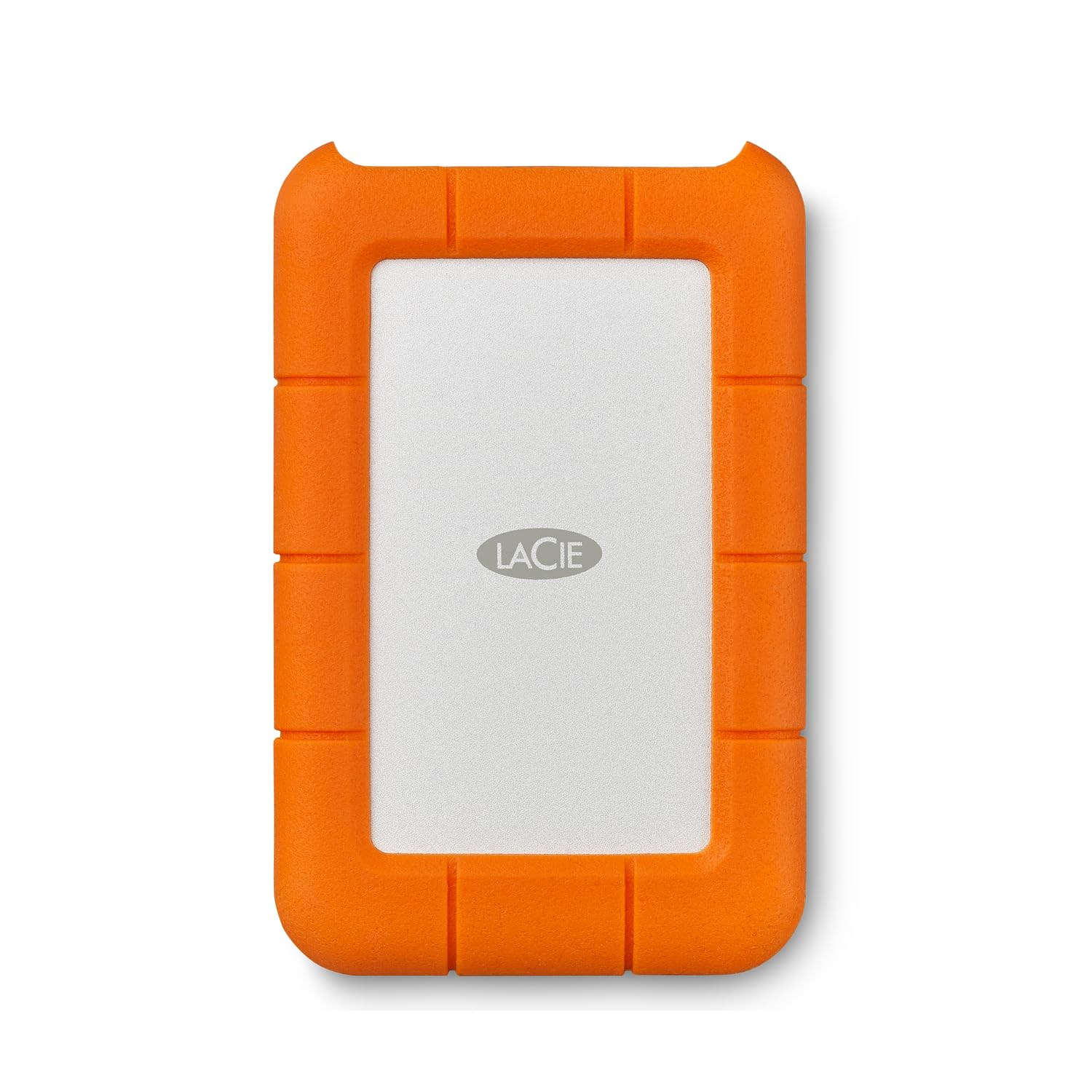
A rugged drive adds a rubber bumper and a sealed case that resists drops, dust and splashes. It suits photographers, travelers and anyone who works in the field. You pay more for the protection, about $130 to $220, and the drive is a little bulkier.
Portable vs Desktop: Which Should You Choose?
Choose a portable drive if the drive travels with a laptop, because bus power and a small case beat a power adapter on the road. Choose a desktop drive if it stays put, because it is usually cheaper per terabyte and can run backups all day. A rugged drive wins when the drive leaves the house often or lives in a bag with tools or camera gear.
Key Features to Compare
Connection Speed
USB 3 or faster connections suit large transfers, because a slow port turns a backup into a long wait. Check that your computer has a matching port, and that the cable in the box fits it, since many laptops now have USB C only. A mechanical drive reaches roughly 100 to 200 megabytes per second at best, whatever the port promises.
Hard Drive or Solid State
A hard drive gives the most storage for the money and suits backups and archives. A solid state drive is much faster and shrugs off bumps, but it costs far more per terabyte at 4TB. Choose a hard drive for capacity and a solid state drive when speed or shock resistance is worth the premium.
Backup Software and Encryption
Simple backup software copies files on a schedule, so backups happen even when you forget. Hardware encryption or a password feature protects a drive that gets lost, but keep the password safe, because recovery may be impossible without it.
File System and Compatibility
Many drives ship formatted for one system. A drive formatted for Windows may need reformatting for a Mac, and a drive shared by both works best with a format both read. Check this before you copy your only copy of anything onto it.
When you compare nearby options, the related guides on best hard external hard drives, best external hard disk drives and best external storage hard drives cover similar choices.
Who Should Buy Which Type
Photographers and Video Makers
A rugged or portable drive suits photo libraries on the move, and a second copy at home protects the originals. Photographers can also read our guide to the best external hard drives for photography.
Home Backup Users
A desktop drive suits automatic backups of a family computer, with room for years of documents, photos and music.
Students and Travelers
A portable drive fits a laptop and a bag without extra power bricks, and a padded sleeve protects it on the way to class.
Setup, Backups and Care
Plug the drive into a port that matches its speed, format it for your system if needed and name it clearly. Set a backup schedule before you fill it, and keep a second copy of important files on another drive or in cloud storage, because any single drive can fail. Eject the drive safely before you unplug it, keep it cool and flat while it runs, and store it away from heat and magnets.
If a drive clicks, disconnects often or fails to mount, stop using it and seek data recovery advice instead of forcing repeated attempts.
Speed, Noise and Power in Daily Use
Mechanical drives spin up when they start a transfer, so expect a short pause and a faint hum or click that is normal. Desktop drives often have a power switch and run quietly for always on backup, while portable drives sleep when idle to save power. If you plan to run backups overnight, check that your computer does not put the USB port to sleep, which can interrupt a long copy.
Common Mistakes to Avoid
- Keeping the only copy of precious files on one drive.
- Buying on capacity alone and ignoring the port, which makes big transfers painfully slow.
- Moving a spinning portable drive around while it works, which raises the risk of damage.
- Skipping a restore check, so you find out the backup is incomplete only when you need it.
Frequently Asked Questions
Is 4TB enough for backup?
A 4TB drive suits most home libraries and photo collections, because it holds years of documents and media. Video editors and large game libraries may need more, and anything important should still have a second copy.
Should I buy a portable or desktop drive?
A portable drive suits travel and laptop use because it draws power from USB. A desktop drive suits a fixed desk and larger always on backups, and it often costs less per terabyte.
Is a hard drive or solid state drive better for 4TB?
A hard drive is better for cheap capacity and backups. A solid state drive is better for speed and shock resistance, but it costs much more at this size.
How do I back up automatically?
Use the backup tool built into your computer or the software that comes with the drive to copy files on a schedule. Automatic backups happen even when you forget, and an occasional restore of a small folder confirms the backup works.
Should I encrypt my drive?
Encryption suits sensitive files and travel, because a lost drive stays unreadable without the password. Keep the password somewhere safe, since recovery may be impossible without it.
Final Thoughts
Choose the type by where the drive will live, then confirm the port, the format and a backup routine. The product table above gives a quick overview of the options, and a careful match saves time and returns later. Chosen with that order in mind, the best 4tb external hard drives give you room to grow and a safe copy of the files you care about.