
Best Cloud Hard Drives Made Simple: A Clear Buying Guide for 2026
Disclosure: We may earn a commission when you buy through links on this page, at no extra cost to you. As an Amazon Associate I earn from qualifying purchases. Learn more

Learn how to choose the best cloud hard drives with plain English guidance on storage size, access, security, setup steps and value for home use.
If you have never bought network storage before, the terms can sound harder than the product really is. A cloud hard drive is simply storage in your home that your phones, computers, and tablets can reach through your network and, in many cases, from outside it. This guide to the best cloud hard drives starts with the basics, explains each spec in plain English, and helps first time buyers avoid the common mistakes.
You do not need to be technical to choose well. You need to know how much storage you will use, who needs access, and how simple the setup feels day to day. Use the comparison table below to see the general options, then work through the basics before you spend anything.
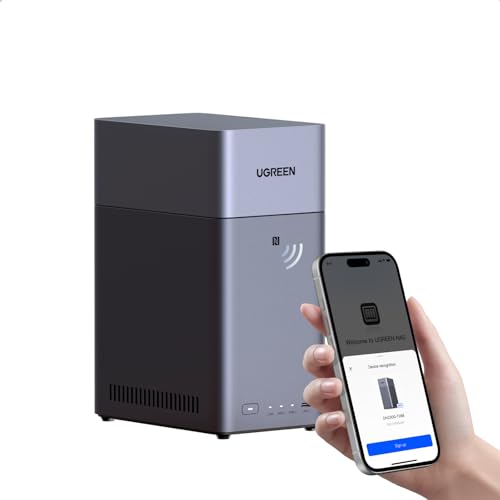
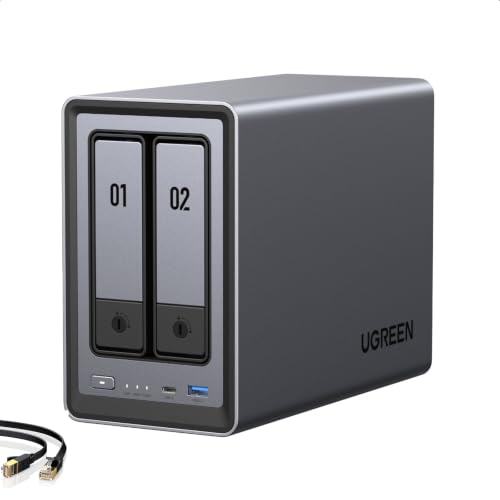
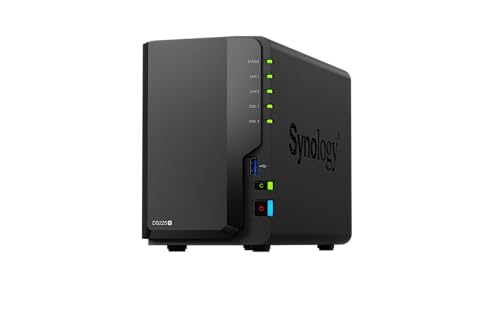
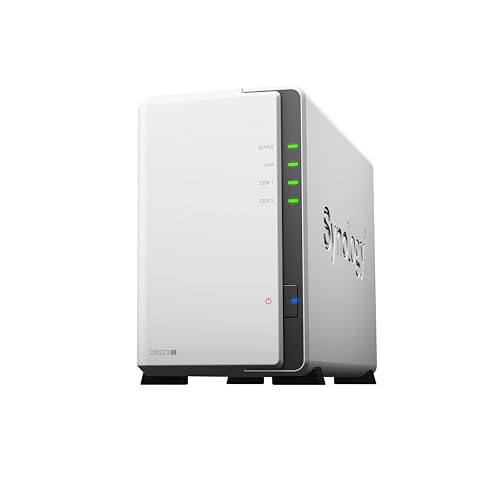
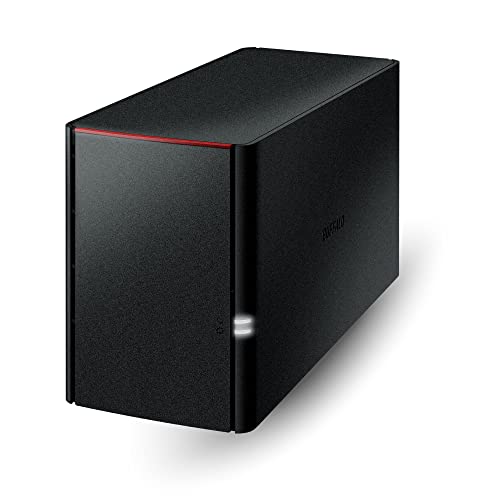


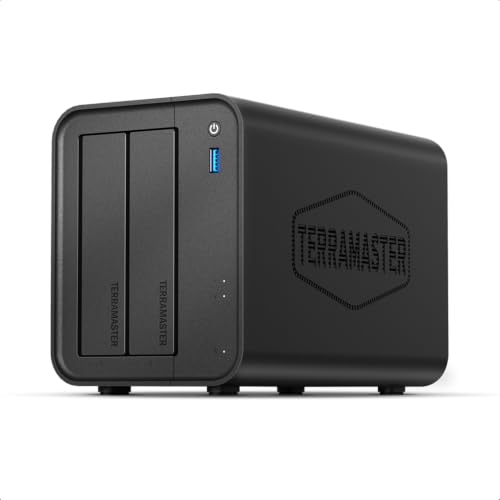

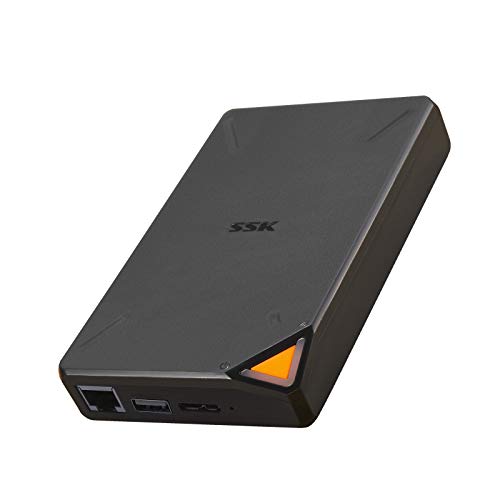
Cloud Hard Drives 101: The Basics
A cloud hard drive sits in your home, connects to your router, and stores your files in one central place. Your devices reach it over your home WiFi or wired network, and most systems also offer an app or web login so you can open files away from home. That is why it is called a personal cloud. The files live on a drive you own, not on a company server, and you do not pay a monthly storage fee for the basic function.
People buy one for three main reasons. First, backup, so photos and documents survive a lost phone or a failed laptop. Second, sharing, so a household can keep one shared library of photos, videos, and files instead of copies scattered across devices. Third, space, because large video collections outgrow laptops quickly. A cloud hard drive can be a single drive unit or a box with two or more drives inside. Two drive systems can mirror your data onto a second drive, which protects you if one drive fails. That feature is called mirroring, and it is worth understanding before you compare prices.
Key Specs Explained in Plain English
Intended Use and Who It Is For
Start with your main job for the drive. If you only need phone photo backup and a shared family folder, a simple single drive system is enough and will be easiest to live with. If you store a large video library, work files you cannot lose, or data for several people, look at a two drive system with mirroring and more capacity. Small home offices should also think about how many people will connect at once. A drive that feels fast for one user can feel slow when four people stream and back up at the same time.
Ease of Use and Setup
Ease of use decides whether a first time buyer actually keeps using the drive. Good systems guide you through setup in an app, find the drive on your network automatically, and make user accounts and shared folders simple. Check how phone backup works. The best experience is automatic photo upload over WiFi when you arrive home, with no cables and no reminders. Also check how you would recover a file you deleted by accident. Clear restore steps in the app matter more to most families than advanced settings they will never open.
Key Performance Specs
Capacity is measured in terabytes. One terabyte holds roughly hundreds of thousands of typical phone photos or hundreds of hours of video, depending on quality, so most households should start at about 2 to 4 terabytes and heavy video collectors should look higher. Speed depends on your network as much as on the drive. A wired connection to the router is far faster and steadier than WiFi for the drive itself, so plan a cable run. For a wider look at drive types, see our guide to the best hard disk drives, which explains the underlying storage in plain terms.
Build Quality and Materials
Build quality for a home cloud drive means a solid case, good ventilation, and a drive inside that is made for always on use. These boxes run day and night, so heat is the quiet enemy. Look for vents that will not be blocked where you place it and a case that does not feel flimsy around the drive bays. Warranty length is a useful quality signal. A longer warranty, often two or three years at better tiers, suggests the maker expects the unit to survive constant use. Our guide to the best quality hard drives covers what separates durable drives from basic ones.
Size, Weight, and Fit for Your Space
Most home units are about the size of a thick book or a small toaster and sit near the router. Measure that spot before you buy, leave room for air flow and cables, and keep the unit off the floor where dust and spills collect. Single drive units are compact and quiet enough for a living area. Two drive units are larger and can be a little louder because of extra cooling, so a hallway cabinet or office shelf often suits them better. Keep the drive somewhere it will stay plugged in and undisturbed, because a personal cloud only works when it stays online.
Price vs Value
Expect three broad tiers. Budget single drive units often fall around $120 to $200 with modest capacity and simple apps. Mid range two drive systems with mirroring usually land around $250 to $450 without drives or with them included at lower capacities, so read listings carefully to see whether drives are in the box. Premium systems with large capacity, faster hardware, and longer warranties can pass $500. Value means paying for capacity and protection you will use. As our guide to the best cloud storage hard drives notes, the cheapest box is poor value if your only copy of family photos sits on one aging drive.
Choosing Cloud Hard Drives for Your Situation
Best Home Cloud Hard Drives: Tips for First Time Buyers
When you shop among the best home cloud hard drives options, prioritize simple apps, automatic phone backup, and quiet operation, because home units live near people and must work without attention. Choose capacity with at least a third more room than you need today, since photo libraries only grow. A two drive mirrored setup is the safer home choice for irreplaceable family photos, even though it costs more, because it keeps a second copy inside the same box if one drive fails.
Best External Cloud Hard Drives
The best external cloud hard drives for people who move between places focus on access and portability of data rather than on the box itself. Since the drive stays home, what matters is a good phone and web app, reliable remote access, and simple sharing links for family elsewhere. If you travel for work, try remote access during setup week while you can still fix router settings at home. Also enable strong passwords and two step sign in where offered, because remote access means your drive is reachable from the internet and deserves that protection. For related options, see our guide to the best hdd hard drives for the drive technology inside many of these units.
Rookie Mistakes to Avoid
- Buying too little capacity: Libraries grow fast once a whole household backs up to one place. Running out of room in year one wastes the entire purchase.
- Treating mirroring as full backup: A mirrored copy protects against one drive failure, but it does not protect against theft, fire, or accidental deletion. Keep one more copy of key files elsewhere.
- Placing the drive on WiFi only: A wired router connection is faster and more reliable. A slow first backup over WiFi convinces many new owners the product is broken when the network is the problem.
- Skipping account security: Set a strong unique password and turn on two step sign in before you enable remote access, not after.
- Never trying a restore: A backup you have never restored is a hope, not a backup. Restore one photo and one document in the first week to prove the system works.
Getting Started: Setup and First Use
Read the manual before first use, even if the app looks self explanatory, because drive placement, cable order, and account steps vary by maker. Connect the unit to your router with the supplied cable, power it on, and complete setup in the app while you are on your home network. Create your account, set security options, and invite household members only after your own access works. Then start with one job, such as phone photo backup, and let it finish fully before adding large video folders. Clean and inspect the unit regularly, keep vents clear of dust, and check the app health report every few months so a failing drive warns you early.
A practical know how tip for the first backup is to start it in the evening and leave phones charging and connected to WiFi overnight. First backups are the largest you will ever run, and judging the drive by that first slow night leads many buyers to give up on a system that would have been fast for daily small backups.
FAQs
How long does a cloud hard drive last?
Most home units last about three to five years of always on use before the drive inside becomes a reliability concern. Heat, dust, and power cuts shorten life, while a cool ventilated spot and steady power extend it. Watch the health status in the app as the unit ages. When warnings appear, copy your data to a new system promptly rather than waiting for a failure, because replacing a working drive on your schedule is far calmer than recovering from a dead one.
Are expensive cloud hard drives worth it?
They are worth it when they buy you mirroring, more capacity, a better app, and a longer warranty, because those features protect data and save time every week. They are not worth it for raw speed claims alone in a typical home, where your network limits real transfers. If your files are mostly replaceable media, a budget unit is fine. If your files are family photos and work documents, paying more for a mirrored mid range system is one of the most sensible upgrades in this category.
How do I maintain a cloud hard drive?
Maintenance is light but real. Keep the unit ventilated and dust free, install updates when the app offers them, and review storage space every few months so the drive never fills completely. Check backup status for each phone and computer on the system, because a phone replaced months ago may never have been added. Once a year, restore a sample file to confirm backups still work. That small routine keeps a set and forget product trustworthy for years.
How much should I spend on a cloud hard drive?
Most first time buyers should budget around $150 to $350. The lower end buys a simple single drive unit for photo backup and sharing, while the upper end buys a mirrored two drive system with room to grow. Spend more only for large video libraries or home office needs. Remember to compare like with like, because some systems include drives and others are empty boxes. A low headline price that still needs two drives can end up costing more than a complete unit.
What features matter most when buying cloud hard drives?
Capacity, mirroring, and app quality matter most. Buy more capacity than you think you need, choose mirroring if the files cannot be replaced, and pick an app your whole household can actually use for backup and restore. After those three, look at wired network connection, warranty length, and security options such as two step sign in. Fancy media features are pleasant extras, but they do not compensate for a confusing app or a single unprotected copy of your photos.
Our Verdict
For most first time buyers, the winning formula is simple. Choose enough capacity for three years of growth, pick mirroring for files you cannot replace, and favor the system with the clearest app and backup routine. Get those three right and the best cloud hard drives choice for your home becomes easy to live with every day. Compare the options in the product table above, set up one backup job at a time, and try a restore in your first week so your personal cloud earns your trust early.


