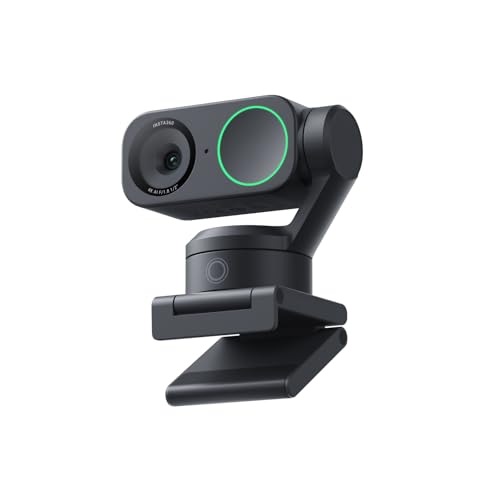
Best Cameras for Virtual Meetings in 2026: What Actually Matters Before You Buy
Disclosure: We may earn a commission when you buy through links on this page, at no extra cost to you. As an Amazon Associate I earn from qualifying purchases. Learn more
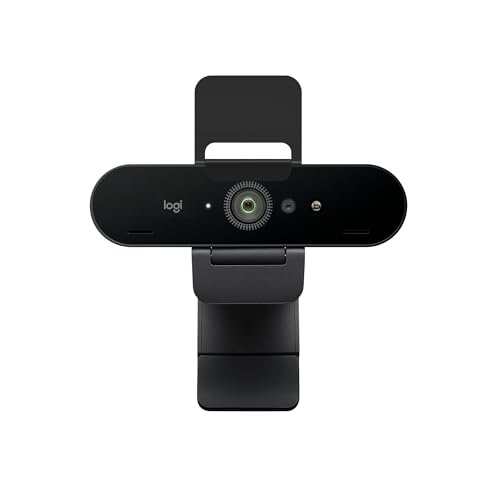
Compare the best cameras for virtual meetings by resolution, focus, low light results, field of view, audio, mounting and app support before you buy.
A meeting camera must make your face clear and easy to watch for an hour at a time, from the same desk, in the same room. The best cameras for virtual meetings do that job well before they impress on paper, and the comparison table below lets you check the points that count most.
Use this guide as a checklist rather than a spec race. Sort cameras by how you work, the light in your room and your distance from the lens, then match those needs to resolution, focus, field of view and audio.

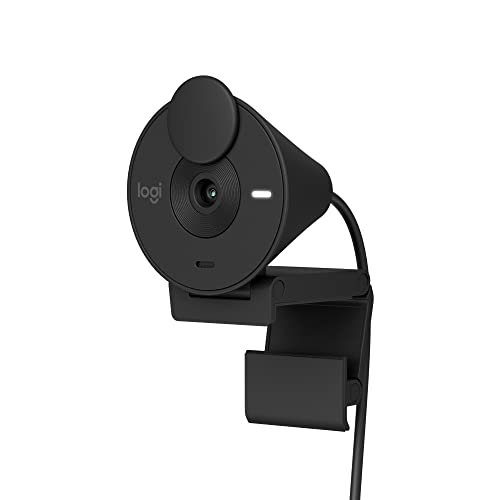


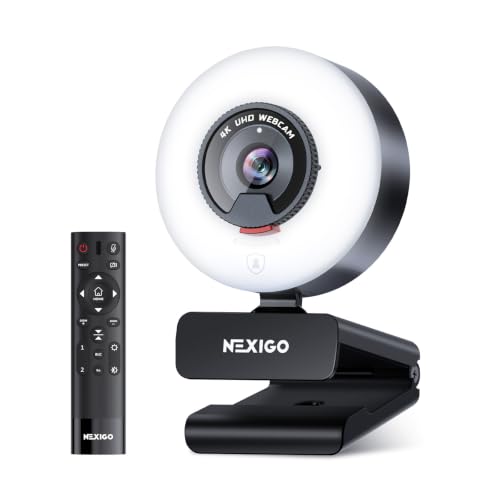


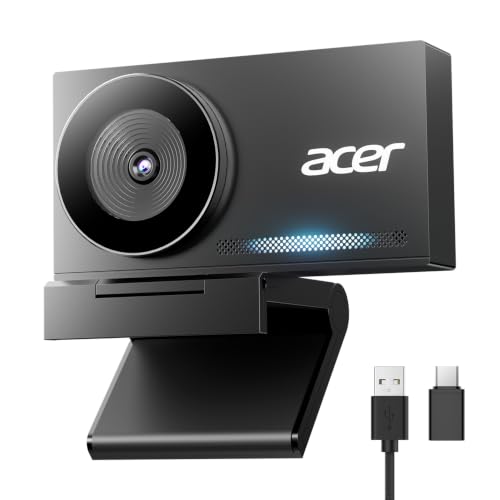


Who Should Buy a Camera for Virtual Meetings?
Your meeting pattern decides which upgrades are worth paying for.
Remote Professionals Who Take Client Calls All Day
You sit close to the lens and need to look consistent all day. Choose a dedicated webcam with reliable autofocus, a field of view around 70 to 85 degrees and a wired connection on desk power. A privacy shutter matters, because the camera stays mounted between calls.
Presenters and Teachers Who Stand and Move While Speaking
You step back, point to a board or hold up objects, so a tight laptop view cuts you off. Choose a wider field of view around 85 to 100 degrees and auto framing that follows you as you shift. A tripod thread helps, because you may mount the camera farther back than a monitor allows.
Home Workers in a Dim Room or a Shared Space
Your room may have one window to the side or people passing behind you. Choose a larger sensor for cleaner low light results and a narrower field of view so the frame shows little else. If a new laptop is also on your list, see our guide to the best laptops for virtual meetings for port points that affect setup.
Key Features to Compare
Work through these six factors in order. The first three shape the picture, and the last three shape fit and sound.
Resolution and Frame Rate for Meeting Apps
Resolution sets how much detail the camera can send, and 1080p is the practical target for most apps, which often cap the displayed picture at that level. A 4K video sensor still helps, because it can crop to a tighter view while keeping a clear 1080p picture. Frame rate matters when you move: 30 frames per second suits seated calls, while 60 frames per second looks smoother as you gesture.
Sensor Size, Aperture and Low Light Results
A larger sensor gathers more light at each pixel, so faces stay cleaner when your room is dim. Look at aperture too, since a lens around f/1.8 to f/2.8 admits more light than one around f/3.5. Webcams use small sensors and lean on software to brighten the image, which can add grain, while mirrorless bodies with APS C or full frame sensors hold detail in shade.
Autofocus and Auto Framing That Follow Your Face
Autofocus decides whether the camera holds your eyes sharp when you lean in or hold a document toward the lens. Face detection and eye autofocus, common on digital cameras, keep attention on you instead of a chair back. Auto framing pans or crops the picture to keep you centered. If you sit still, basic face autofocus is enough, and presenter tracking is not worth extra cost.
Field of View and Lens Choice for Your Desk Distance
Field of view, measured in degrees, sets how much of the room appears behind you. Around 65 to 78 degrees frames head and shoulders at a desk distance of about 2 to 3 feet, while 85 to 100 degrees suits standing presenters or two people sharing one camera. Prefer optical zoom over digital zoom, which crops and softens the picture.
Microphone Quality and Audio Options on a Meeting Camera
Built in microphones on meeting cameras sound clear within about 3 to 6 feet in a quiet room, but they also pick up keyboard noise and echo. A 3.5 mm input or USB microphone support lets you place a microphone closer than the camera sits. If you present often, see our guide to the best headsets for virtual meetings to keep your voice close and room noise down.
Connection, Compatibility and Mounting for a Meeting Camera
Check how the camera talks to your computer. USB webcams that follow the UVC standard work as plug and play devices in Zoom, Teams and Meet on Windows and macOS, while digital cameras may need USB webcam mode or clean HDMI output with a capture device. Confirm the mount fits, whether a monitor clip, shelf base or tripod thread, and check cable length.
Camera Types Compared for Virtual Meetings
Three routes cover almost every setup, and the best cameras for virtual meetings are not always the most expensive type. A dedicated webcam costs about $50 to $200, mounts on your monitor in minutes and suits most desk workers. Its limits are a small sensor and a fixed lens.
A mirrorless or compact digital camera used as a webcam gives the cleanest picture, with a large sensor and strong face autofocus. It costs more, often about $500 and up before a lens, and needs attention to heat and power. If you already own a body, see our guide to the best digital cameras for sensor and lens points.
Your phone can act as a camera through continuity features in newer systems, and often beats an old laptop camera at no cost. The trade off is practical: calls can interrupt the feed and you lose the phone for notes. Treat it as a trial or backup. If most calls run on one app, see our guide to the best cameras for zoom meetings for app specific notes.
Quick Buyer Checklist Before You Buy a Meeting Camera
Answer each question before you order. A no points to what to fix first.
- Does it deliver a clean 1080p picture in your main app?
- Does its field of view frame you well where you actually sit?
- Will autofocus hold your face sharp when you lean in or turn away?
- Does it stay clear in your room light at your usual call times?
- Can it mount at eye level without extra parts?
- Does it connect to your computer and app without paid software?
- Is your voice clear from your seat?
- Does it offer a shutter or cover you trust between meetings?
Common Mistakes to Avoid
These errors cost money or leave you looking worse than before the upgrade.
- Buying on megapixel count alone leaves a dim lens that still looks grainy at night.
- Mounting the camera well below eye level makes you appear to look down at viewers.
- Choosing the widest view for a solo desk call makes your face small.
- Ignoring app limits means paying for resolution the app will not send to anyone.
- Placing a bright window behind you turns your face into a dark shape on screen.
- Skipping a test call leaves problems to surface before clients.
Setup and Care for a Camera Used in Virtual Meetings
Set the lens at eye level, about an arm length from your chair. Put your main light in front of you, and close curtains behind you in bright daylight. Check the app preview before the call. Digital cameras at a desk also need power planning: use a wall powered dummy battery where the maker allows it, and give the body air space, because some models limit use when warm.
Clean the lens with a soft lens cloth, not your shirt, because shirt fabric can hold grit. Blow dust off first and wipe in small circles. Store a body in a dry, padded bag with the lens cap on, keep cables in a gentle curve, update firmware when the maker releases a fix and close the privacy shutter at the end of the day.
FAQ
What features matter most in a camera for virtual meetings?
Clear 1080p video, face autofocus and a lens that frames you well at your desk distance matter most for virtual meetings. One point buyers miss is preview honesty: judge how you look in the app you present in, not only in the maker app, because each app crops and compresses the picture in its own way.
Which camera type handles a dark room best for virtual meetings?
A mirrorless camera with a large sensor and a wide aperture lens handles a dark room best for virtual meetings. It keeps skin tones cleaner at high sensitivity where small webcam sensors turn grainy. A cheaper first fix is a desk lamp aimed at a wall in front of you, bouncing soft light onto your face.
Is a smartphone enough as a camera for virtual meetings?
Yes, a smartphone is enough as a meeting camera for occasional calls, and its picture often beats an older laptop camera. The catch is continuity: an incoming call or a low battery alert can end your video mid meeting. Set it to do not disturb, plug it into power and keep your laptop camera ready as a fallback.
What specs matter most for first time buyers of a meeting camera?
First time buyers should start with 1080p resolution, UVC plug and play support and a monitor mount that fits their screen. Those points decide whether the camera works on day one without extra parts or software. Skip photo modes you will never open, and spend leftover budget on lighting. A return window also helps, since color is easier to judge on your own face than on a spec sheet.
Does 4K video improve a virtual meeting if the app displays 1080p?
Yes, 4K video can improve a virtual meeting even when the app displays 1080p, because the camera can crop to a tighter frame without dropping below 1080p detail. That crop works like a gentle zoom when you sit farther back. It does not help if your upload speed is unstable, so favor a wired network connection for large meetings.
Wrapping Up
Start with your room and call pattern, then choose resolution, focus and framing that fit them, and only then compare price. Check your shortlist against the product table above.
Chosen with those points in mind, the best cameras for virtual meetings make you clear and sharp on every call, without fuss at the start of the meeting. Run one test call and adjust the light before your next real meeting.