Best Affordable Wireless Keyboards 2026 Guide for Home
Disclosure: We may earn a commission when you buy through links on this page, at no extra cost to you. As an Amazon Associate I earn from qualifying purchases. Learn more

How to choose an affordable wireless keyboard: switch feel, battery life, layout and connection options, so typing stays comfortable without a high price.
Choosing best affordable wireless keyboards starts with how you type and where you work. A keyboard that feels fine for short emails may tire your hands during long documents, and a compact layout can slow you down if you use a number pad often. The comparison table below gives a quick overview of keyboard types.
Connection type matters for daily reliability. Bluetooth suits tablets and shared desks, while a USB receiver gives a steady link for desktop work. Some keyboards support both, plus multi device switching, which helps if you move between a laptop, tablet, and phone.

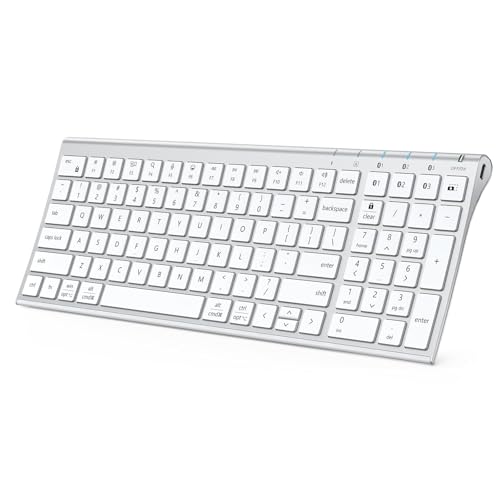


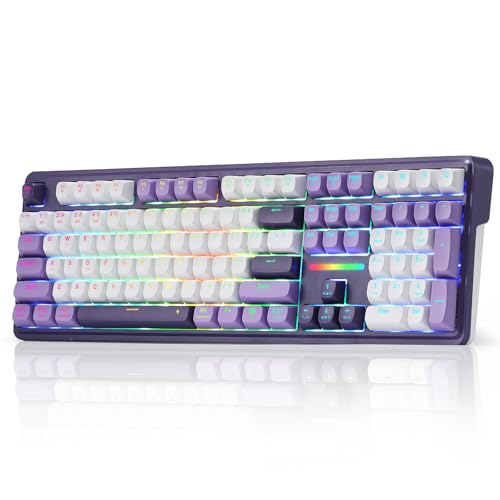


This guide covers switch feel, layout, battery life, and connection options in plain terms. You will learn what to check before ordering, how to judge key feel without trying every model, and how to keep a budget keyboard working well.
Who Should Buy This Type
These keyboards suit home workers, students, and anyone who wants a tidy desk without cables. They work well for laptops, tablets, and living room media setups where a cable would clutter the space. If you type for hours daily, key feel and wrist comfort matter more than extra features.
They are less suited to competitive gaming or heavy data entry that needs a full size layout and fast response. In those cases, a wired mechanical keyboard or a full size wireless model with a number pad may serve better. For everyday typing, a budget wireless keyboard usually covers the job well.
Key Features That Matter Most
Switch feel: Membrane keys feel soft and quiet, while scissor keys feel stable and low profile. Mechanical switches offer a distinct click and longer travel, but they cost more and sound louder. Choose by typing style and noise tolerance, especially in shared rooms.
Layout and size: Full size layouts include a number pad, while tenkeyless models save desk space. Compact layouts suit travel and small desks, yet they may hide function keys behind layers. Check the layout against your daily shortcuts and number use before ordering.
Battery life: Battery life ranges from weeks to months depending on backlight use and connection type. Rechargeable models save on batteries but need charging, while disposable battery models run longer between changes. Turn off backlighting when not needed to extend battery life.
Connection options: Bluetooth pairs with phones and tablets, while a USB receiver suits desktops and older devices. Multi device switching lets one keyboard serve several devices, which helps mixed setups. Check operating system support, since some keys behave differently across systems.
Types and Options Compared
Wireless keyboards come as membrane, scissor, mechanical, and compact models, and each suits a different desk. Membrane keyboards cost least and run quiet. Scissor keyboards suit laptops and slim desks. Mechanical keyboards suit long typing sessions, while compact models suit travel and small spaces.
- Membrane keyboards for quiet low cost everyday typing.
- Scissor keyboards for slim stable keys on small desks.
- Mechanical keyboards for distinct key feel and long sessions.
- Compact keyboards for travel and tidy small desks.
Fit, Size, and Everyday Setup
Place the keyboard at elbow height with wrists straight and relaxed. A keyboard that sits too high forces wrists up, which tires hands over time. Use a wrist rest if your desk is high, and keep the mouse close to avoid reaching across the desk.
Test key spacing and travel in your mind against your hand size, since cramped keys cause errors. If you share the desk, a keyboard with multi device switching saves replugging. Keep the receiver in a front USB port for a steady signal, and replace batteries before they run flat mid task.
Budget and Long Term Value
Affordable wireless keyboards often range from about $25 to $80, with membrane models cheapest and mechanical models higher. Add battery or charging costs to the upfront price, since a keyboard used daily needs regular power. Compare the full cost over a year, not just the purchase price.
Value comes from key feel and battery life more than from backlight colours or extra buttons. A keyboard that types well for years beats a flashy model with mushy keys. Check warranty terms and key durability, since a worn key legend or dead key affects daily work.
You may also find these related guides useful as you compare options: best wireless keyboards, best affordable keyboards, best affordable gaming keyboards, best wireless keyboards and mice, best wireless keyboard and mouse.
Care and Maintenance
Keep the keyboard clean with a soft brush and a lightly damp cloth, and shake out crumbs over a bin. Avoid liquids near the keyboard, since spills damage switches and circuits. Store spare receivers safely, and keep the keyboard dry when travelling.
Replace batteries promptly when keys lag or drop, since low power causes missed keystrokes. Update firmware if the maker offers it, and keep the keyboard away from strong magnets and heat. A few minutes of cleaning each month keeps keys feeling fresh.
Common Mistakes to Avoid
A common mistake is choosing by looks and backlighting while ignoring key feel and layout. Another is buying a compact keyboard without checking number pad needs, which slows data entry. List your daily keys and shortcuts before ordering, and match the layout to them.
Ignoring connection range is another trap, especially for living room setups. Test the distance from your device to your seat, and check whether walls block the signal. A keyboard that drops connection during work wastes more time than it saves in cable tidiness.
Typing Comfort Over Long Days
Long typing days reveal keyboard flaws that short tests hide, including keys that feel mushy after an hour, a layout that forces awkward reaches, and a wrist angle that slowly tires your hands. Take breaks every hour, stretch your fingers and wrists, and adjust chair height so your elbows sit near a right angle while typing. A wrist rest helps only if it keeps wrists straight rather than bent upward, so test one before assuming it will fix discomfort. If you type for many hours daily and feel persistent wrist pain, numbness, or tingling, talk with a clinician rather than simply buying a new keyboard, since early advice prevents longer problems.
Device switching changes how a keyboard feels in practice, since a keyboard that pairs quickly with a laptop may reconnect slowly with a tablet, and that delay frustrates shared desk routines. Test switching between your actual devices before settling, and keep the USB receiver in a port that is easy to reach if you need to re pair. Battery habits also matter, because a keyboard that dies mid sentence during an important task wastes more time than its purchase price suggests, so keep spare batteries or a charging cable at your desk. Finally, clean keys regularly, since crumbs and dust under keys make them feel uneven and can eventually cause missed keystrokes.
Frequently Asked Questions
Is Bluetooth or a USB receiver better?
A USB receiver usually gives a steadier link for desktop work, while Bluetooth suits tablets, phones, and shared desks without a dongle. Many budget keyboards support both, which covers mixed setups. Check range in your real layout, since walls and distance affect Bluetooth more. For a single desktop, a receiver often feels more reliable.
How long do wireless keyboard batteries last?
Battery life varies from weeks to months, depending on backlight use, connection type, and typing hours. Turning off backlighting and using sleep modes extends life a lot. Rechargeable models save on batteries but need regular charging, while disposable models run longer between changes. Keep spare batteries or a charging cable nearby.
Are budget wireless keyboards good for long typing?
Yes, if the key feel suits your hands and the layout matches your work. Scissor and good membrane keyboards handle long documents well, while very cheap keys can feel mushy and tire fingers. Check key travel and spacing, and use a wrist rest if your desk is high. Take short breaks and stretch, since posture matters more than keyboard price.
Can one keyboard work with several devices?
Many wireless keyboards support multi device switching, letting you move between a laptop, tablet, and phone with a key press. Check how many devices it pairs with and whether switching is quick. Some models remember pairings well, while others need re pairing often. This feature helps mixed desks a lot.
What layout should I choose?
Full size layouts suit number heavy work, while tenkeyless models save desk space for mouse movement. Compact layouts suit travel but may hide keys behind layers. List the keys you use daily, including numbers and shortcuts, then choose the smallest layout that keeps them handy. A layout that fits your work beats a smaller one that slows you down.
Final Thoughts
The right wireless keyboard fits your hands, your layout needs, and your devices. Use the product table above to compare types and features, then check key feel and battery life before ordering. Comfort over long sessions matters more than extra buttons or lighting.
In short, best affordable wireless keyboards should type comfortably, connect reliably, and stay tidy on your desk. Pick the layout and connection that suit your daily work, and you will get good value without overspending.