
Best Affordable Routers 2026: Buying Guide
Disclosure: We may earn a commission when you buy through links on this page, at no extra cost to you. As an Amazon Associate I earn from qualifying purchases. Learn more

Compare affordable routers for reliable wifi, streaming, and working from home, with coverage, speed, and setup tips. Read the full guide before you buy.
A good router is the difference between wifi that just works and wifi that drops during every video call. The best affordable routers bring reliable coverage and modern features within a modest budget, and this guide explains how to choose one for your home size, your devices, and your internet plan.
The comparison table below shows options side by side, but your home layout matters more than headline speed. Walls, floors, and distance weaken wifi, so a router that suits a flat may struggle in a larger house. Start with your home size, your internet speed, and how many devices connect at once.
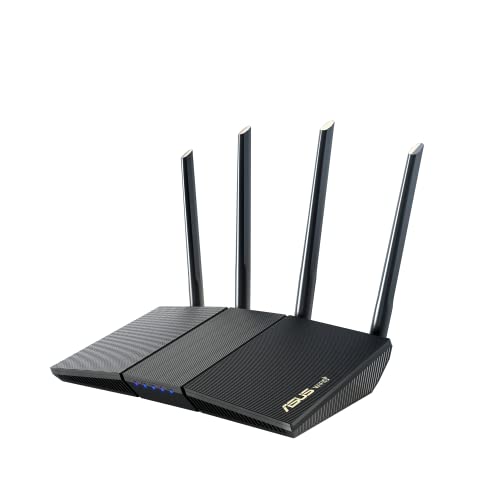


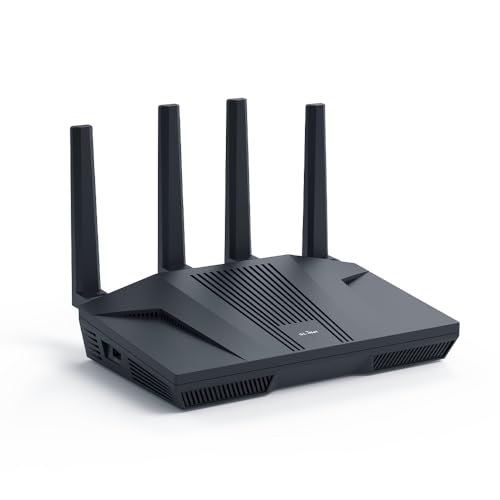

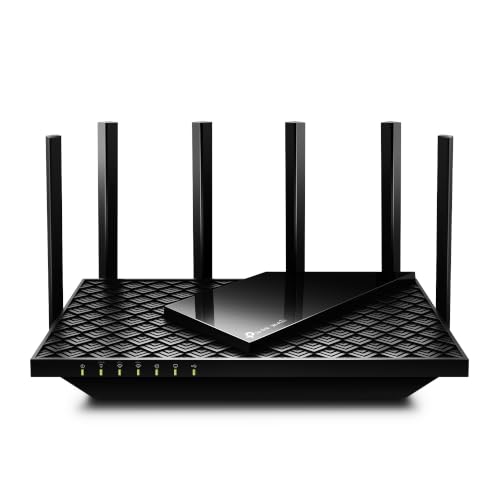
Who Should Buy an Affordable Router
Affordable routers suit households that want reliable wifi for streaming, video calls, and homework without paying for enterprise features. They also suit renters and first home buyers replacing a provider supplied router that drops connections. Very large homes or homes with thick walls may need a mesh system instead of a single router.
- Small to medium households
- Remote workers and students
- Streamers replacing a provider router
Speed, Coverage, and WiFi Standards
Match the router to your internet plan: a gigabit router is wasted on a slow plan, and a slow router caps a fast plan. Modern wifi standards offer better handling of many devices at once, so a current standard helps in a busy household even if headline speed looks similar. Check the standard and the number of streams, not just a big speed number.
Coverage depends on antennas, placement, and your home's construction. A central, elevated position away from thick walls and metal objects gives the best range. If dead spots persist, a mesh system or a wired access point beats a more powerful single router, since no router reliably punches through several concrete walls.
Ports, Features, and Security
Check wired ports: a gigabit WAN port for your modem and several gigabit LAN ports for a computer, console, or TV box give the most stable connections. USB ports can share a drive or printer, though they are a bonus rather than a necessity. Parental controls and guest networks help families, while automatic updates keep security current.
Security matters as much as speed. Use a strong admin password and a strong wifi password, enable the latest wifi security standard your devices support, and keep firmware updated. Change default passwords on day one, and disable remote management unless you truly need it. A secure router protects every device in the house.
Common Mistakes to Avoid
A common mistake is hiding the router in a cupboard or behind a television, which blocks its signal and causes overheating. Another is buying on headline speed alone, then discovering coverage is poor in the far bedroom. A third is ignoring the modem: a router cannot fix a slow or faulty internet connection, so test wired speed first.
Do not skip the setup either. Update firmware, set strong passwords, and name your network clearly. If wifi still drops, try a different channel or band before buying new hardware, since neighbouring networks cause interference. A few minutes of setup often fixes problems blamed on the router.
Everyday Use and Improving Coverage
Place the router centrally, elevated, and in the open, away from microwaves and thick metal objects. Use wired connections for stationary devices like a TV box or console, which frees wifi for phones and laptops. Restart the router occasionally if performance drops, and check for firmware updates every few months.
If dead spots remain, consider a mesh node or a wired access point rather than a signal booster, which often halves speed. Test speeds in each room with a phone app, and note where performance drops. A methodical approach, placement first, then wired backhaul, then extra hardware, saves money and frustration.
Related guides cover specific router needs. Compare wifi focused models in best affordable wifi routers, gaming models in best affordable gaming routers, wireless options in best affordable wireless routers, streaming focused models in best affordable routers for streaming, and well reviewed picks in best reviewed routers.
Diagnosing Wifi Problems Methodically
Wifi problems feel mysterious, but a methodical check solves most of them. First test with a wired connection: if wired speed matches your plan, the internet connection is fine and the problem is wifi. If wired speed is slow too, contact your provider, since no router setting fixes a faulty line.
Next, test in different rooms and at different times. A single dead spot points to placement or walls, while evening slowdowns point to congestion from neighbours or household streaming. Change the wifi channel or band in the router settings, and move the router a metre or two: small moves sometimes clear interference from a nearby appliance.
Keep a note of what you changed and what improved. Randomly toggling settings creates new problems, while one change at a time reveals the cause. If placement, channels, and wired tests all fail, then consider new hardware, and you will know exactly what problem the new hardware must solve.
Extending Wifi Without Replacing the Router
Before buying new hardware, try moving the router. A shift of a metre, a higher shelf, or a move away from a metal cabinet can transform coverage in a dead spot. Test speeds in each room after each move, and note the results, since guessing wastes time. Antennas, where adjustable, should point in different directions rather than all straight up.
Wired connections solve many wifi complaints for free. Connect stationary devices like a television box, console, or desktop computer by cable, which frees wifi capacity for phones and laptops that truly need it. A long cable tucked along skirting boards beats a weak wireless link, and powerline adapters offer a middle ground where running a cable is impractical.
When to Upgrade Your Internet Plan
A new router cannot fix a slow internet plan, so check your plan before blaming hardware. Run a wired speed test at different times of day: if speeds consistently fall below what you pay for, contact your provider about faults or plan options. If wired speeds match your plan but wifi struggles, the router or its placement is the problem. Consider upgrading your plan only when several household members stream, game, and video call simultaneously and wired tests show congestion. Otherwise, a better router, better placement, or wired connections for stationary devices will improve daily life more than a faster plan you rarely use.
Keeping Router Firmware Current
Firmware updates fix security flaws and occasional performance bugs, so enable automatic updates where your router offers them, and check manually every few months otherwise. Update at a quiet time, since the router restarts during the process and wifi drops briefly. Note the firmware version before and after, so you can confirm the update applied and roll back or seek help if something changes unexpectedly.
Frequently Asked Questions
How do I know if I need a new router?
You may need a new router if wifi drops often, speeds fall far below your plan on wired tests, or the router cannot handle many devices at once. Old routers also lack modern security standards and device handling. Test with a wired connection first: if wired speed is fine but wifi is poor, the router or its placement is likely the problem.
Is wifi 6 worth it on a budget router?
Wifi 6 is worth it for busy households, since it handles many devices at once more efficiently than older standards, even if headline speed looks similar. For a small household with few devices, an older standard may suffice. Check that your devices support the newer standard too, since benefits depend on both router and device.
Where should I place my router?
Place your router centrally, elevated, and in the open, away from thick walls, metal objects, and interference sources like microwaves. A shelf in a central room beats a cupboard or a corner. If your modem sits at one end of the house, use a long cable or a mesh system to bring wifi to the centre rather than accepting poor coverage.
Do I need a mesh system instead?
A mesh system suits larger homes, multi floor houses, or homes with thick walls where a single router leaves dead spots. For small to medium homes with open layouts, a single good router is simpler and cheaper. Try placement and wired connections first, and move to mesh only if dead spots persist after those steps.
How can I make my wifi more secure?
Use strong, unique passwords for both the admin panel and the wifi network, enable the latest wifi security standard your devices support, and keep firmware updated. Disable remote management unless needed, and set up a guest network for visitors. These steps protect every device on your network and take only a few minutes.
Final Thoughts
The product table above narrows the field, but your home decides. The right one of the best affordable routers covers your rooms, handles your devices, and stays reliable through video calls and streaming. Place it well, secure it properly, and test with your own devices.
Good wifi should be boring: always there, never noticed. A well chosen budget router delivers exactly that, and leaves you free to get on with work and play.

