Best Affordable Monitors for MacBook Pro in 2026: What Actually Matters Before You Buy
Disclosure: We may earn a commission when you buy through links on this page, at no extra cost to you. As an Amazon Associate I earn from qualifying purchases. Learn more

Compare affordable monitors for MacBook Pro by USB C charging, 4K scaling, color and stand, with a simple checklist to avoid blurry text and extra cables.
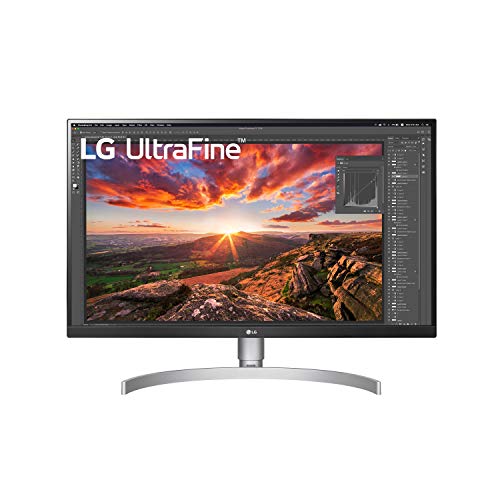
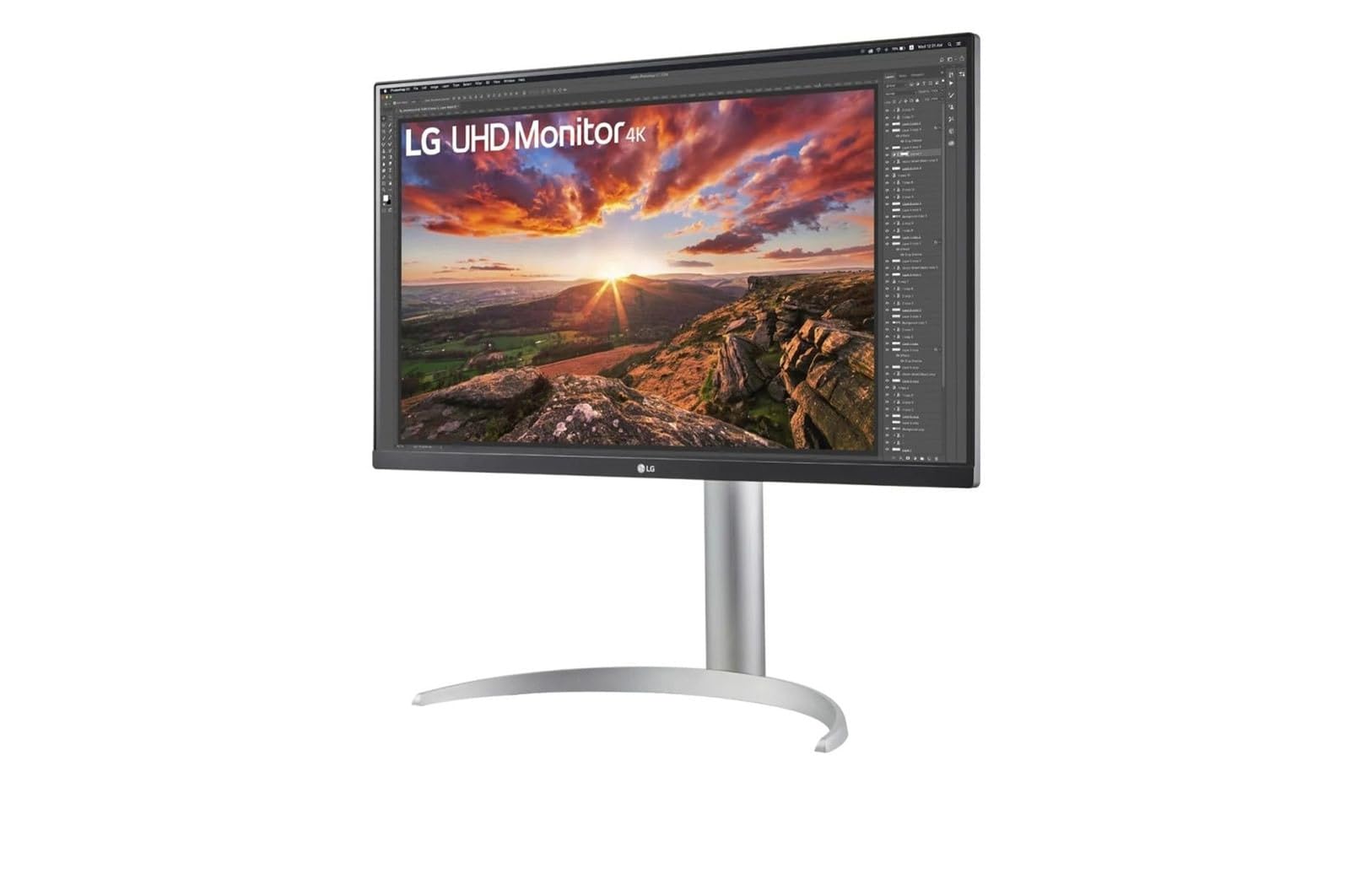
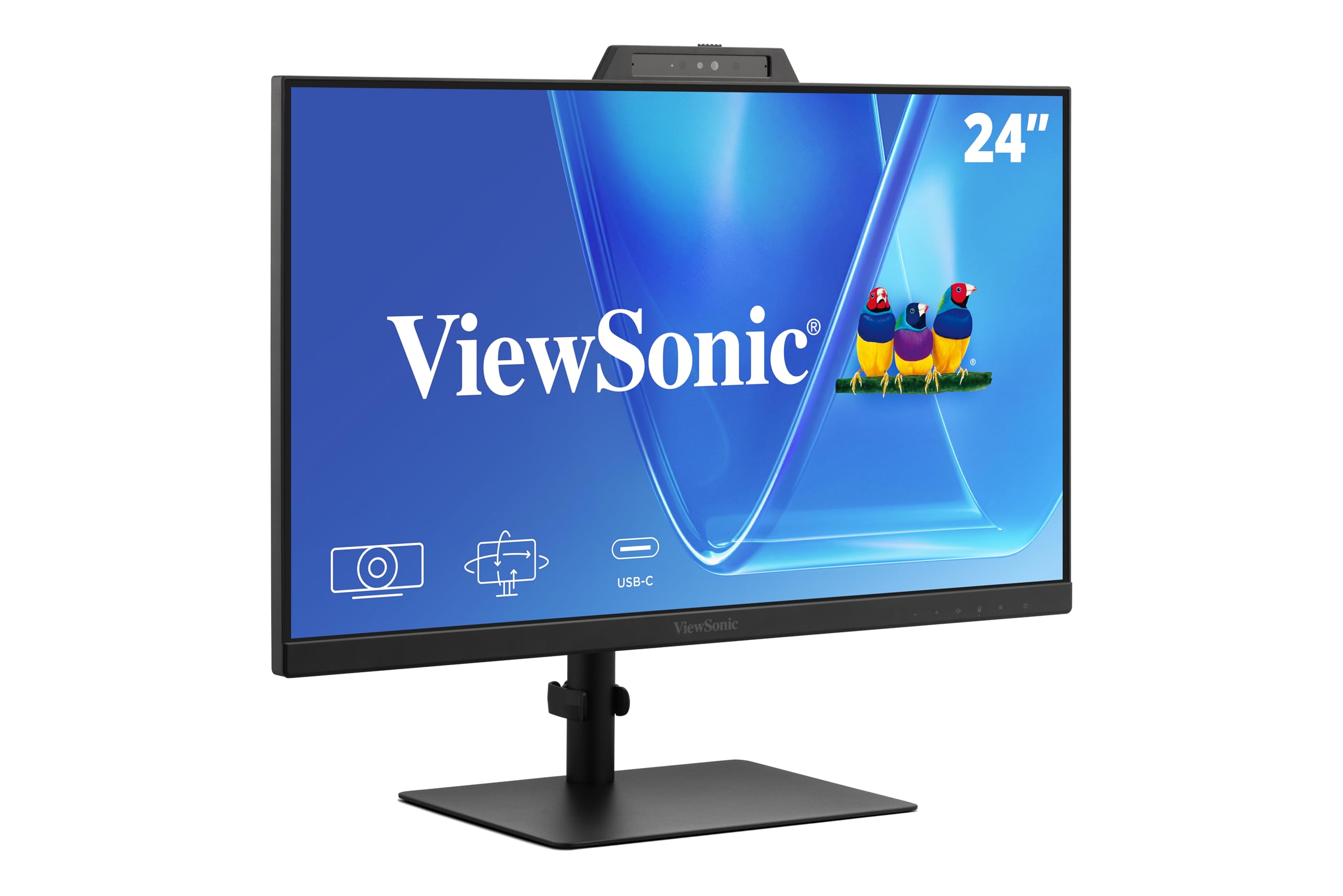
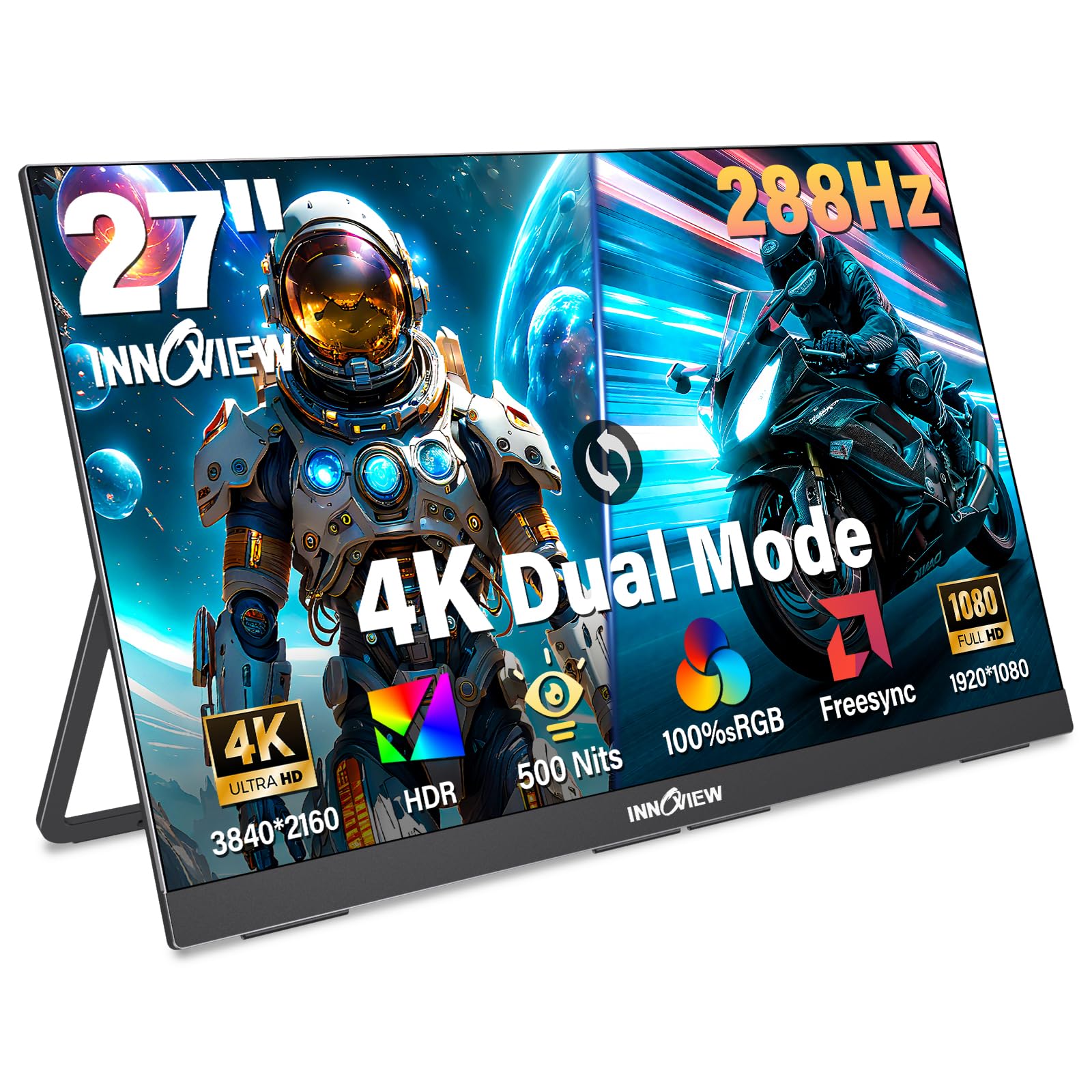
Adding a monitor is the simplest way to give a MacBook Pro a proper desk setup, but a low price can hide tradeoffs in sharpness, charging and color. The best affordable monitors for macbook pro share a short list of traits, and this guide turns those traits into a checklist you can apply to any listing. Start with the comparison table below, then check each claim before you pay.
Affordable here means about $150 to $350 for most sizes. At that level you can expect sharp text, one cable docking and honest color, while extras like a camera and strong speakers are usually left out. Knowing which cuts are harmless for your work is the whole decision.


Who Should Buy an Affordable Monitor for a MacBook Pro?
Match the monitor to the work you repeat most, because a screen that suits documents can be wrong for color work.
Home Office Workers Who Live in Documents and Calls
You split your day between mail, documents, spreadsheets and video calls. Choose a 27 inch screen so two windows sit side by side without constant zooming. Prioritize USB C charging and a height adjustable stand, because you sit for long stretches. If your desk is permanent, see our guide to the best desktop monitors for macbook pro for fixed workspace setups.
Students and Writers Working From Small Desks
You need a screen that earns its space in a dorm room or at a shared table. A 24 inch panel leaves room for books and a keyboard, and it costs less than larger sizes. Pick a light model with a compact foot if you move it between rooms. Built in speakers, even modest ones, save the cost of separate speakers for lectures and calls.
Photo and Video Hobbyists on a Tight Budget
You edit for pleasure or for small paid jobs, so color errors cost you time even when the budget is tight. Choose an IPS panel with full sRGB cover and the widest DCI P3 cover you can afford. A matte surface helps in bright rooms. Skip curved panels for this work, because straight lines near the frame edge are easier to judge on a flat screen.
Key Features to Compare
Work through these five factors in order. For the wider field beyond the budget tier, see our guide to the best monitors for macbook pro.
USB C Connection and Charging Power
One USB C cable should carry the picture, charge the laptop and connect desk accessories through a hub in the monitor. Check the wattage in the listing, because it varies widely at this price. About 65 W covers daily office work on most models, while larger MacBook Pro models under heavy load can draw more than a weak port supplies. Keep your Apple charger nearby for those heavy days.
Resolution and How macOS Scales Text
macOS renders text best when the pixel count divides cleanly into a scaled workspace. A 27 inch 4K panel, run at a looks like 1440p setting, gives crisp letters with comfortable window space. A 27 inch 1080p panel spreads too few pixels over a large area, so text looks soft. If sharp text is your top priority, see our guide to the best 4k monitors for macbook pro.
Panel Type, Brightness and Color Cover
IPS is the panel type to choose at this price, because colors stay steady when you lean or shift in your chair. Look for brightness of about 300 to 400 nits, enough for a lit room away from direct sun. Listings should state color cover plainly, such as full sRGB or a DCI P3 percentage. Vague claims about vivid color with no percentage are a warning sign you cannot compare across models.
Screen Size and Refresh Rate
Size decides how much you see at once, and 24 inches suits small desks while 27 inches suits most home offices. A 32 inch screen needs more viewing distance, or you will turn your head to read the corners. Refresh rate is 60 Hz on most budget models, which is fine for documents, browsing and video. Models at 100 Hz make scrolling look smoother, a comfort gain rather than a need.
Stand Adjustment, VESA Mount and Extra Ports
A stand that adjusts for height protects your neck during long sessions, yet many budget models only tilt. If the stand is fixed, check for a VESA mount pattern on the back so you can add an arm later. One HDMI port gives you a backup input for a second device, and USB A ports let a keyboard receiver stay plugged in when the laptop leaves.
Flat, Curved and Ultrawide: Types Compared for Tight Budgets
A flat 27 inch 4K or 1440p panel is the safest value for most MacBook Pro owners, because it keeps text sharp and costs the least per pixel. That balance of sharpness, price and simple setup is what defines the best affordable monitors for macbook pro in daily use. Curved panels make sense mainly on wide screens, where the wrap brings the far edges closer to your eyes. On a small screen the curve adds cost without a clear gain. If the wrap appeals to you, see our guide to the best curved monitors for macbook pro.
Ultrawide models replace two screens with one long panel, which suits timelines and wide spreadsheets. Budget ultrawides are usually 34 inches at 1440p tall, so text is less sharp than on a 27 inch 4K screen of similar price. They also take a deep desk and rarely include strong USB C charging. Choose one only when side by side windows matter more than the finest text.
A Quick Buyer Checklist Before You Pay
Answer each point before you order, because a no on the first three usually means a return.
- Does the USB C port supply at least about 65 W of charging?
- Is the resolution high enough for the size, ideally 4K at 27 inches?
- Does the listing state panel type, brightness and color cover in numbers?
- Can the stand adjust for height, or is there a VESA mount?
- Are there enough ports for your second device and accessories?
- Does the price leave room in your budget for a cable or arm if needed?
- Is the return window long enough to test the screen at your own desk?
Common Mistakes to Avoid
- Buying a 27 inch 1080p monitor leaves text visibly soft beside the sharp laptop screen.
- Ignoring USB C wattage leaves your MacBook Pro charging slowly or draining under load.
- Choosing a tilt only stand at a fixed height leads to neck strain during long work sessions.
- Paying extra for a curve on a small screen spends budget that resolution would use better.
- Trusting vivid color claims with no stated coverage leads to washed out or oversaturated edits.
- Skipping the return policy check leaves you stuck with backlight bleed you only notice at home.
Care and Maintenance for Your Monitor
Wipe the screen with a dry microfiber cloth, using light pressure and no household sprays, because coatings on budget panels mark easily. For stubborn marks, dampen the cloth with plain water and dry the area at once. Dust the vents on the back each month so heat can escape freely.
Update macOS when a display glitch appears after a system change, because Apple ships display fixes inside routine updates. Store the original box if you can, since its foam is the safest way to move the panel later. If the picture flickers, test a different cable first, as low cost cables are the most common cause.
FAQ
What features matter most in an affordable monitor for a MacBook Pro?
USB C charging, resolution matched to size and IPS color matter most in an affordable monitor for a MacBook Pro. Together they decide whether the screen feels like a natural extension of the laptop. One point buyers miss is wake behavior, so test how fast the screen wakes from sleep during your return window. A monitor that wakes slowly will annoy you every day.
Is 1080p sharp enough for a MacBook Pro monitor at 27 inches?
No, 1080p at 27 inches is not sharp enough for most MacBook Pro users who read text for hours. The pixels are large, so letter edges look coarse next to the built in Retina display. The same resolution feels fine at 24 inches for casual use and video. Sitting a little farther away softens the problem, but it cannot fix it.
Can one USB C cable charge a MacBook Pro and carry video to a monitor?
Yes, one USB C cable can carry video, charging and hub data to a MacBook Pro at the same time. The cable itself must support video and charging, because some low cost cables are wired for charging only. Very long thin cables can also drop the signal at 4K. Use the cable supplied with the monitor first, because the maker rated it for that port.
How many external monitors can a MacBook Pro use at once?
The number of external monitors a MacBook Pro can use depends on the chip inside your model. Base chips drive fewer screens than the Pro and Max chips, and some models gain one extra screen when the laptop lid is closed. Apple lists the exact limit for each model on its support pages. Check your chip name in About This Mac before planning a two screen desk.
How long should an affordable monitor for a MacBook Pro last?
An affordable monitor for a MacBook Pro should last about five to seven years of daily use. The panel itself rarely fails first. Power supplies, ports and stand hinges wear sooner, especially on models moved often. Keep brightness below the maximum for routine work, because constant full brightness ages the backlight faster and adds eye strain in dim rooms.
Final Thoughts
Start with the cable and the pixels. A monitor that charges your laptop through one USB C cable and renders text sharply will satisfy you long after smaller extras are forgotten. Then confirm stand comfort and stated color cover. Use the product table above to compare those points across your shortlist.
Chosen with that checklist, the best affordable monitors for macbook pro stop being a gamble on price and become a calm, practical upgrade for your desk.