Best Affordable Gaming Mouse for 2026: Which One Fits the Way You Use It?
Disclosure: We may earn a commission when you buy through links on this page, at no extra cost to you. As an Amazon Associate I earn from qualifying purchases. Learn more

The best affordable gaming mouse fits your hand and your games first: grip styles, sensor advice, wired versus wireless tradeoffs, and budget limits.
There is no single budget mouse that suits every player, because hands, grips, and game habits differ more than spec sheets do. A shooter player who flicks across a wide pad needs a different shape from a strategy player who lives on side buttons, and both differ from what a student needs at a small dorm desk. So choosing the best affordable gaming mouse starts with how you play, and this guide matches shapes, sensors, and connections to real use cases instead of ranking products.
Price is the second filter, not the first. Under about $60, every mouse trades something away, and the honest question is whether the thing it trades is something you will ever miss. The product table lines up the main options so you can spot which trade offs belong to which class. The sections after it walk through fit first, then the sensor and switch details, then the connection choice that budget buyers most often get wrong.



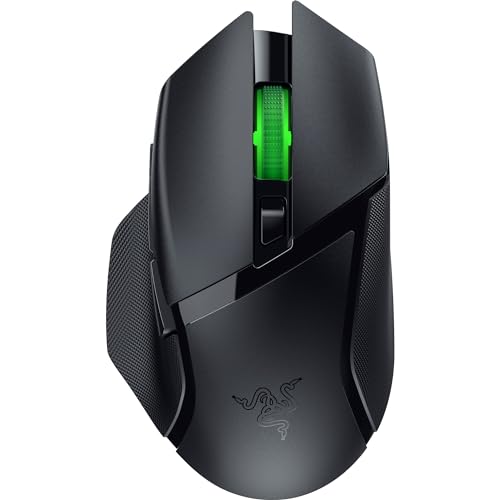

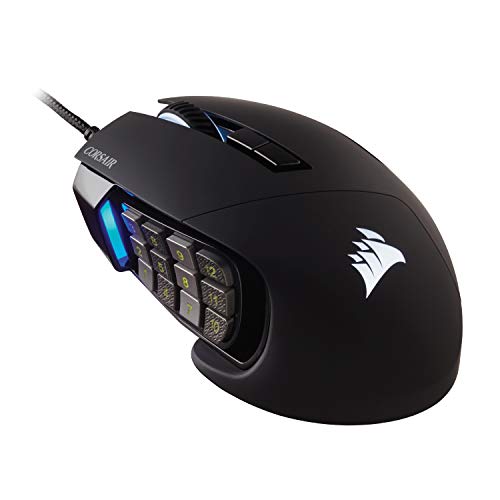

Match the Mouse to the Games You Actually Play
Start with the two or three titles that eat most of your hours, because they decide button count, weight, and shape before any brand question comes up. A broader guide to the best mouse for gaming covers the whole market, while this page stays with what affordable shapes do for specific kinds of play.
Fast Shooters: Light Shells and Clean Flicks
Shooter players move the mouse in short, violent bursts, then stop it dead on a target. A lighter shell, roughly under about 75 grams, asks less of your wrist during those stops, and a shape with a low, safe profile lets your fingers reposition without lifting the mouse by accident. Two side buttons are enough for most shooter bindings, and a flexible cable or a wireless link keeps drag from pulling your aim off line during wide swipes.
Sensor behavior matters more here than anywhere else. You want tracking that stays calm when you move fast, with no smoothing that makes the cursor feel like it is floating a moment behind your hand. If a budget listing brags about a huge DPI ceiling but says nothing about tracking consistency, treat that silence as your answer.
Strategy and MMO Sessions: Buttons Within Reach
Strategy and MMO players trade raw speed for reach. A side panel with six or more buttons puts spells, unit groups, and push to talk under your thumb, and a slightly heavier shell feels steady during long, slow camera pans. Weight that would tire a shooter player is rarely a problem here, because movements are shorter and the sessions are about accuracy of clicks, not speed of swipes.
Onboard memory earns its keep in this group. Profiles stored on the mouse itself travel between your home desk and a laptop without reinstalling software, and per game profiles mean your raid layout is still there after a patch resets the companion app. At this budget, a wired button heavy model usually gives you more buttons and better memory than a wireless one for the same money.
Students and Everyday Desks: One Mouse, Two Jobs
A student mouse writes essays at noon and plays ranked matches at night, so it has to be pleasant for eight hours, not just fast for two. A medium shell with a gentle hump supports relaxed browsing, and a scroll wheel with clear steps helps in long documents. Quiet travel and a tidy desk matter too, which is why many students lean wireless even when a wired model tracks a touch better.
Durability is the quiet priority. Dorm desks get knocked, mice get dropped into backpacks, and the first things to fail are usually the cable near the shell and the scroll wheel. A model with a replaceable cable or a sturdy wireless link survives student life better than one with a thin fixed cord, even if its sensor numbers look plainer on the box.
Travel and Laptop Play: Small, Tough, and Simple
Travelers need a mouse that disappears into a laptop sleeve and wakes up fast in a hotel room. Compact shells under about 110 mm suit this job, and Bluetooth pairing means no dongle to lose in an airport lounge. Battery life measured in weeks matters more than the last gram of weight, because a dead mouse on the road is worse than a slightly heavy one.
Accept the trade offs honestly. Small shells cramp large hands during long sessions, and Bluetooth adds a little latency that shooter players may notice in fast games. For turn based titles, builders, and casual play on the road, those costs are invisible, and the convenience wins easily.
Measure Your Hand Before You Read Any Spec Sheet
Fit is the one thing no firmware update can fix. Two quick measurements and one honest answer about your grip will narrow the whole market to a handful of shapes before you spend anything.
Hand Size Sets the Shell Length
Measure from the crease of your wrist to the tip of your middle finger. Hands under about 17 cm are small, 17 to 20 cm are medium, and anything above 20 cm is large. As a working rule, a comfortable shell runs about 60 to 70 percent of your palm length, so a medium hand usually lands on shells around 118 to 126 mm long.
Width matters almost as much. A shell that is too wide forces your fingers to splay and tires the hand, while a narrow shell on a large hand makes the pinky drag on the pad. Listings that publish grip width at the base are more useful than listings that only shout a length number, so favor the ones that tell you both.
Palm, Claw, and Fingertip Grips
Palm grip rests the whole hand on the shell and suits taller humps with full support at the back. Claw grip arches the fingers and contacts the mouse at the fingertips and the rear of the palm, which favors shorter shells with a hump placed toward the middle. Fingertip grip touches only with the fingers and rewards the smallest, lightest shapes, at the cost of more strain over long sessions.
Most players are hybrids, so do not treat the labels as law. The practical check is where your palm sits: if the back of your hand carries weight, shop palm shapes; if only your fingers steer, shop small and light. Buying for the grip you wish you had, instead of the one in your chair right now, is the most common fit mistake at any budget.
Weight Is a Preference, Not a Ranking
Budget shells cluster between about 55 and 100 grams. Light mice reduce fatigue in low sensitivity shooter play, where the arm does the work, while heavier mice feel calmer for wrist aiming and everyday tasks. Some mid priced models include small add on weights so you can tune the balance, which is a genuinely useful class feature if you are unsure where your preference sits.
Balance counts alongside the number. A mouse that is nose heavy pulls during lifts, and one that is tail heavy drags its rear feet. Makers rarely publish balance, so reviews of shape and your own return window matter more than a tenth of a gram on a spec sheet.
Key Features to Compare Once the Shape Fits
Sensor Quality Beats the DPI Headline
DPI numbers on budget boxes run into the tens of thousands, and almost nobody plays there. Most shooter players settle between 400 and 1600 DPI, and strategy players rarely pass 3200, because control falls apart long before the ceiling matters. What you actually feel is consistency: whether the cursor goes the same distance every time your hand does, at slow creeps and at fast flicks alike.
Polling rate is the second half of that story. A 1000 Hz rate, standard even on cheap wired models, reports position every millisecond and is plenty for casual and ranked play alike. Chasing higher rates at this budget buys numbers on a box; a proven sensor class at 1000 Hz beats an unknown sensor advertising a giant DPI figure, every time.
Wired or Wireless on a Tight Budget
Here is the plain version: at the lowest prices, wireless costs you sensor and battery quality. Makers have to pay for the radio, the battery, and the dongle out of the same small budget, so something else gets thinner. A good wired mouse beats a cheap wireless one for the same money in tracking, weight, and lifespan, and it never dies mid match.
Wireless still has real wins when it is done well. A 2.4 GHz link feels as responsive as a cable in modern implementations, frees the desk, and travels better. If the wire genuinely bothers you, the best affordable wireless gaming mouse options start making sense around the middle of the budget range, where the sensor stops being the thing that got cut. Bluetooth, by contrast, is a travel convenience and feels a step behind in fast games.
Switches Decide How Every Click Feels
Under each main button sits a switch, and its design shapes the whole mouse. Mechanical switches are the budget standard, with a crisp snap and click ratings that makers state in tens of millions of presses. Optical switches, which register clicks with light instead of metal contacts, appear as prices rise and are known for resisting the double click fault that wears out aging mechanical switches.
Treat those ratings as manufacturer figures, not promises. A switch rated for fifty million clicks can still fail early if dust gets in, and a modest rating on a well built mouse can outlast it. What you can judge from a listing is the switch class and whether the maker names it at all; silence here usually means the cheapest part available.
Buttons, Software, and Memory
Extra buttons only help if they sit where your thumb already rests. Two well placed side buttons beat six crowded ones, and a DPI shift button behind the wheel is genuinely useful for dropping sensitivity during careful shots. Software quality varies wildly at this price, from polished apps to downloads you will use once and delete.
Onboard memory is the feature that redeems weak software. If the mouse stores your DPI steps and bindings internally, you set it up once and never open the app again, and your settings survive a move to a console or a work laptop. When a listing mentions memory profiles in the details, that line is worth more than any lighting feature on the box.
Comfort Claims, Stated Honestly
A gaming mouse is an input device, not a medical device, and no shell shape should be expected to treat wrist or hand pain. Listings love the word ergonomic, but on a budget box it usually means only that the shell is curved. Treat that word as marketing and judge comfort by fit: your hand size, your grip, and whether your wrist can rest in a neutral position at your desk.
What helps comfort most is the setup around the mouse. A desk and chair height that let your forearm rest level, a pad large enough that you are not clamping the mouse at its edge, and regular breaks during long sessions all matter more than any shape claim. If you have persistent wrist, hand, or finger discomfort, numbness, or tingling, ask your doctor rather than looking for a fix in the peripherals aisle. A better fitting mouse can be more comfortable to use, but it is not a substitute for professional advice.
Common Mistakes to Avoid
- Buying the biggest DPI number on the shelf. Ceiling sensitivity you will never use says nothing about tracking quality at the settings you play on.
- Choosing a shell for someone else's hand. A shape praised by a streamer with large hands will cramp a small hand within a week.
- Going wireless at the very bottom of the budget. The radio and battery eat the sensor budget, so the cheapest wireless mice track worse than wired mice at the same price.
- Ignoring the surface under the mouse. A worn or glossy desk makes a good sensor look broken, and buyers replace the mouse when the pad was the problem.
- Skipping the return window. Fit only reveals itself after a few evenings, so a short or costly return policy is a real feature to weigh, not fine print.
Set It Up Well and Keep It Working
Setup takes ten minutes and pays off for years. Install the companion software once, set two or three DPI steps you will actually use, and turn off any pointer acceleration in your operating system so muscle memory can form. If the maker offers a firmware update, apply it early, because budget mice sometimes ship with sensor fixes waiting in the first update.
Daily care is simple. Wipe the sensor lens with a dry cloth when tracking feels scratchy, keep the cable slack or routed through a bungee so it does not snag, and wash or replace your pad before it turns shiny and slick. A surface in good shape is half the tracking equation, which is why buyers often shop the best gaming mouse and pad pairings together rather than treating the pad as an afterthought.
If the whole desk is aging at once, timing the keyboard replacement with the mouse can save money. A matched best affordable gaming keyboard and mouse bundle usually costs less than the same two upgrades bought months apart, and one software package then runs both devices. Just make sure the mouse in the bundle fits your hand, because a bargain bundle with the wrong shape is no bargain at all.
Best Affordable Gaming Mouse Questions Answered
What DPI should I actually set on a budget gaming mouse?
Start at 800 DPI and adjust from there, because most players land between 400 and 1600 once in game sensitivity is counted. Remember that the number that matters is the product of the two: 800 DPI with a sensitivity of 2 behaves like 1600 with a sensitivity of 1. Change one setting at a time, play for a few days, and let your arm learn the new speed before judging it.
Is a heavier gaming mouse better for steady aim?
Not by itself, because steadiness comes from the pairing of weight, pad friction, and your aiming style. Arm aimers on large cloth pads often prefer lighter mice they can stop quickly, while wrist aimers sometimes like extra grams that calm small trembles. If your current mouse feels twitchy, try a slower pad surface before buying weight, since friction changes the feel more cheaply than a new shell does.
How long should an affordable gaming mouse last?
Expect about two to four years of regular play from a budget model, with the cable, scroll wheel, and glide feet wearing first. Click ratings in the tens of millions are manufacturer numbers, and real life adds dust, drops, and desk grit that no spec sheet accounts for. Models with replaceable feet and detachable cables stretch that lifespan, because the parts that fail first are the parts you can swap for a few dollars.
Can one gaming mouse handle both work and gaming?
Yes, and for most people that is the smartest way to buy. A medium shell with a stepped scroll wheel handles spreadsheets and documents comfortably, then plays well in the evening. Look for a profile switch or onboard memory so work bindings and game bindings stay separate, and consider quieter switch variants if you share a room, since sharp clicks carry through thin dorm and apartment walls.
Do extra buttons work without installing software?
The side buttons work out of the box as standard forward and back inputs, so you can use them immediately with no software at all. Remapping them to game actions, macros, or different DPI steps is what needs the companion app. If a mouse has onboard memory, one session in the app writes those choices to the mouse itself, and they then work on machines where the app is not installed.
Final Thoughts
Fit first, sensor second, connection third: that order turns a confusing budget shelf into a short list. Measure your hand, name your grip, pick the class that matches your games, and let price cut the list last. The product table above pulls the main options together so you can compare shapes and features against those three checks. Buy the best affordable gaming mouse for the hand and the games you actually have, keep the return window in mind while you try it, and it will serve you far longer than any headline spec suggests.