Best Affordable Computer Keyboards Made Simple: A Clear Buying Guide for 2026
Disclosure: We may earn a commission when you buy through links on this page, at no extra cost to you. As an Amazon Associate I earn from qualifying purchases. Learn more

First time buyers can learn the terms, layouts and switch types that matter when choosing the best affordable computer keyboards.
Buying your first keyboard sounds simple until the listings start talking about switches, polling rates, keycaps, and layouts. This guide slows all of that down. By the end you will know which best affordable computer keyboards suit typing, office work, study, or casual gaming, and which extras you can safely skip.
We start with the basics, then explain each spec in plain English with a sensible target to aim for. Use the comparison table below to see how models differ, then work through the sections in order if this is your first purchase.




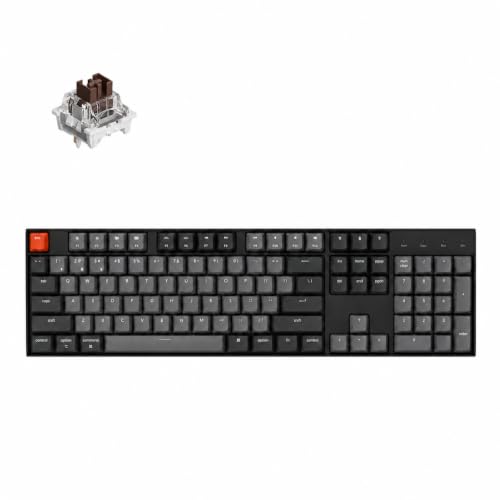

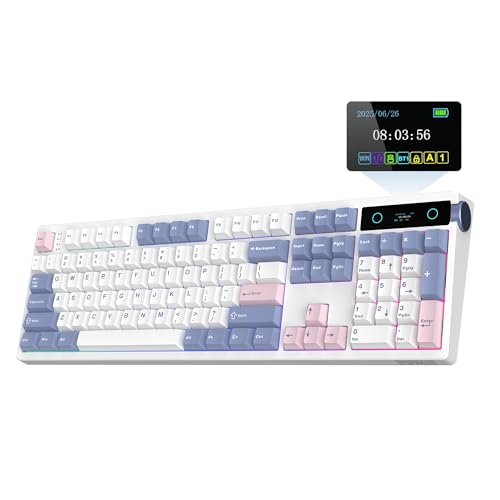
Affordable Computer Keyboards 101: The Basics
A computer keyboard sends a signal each time you press a key. Under every key sits a switch that registers the press. In a membrane keyboard, a rubber layer completes a circuit and feels soft and quiet.
In a mechanical keyboard, each key has its own spring loaded switch, which feels more distinct and lasts longer. A third group, optical and magnetic designs, sense the press with light or magnets and respond very fast, though they cost more. The same checks apply as you shortlist the best affordable computer keyboards.
Your computer receives those presses through a cable, a small USB receiver, or Bluetooth. The layout decides how many keys you get and how much desk space the board takes. Nothing here is hard once you see that every buying choice is really about feel, size, connection, and noise. Everything else is detail layered on top of those four.
One practical habit helps more than any specification list. If you can, listen to a short sound sample of the switch type before buying, and read two or three owner comments about the space bar and the largest keys. Those wide keys use stabilizers, small supports that keep them level, and poor stabilizers are the most common source of rattling on budget boards. A board with modest features and well tuned stabilizers feels far better than a flashy board that clatters with every sentence.
Key Specs Explained in Plain English
What You Can Realistically Get on a Budget
Around $25 to $50, expect a solid membrane board or an entry mechanical board with basic keycaps, one connection mode, and simple lighting or none at all. Around $50 to $80, you should get better switches, PBT keycaps on many models, and both Bluetooth and receiver based wireless. Do not save money by accepting a mushy space bar, a cramped layout you will dislike daily, or a battery that needs charging every few days.
Spend first on switch feel and layout fit, because you touch those with every sentence you type. If you want a wider value picture first, see our guide to the best affordable keyboards before narrowing to computer use.
Wired vs Wireless (2.4 GHz, Bluetooth)
Wired boards never need charging and have the most stable connection, which suits a fixed desk. A 2.4 GHz receiver gives wireless speed close to wired, making it the safer wireless choice for gaming and fast typing. Bluetooth pairs with several devices and needs no receiver, so it suits laptops, tablets, and tidy desks, but it can feel a touch slower and may sleep after idle time.
Many affordable boards offer all three modes. That flexibility is worth having if you switch between a work laptop and a home computer during the day.
Battery Life and Charging
Wireless keyboards sip power compared with a mouse or headphones. A plain board without bright lighting can run for weeks or months on one charge, while strong backlighting can cut that to days. Look for USB C charging so one cable serves your phone, earbuds, and keyboard.
A physical power switch helps during travel, and a low battery light prevents surprise shutdowns mid task. Practical tip: charge the board when the warning light first appears rather than waiting for it to die during a meeting or an exam.
Ergonomics, Size, and Grip Style
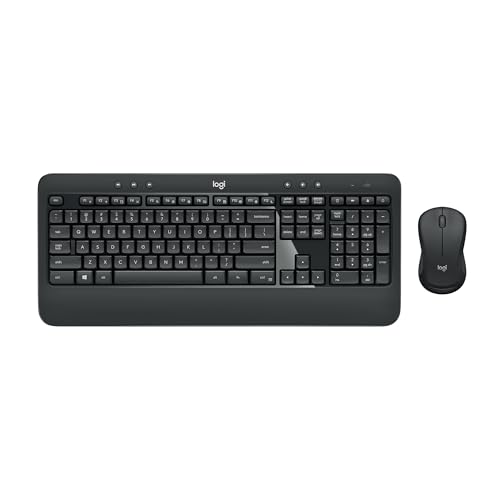
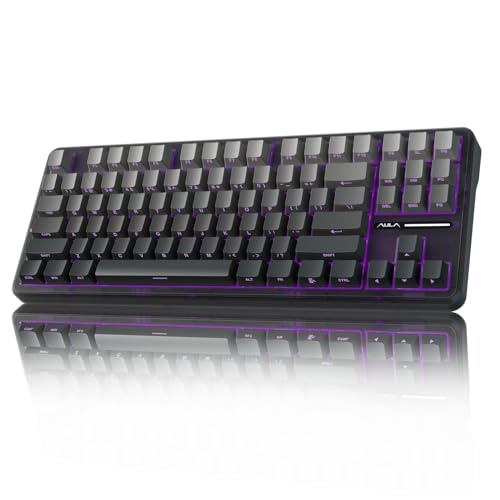
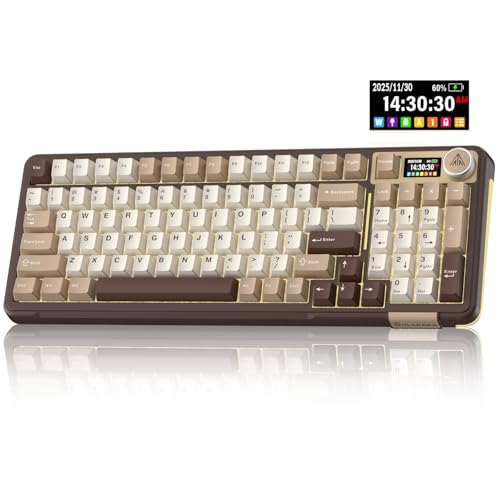
Size is described by how much of a full layout you keep. A full size board includes a number pad and suits data entry. A tenkeyless board drops the number pad so your mouse sits closer, which relaxes your shoulder. A 75 percent board packs the same main keys into a tighter block and suits small desks, though the compressed arrows take a week to learn.
Wrist comfort matters more than size labels. A slight tilt, a board that sits flat without wobble, and a simple wrist rest can prevent strain during long sessions. If you type all day, compare the advice in our guide to the best computer keyboards for typing alongside this one.
Sensor and Switch Type and Performance
Keyboards do not have sensors in the way mice do, so ignore listings that copy mouse language. The terms that matter are switch type and polling rate. Linear switches press smoothly and suit gaming. Tactile switches have a small bump you can feel, which many typists like for accuracy.
Clicky switches add a sound with that bump and can annoy people nearby. Polling rate is how often the board reports presses, with 1000 Hz standard on wired and receiver connections. Hot swappable switches let you pull a switch out and try another feel without soldering, which is a friendly feature for first time buyers who are unsure what they like.
Compatibility (PC, Mac, Console)
Most keyboards work with Windows and Mac computers as soon as you plug them in. Check whether the box includes Mac keycaps or a mode switch, because the Command and Option keys sit in different spots. Console support varies more.
Many boards work for typing messages and menu navigation on consoles, while some games limit keyboard play by design. Also confirm the language layout printed on the keys matches what you expect, since a board sold in another region may place symbols differently even though it works electrically.
Rookie Mistakes to Avoid
- Buying for looks alone. Bright lighting cannot fix a switch feel you dislike, so decide feel and layout first and treat appearance as the final filter.
- Choosing the smallest board for a big job. If you enter numbers daily, dropping the number pad will slow you down no matter how tidy the desk looks.
- Ignoring noise. Clicky switches in a shared office or a quiet home can become a real problem, so check switch sound before price.
- Forgetting the second device. If you plan to use a laptop and a tablet, buy multi device Bluetooth now rather than replacing the board later.
- Skipping the return window. Feel is personal, so buy from a seller with easy returns and try the board with real work during the first week.
For a broader shortlist of features across price bands, our guide to the best computer keyboards gives useful context before you commit.
Getting Started: Setup and First Use
Start by charging a wireless board fully, then connect it with the cable first so your computer registers it without pairing delays. Switch to the receiver or Bluetooth once the basic connection works. Type a full page of normal work rather than pressing keys at random, and note any key that feels scratchy, rattly, or slow to return. Adjust the rear feet, try the board flat as well as tilted, and set your chair height so your wrists stay level.
In the first week, clean the board with a soft brush and wipe the keycaps with a slightly damp cloth. If the board has a companion app, update the firmware once, then check which settings you actually need, such as lighting and key remapping. Keep the charging cable in the desk drawer rather than a distant closet.
Small habits like these keep a budget board feeling new, and they cost nothing. Players who split time between work and games can also compare the priorities in our guide to the best affordable gaming keyboards before choosing switch speed over typing comfort.
FAQs
Does an affordable keyboard work with Mac and console?
Yes, most affordable keyboards work with Mac computers for everyday typing right away. You may need to swap two modifier keys in system settings or use included Mac keycaps for correct labels. Console support is partial: typing and menus usually work, while game support depends on each title. Check the console maker list for your exact use.
Are mechanical keyboards worth it at a low price?
Yes, a mechanical keyboard is worth it if you type a lot or dislike a soft, vague key feel. Even entry models give clearer feedback and replaceable switches, so one worn key does not end the board. If you mostly write short messages and value silence above feel, a good membrane board remains a sensible and cheaper choice.
What DPI do I need for the mouse I use with my keyboard?
DPI is a mouse setting, not a keyboard one, so you do not need any DPI from a keyboard. For the mouse beside it, about 800 to 1600 DPI suits office work and most screens, while gamers adjust by game and desk space. If a keyboard listing leads with DPI, treat it as copied marketing and judge the board on switches and layout instead.
Wired or wireless: which is better for gaming?
Wired and 2.4 GHz receiver connections are both fine for gaming, with response that feels instant in normal play. Bluetooth is the weakest choice for fast games because of higher delay and sleep behavior. If your desk setup rarely moves, wired also removes charging from your routine entirely, which many first time buyers prefer.
Final Thoughts
Choose layout first, switch feel second, and connection third, and the rest of the details fall into place. That order protects your comfort every day, which matters more than any lighting effect. When you compare the best affordable computer keyboards in the product table above, favor the board you can return easily, since one evening of real typing tells you more than any listing can.