
Best Android Keyboards 2026: A Practical Buying Guide
Disclosure: We may earn a commission when you buy through links on this page, at no extra cost to you. As an Amazon Associate I earn from qualifying purchases. Learn more

Compare Android keyboards by typing feel, layout, swipe support and privacy, and find the right keyboard app or physical keyboard for your phone or tablet.
The phrase best android keyboards covers two different products: keyboard apps on your phone and physical keyboards for Android tablets. Both change how fast and comfortably you type, but they solve different problems. This guide covers both, so you can decide whether software, hardware, or a mix of both fits your daily typing.
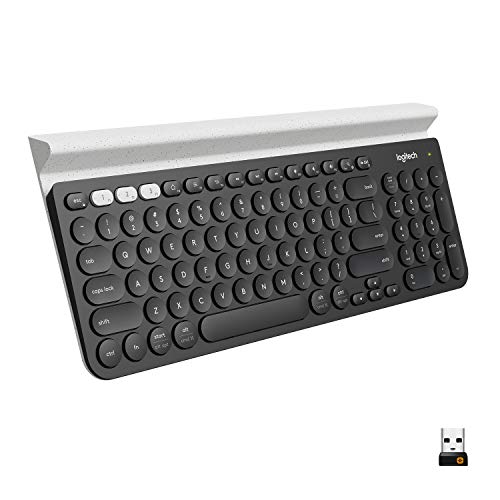
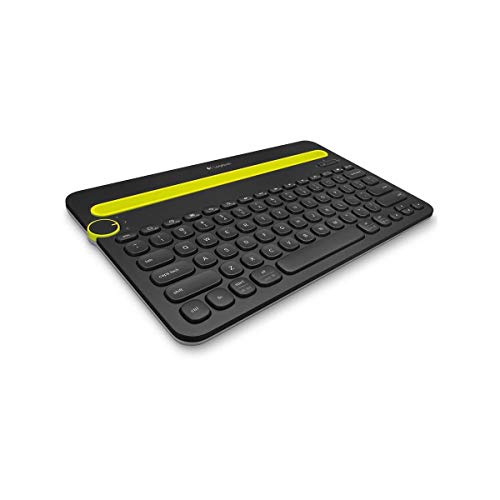
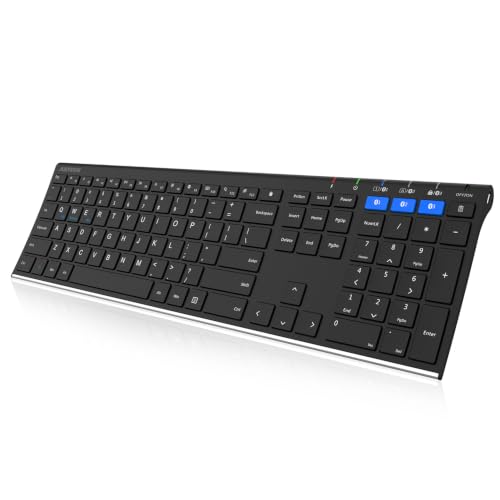
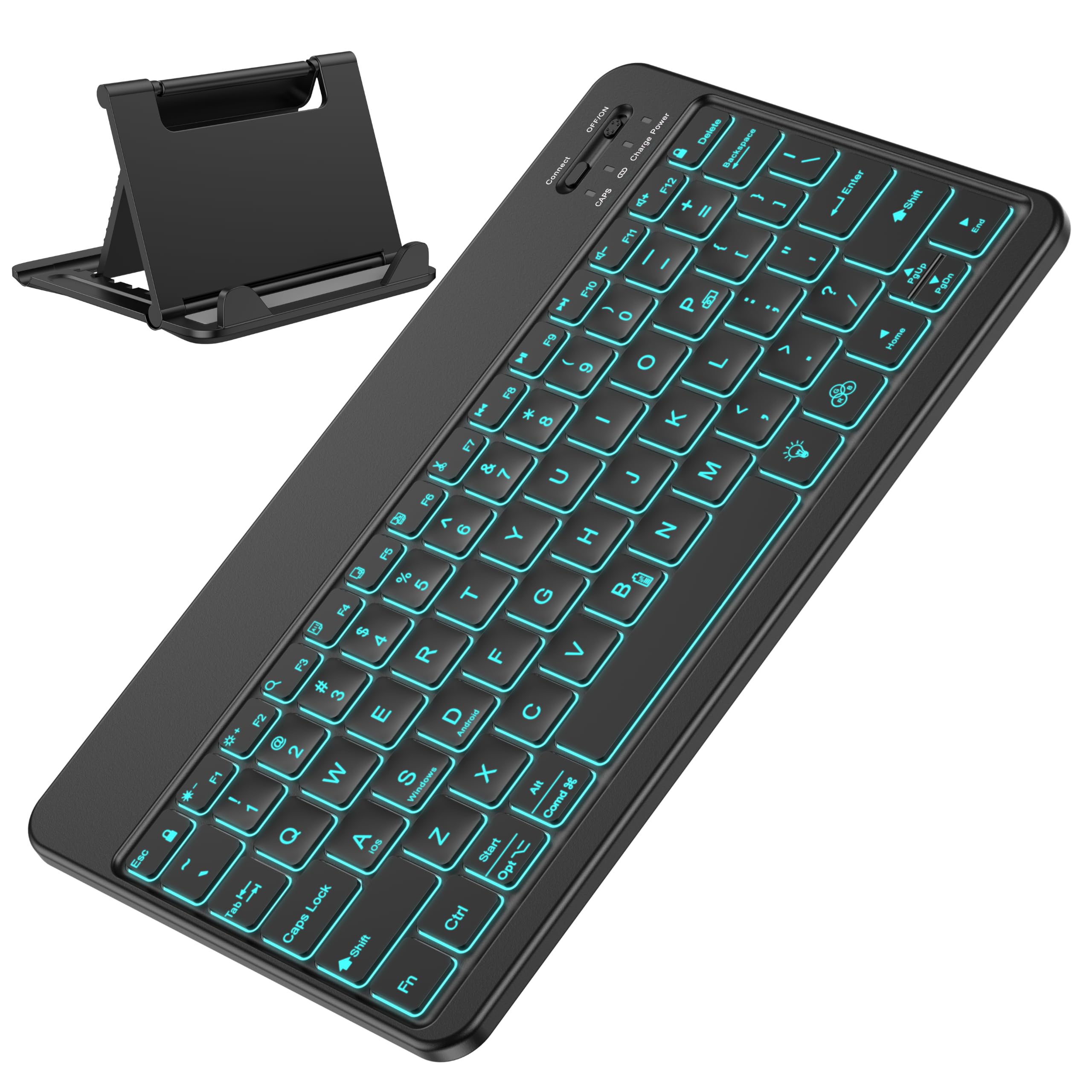
Start with where you type most. Short messages need good predictions and swipe typing, while long documents need a comfortable layout and reliable autocorrect. The product table below compares physical keyboards side by side, and the sections below explain who each type suits and which settings actually improve typing.





Who Should Buy Which Type
For Fast Phone Typists
Phone typists benefit from swipe typing, strong predictions, and a layout that fits thumb reach. A good app learns your words without sending sensitive typing data away, so check privacy settings before enabling cloud features. Custom key height and a number row can speed up everyday typing more than themes or stickers.
For Tablet Writers
Tablet writers often need a physical keyboard for long sessions, with stable pairing and a layout that matches their language. A case keyboard adds protection and portability, while a separate keyboard offers better key travel. Check battery life, charging method, and whether function keys work with your tablet apps.
For Multilingual and Accessibility Users
Multilingual users need easy language switching, good dictionaries, and support for special characters. Accessibility users benefit from larger keys, high contrast, voice input, and haptic feedback options. Test these features in your real languages before settling, because support varies widely between apps.
Key Features Explained in Plain English
Swipe, Prediction and Autocorrect
Swipe typing suits one handed use, while tap typing suits accuracy on larger screens. Prediction quality depends on your personal dictionary and how well the app learns names and slang. Autocorrect should fix common slips without changing names or technical terms, so check that you can train it and undo corrections easily.
Layout, Size and Key Feel
Key size and spacing affect accuracy more than any other setting on a phone. A slightly taller keyboard reduces typos for many people, while a compact layout suits small hands. Physical keyboards need comfortable travel and stable spacing, so test typing for several minutes rather than judging by looks alone.
Privacy and Data Handling
Keyboard apps can see everything you type, so privacy deserves real attention. Check whether predictions run on device, what data is sent for cloud features, and whether you can disable learning for passwords and sensitive fields. A reputable maker with clear privacy controls is worth more than a long feature list.
Connection and Battery for Physical Keyboards
Physical keyboards connect by Bluetooth or USB, and each has trade offs. Bluetooth offers freedom but needs charging and pairing, while USB is simpler but ties you to a cable. Check multi device switching if you type on a phone and tablet, and confirm that the layout matches your language and shortcuts.
How to Compare Options and Set a Budget
Budget tiers differ by type. Keyboard apps range from free to about $10, with paid options often removing ads and adding themes. Physical keyboards range from about $25 to $80 for everyday models, with premium models above that adding better keys and multi device support. Pay for typing comfort and privacy, not for decorative extras you will ignore.
Compare options by your typing volume, languages, and devices. A free app that types well and respects privacy beats a paid app with clutter, and a comfortable mid range physical keyboard beats a premium one with poor layout. Test drive an app for a full week before judging, because learning improves predictions over time.
Related guides can narrow the choice further: our best android keyboards apps guide covers software, best keyboard for android phones covers phone typing, and best keyboards for android tablets covers physical tablet keyboards. If you like gesture typing, see best swype keyboards for android and best android swipe keyboards.
Care, Safety and Common Mistakes
For apps, back up your personal dictionary if the app allows it, and review learned words now and then to remove errors. For physical keyboards, keep firmware updated and charge before long sessions. Clean keys gently with a dry cloth, and store a portable keyboard flat so keys do not catch in a bag.
A common mistake is enabling every prediction and cloud feature without checking privacy settings. Another is choosing a keyboard by looks rather than typing comfort, which leads to more typos. Turn off features you do not use, set key size for your hands, and give a new layout a few days before deciding.
A Final Check Before You Buy
Before you settle on a keyboard app, use it for a full week of real typing, including messages, emails, and searches. Predictions improve as the app learns your words, so a first day test misleads. Review privacy settings before enabling cloud features, disable learning for password fields, and choose a maker whose privacy policy you understand.
For physical keyboards, test typing for at least ten minutes, including numbers and symbols you use often. Key travel, spacing, and layout familiarity affect speed more than appearance. Check that function keys and shortcuts work with your tablet apps, and confirm the charging method and battery life, since a keyboard that needs frequent charging becomes a chore. Let your dominant task decide the main choice, and add the other type only if you truly need both.
Frequently Asked Questions
Should I use a keyboard app or a physical keyboard?
Use a keyboard app for phone typing and short messages, because it is always with you and improves with learning. Use a physical keyboard for long tablet documents, because key travel and layout reduce fatigue. Many people use both, switching by task and device.
Is swipe typing faster than tap typing?
Swipe typing is faster for many people on short messages and one handed use, while tap typing can be more accurate for technical words and names. The best method depends on your hands and habits, so try both for a week. A good app lets you mix methods without changing settings constantly.
How do I protect privacy with a keyboard app?
Choose an app with on device predictions, disable cloud learning if you prefer, and check permissions for network access. Avoid apps that require broad access without a clear reason, and review learned words regularly. Password fields should never be learned or stored by a keyboard app.
What matters most in a tablet keyboard?
Key travel, stable pairing, and a layout that matches your language matter most for long writing. Battery life and weight matter for travel, while backlighting helps in dim rooms. Test typing for several minutes, because comfort over time differs from a quick first impression.
Why does autocorrect keep changing my words?
Autocorrect learns from your typing, so early errors can become repeated corrections. Add names and technical terms to your dictionary, undo wrong corrections promptly, and check language settings. If a word keeps changing, add it as a learned word or turn off aggressive correction.
Final Thoughts
Decide first whether you need an app, a physical keyboard, or both, then judge typing comfort and privacy before extras. A keyboard that fits your hands and habits will be used every day, which is the real test of value. On that basis, best android keyboards becomes a practical productivity choice rather than a cosmetic one.


