Best Adaptive Sync Monitors in 2026: Checklist and Buying Guide
Disclosure: We may earn a commission when you buy through links on this page, at no extra cost to you. As an Amazon Associate I earn from qualifying purchases. Learn more

Compare adaptive sync monitors by sync range, refresh rate, panel type and ports, with a clear checklist for PC and console gaming without screen tearing.
Adaptive sync lets a monitor change its refresh rate to match the frames your graphics card or console sends, which removes tearing and reduces stutter when frame rates rise and fall in play. The best adaptive sync monitors do that job across a wide range. This guide gives you a checklist so you can read the comparison table below with confidence.
Start with your graphics hardware and your favorite games. A monitor can only sync with signals it is built and certified to accept, and the right choice for a fast shooter may be wrong for slower story games or mixed desk work.


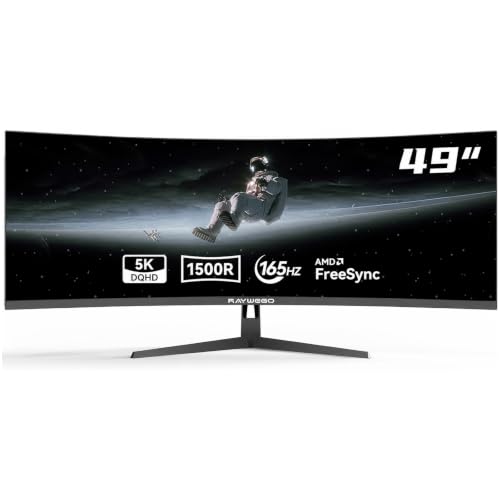
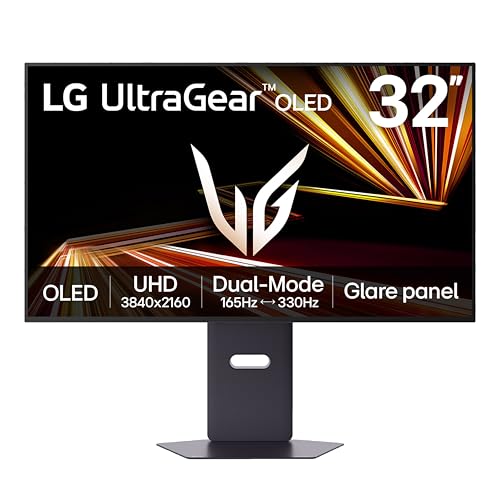

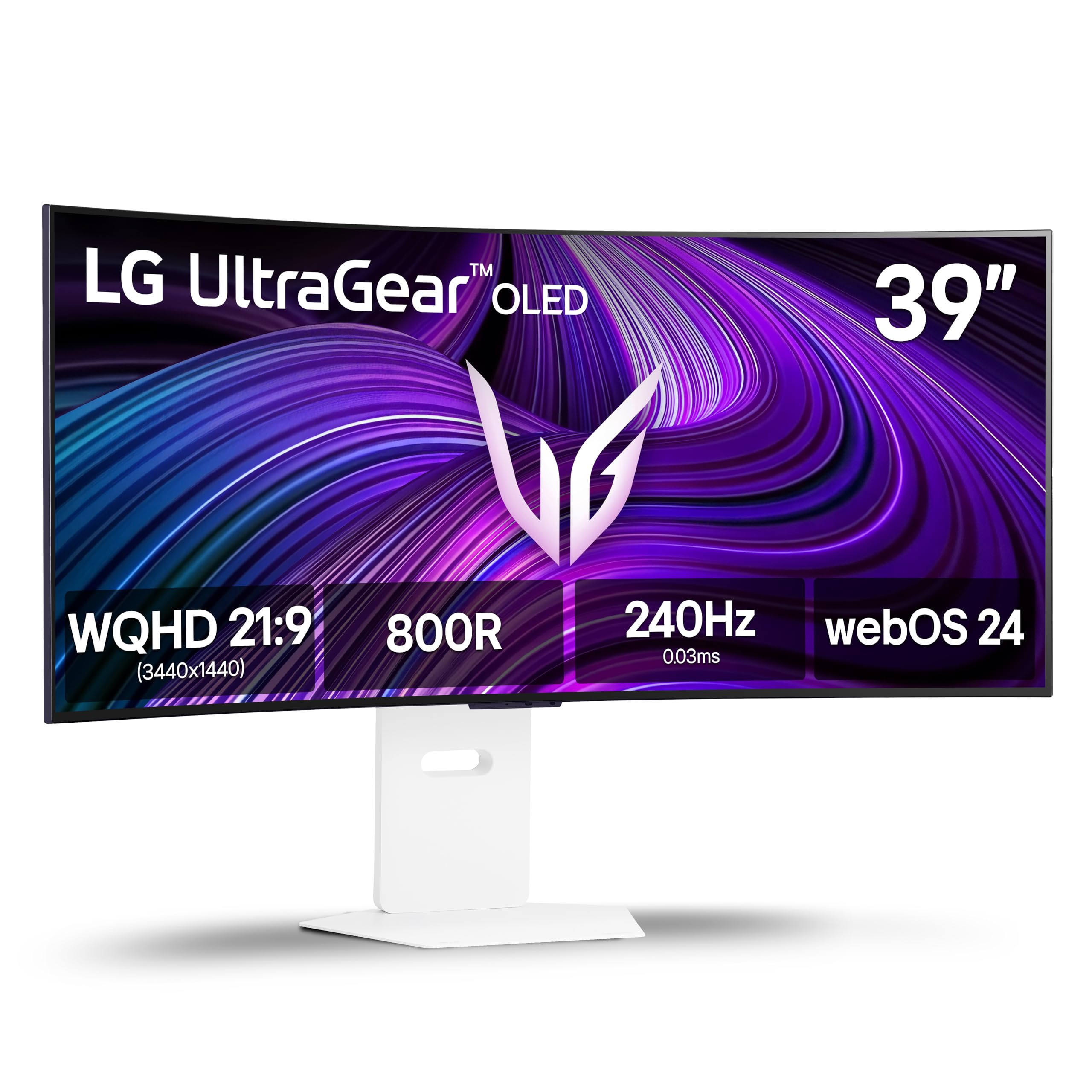

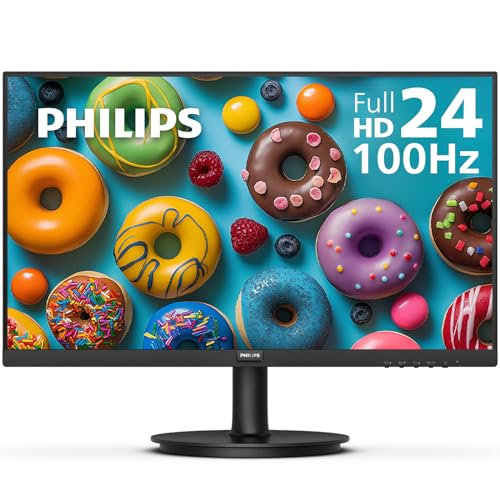
Who Should Buy Which Adaptive Sync Monitors?
PC Gamers With an AMD or NVIDIA Graphics Card
You need sync that works with your card over the cable you plan to use. Many FreeSync monitors also work with NVIDIA cards, and many G Sync monitors also accept FreeSync signals, but makers list supported inputs per model. Match card, port and certification first, since a monitor that syncs only over a port your card lacks acts like a fixed rate display.
Console Gamers Who Play at 120 Hz
You need HDMI 2.1 for a current console to send a 120 Hz signal at full resolution, plus sync that stays active over HDMI rather than only over DisplayPort. Check the sync range stated for the HDMI input, since some monitors cap console refresh below their PC maximum.
Gamers Who Also Work at the Same Desk
You split your hours between play and documents, so text clarity and comfort matter as much as motion. An IPS panel with a matte finish reads best in a bright room, and USB C with power delivery can charge a laptop through one cable. Take 144 Hz or more for play, then spend the rest of your budget on ergonomics and color.
Key Features to Compare
Work through these factors in order. Put simply, the best adaptive sync monitors for you fit one system at once in range, panel and ports. For a wider view, see our guide to the best gaming monitors.
Sync Type, Certification and Graphics Card Compatibility
FreeSync comes from AMD and G Sync comes from NVIDIA, and each name covers several tiers that do not promise the same range or testing. Higher tiers add wider ranges and extra checks, while plain labels often cover a narrower span. A certification logo shows the maker tested that model to a stated standard, which matters more than the word sync alone. If you favor the NVIDIA route, see our guide to the best g sync monitors.
Sync Range and Low Frame Rate Compensation
The sync range is the span of frame rates the monitor can follow, often about 48 to 144 Hz or about 48 to 165 Hz. When your game dips below the low end, the picture can tear again unless the monitor offers low frame rate compensation, which repeats frames to stay inside the working range. That helps most in heavy scenes where rates swing widely. Ask for both numbers in writing before you buy.
Refresh Rate and Response Time
Refresh rate sets the highest frame rate the screen can show. A rate of 144 Hz is a strong value point, 165 Hz and 180 Hz are common steps up, and 240 Hz aims at competitive play. Response time shows how fast pixels change, and quoted figures use maker methods that differ, so treat tiny numbers as a guide. Overdrive reduces blur but can add pale halos at its strongest level, so a middle setting often looks cleanest.
Panel Technology, HDR and Brightness
IPS panels give wide viewing angles and steady color, which suits shared screens and desk work. VA panels give deeper contrast for dark scenes but can smear dark motion. OLED panels switch pixels almost at once and show true black, yet cost more and need care with static images to limit burn in risk. For HDR, look for peak brightness of about 400 to 1000 nits.
Resolution, Screen Size and Pixel Density
Resolution and size work as a pair. At 27 inches, 1440p gives sharp text and a moderate load on your card, while 4K looks finer but asks much more of your hardware. At 32 inches, 4K spreads out well and 1440p can look soft for close work. Ultrawide screens at 34 inches add side view, but some games do not fill the width. For 4K with NVIDIA sync, see our guide to the best 4k monitors with g sync.
Ports, VESA Mounting and Ergonomics
Count the ports you will use at once. DisplayPort suits most PC play at full rate, HDMI 2.1 serves consoles and newer cards, and USB C with video and power suits a laptop setup. Check that sync works on the input you choose, since support can differ by port. A VESA mount of 100 by 100 mm fits most desk arms, and height and tilt adjustment puts the screen at eye level.
Quick Buyer Checklist and Setup Checks for Adaptive Sync Monitors
Run this list before you order. Sync only works when card, cable, port and menu setting all agree.
- Does the sync type match your graphics card or console?
- Does the sync range cover the frame rates your games usually run at?
- Does the monitor offer low frame rate compensation below its range?
- Will your hardware sustain frame rates near the top refresh rate at this resolution?
- Does sync work over the exact port and cable you plan to use?
- Does the stand adjust for height, or does the back carry a VESA mount?
- Does the warranty cover dead pixels and backlight faults for at least two years?
When the screen arrives, turn adaptive sync on in the monitor menu first, then in your graphics driver panel, and set the system refresh rate to the monitor maximum. Use the cable in the box or a certified cable rated for your rate and resolution. Test with a game where frame rates move freely, and watch fence lines as you turn, since tearing shows first on straight edges. For related choices, see our guide to the best gaming monitors with g sync.
Watch for red flags while you shop. A listing that says sync ready without a range, a rate quoted only at a lower resolution, or no clear warranty all call for caution.
Common Mistakes to Avoid
- Buying a monitor whose sync works only with the other graphics brand leaves you with tearing on your own system.
- Chasing a 240 Hz rate your hardware cannot feed wastes money that could buy a better panel.
- Using an old HDMI cable that caps the refresh rate makes a fast monitor run slow.
- Leaving adaptive sync off in the driver panel means the feature you paid for never runs.
- Picking 4K for a small screen and a modest card forces frame rates below the sync range.
- Setting overdrive at its highest level adds bright halos that look worse than slight blur.
Care and Maintenance for Adaptive Sync Monitors
Clean the screen only when it is off and cool, with a dry microfiber cloth and light pressure. For marks that stay, dampen the cloth with plain water, never spray liquid onto the screen, and keep household cleaners away from the coating. Dust the back vents each month, since blocked vents let heat build inside the case.
On an OLED model, run the pixel refresh routine the maker provides and avoid leaving a fixed image up for hours. Update firmware only from the maker support page for your exact model, and keep cables free of sharp bends.
Adaptive Sync Monitors: Your Questions Answered
Does a higher refresh rate matter on adaptive sync monitors used outside gaming?
Yes, a higher refresh rate can feel smoother outside games, though the gain is smaller than in play. Scrolling text, moving windows and drawing with a pen look steadier at 120 Hz or 144 Hz than at 60 Hz. Office apps gain little for typing alone, so put budget toward screen size and an adjustable stand first.
For adaptive sync monitors, is IPS or OLED better for gaming?
OLED is better for dark games and fast motion, while IPS is better for bright rooms and long desk sessions. OLED text can show slight color fringes on some models due to its pixel layout, which matters if you read all day. IPS also costs less at the same size, so many players choose IPS for mixed use and save OLED for play only.
Is 4K resolution worth it on an adaptive sync monitor?
4K is worth it if your graphics card can hold frame rates inside the sync range at that load. Image scaling tools that render below 4K and sharpen the result can keep rates up on a 4K screen. At a desk distance of about two to three feet, the extra sharpness over 1440p is clear at 32 inches but subtle at 27 inches.
How long do adaptive sync monitors usually last?
Most adaptive sync monitors last about five to eight years of daily use before brightness fades or faults appear. The backlight dims slowly, so a screen that once felt bright at half power may later need a higher setting. Check the dead pixel policy before you buy, since makers set different limits on how many faulty pixels count as a defect.
What size adaptive sync monitor should you get for a desk?
For most desks, a 27 inch adaptive sync monitor is the safest fit. Measure desk depth first, since a deep stand on a shallow desk pushes the screen too close to your eyes. A monitor arm can reclaim several inches of depth. If you sit farther back for console play, a 32 inch screen keeps game text easy to read.
Final Thoughts
Match the sync type to your hardware first, then check that the range covers your real frame rates, and only then weigh panel, resolution and ports. Use the product table above to compare range, rate and price.
Chosen with that checklist, best adaptive sync monitors stop being a spec race and become a simple fit for your card, your desk and your games. Pick the model that fits all three, and your play will look smooth the day it arrives.