Best 144hz G Sync Monitors of 2026: Complete Buying Guide
Disclosure: We may earn a commission when you buy through links on this page, at no extra cost to you. As an Amazon Associate I earn from qualifying purchases. Learn more

The best 144hz g sync monitors match your card, desk and room light; compare panel, resolution, HDR and ports first.
Screen tearing and uneven frame pacing can make fast games feel rough even on a strong PC. The best 144hz g sync monitors solve that problem by matching the screen refresh to the frame rate your card delivers, so motion stays smooth as action speeds up and slows down. This guide shows you what to compare first, and the product table gives you a starting list.
Start with three facts about your own setup: the graphics card you own, the resolution it can drive well, and the size of your desk. Those facts narrow the field faster than any single spec, and the sections below match panel, HDR, ports and price to how you play and work.
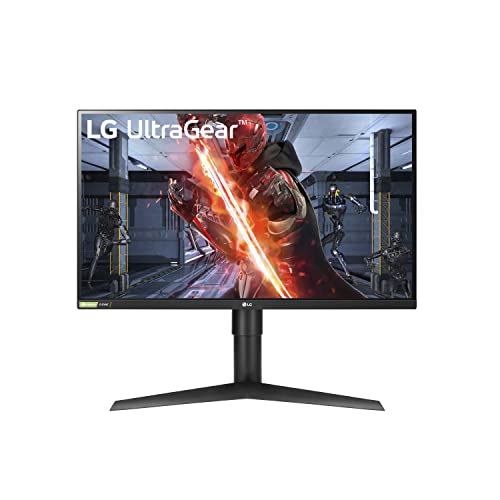
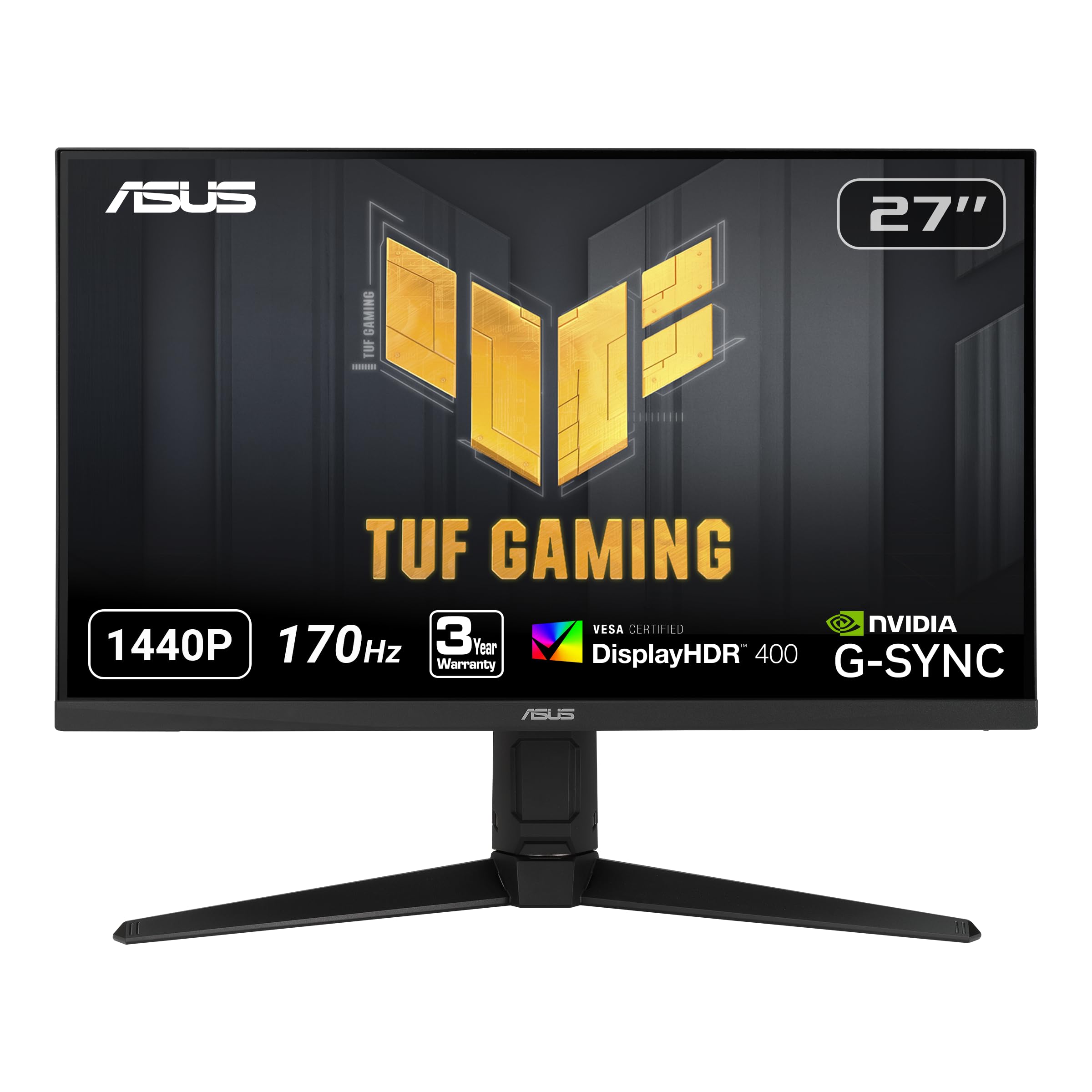


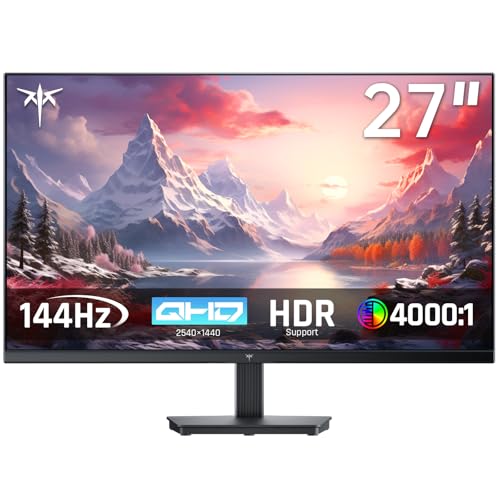


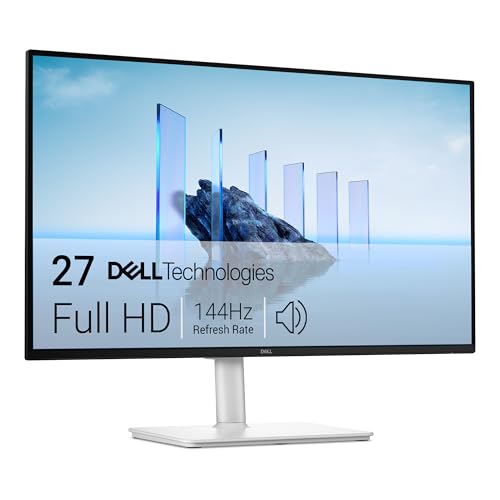
Who Should Buy a 144hz G Sync Monitor?
Buyers of these screens share one goal, smooth motion without tearing, but they reach it in different ways. Your games and your card decide which version is worth paying for.
Competitive PC Players Who Chase High Frame Rates
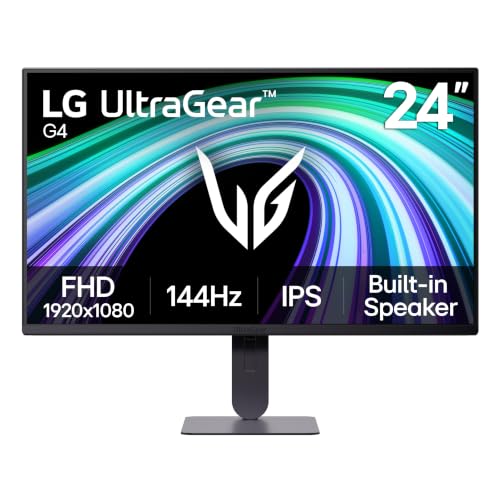
You play shooters and racing titles where a clear image during fast turns matters more than sheer size. Choose a 24 or 27 inch model with low response time, and run it at 1080p or 1440p so your card can hold high frame rates. If your search widens beyond this refresh class, see our guide to the best gaming monitors with g sync.
Players Who Split Time Between PC and Console
You game at one desk with a PC and a console side by side. A 144hz screen still serves you well because current consoles top out at 120 frames per second in performance modes, so the display simply runs below its ceiling. Prioritize HDMI 2.1 ports and a headphone jack, since you will switch inputs often.
Desk Workers Who Game After Hours
You read text and scroll long pages all day, then play in the evening. A 27 inch 1440p IPS screen gives you sharp text, room for two windows and scrolling that feels calm. An ultrawide model can replace two smaller screens, but check that your desk depth lets you see the edges without turning your head.
Key Features to Compare
The best 144hz g sync monitors share the same headline refresh rate, so the differences that matter sit one level down. Work through the five factors below in order: the panel shapes the image, the resolution sets the load on your card, and the ports decide whether you reach full speed.
How Panel Choice Shapes Color, Contrast and Viewing Angles
The panel controls color, contrast and viewing angles. IPS panels hold color well when you sit slightly off center, though their blacks can look gray in a dark room. VA panels deliver deeper contrast for night scenes but can smear dark moving objects. OLED gives true black and the fastest response, with a risk of burn in from static screens. Mini LED backlights raise brightness and contrast on LCD panels at a higher price.
Sharpness and Card Load at 1440p Versus 4K
Resolution sets both sharpness and the load on your card. At 24 to 27 inches, 1440p looks sharp from about 24 to 30 inches away and is far easier to drive than 4K, so most buyers should start with our guide to the best g sync monitors 1440p. At 32 inches, 4K suits slower games, but only a strong card holds high frame rates there.
Adaptive Sync Range, Response Time and G Sync Tier
Adaptive sync works inside a stated range, often about 48 to 144 frames per second, and frames below that range can stutter again. G Sync Compatible models are validated screens using adaptive sync, while models with a dedicated module hold variable refresh to very low frame rates and add variable overdrive. The Ultimate tier adds demanding HDR requirements, covered in our guide to the best g sync ultimate monitors. Claims of 1 ms rely on aggressive overdrive, which can add pale halos, so a balanced setting usually looks best.
HDR and Brightness for Games and Video
HDR only improves the picture when the screen gets bright enough and can dim small areas on its own. A basic HDR label with peak brightness around 400 nits adds little. Look for about 600 nits or more plus local dimming, where highlights in explosions and sunlit scenes gain real depth. For a bright room, steady brightness of about 300 to 400 nits with an anti glare finish matters more than peak numbers.
Ports, Stand Adjustment and VESA Mounting
Ports decide whether you reach the full refresh rate. DisplayPort is the safest route to 144hz with G Sync on a PC, while HDMI 2.1 matters for consoles at 120 frames per second and for 4K models. USB C with video input suits a docked laptop. Check the stand for height and tilt adjustment, and confirm the VESA pattern, commonly 100 by 100 mm, if you plan a monitor arm.
Types of 144hz G Sync Monitors
Most models fall into three families, and knowing yours saves you paying for strengths you will never see.
Self Lit Panels for Dim Room Play
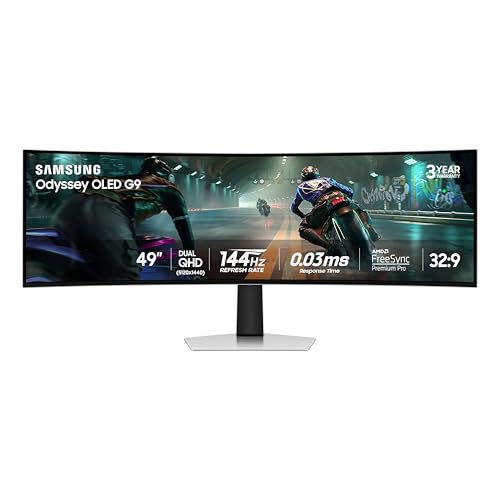
OLED displays light each pixel on its own, so dark scenes show true black and motion looks exceptionally clear. They suit players who game in a dim room and watch films on the same screen. The trade offs are a higher price and lower full screen brightness. If you leave one static screen open all day, an LCD may be the calmer choice.
Ultrawide Displays for Productivity and Big Scenes
Ultrawide displays stretch the picture to a 21 by 9 shape, most often at 34 inches. Driving games feel more immersive, and two documents sit side by side without a bezel. The cost is a heavier load on your card, since the panel carries more pixels than a standard 1440p screen, and some older games show bars at the sides.
Budget Displays With the Core Sync Features
Budget displays keep adaptive sync, a 144hz refresh rate and a decent IPS or VA panel, and give up HDR depth, USB C and refined stands to hold prices around $180 to $300. They suit a first high refresh screen. Spend your savings on the right cable and a monitor arm if the fixed stand sits too low.
Common Mistakes to Avoid
These errors are common because headline specs look alike.
- Buying a 4K screen your card cannot drive near the sync range leaves you with stutter a cheaper 1440p screen would have avoided.
- Using an old HDMI cable or the wrong port can cap the screen at 60 or 100hz, so the refresh rate you paid for never appears.
- Turning overdrive to its highest setting adds pale trails behind moving objects and makes the picture look worse, not faster.
- Choosing a screen too large for your desk depth forces you to turn your head to read the corners.
- Paying for an HDR label without local dimming buys a badge rather than a visible improvement.
- Skipping the G Sync setting in your driver software means adaptive sync may never switch on at all.
How to Make Your 144hz G Sync Monitor Last Longer
Most wear comes from heat and static images. A few habits protect the panel for years.
- Turn off the vivid picture mode and set brightness to suit your room, because full brightness all day ages the backlight faster.
- Run the built in pixel refresh on OLED models when prompted, and let it finish without cutting the power.
- Clean the screen with a dry or slightly damp microfiber cloth only, since paper towels and glass sprays can scratch the surface coating.
- Use quality cables rated for your resolution and refresh rate, and avoid tight bends that stress the ports.
- Set a screen sleep timer for breaks, which rests the panel and cuts static image time.
144hz G Sync Monitors: Your Questions Answered
Is 4K worth it on a 144hz G Sync monitor?
4K is worth it on this class of screen only if your card can hold frame rates inside the sync range at that resolution. On a 32 inch screen it adds fine detail to maps and distant scenery, and our guide to the best 4k monitors with g sync covers that step up. Many players gain more from 1440p headroom, which lets them raise effects settings instead.
Does a 144hz refresh rate matter for work outside games?
Yes, a 144hz refresh rate makes everyday work feel smoother even though no game is running. Scrolling long documents and dragging windows draw more frames, so edges stay readable in motion. The gain is about comfort rather than output. If your laptop output is limited to 60hz, check its port spec before you buy.
How long does a 144hz G Sync monitor usually last?
A 144hz G Sync monitor usually lasts about five to eight years of daily use before brightness fades or a newer connection standard tempts you to replace it. Backlights dim slowly rather than failing at once. Keep the receipt, because faults such as a cluster of dead pixels are warranty questions, not wear.
Should I choose IPS or OLED for a 144hz G Sync monitor?
Choose OLED for a 144hz G Sync monitor if you mostly play and watch video in a dim room, and choose IPS if your screen shows static work screens for long hours. A middle path is an IPS model with local dimming, which narrows the contrast gap while keeping a bright image for text. OLED peak brightness also trails the best LCD models in sunlit rooms.
What graphics card do I need to run a 144hz G Sync monitor well?
You need a card that can average frame rates inside the sync range at your chosen resolution, and the wider guide to the best g sync monitors explains how the tiers differ. Recent mid range cards handle 1440p in lighter titles but need lowered settings in demanding ones. Lowering shadows and reflections usually buys more frames than lowering resolution.
The Bottom Line
Match the screen to your card first, then pick the panel and size that fit your desk and room light. Resolution, sync range and ports decide more of your daily experience than any headline number. Use the product table above to check those three points before you order.
When you judge best 144hz g sync monitors by that order, the right choice is the one your system can feed at full speed.