Best 4K Monitors for Programming Made Simple: A Clear Buying Guide for 2026
Disclosure: We may earn a commission when you buy through links on this page, at no extra cost to you. As an Amazon Associate I earn from qualifying purchases. Learn more

Shopping for the best 4k monitors for programming for the first time? Learn the terms, compare options, and avoid rookie mistakes with this easy guide.
Buying your first 4K monitor can feel confusing because the listings mix coding needs with gaming and movie features that may not matter to you. This guide starts with the basics and builds step by step, so you can judge best 4k monitors for programming options by what you will actually see and use at your desk every day.
You will learn what resolution and scaling do to your code, which panel and port choices matter, and which extras you can safely skip. Use the comparison table below to compare size, panel type, and ports side by side once the terms in this guide make sense.


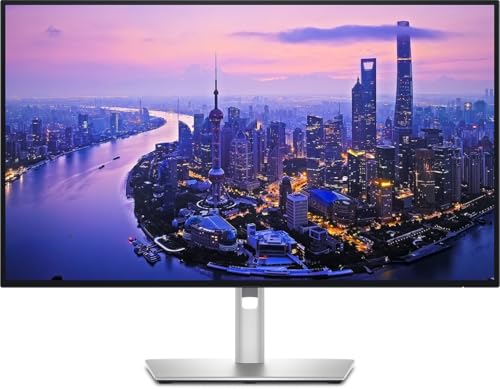
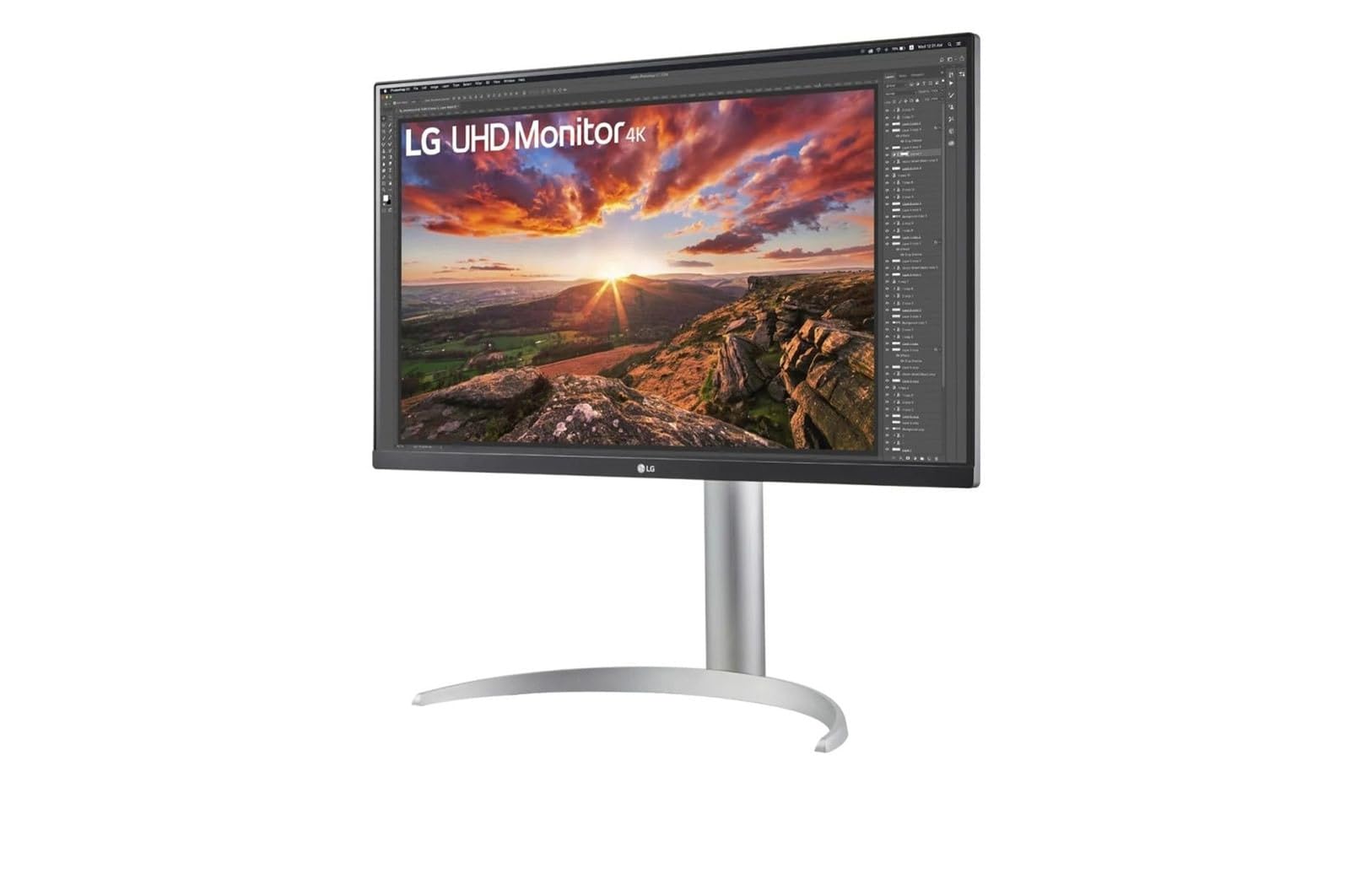

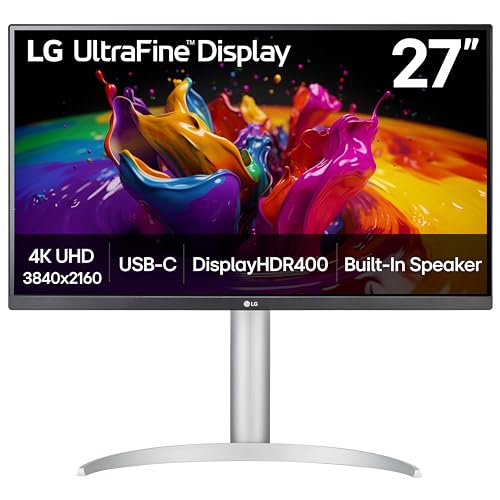
4K Monitors 101: The Basics for New Buyers
A 4K monitor shows about 3840 by 2160 pixels, which is four times the pixel count of a 1080p screen. More pixels mean sharper text and more room for an editor, a terminal, and a browser at once. Your computer draws the picture, and the monitor simply displays it, so your laptop or desktop must be able to send a 4K signal at a smooth refresh rate.
Because the pixels are so small, your operating system usually applies scaling, which makes text and icons larger while keeping them crisp. At 150 percent scaling on a 27 inch screen, code looks clean without becoming tiny. If you are still comparing lower resolutions for everyday coding, see our guide to the best monitors for programming for the wider picture.
For programming, sharp and comfortable text matters more than dramatic color or fast motion. You will stare at small characters for hours, often in a dark editor theme, so clarity, steady brightness, and a comfortable viewing angle shape your workday far more than headline gaming numbers do.
Key Specs Explained in Plain English
The sections below translate each spec into what it means on your desk. Read them in order the first time, then return to the product table above and check each model against the points that matter most for your setup.
Features That Matter for Programming
Text clarity comes first, and it depends on pixel density, panel quality, and good scaling support in your operating system. Look for an antiglare finish if your room has windows, because reflections tire your eyes during long sessions. A stand that adjusts for height and tilt also matters, since a screen set too low encourages poor posture.
Brightness control should be smooth at low levels for evening work, and the screen should stay stable without visible flicker at those settings. If you split your day between laptop and desktop work, easy input switching saves daily friction. For a broader view of coding focused choices, see our guide to the best monitors for computer programming and note how these same priorities apply.
Panel Technology: IPS, VA, OLED, and Mini LED
IPS panels are the common choice for coding because text stays clear when you lean or shift in your chair, and colors look consistent across the screen. VA panels offer deeper blacks, which can make dark themes look rich, but text can soften slightly at the edges and viewing angles are narrower. For most first time buyers, IPS is the safest and simplest starting point.
OLED panels give perfect blacks and very fast response, but static code windows sit in one place for hours, which raises the long term risk of burn in on that technology. Mini LED backlights on IPS or VA panels improve brightness control in bright scenes, though that benefit matters more for video than for code. Choose based on your room light and how long static windows stay open.
HDR and Brightness
HDR describes the ability to show a wider range between dark and bright areas, with labels such as HDR10 describing the format the screen accepts. Brightness is measured in nits, and around 300 to 400 nits is comfortable for a typical indoor desk. Higher numbers help in a sunlit room, but sheer brightness does not make code easier to read.
Many budget displays accept an HDR signal yet lack the local dimming needed to show it well, so HDR alone should not drive your decision. For programming, even brightness across the whole panel matters more, because a bright center and dim corners make long documents tiring to scan. Treat HDR as a small bonus for video breaks, not a core coding feature.
Adaptive Sync and Gaming Features
Adaptive sync matches the screen refresh rate to the frame rate from your graphics card, which removes tearing in games and fast scrolling video. Names such as FreeSync and G Sync cover the same basic idea from different makers, and variable refresh rate support over HDMI 2.1 serves the same purpose on newer gear. For writing code, this feature is nice to have but far from essential.
If you also play games after work, a 120 Hz or higher refresh rate and adaptive sync become more valuable, and you can compare crossover options in our guide to the best 4k monitors gaming. Response time figures describe how fast pixels change color and matter mainly for fast motion. Readers weighing a screen mostly for play can also see our guide to the best gaming monitors to judge how much gaming hardware they truly need.
Connectivity and Ports
DisplayPort and HDMI both carry a full 4K picture, and either one works well for a desktop that stays in place. Check the version and the cable in the box, because older cables or ports can limit you to a lower refresh rate at 4K. Your computer manual lists what each of its ports can send, so confirm that before you blame the monitor for a limited picture.
USB C is the port that changes daily life for laptop users, because one cable can carry the picture, data for the monitor USB ports, and power back to the laptop at once. Confirm the charging wattage matches your laptop needs, since a low wattage port may charge slowly under heavy load. Extra USB ports on the monitor also let your keyboard and webcam stay plugged in when you undock.
Resolution and Screen Size
At 27 inches, 4K text is extremely sharp, and most programmers use 150 percent scaling so menus and code stay a comfortable size. At 32 inches, you gain real workspace, and 125 percent scaling often feels natural while still showing more lines of code. A 24 inch 4K screen packs pixels tightly but can feel cramped once you split windows side by side.
Sitting distance shapes the right choice, because a large screen placed too close forces constant head movement between windows. Most desks place the screen about an arm length away, which suits both 27 and 32 inch models well. If you are comparing general desktop options beyond coding, see our guide to the best 4k pc monitors for how size choices play out in other uses.
Rookie Mistakes to Avoid
- Buying the biggest screen without checking desk depth: a shallow desk puts a 32 inch panel too close, and the constant scanning across wide windows causes neck strain by midday.
- Ignoring scaling before you buy: forgetting to plan for scaling leaves text painfully small at native settings, and some older apps still render blurry when scaled.
- Choosing by HDR labels alone: paying extra for an HDR badge on a panel without local dimming buys little visible benefit for code or for video.
- Skipping the USB C wattage check: a monitor that charges your laptop too slowly lets the battery drain during builds, which defeats the point of a single cable setup.
- Forgetting your computer port limits: an older laptop port may cap 4K output at 30 Hz, and that low refresh rate makes scrolling and cursor movement feel choppy.
Getting Started: Setup and First Use
Start by attaching the stand on a soft surface, then connect power and one display cable before you add anything else. Turn the monitor on, select the correct input in its menu, and confirm your computer reports 3840 by 2160 at the refresh rate you expected. Set your scaling next, open your editor, and judge text size with real code rather than the desktop screen.
Open the picture menu and leave the vivid or dynamic picture mode behind, because those modes push colors and sharpness in ways that distort text edges. A standard or custom mode with brightness matched to your room light gives a calmer image for long sessions. Raise or lower the stand until the top of the screen sits near eye level, with the panel tilted slightly upward.
On an OLED model, turn on the built in pixel refresh feature and let it run when the screen prompts you, since static editor windows benefit from that routine care. Keep a short break habit as well, looking away from the screen regularly during long coding blocks. If eye pain, headaches, or blurred vision keep returning after you fix brightness and position, talk with an eye care professional about your personal needs.
4K Monitors: Your Questions Answered
What features matter most in 4k monitors for programming?
Sharp text, a comfortable IPS panel, and height adjustment matter most for daily coding. Start there, then check USB C charging if you use a laptop and even brightness if you read long documents. One point buyers often miss is the on screen menu joystick, because a clumsy control makes the brightness tweaks you do every evening needlessly annoying.
What size 4K monitor should I choose for a programming desk?
A 27 inch 4K monitor suits most desks, while 32 inches suits programmers who keep three windows open at once. Measure your desk depth first, since depth decides comfort more than width does. If you use a monitor arm, also check its weight rating, because larger 4K panels with sturdy stands can exceed the limit of light arms.
How long do 4K monitors for programming last?
A 4K monitor used for programming typically lasts five to eight years before brightness fades or ports feel dated. The backlight slowly dims over that span, so a panel that starts comfortably bright ages more gracefully. Keep the original box if you can, because safe packing protects the screen during a move or a warranty return years later.
Is IPS or OLED better for a 4K programming monitor?
IPS is better for most programmers because it handles static windows all day without burn in risk. OLED wins on black levels for video and games, and its text can look slightly less crisp due to its pixel layout. If you mix coding with evening movies on one screen, weigh how many hours each use gets before deciding.
Is a 4K monitor worth it for programming?
Yes, a 4K monitor is worth it for programming if you read code all day and want more lines visible at once. The sharper rendering reduces the fuzziness that makes similar characters hard to tell apart at lower resolutions. It is less worthwhile if your budget then forces cuts elsewhere, such as a chair you sit in for the same long hours.
Does refresh rate matter on a 4K monitor for programming if I do not game?
Refresh rate matters only mildly for programming, because 60 Hz already keeps scrolling and cursor movement smooth for code. You may notice smoother window dragging at higher rates, but the change is subtle next to gains from size and scaling. Spend first on panel and stand quality, and treat a higher refresh rate as a bonus.
The Bottom Line
For a first 4K coding screen, put text clarity, a comfortable IPS panel, the right size for your desk depth, and ports that match your computer at the top of your list. Let HDR, adaptive sync, and gaming extras stay secondary unless you know you will use them. Compare the finalists in the product table above against those priorities, and choose the best 4k monitors for programming fit for your own desk, your computer, and your budget.