Best 240hz 1440p Monitors at Every Price for 2026
Disclosure: We may earn a commission when you buy through links on this page, at no extra cost to you. As an Amazon Associate I earn from qualifying purchases. Learn more

The best 240hz 1440p monitors balance speed and sharpness. See what each spending level buys and which panel and ports matter.
Shopping for best 240hz 1440p monitors can feel confusing because prices range widely, from simple fast panels to displays with richer color, better contrast, and wider port selections. A 240hz 1440p monitor pairs a high refresh rate with a sharp quad HD resolution, so motion looks smooth while text and game detail stay crisp. This guide explains what each spending level actually buys, so you can match your budget to the features you will notice every day.
The comparison table below lays out the main panel types side by side. After that, you will find spending level guidance, the features worth paying for, and advice on long term costs. Use it to narrow your choice before you check your graphics card, your desk space, and the ports you need.
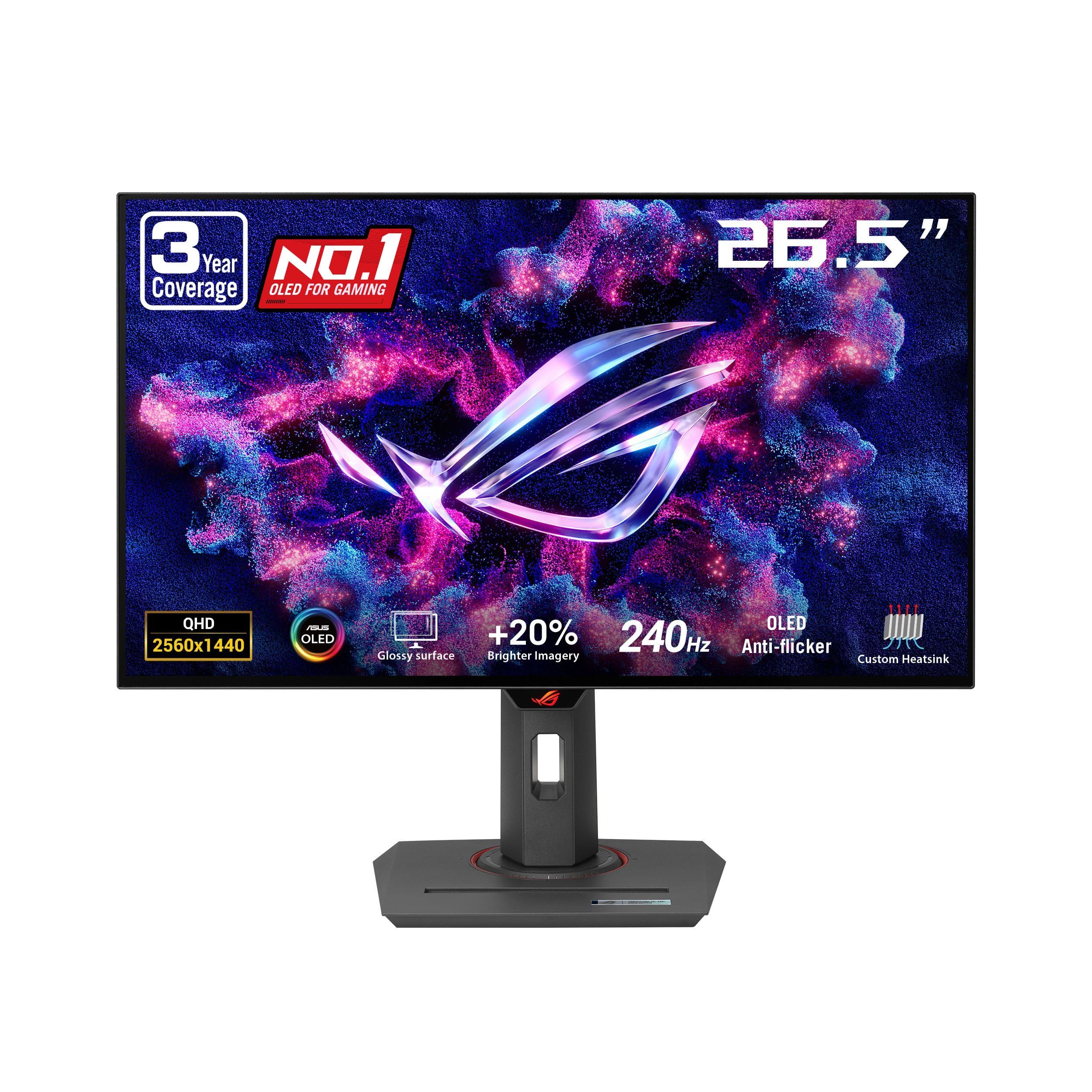
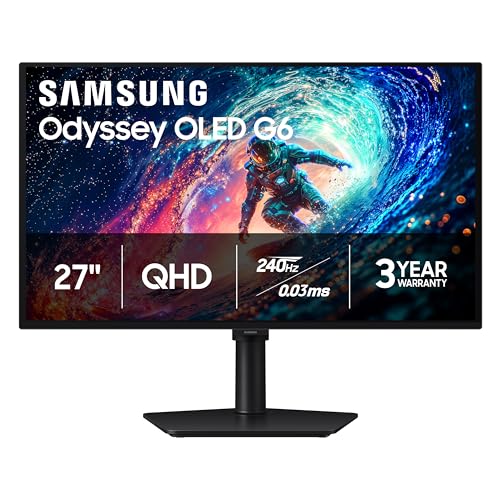

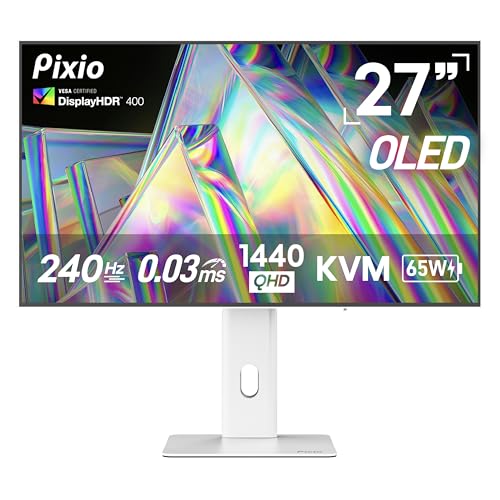
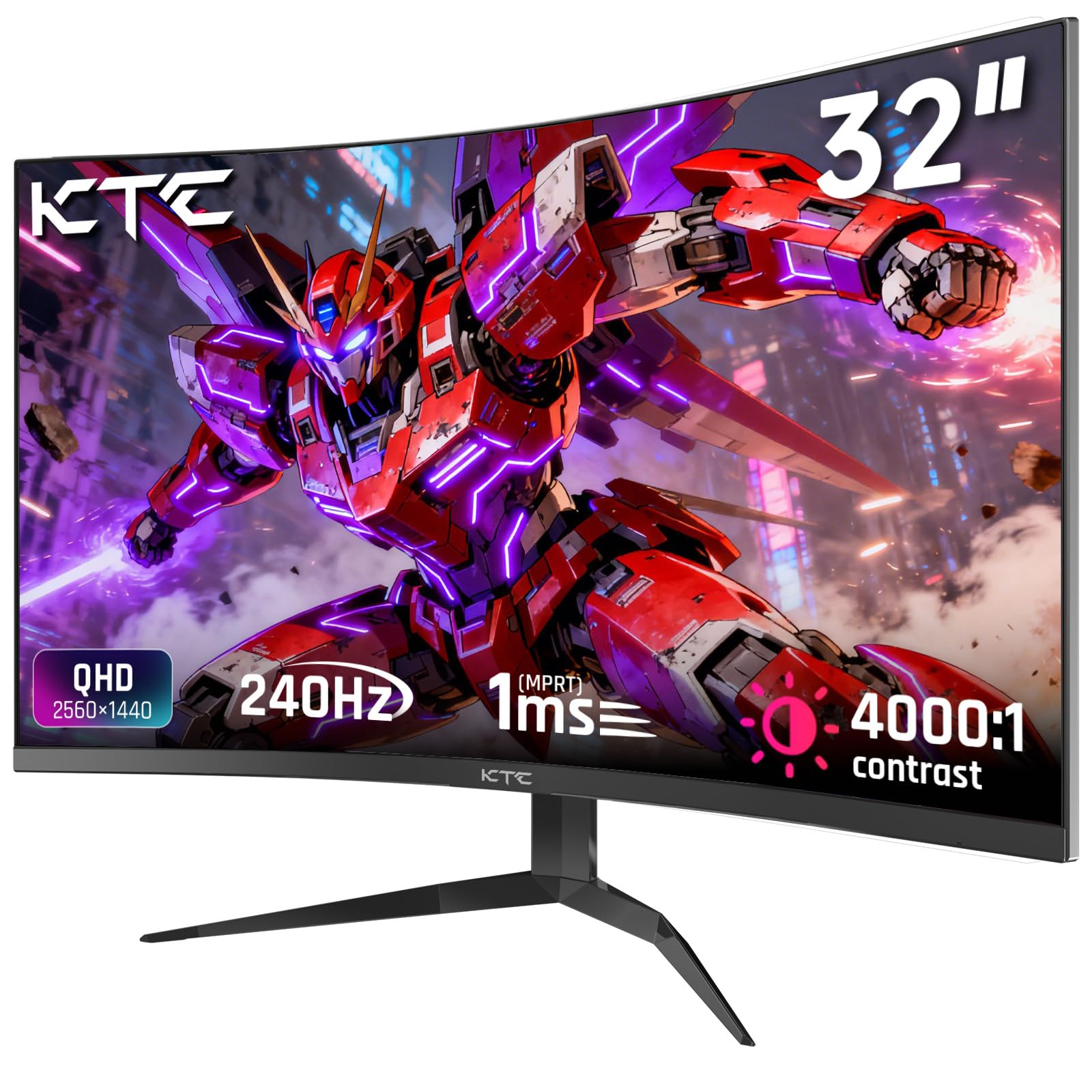
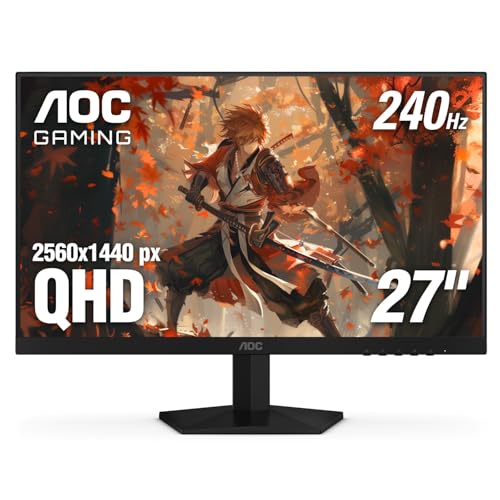
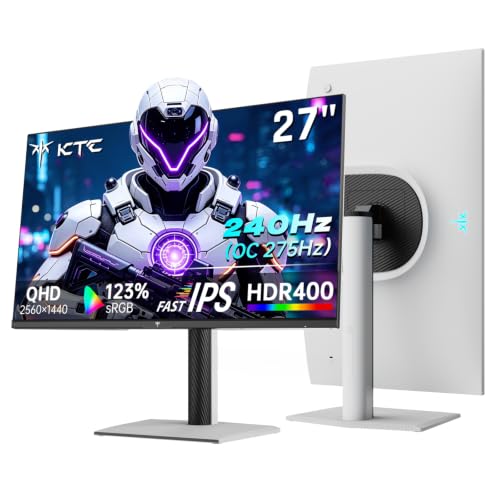


Who Should Buy the Best 240hz 1440p Monitors?
These monitors suit buyers who want both speed and sharpness without paying for a 4K high refresh display and the powerful graphics card it demands. At 1440p, a mid range to strong graphics card can often reach high frame rates, while at 4K the same card would struggle. That balance makes this class a practical choice for gaming, creative work, and everyday use on one screen.
Competitive and Fast Paced Gamers
If you play fast paced games where quick reactions matter, a 240hz refresh rate reduces motion blur and makes movement feel more immediate than a 60hz or 144hz screen. Pair it with a low response time and adaptive sync, so frames stay smooth even when the frame rate dips below the maximum. A 27 inch size is a common sweet spot, since it keeps the whole screen in view without turning your head during play. For more speed focused options, see our guide to the best gaming monitors.
Single Player and Story Driven Gamers
If you favor story driven games and rich visuals, color quality and contrast may matter more than the last bit of speed. An IPS panel gives wide viewing angles and accurate color, while an OLED panel gives deep blacks and striking contrast in dark scenes. At 1440p, textures and fine detail look sharp without the scaling issues that can appear on some 4K screens, and the high refresh rate still makes camera movement feel fluid. For more options in this class, see our guide to the best gaming monitors 1440p.
Workers Who Also Game
If one monitor must serve both work and play, a 240hz 1440p display offers sharp text for documents and smooth motion for games after hours. Look for an adjustable stand, a matte screen that resists glare, and enough ports for a laptop and a desktop. A USB hub built into the monitor can also cut cable clutter, since you can plug a keyboard, mouse, and headset into the screen instead of the computer. For wider resolution options, see our guide to the best 1440p monitors.
Spending Levels Explained
Price differences in these monitors usually come from the panel type, color coverage, brightness, build quality, and port selection, rather than from the refresh rate alone. A low cost model can deliver true 240hz motion, while a higher cost model adds richer color, stronger contrast, and a sturdier stand. The comparison table below shows the main panel types, and the levels below explain what to expect from each one. For a wider look at speed focused screens, see our guide to the best monitors 240hz.
Lower Spending Level: Speed First
At the lower spending level, often about $150 to $400, expect a fast IPS or VA panel with a true 240hz refresh rate, DisplayPort and HDMI ports, and a basic tilt only stand. Color is usually good enough for gaming and everyday work, though brightness and contrast may be modest. These models are a smart choice if smooth motion is your top priority and you plan to upgrade the stand later. Check that adaptive sync works over both DisplayPort and HDMI, since support can vary by port.
Middle Spending Level: Balanced Everyday Value
The middle level, often about $400 to $650, is where most buyers find the best balance of speed, color, and build. You may get wider color coverage, higher brightness, a height adjustable stand, and a USB hub for peripherals. Some models add better factory calibration, which means colors look accurate out of the box without manual tuning. If you want one monitor for gaming, work, and media, this level is usually the right place to spend.
Higher Spending Level: Premium Panels and Polish
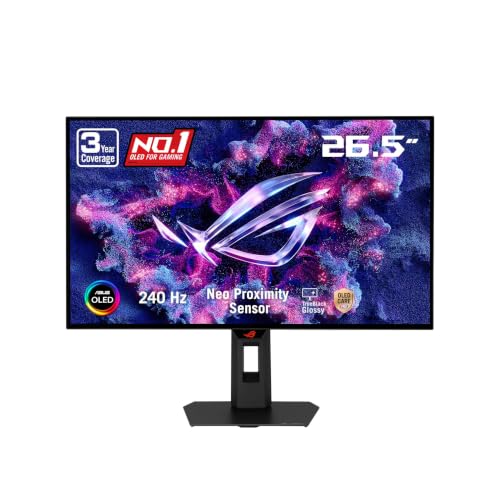
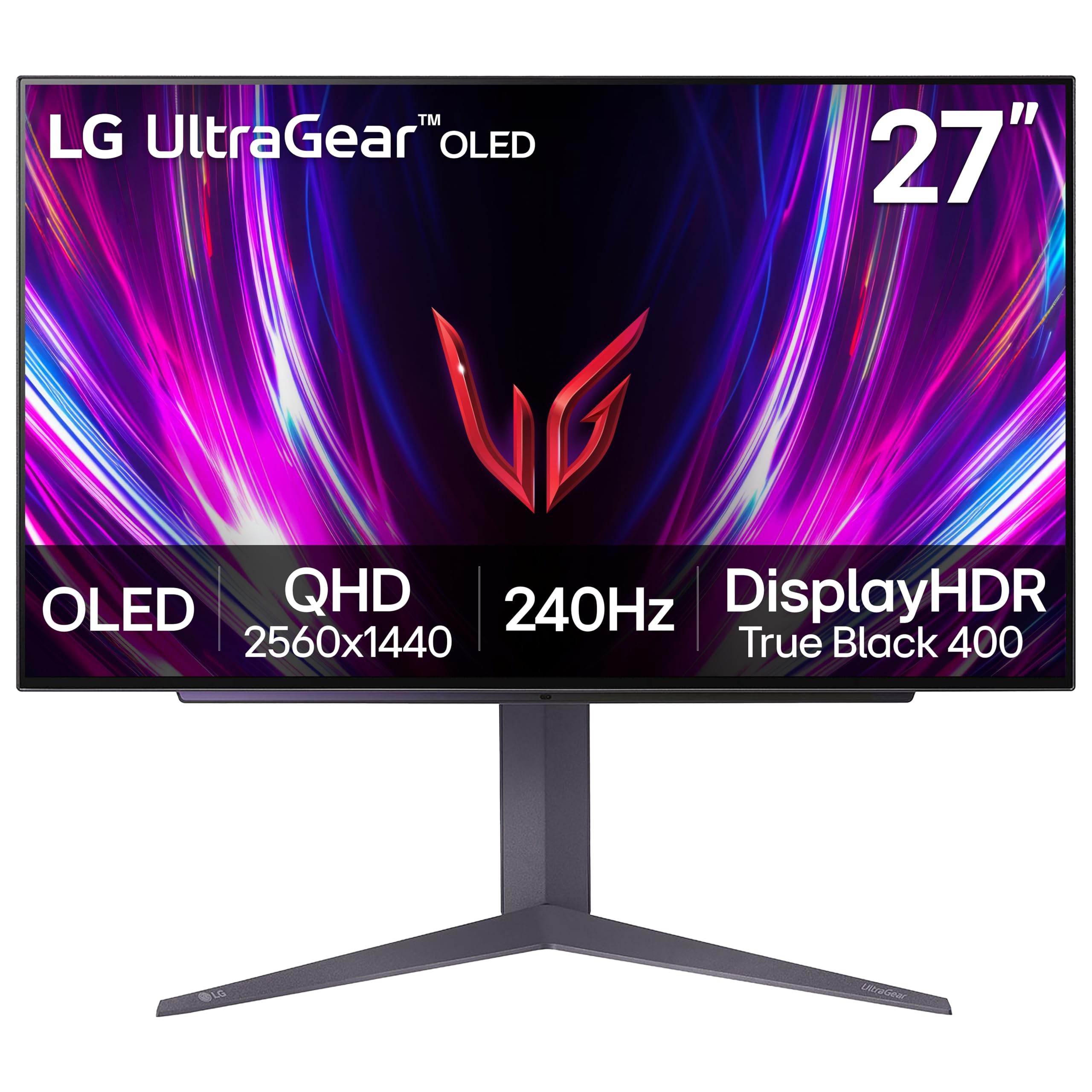
Above about $650, these monitors may offer a larger OLED or mini LED panel, stronger HDR brightness, a premium metal stand, and wider port options including USB C with power delivery. OLED gives deep blacks and fast pixel response, while mini LED gives high brightness for bright rooms. These extras do not change the basic 240hz 1440p experience, so spend at this level only if you value contrast, color depth, or a single cable laptop connection.
| Panel Type | Best For | Pros | Cons | Typical Price |
|---|---|---|---|---|
| IPS | All round gaming and work | Wide angles, accurate color | Modest contrast | About $150 to $550 |
| VA | Dark room play, media | Strong contrast, low cost | Narrower angles, slower dark response | About $150 to $450 |
| OLED | Rich contrast, dark scenes | Deep blacks, fast response | Higher cost, burn in care needed | About $330 to $1,000 |
| Mini LED | Bright rooms, HDR media | High brightness, good contrast | Higher cost, heavier build | About $600 to $900 |
Features Worth Paying For (and Ones to Skip)
Not every upgrade is worth the money. The features below have the biggest effect on daily use, while others mainly change the specifications list. Focus first on panel quality, sync support, and ports, and treat extra smart features as optional.
Adaptive Sync and Gaming Features
Adaptive sync matches the monitor refresh rate to the graphics card output, which reduces tearing and stutter when the frame rate varies. Look for support for the sync system your graphics card uses, and check whether it works over the port you plan to use. A low response time, often quoted as 1 ms, helps fast motion stay clear, though real world results vary by panel and overdrive setting. Skip a monitor that advertises a high refresh rate but lacks adaptive sync, since uneven frame rates will feel rougher without it.
Panel Technology
Panel type shapes color, contrast, and viewing angles more than any other single choice. IPS panels offer wide angles and reliable color, VA panels offer stronger contrast at a lower cost, OLED panels offer deep blacks and instant pixel response, and mini LED panels offer high brightness with good contrast. OLED needs some care, such as hiding static taskbars and using screen shift features, to reduce the risk of burn in over years of use. Choose IPS for mixed use, VA for dark room value, and OLED or mini LED when contrast and HDR matter most to you.
Resolution and Screen Size
At 1440p, a 27 inch screen gives sharp text and game detail at a normal desk distance of about 2 to 3 feet. A 32 inch screen shows the same resolution over a larger area, so pixels look bigger and text looks slightly softer, though some buyers prefer the extra size for immersion. Sit farther back if you choose a larger screen, and make sure your desk can hold the stand footprint. Avoid a 24 inch 1440p screen unless desk space is very tight, since text can look small and the high refresh benefit is harder to enjoy on a cramped display.
Built In Sound and Extras
Many gaming monitors include small built in speakers, but they are usually thin sounding and best treated as a backup for system sounds. If you care about audio, budget for separate speakers or a headset instead of paying extra for monitor speakers. More useful extras include a USB hub, a headphone jack, and a height adjustable stand, all of which affect daily comfort. Smart TV style apps add cost and complexity to a gaming monitor and are easy to skip, since a computer already handles streaming and media.
Connectivity and Ports
Ports decide what you can connect and how you get the full 240hz signal. DisplayPort is the most reliable route to 240hz at 1440p, while HDMI 2.1 also supports it on many models, but older HDMI ports may limit the refresh rate. Check the port version on the exact model, not just the port shape, before you buy.
USB C with power delivery is worth paying for if you dock a laptop with one cable, while a plain USB C port without video support is less useful. Count your devices before you order, so you do not run out of inputs.
Long Term Costs to Factor In
The purchase price is only part of the total cost. A monitor arm or a better stand, a DisplayPort cable rated for high refresh rates, and a headset or speakers are common add ons. Power use is modest for most models, though a bright mini LED or OLED screen can draw more at high brightness. If you buy an OLED panel, factor in simple care habits, such as varied content and screen shift settings, to protect the panel over years of use.
A good monitor often lasts through more than one computer, so spending a little more on ports and adjustability can pay off over time.
Frequently Asked Questions
IPS or OLED: Which Panel Type Is Better?
Neither panel type is better for everyone, since the choice depends on your room and your priorities. IPS gives wide viewing angles, accurate color, and no burn in worry, which suits mixed gaming and work in a bright room. OLED gives deeper blacks, faster pixel response, and striking contrast in dark scenes, which suits story driven games and media in a dim room. Choose IPS if you want a worry free all rounder, and choose OLED if contrast matters most and you are happy to follow basic burn in care habits.
What size should I get for my room or desk?
A 27 inch screen is the safest choice for most desks, since it fits a normal viewing distance of 2 to 3 feet and keeps text sharp at 1440p. A 32 inch screen suits a deeper desk or a living room setup where you sit farther back, though text will look slightly softer at the same resolution. Measure your desk depth and the stand footprint before you order, and leave room for speakers or a headset stand. If your desk is shallow, a monitor arm can push the screen back and free up desk space.
Is 4K worth it over this resolution?
4K gives sharper detail, but it demands a much stronger graphics card to reach high frame rates, and a 240hz 4K monitor costs far more. At 1440p, you get a clear step up from 1080p while keeping frame rates high on a mid range to strong graphics card. For most gamers, that balance beats 4K, since smooth motion affects gameplay more than the extra pixels. Choose 4K only if you mainly play slow paced games or do detailed photo work and your graphics card can drive it well.
How long do they last?
A well made monitor often lasts 7 years or more, and many owners replace it for a better panel or higher refresh rate rather than because it fails. Backlight brightness can fade slowly over years, and OLED panels need care to avoid burn in from static images. Keep the screen at a comfortable brightness rather than maximum, use a screen saver or sleep timer, and vary on screen content when you can. If a port fails or the stand breaks, check the warranty first, since repairs can cost more than a replacement on a low cost model.
Does refresh rate matter for non gamers?
Refresh rate matters less for non gamers, but it still makes scrolling, window movement, and video feel smoother on the desktop. The benefit is most obvious when you move windows quickly or scroll through long documents, while static reading and typing feel the same at any refresh rate. If you never play games, a 144hz screen may be enough, and you could put the saving toward better color or a larger screen. For buyers who game even occasionally, the jump to 240hz is easy to notice in fast motion.
Our Verdict
The right choice comes down to panel type first, sync support second, and ports third. Choose IPS for mixed use, VA for dark room value, and OLED or mini LED when contrast matters most, then confirm that your graphics card and cable can deliver the full refresh rate. For most buyers, a mid level model with a height adjustable stand and a USB hub is the sweet spot. Check the product table above once more, confirm your desk space and ports, and choose the best 240hz 1440p monitors option that fits your setup and your budget.