Best 22 Inch Monitors for 2026: Types Compared and How to Choose
Disclosure: We may earn a commission when you buy through links on this page, at no extra cost to you. As an Amazon Associate I earn from qualifying purchases. Learn more

Best 22 inch monitors for desks, study and casual play: compare panels, refresh rates, ports and stands to find the right screen.
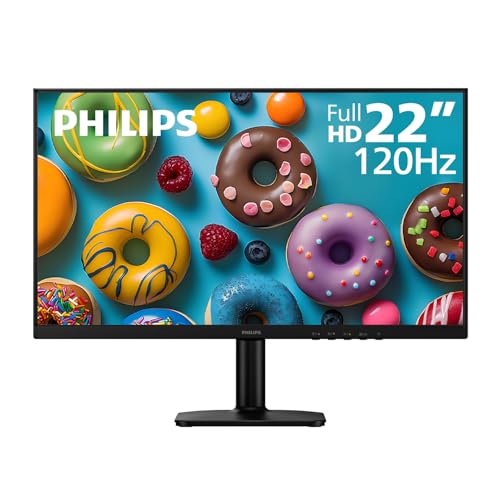
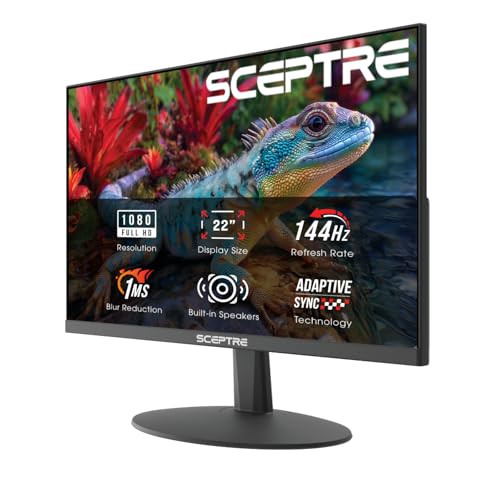
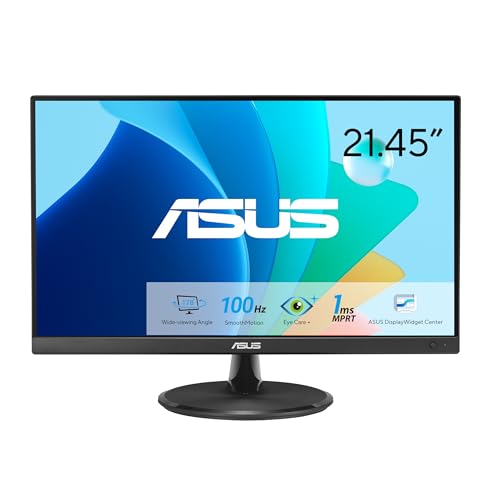
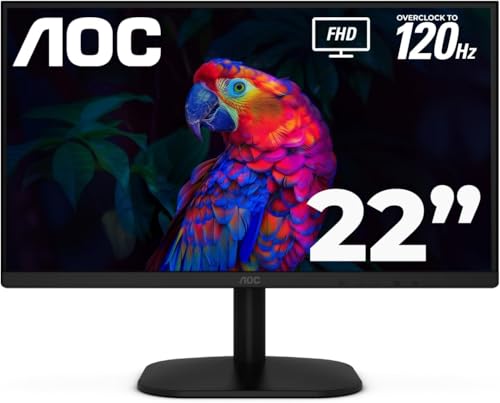
Shopping for best 22 inch monitors can feel confusing because the same screen size appears in gaming, office and budget models with very different strengths. Some screens prioritize speed, others prioritize color, eye comfort or a flexible stand. This guide compares the main types side by side, so you can match panel, refresh rate and ports to your desk and your budget. The picks in the table give a quick overview of current models.
A 22 inch screen (most are 21.5 inches viewable) is a practical size for many desks. It is large enough for documents, video calls and casual games, yet small enough to fit a compact workspace or a dual screen setup. The key is to choose the panel and features that fit how you actually use the screen, not simply the highest spec you can afford.


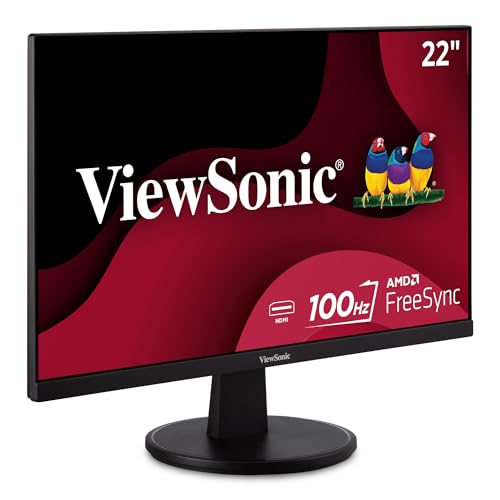

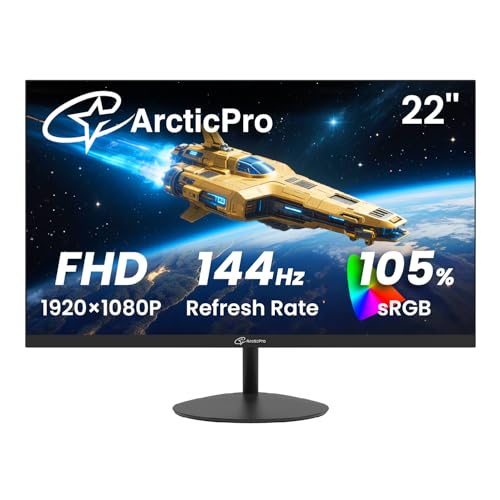

Types of 22 Inch Monitors Compared
The table below sums up the main types at a glance. Read the short profiles that follow for the trade offs behind each row, because a screen that looks impressive on paper may not suit your room light, your viewing distance or your main tasks.
| Type | Best For | Pros | Cons | Typical Price |
|---|---|---|---|---|
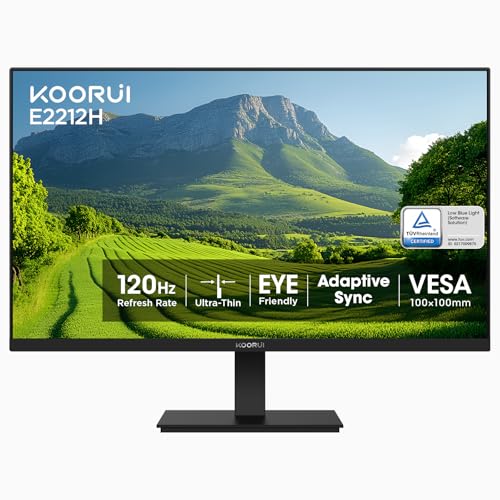
| Gaming displays (120Hz to 144Hz) | Fast paced games | Smooth motion, adaptive sync | Fewer office features | around $60 to $120 |
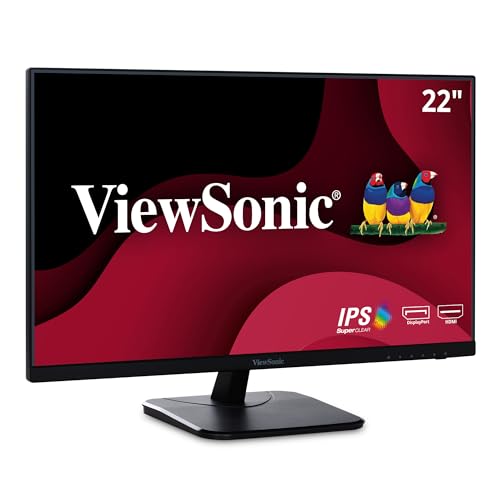
| IPS office displays | Work, study, shared viewing | Wide viewing angle, steady color | Lower contrast than VA | around $70 to $120 |
| VA budget displays | Movies and everyday use | Strong contrast, low price | Narrower viewing angle | around $60 to $90 |
| Touchscreen and portable displays | Hands on or travel use | Touch input or USB C power | Higher price | around $200 to $300 |
Gaming Displays
Gaming displays focus on speed and smooth motion. They often offer a 120Hz or 144Hz refresh rate, fast response time and adaptive sync, which helps fast games feel more fluid and reduces tearing. If you play competitive or fast paced games, these features matter more than extra resolution. See our guide to best gaming monitors if gaming is your main use and you want to compare speed focused models.
The trade off is that speed focused screens may offer fewer office features, such as a fully adjustable stand. Check the refresh rate your computer can actually drive, because a high refresh rate adds little value if your graphics hardware cannot keep up. Also check ports, so your console or computer connects without adapters.
IPS Office Displays
IPS displays suit work, study and shared viewing. They keep color and brightness steady when you sit off center, which helps on a shared desk, in a classroom or when a second person looks over your shoulder. Many models add flicker free backlights, blue light filters and frameless designs.
The main limit is contrast, which is usually lower than on VA panels, so blacks can look slightly gray in a dark room. If you want a bit more screen space for the same desk, see our guide to best 24 inch monitors. For a compact desk, a 22 inch model is usually easier to place well.
VA Budget Displays
VA panels offer stronger contrast than IPS, so dark scenes in movies and shows look richer. Many budget 22 inch models use VA panels and still offer 100Hz or 120Hz refresh rates, which makes them good value for everyday use and light gaming.
The trade off is viewing angle. Colors can shift if you sit far off center, so VA suits a single user facing the screen. If you mainly show text all day, an IPS panel may feel slightly sharper and more even.
Touchscreen and Portable Displays
Some 22 inch screens add touch input or USB C power and video. Touch models suit kiosks, creative work and hands on tasks, while portable USB C models suit travel and flexible workspaces. Both usually cost noticeably more than a standard 22 inch screen.
Check what your computer supports before paying extra. A USB C screen needs a laptop port that carries video, and a touch screen needs software that makes use of touch. If you want a larger step up for a main screen, see our guide to best 27 inch monitors.
Gaming Displays vs IPS Office Displays: Which Should You Choose?
Choose a gaming display if smooth motion, fast response and adaptive sync matter most to you. Choose an IPS office display if you share the screen, sit off center or use the screen for documents, video and presentations. Your main activity should decide the winner, because a fast screen with narrow viewing angles can disappoint in a shared space.
Think about your computer as well. A gaming screen needs a capable graphics output to reach its refresh rate, while an office screen needs only a standard connection. If you split time between games and work, look for a balanced IPS model with 100Hz or more and a wide viewing angle, rather than chasing one extreme.
How to Choose the Right 22 Inch Monitor
Resolution and Screen Size
At 22 inches, full high definition (1920 x 1080) usually looks sharp at a normal desk distance. Higher resolution adds detail for photo work and small text, but it also needs more graphics power and can make menus look small unless you adjust scaling. Sit about an arm length from the screen and choose a text size that feels comfortable.
Screen size also affects room fit. A 22 inch screen suits small desks, dorm rooms and second screen setups, while larger screens suit dedicated offices. Measure your desk depth as well as width, because a screen placed too close can cause eye strain even if the picture is excellent.
Refresh Rate and Sound
Standard screens run at 60Hz or 75Hz, while many current 22 inch models offer 100Hz, 120Hz or 144Hz. A higher rate makes scrolling and games look smoother, and it usually adds only a small amount to the price. Adaptive sync helps reduce tearing when frame rates vary.
Sound is another practical point. Built in speakers save desk space, but they are usually modest in volume and clarity. If you watch movies or join long calls, external speakers or a headset will usually sound better. Check whether the screen has a headphone output for private listening.
Panel Technology (IPS, VA, TN)
Panel type shapes color, contrast and viewing angle. IPS panels offer wide viewing angles and steady color, VA panels offer stronger contrast, and TN panels are fast and cheap but have weaker color and angles. Each has strengths, so match the panel to your main use rather than chasing one label.
Also check brightness and glare handling. A bright room needs higher brightness and a matte finish, while a dark room benefits more from contrast. Flicker free and low blue light modes can make long sessions more comfortable. If you experience persistent eye pain or vision changes, talk with an eye care professional and take regular breaks, whatever panel you choose.
Stand, Mounting, and Ergonomics
A good stand makes daily use far more comfortable. Look for height adjustment, tilt and, if you need it, swivel or pivot. A screen that sits too low forces you to look down, which can cause neck discomfort over a long day. Many budget models only tilt, so a VESA mount option gives you more flexibility with arms and wall mounts.
Check the stand footprint as well. A wide foot can eat into keyboard space on a small desk, while a compact foot or a monitor arm can free room. Set the top of the screen near eye level and keep the screen at a comfortable distance for the best posture.
Connectivity and Ports
Check ports before you buy. Most budget 22 inch screens offer HDMI and often VGA, while some add DisplayPort, and many laptops use USB C for video and charging. Make sure the screen has the port your device uses, or budget for a reliable adapter.
Also check cable length and placement. Ports on the back can be hard to reach once the screen is on a desk, so plan cable routing in advance. If you switch between two devices, a screen with multiple video inputs will save you from swapping cables every day.
Best 22 Inch Monitors for Specific Needs
Matte and Anti Glare Screens
Matte screens reduce reflections, which helps in bright rooms and near windows. Look for an anti glare coating that softens reflections without making text look hazy. Most 22 inch office and budget models use a matte finish, which suits offices, classrooms and any desk that faces a window or overhead lights. If possible, view the screen in similar light before buying.
Dual Monitor Setups
The 22 inch size is popular for pairs of screens because two fit side by side on a standard desk. Choose two models with the same panel type and resolution so colors and text size match across both. Thin bezels make the gap between screens less distracting, and VESA mounting lets you use a dual arm to save desk space.
Setup and Care Tips
Start with picture settings. Turn off vivid mode, set brightness to match your room, and calibrate color if you do photo work. Clean the screen with a microfiber cloth only, and power off and unplug the screen before moving or cleaning it. Follow the manufacturer's instructions for cleaning products.
Keep vents clear and avoid placing the screen in direct sunlight or near heat sources. Check cables once in a while for wear, and keep the stand screws snug. Simple care habits will help the screen stay bright and steady for years.
Frequently Asked Questions
Is a 22 inch monitor big enough for my desk?
A 22 inch monitor suits most small to medium desks, because it gives a clear view without dominating the workspace. It works well at an arm length viewing distance and fits beside a laptop or a second screen. If you want more room for windows, a 24 inch model may be more comfortable, but measure first.
Does refresh rate matter for non gamers?
Refresh rate matters less for documents, email and video calls, where a standard rate feels smooth enough. It matters more for fast games and fast scrolling video, where a higher rate reduces blur and tearing. For office work, prioritize panel, ergonomics and eye comfort features, though 100Hz or 120Hz is a nice extra at little cost.
IPS vs VA: which is better?
IPS is often better for everyday office work, wide viewing angles and shared viewing, while VA is often better for contrast and movie watching. VA models are often cheaper at this size. Choose IPS for versatility, and VA if you sit directly in front of the screen and want deeper blacks on a tight budget.
How long do 22 inch monitors last?
A well cared for monitor can last many years, often longer than the computer connected to it. Lifespan depends on panel quality, daily use and care. Keep the screen clean and cool, and replace cables promptly if the picture flickers, because a failing cable can look like a failing screen.
Is 4K worth it at 22 inches?
Rarely. At 22 inches, full high definition looks sharp enough for most users, and 4K can make text small unless you adjust scaling. 4K pays off on larger screens viewed up close, so see our guide to best 4K monitors if detail is your priority. Weigh detail against price and graphics power first.
Our Verdict
The right choice comes down to main use, room light and desk space. Gaming displays suit fast motion, IPS screens suit work and shared viewing, VA screens suit budget buyers who want contrast, and touch or portable models suit special setups. Use the picks in the table to compare models, then choose the screen with the panel, ports and stand that fit your daily routine.
For most desks, best 22 inch monitors are the ones that balance sharp text, comfortable viewing and simple, reliable connections. See our guide to best 32 inch monitors if you later want a larger screen for a dedicated office.