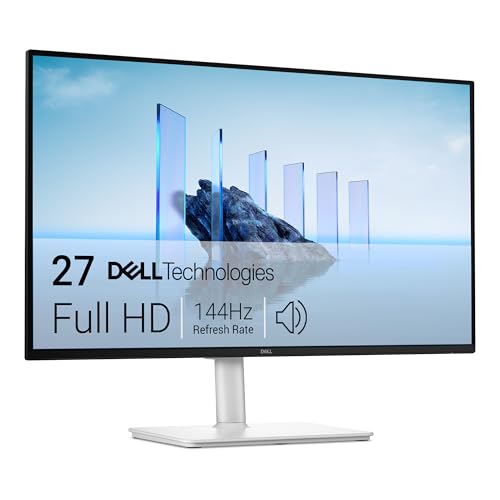
Best 144hz Freesync Monitors: Buying Guide for 2026
Disclosure: We may earn a commission when you buy through links on this page, at no extra cost to you. As an Amazon Associate I earn from qualifying purchases. Learn more

Pick the best 144hz freesync monitors by checking panel type, resolution, response time, ports and size for gaming and desk work.
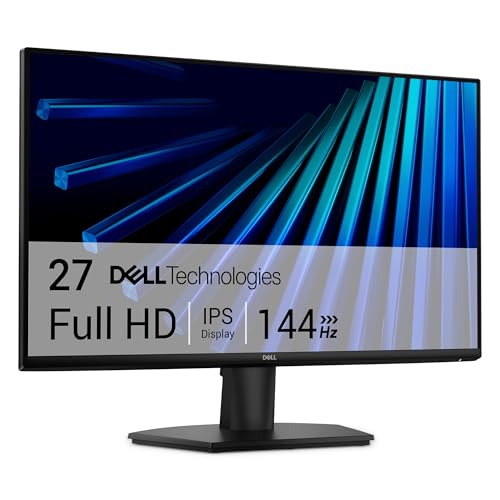
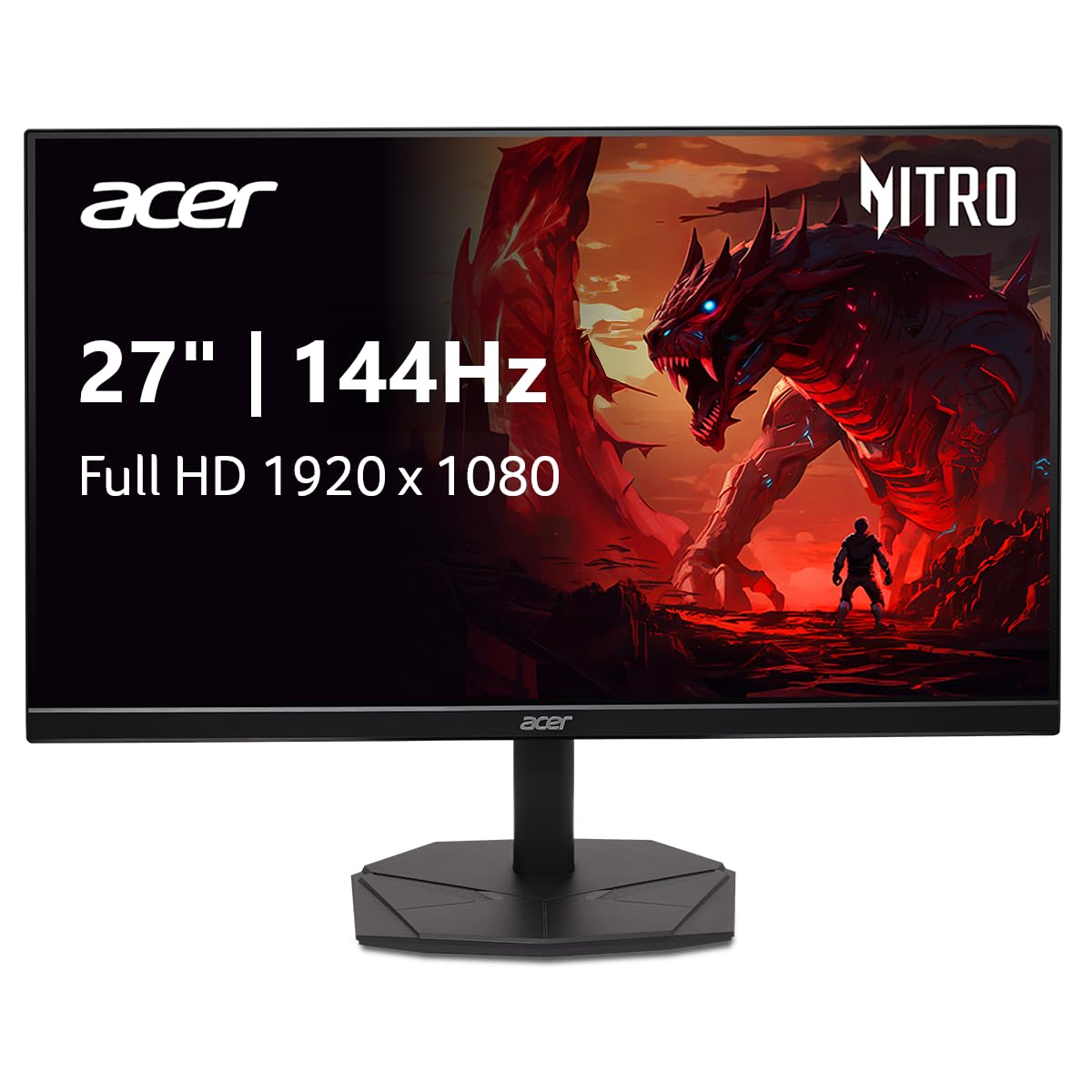
A monitor can hold a fast graphics card back. If your screen refreshes slowly or tears the image when frame rates swing, games feel rough even on strong hardware. The best 144hz freesync monitors solve both problems by refreshing 144 times per second and matching that pace to your card. Use the product table to check panel, size and price first.
Resolution sets how hard your card must work, panel type shapes color and contrast, and ports decide whether a console or laptop can use the full speed.
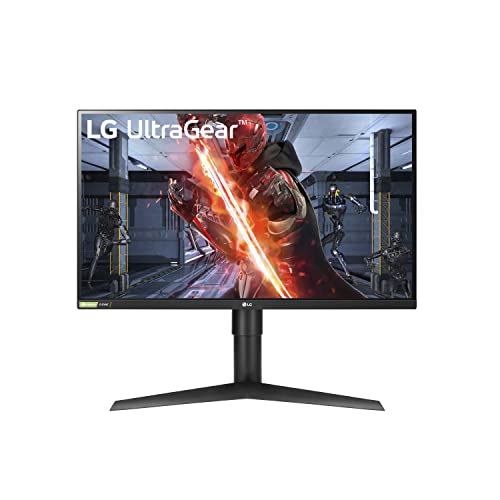
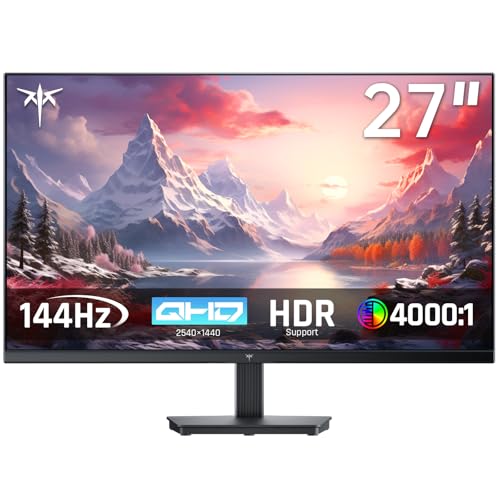

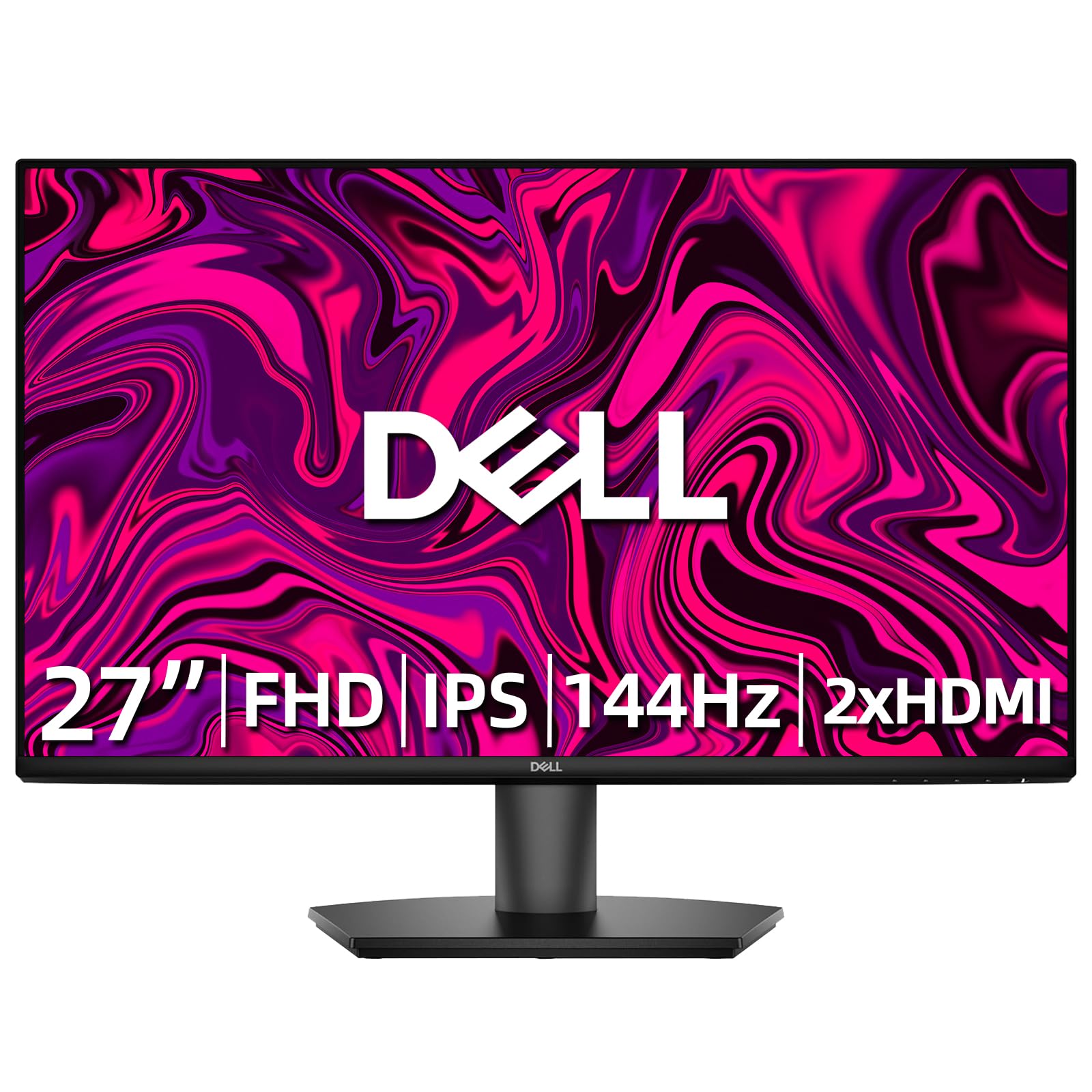





Who Should Buy a 144Hz FreeSync Monitor?
Buyers differ mainly in the hardware they already own and what they run each day. Match your group first, because it sets the resolution and panel to favor.
Competitive PC Gamers With AMD Graphics Cards
You play shooters and racing titles where a split second of clarity matters. Choose 1080p or 1440p so your card can hold frame rates near 144 in most matches. Favor a fast IPS panel and a wide sync range on a 24 to 27 inch screen.
Console and PC Players Who Share One Desk
You switch between a PC and a console on the same screen, so ports matter as much as speed. Look for HDMI 2.1 if your console should reach high frame rates at 4K, plus DisplayPort for your PC. A headphone jack and height adjustment help when you swap devices often.
Desk Workers Who Also Play Games at Night
You read text all day and play in the evening, so sharpness and comfort come first. A 27 inch 1440p screen gives crisp text and room for two windows side by side. Pick IPS for steady color at an angle and a stand that lifts the panel to eye level.
Key Features to Compare
Compare these factors in order, because each one limits the next. When you compare the best 144hz freesync monitors this way, a low price cannot hide a weak panel or the wrong ports.
Panel Technology and Color
IPS panels give accurate color and wide viewing angles, which suits shared screens and photo work beside gaming. VA panels give deeper contrast and darker blacks at lower cost, but fast motion can smear on some models. OLED panels give near instant pixel change and rich contrast, though they cost more. Choose IPS for balance and VA for contrast on a budget.
How Pixel Count Drives Your Graphics Card Load
Resolution decides how much work your graphics card must do each frame. At 1080p most midrange cards reach 144 frames per second, and our guide to the best 1080p 144hz monitors covers that lighter load. At 1440p the image looks sharper on a 27 inch screen. At 4K detail is finest, but holding high frame rates takes a powerful card, as our guide to the best 4k 144hz monitors explains.
Response Time and Input Lag
Response time describes how fast a pixel changes shade, and a slow change leaves trails behind moving objects. Look for figures around 1 to 4 milliseconds, and treat the lowest claim with care because makers measure it under ideal settings. A modest overdrive setting usually gives the cleanest motion, while the strongest setting can add bright edges. Input lag is separate and should feel instant on any gaming model.
Adaptive Sync Range and Connectivity
FreeSync is an adaptive sync system that lets the screen wait for each new frame, which stops tearing without the delay of fixed sync. A wide range, often about 48 to 144 Hz, keeps play smooth when frame rates dip. For more on the technology, see our guide to the best freesync monitors. DisplayPort carries full speed on a PC, HDMI 2.1 matters most for 4K at high refresh, and USB C suits laptops that charge and display over one cable.
Nits, HDR10 Signals and Room Light
Brightness is measured in nits, and most models in this class offer about 300 to 400 nits, which suits indoor play in normal light. HDR10 support lets the screen accept a high dynamic range signal, but entry level HDR on a dim panel changes little. A brighter panel around 600 nits or more shows HDR highlights with real impact.
Stand, VESA Mounting and Ergonomics
A good stand adjusts height and tilt so the top of the screen sits near eye level, which supports a comfortable posture during long sessions. Some stands also swivel and pivot into portrait mode for reading and coding. Check the VESA mount size, commonly 75 by 75 mm or 100 by 100 mm, if you plan to use a monitor arm. An arm frees desk space and angles two screens well.
Types of 144Hz FreeSync Monitors Compared
Most models fall into three groups based on shape and price, and knowing the group helps you read spec lists faster.
Flat Gaming Displays for Fast Play
Flat gaming displays in 24 to 27 inch sizes are the standard choice for fast titles. They pair IPS or VA panels with low lag modes at fair prices. For a broader view of the category, see our guide to the best gaming monitors on how gaming models differ from office screens.
Curved Ultrawide Displays for Immersion and Work
Curved ultrawide models stretch to 34 inches or more and wrap the image slightly around your view. Racing games gain a strong sense of space, and productivity work benefits because three windows sit side by side on these ultrawide displays. The wide panel needs a stronger card and a deeper desk.
Value Displays for Smaller Budgets
Value models keep the 144Hz refresh rate and FreeSync support but trim the stand, ports and peak brightness. Many use VA or IPS panels at 1080p and cost about $100 to $250, which suits a first gaming setup. You give up USB C and height adjustment, but the core speed stays intact.
Common Mistakes to Avoid
These errors are common because spec sheets highlight speed and hide the limits that shape daily use.
- Leaving the screen set at 60Hz in system settings wastes the speed you paid for and keeps motion rough.
- Using an old HDMI cable or port that cannot carry the full signal caps the refresh rate below 144Hz.
- Buying 4K with a midrange graphics card forces low frame rates that fall outside the smooth sync range.
- Ignoring the sync range means frame rate dips below the floor bring back tearing and stutter.
- Choosing a fixed low stand with no VESA mount leaves you stuck with poor posture and no arm option.
- Pushing overdrive to its highest level adds bright halos around moving objects and can look worse than blur.
How to Make Your 144Hz FreeSync Monitor Last Longer
Set the picture with care on the first day. Turn off the vivid picture mode, lower brightness to match your room, and save those settings. Enable FreeSync in the monitor menu and in your graphics card software, then set 144Hz in your display settings, and recheck after driver updates.
- Clean the screen with a dry microfiber cloth only, because paper towels and harsh sprays can scratch or cloud the surface coating.
- Run the pixel refresh cycle on OLED models when prompted, because it evens pixel wear from static menus and taskbars.
- Use a quality DisplayPort or HDMI 2.1 cable, because a damaged or loose cable causes flicker that looks like a panel fault.
- Keep vents clear and the screen out of direct sun, because heat and strong light age the panel and backlight.
- Use a moving screen saver during long breaks, because a static image left for hours stresses any panel type.
Dust the stand and ports gently and check cables yearly for bent pins or loose plugs.
Frequently Asked Questions About 144Hz FreeSync Monitors
Does a 144Hz refresh rate help if you do not play games on a FreeSync monitor?
Yes, a 144Hz refresh rate helps daily use even without games. Scrolling text stays clearer, window dragging looks steadier, and the pointer feels more precise during design or spreadsheet work. The gain is subtle on static pages, so office only buyers may not need it.
What screen size suits a typical desk for a 144Hz FreeSync monitor?
A 27 inch screen suits most desks for a 144Hz FreeSync monitor. At about two to three feet, 1440p at this size looks sharp without scaling tricks. Choose 24 inches if your desk is shallow or you sit close for fast games. Go larger only if you can sit farther back.
How long does a 144Hz FreeSync monitor usually last?
A 144Hz FreeSync monitor usually lasts about five to eight years of daily use. The backlight slowly dims over that span, and buttons or ports often wear before the panel fails. A sudden fault in the first months is a warranty matter, not normal aging. Keeping brightness moderate can slow dimming in later years.
Is 4K worth choosing on a 144Hz FreeSync monitor for gaming?
4K is worth choosing only if your graphics card can feed it at high frame rates. On a 32 inch screen the extra detail shows in slow paced games and video, and text looks very sharp. With a midrange card you will lower settings so far that 1440p often looks better in motion. Console players with HDMI 2.1 output are the clearest case for 4K.
Is IPS or OLED better for a 144Hz FreeSync monitor?
IPS is the safer all round choice for most buyers of a 144Hz FreeSync monitor. It costs less, shows text cleanly all day, and carries no risk from static images. OLED wins on contrast and pixel speed, so dark games look striking. Pick OLED for dim rooms with varied content, and IPS if the screen doubles as a work display.
Final Thoughts
Start with a resolution your card can feed, then choose the panel for your room and the ports for your devices. Check the sync range, the stand and the VESA pattern before price, since those details shape every session. Use the product table to confirm size, panel and cost.
Chosen with those points in mind, the best 144hz freesync monitors give smooth play without tearing and a calm screen for work. Buy the simplest model that meets your needs, set it to 144Hz on day one, and enjoy the difference.