
Best 1440p Freesync Monitors: A Buying Guide for 2026
Disclosure: We may earn a commission when you buy through links on this page, at no extra cost to you. As an Amazon Associate I earn from qualifying purchases. Learn more

Compare panel types, refresh rates and FreeSync tiers for the best 1440p freesync monitors, with sizing, port and setup checks for gaming and work.
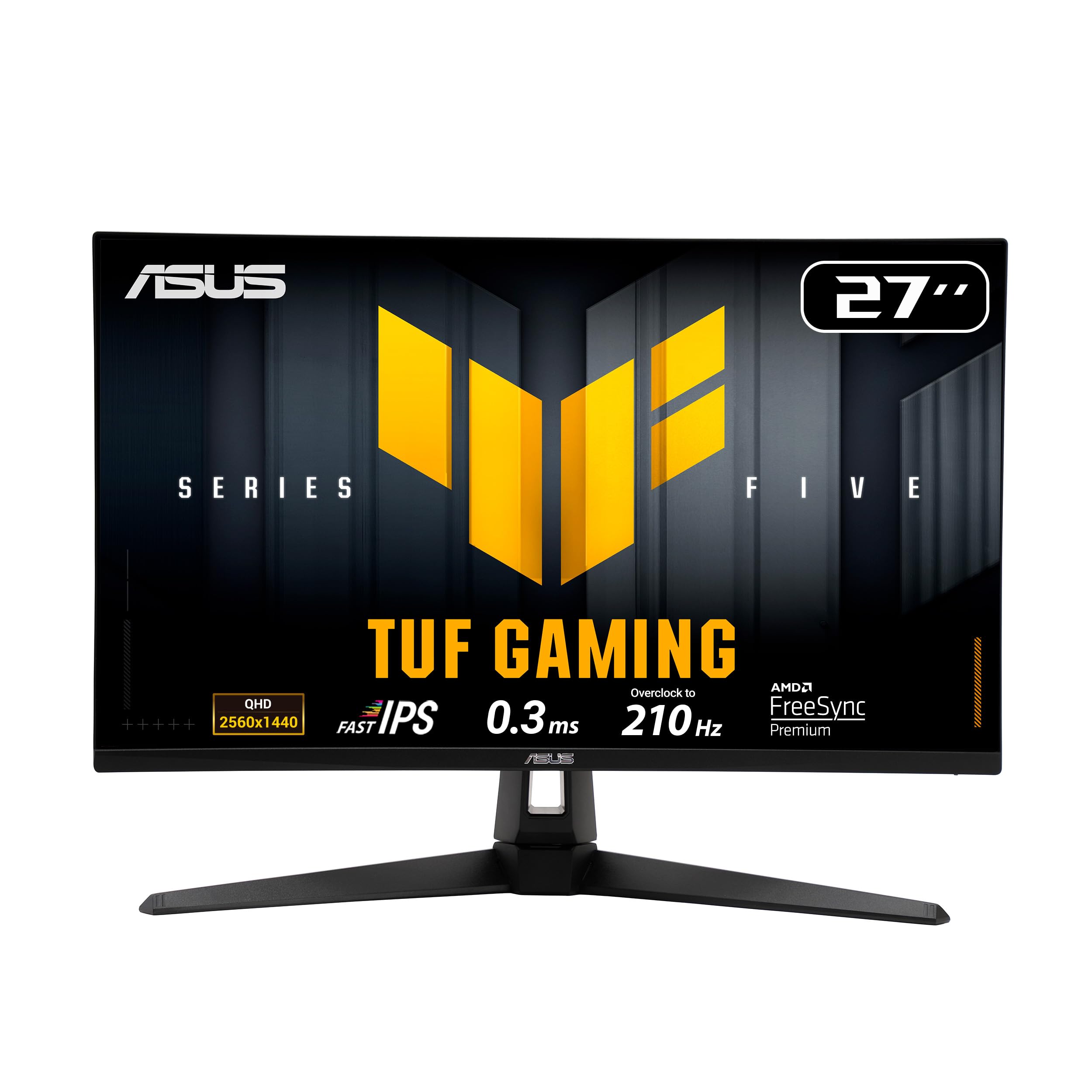
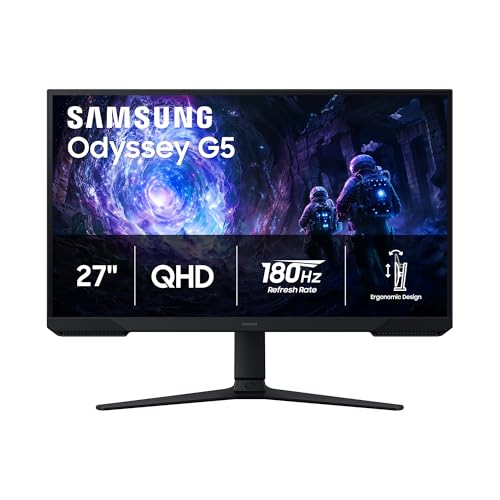
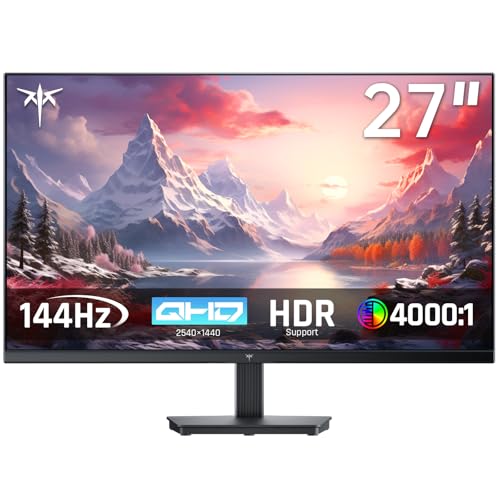
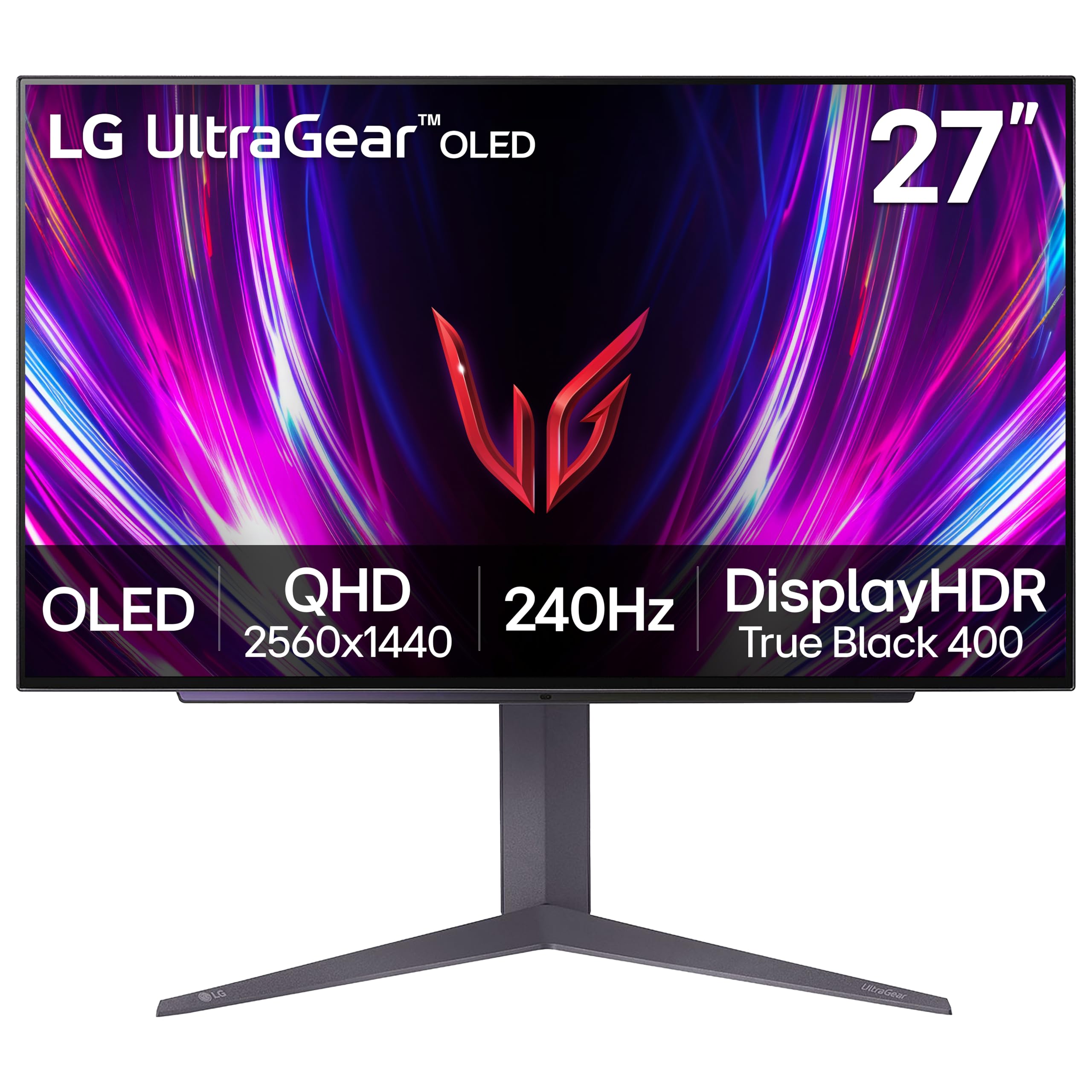
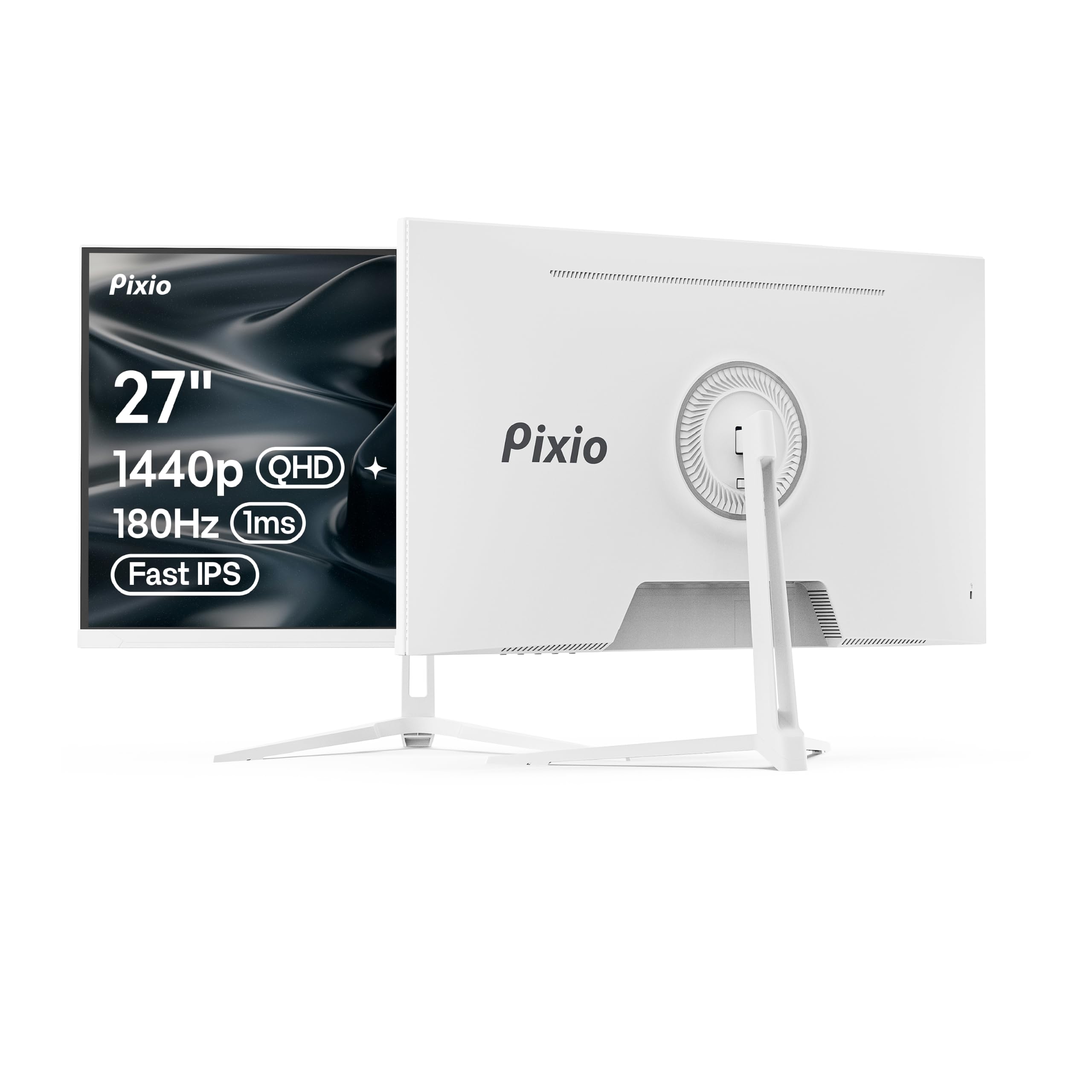
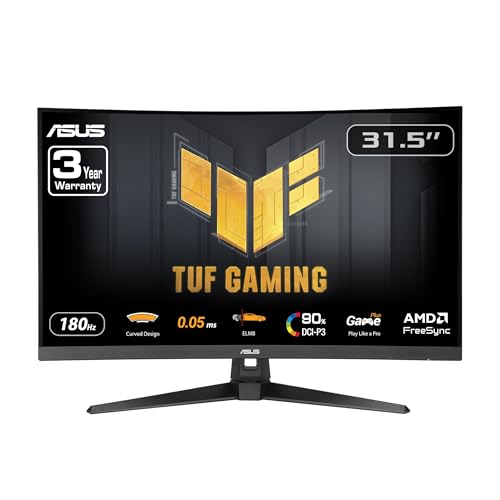
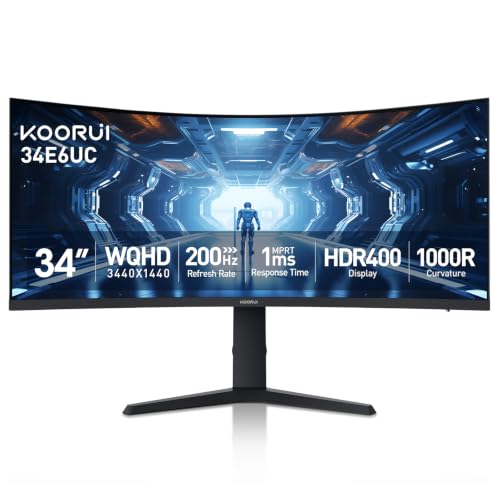
A 1440p screen gives you a clear step up from 1080p without the heavy graphics card demand of 4K, and FreeSync keeps motion smooth when frame rates rise and fall. The best 1440p freesync monitors balance that sharp picture with a fast refresh rate, a wide sync range and a panel that suits your room. Use the comparison table below to shortlist by size, panel and ports.
This guide explains which type fits which player, how the FreeSync tiers differ, and what to check before you order. It also covers sizing, HDR limits and care, so you know which specs deserve your money.




Who Should Buy a 1440p FreeSync Monitor?
Your card, your games and your desk matter more than any headline spec.
Competitive PC Gamers Who Play Fast Paced Titles
You need a high refresh rate, quick response and a sync range that stays active in busy scenes. Look for 165 Hz or higher over DisplayPort. If this is your main use, see our guide to the best gaming monitors 1440p for models built around speed.
Console and PC Players Who Share One Desk Screen
You need clean switching between both sources. Check for two HDMI ports, speakers or a headphone jack, and variable refresh support over HDMI and DisplayPort. A 27 inch screen suits this setup, staying sharp for PC text yet large enough for menus and cut scenes.
Home Office Workers Who Play Games After Hours
You need crisp text for documents, accurate color for photos and calls, and enough refresh rate for smooth evening play. An IPS panel with a height adjustable stand and a USB C input that carries video from a work laptop serves both parts of your day. Ultrawide models also fit wide window layouts.
Key Features to Compare
Compare these six factors first, because panel, sync and size shape daily use most.
Panel Technology: IPS, VA and OLED
IPS panels hold color and brightness well from an angle, which suits shared desks and color work. VA panels give deeper blacks but can smear dark moving objects. OLED panels deliver the strongest contrast and near instant response, with some burn in risk from fixed images shown for many hours. If accurate color matters most, see our guide to the best 1440p ips monitors before you decide.
FreeSync Tier, Sync Range and Frame Rate Support
FreeSync is AMD adaptive sync technology that matches the screen refresh rate to the frame rate your graphics card sends, which removes tearing without the lag of fixed sync. Basic FreeSync covers casual play, FreeSync Premium adds low frame rate compensation for dips, and Premium Pro adds HDR tone support. Check the sync range, often about 48 to 144 Hz, because frames below it lose protection. For wider context, see our guide to the best freesync monitors. The best 1440p freesync monitors publish a range matching the frame rates your card actually holds.
Refresh Rate, Response Time and Ghosting
Refresh rate tells you how often the screen redraws each second. A 144 Hz or 165 Hz model feels far smoother in fast games than a 75 Hz office screen, while 240 Hz mainly rewards competitive players with strong cards. Response time affects ghosting behind moving objects, but brands measure it differently, so treat 1 ms claims with care. If gaming comes first, see our guide to the best gaming monitors.
Screen Size and Pixel Density at 1440p
At 2560 by 1440 resolution, a 27 inch screen gives about 109 pixels per inch, so text looks crisp at about 24 to 36 inches from the screen. A 32 inch screen gives about 93 pixels per inch, trading some sharpness for a larger picture on a deeper desk. Measure desk depth first, because a large screen placed too close forces constant head movement. For a broader comparison, see our guide to the best 1440p monitors.
HDR, Brightness and Contrast
Most 1440p monitors accept an HDR signal, but only brighter models with local dimming or OLED pixels show HDR with real impact. An entry model peaking at about 300 to 400 nits brightens highlights modestly, while about 600 nits or OLED makes HDR look deeper. In bright rooms, a matte coating and steady brightness matter more than the HDR badge.
Ports, Stand Adjustment and VESA Mounting
DisplayPort is the most reliable route to full refresh rates from a gaming PC, while HDMI 2.0 or HDMI 2.1 serves consoles and laptops, and USB C can carry video and charge a laptop. Count the ports your setup needs before you buy. A stand with height, tilt and pivot adjustment places the screen at eye level, and a VESA pattern, commonly 100 by 100 mm, allows a monitor arm.
Types of 1440p FreeSync Monitors Compared
Most models fall into four types, and naming yours first prevents paying for unused strengths.
Standard 27 and 32 Inch Gaming Displays
These are the default choice for most buyers, with IPS or VA panels, 144 Hz or higher refresh and prices often about $250 to $450. A 27 inch version suits a standard desk and mixed work, while the 32 inch version suits a deeper desk and story driven games where scale matters most.
Ultrawide and Productivity Displays
Ultrawide models stretch the picture to a 21 by 9 shape, giving room for a game plus chat or documents side by side. They cost more and demand more from your graphics card, since they render more pixels per frame. Choose one when extra width solves a daily problem, not only for the look.
Budget Displays for Casual Play and Study
Budget models often cost about $180 to $280 and still give you 1440p, FreeSync and 144 Hz or 165 Hz refresh, which is plenty for casual and older games. You usually give up HDR impact, USB C charging and a fully adjustable stand.
OLED Displays for Deep Contrast
OLED models often cost about $500 to $800 and reward film fans and dark room players with true blacks, rich HDR and very fast pixel response. Trade offs are price, lower full screen brightness than bright LCD models, and burn in risk from static content. For bright rooms and static work, IPS is safer.
Common Mistakes to Avoid
Most regrets come from a mismatch with the card, desk or console you own.
- Buying a 240 Hz monitor for a graphics card that holds about 80 to 100 frames per second, so the extra refresh range stays unused.
- Ignoring the FreeSync range and finding later that your usual frame rates fall below it, so tearing returns in demanding scenes.
- Choosing a 32 inch screen for a shallow desk, so you sit too close and strain your neck turning toward the edges.
- Trusting the HDR label on a dim panel with no local dimming, so HDR video looks flatter than standard video.
- Forgetting to count HDMI and DisplayPort inputs for a PC, a console and a work laptop, so you swap cables daily.
- Leaving the factory preset with oversaturated color in place, so games and photos look wrong.
Care and Maintenance for a 1440p FreeSync Monitor
Clean the screen only with a dry microfiber cloth, or one very slightly dampened with water, and never spray liquid directly onto the panel. Turn the monitor off first so smudges show clearly. Keep the rear vents clear of dust with a soft brush, because blocked vents trap heat inside the case. Use a quality cable rated for 1440p at your full refresh rate, and replace any cable that causes flicker.
Leave the vivid store preset behind, pick the standard or sRGB mode for work, and set brightness so white areas feel calm, not glowing. On OLED models, run the built in pixel refresh when prompted and keep the screen saver active. Check the maker support page yearly for firmware updates, and never cut power mid update.
1440p FreeSync Monitor Questions Answered
How long does a 1440p FreeSync monitor usually last?
A 1440p FreeSync monitor usually lasts about five to eight years of daily use before brightness fades or a newer connection standard tempts you to upgrade. Backlights dim slowly, so an older screen often works well as a second display. Keeping brightness below maximum for office work slows that fade.
For a 1440p FreeSync monitor, is IPS or OLED better?
Neither panel wins for every 1440p FreeSync monitor buyer, because IPS suits bright rooms and static work while OLED suits dark rooms and deep shadow scenes. One point buyers miss is text rendering: colored edges on some OLED pixel layouts can make small fonts look soft, which matters for all day reading. View both panel types in a store before spending OLED money.
What size 1440p FreeSync monitor fits a small desk?
A 27 inch 1440p FreeSync monitor fits most small desks best, since it needs about 24 inches of width, leaving room for a laptop. On a narrow desk, choose a compact central stand rather than wide splayed feet that push your keyboard forward. A VESA arm clamped to the back of the desk reclaims the most space of all.
Does refresh rate matter on a 1440p FreeSync monitor for work and video?
Yes, a higher refresh rate helps a 1440p FreeSync monitor feel smoother during scrolling, window dragging and video shot at high frame rates. Long spreadsheets glide with less blur, which some readers find easier during a full workday. The gain is modest next to gaming, so fund stand adjustment and USB C input before 240 Hz.
Is 4K worth choosing over a 1440p FreeSync monitor?
For most desk setups, 4K is not worth choosing over a 1440p FreeSync monitor, because the sharper picture at 27 inches is subtle while the frame rate cost in games is large. Your card must render about twice as many pixels, which often halves frame rates at high settings. Pick 4K mainly for large photo editing screens or a card with clear headroom.
Our Verdict
Start with your graphics card and desk, then choose the panel and FreeSync tier that match them, and let price settle close calls. A well chosen 27 inch IPS model at 165 Hz covers most players and workers for years. The best 1440p freesync monitors earn their place by staying smooth, sharp and comfortable daily, so compare finalists once more in the product table above before ordering.


