Best Gaming SSD: Types Compared and How to Choose
Disclosure: We may earn a commission when you buy through links on this page, at no extra cost to you. As an Amazon Associate I earn from qualifying purchases. Learn more

The best gaming ssd by type: Gen4, Gen5, 2230, portable and SATA drives compared for PC, PS5 and handhelds.
Storage fills up fast in modern gaming. Many big games take well over 100GB each, and a console or PC that once felt roomy can run out of space after a few installs. A gaming SSD fixes that and cuts load times compared with hard drives, but SSDs come in very different forms: Gen4 and Gen5 NVMe drives for PCs and PS5, tiny 2230 drives for handhelds, portable USB SSDs and older 2.5 inch SATA drives. This guide to the best gaming ssd types compares each one side by side, so you can choose the right drive for your system and budget.
We cover how each SSD type compares, who should choose which, how to choose, setup and care and common questions. Every drive in the table above is sold new on Amazon US. SSD prices change often, so compare cost per terabyte before you buy.



How Gaming SSD Types Compare
The main gaming SSD types are Gen4 NVMe drives, Gen5 NVMe drives, compact 2230 NVMe drives, portable USB SSDs and 2.5 inch SATA SSDs. Gen4 NVMe suits most PCs and the PS5, Gen5 suits high end PCs, 2230 drives suit handhelds like the Steam Deck, portable SSDs suit consoles and laptops without opening the case and SATA SSDs suit older PCs.
| Type | Best For | Pros | Cons | Typical Price |
|---|---|---|---|---|
| Gen4 NVMe (M.2 2280) | Gaming PCs, PS5 | Fast, wide support | Needs M.2 slot | around $320 to $575 (2TB) |
| Gen5 NVMe | High end PCs | Fastest sequential speeds | Heat, cost, little game gain | around $325 (1TB) to $390 (2TB) |
| 2230 NVMe | Steam Deck, ROG Ally, mini PCs | Tiny, efficient | Costs more per TB | around $378 (2TB) |
| Portable USB SSD | Consoles, laptops, backup | Plug and play, portable | Slower than internal NVMe | around $290 to $437 (2TB) |
| 2.5 inch SATA SSD | Older PCs and laptops | Works in old systems | Slowest SSD type | around $195 to $326 (1TB) |
Start by identifying what your system supports. Check your motherboard manual or console specifications for M.2 slots, PCIe generation and drive length, or for USB ports if you prefer an external drive. The right type depends more on compatibility than on peak speed.
Internal NVMe SSDs vs SATA SSDs
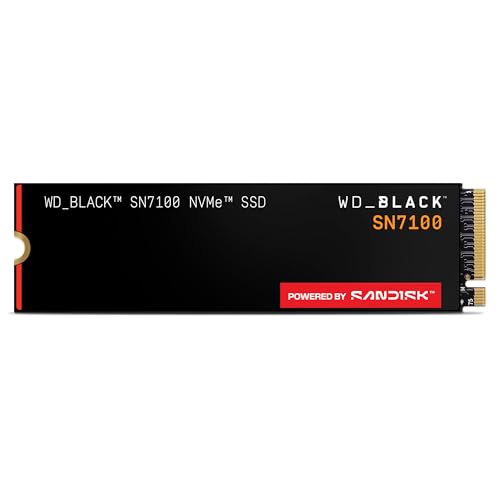
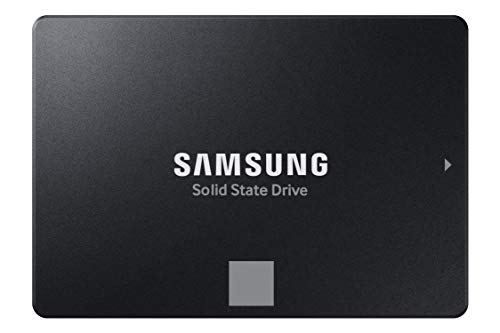
Internal NVMe SSDs are the best choice for gaming PCs and the PS5, while SATA SSDs suit older systems without M.2 slots. NVMe drives connect directly over PCIe: WD_BLACK lists the SN7100 at up to 7,250MB/s read, and Corsair lists the MP600 PRO LPX at up to 7,100MB/s. SATA drives top out around 560MB/s, the limit Samsung lists for its 870 EVO.
In real games, the difference between NVMe and SATA is smaller than the specs suggest, often a few seconds of load time. Both are far faster than hard drives; Crucial says its BX500 is 300 percent faster than a typical hard drive.
Choose SATA only if your system lacks an M.2 slot or you want an inexpensive upgrade for an older laptop.
Samsung lists up to 600 TBW and a five year limited warranty for the 870 EVO 1TB, while the Crucial BX500 1TB offers a three year warranty. Both are reliable choices for reviving an older gaming laptop or adding bulk storage to a desktop with spare SATA ports.
Internal SSDs vs Portable External SSDs
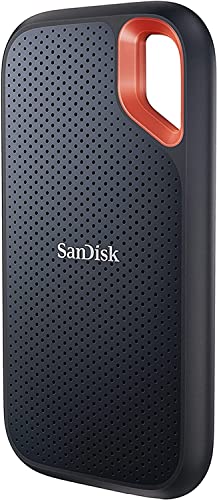
Portable SSDs suit players who want more storage without opening their console or PC. The Sandisk Extreme Portable 2TB, at around $290, offers up to 1,050MB/s read, IP65 water and dust resistance and up to 3 meter drop protection, according to Sandisk. Samsung's T9 2TB, at around $437, reaches up to 2,000MB/s over USB 3.2 Gen 2x2 and lists gaming console compatibility.
On PS5, external USB drives can store and play PS4 games and store PS5 games, but PS5 games must run from internal storage or an M.2 expansion drive. That makes portable SSDs best for libraries, backups and PC or laptop use.
Internal NVMe drives remain faster and are required to play PS5 games directly.
Portable SSDs also make it easy to carry your game library between a desktop and a laptop or to keep backups of save files and screenshots. Sandisk includes 256 bit AES hardware encryption and password protection on its Extreme drive, which helps protect personal files if the drive is lost.
Full Size SSDs vs Compact 2230 SSDs
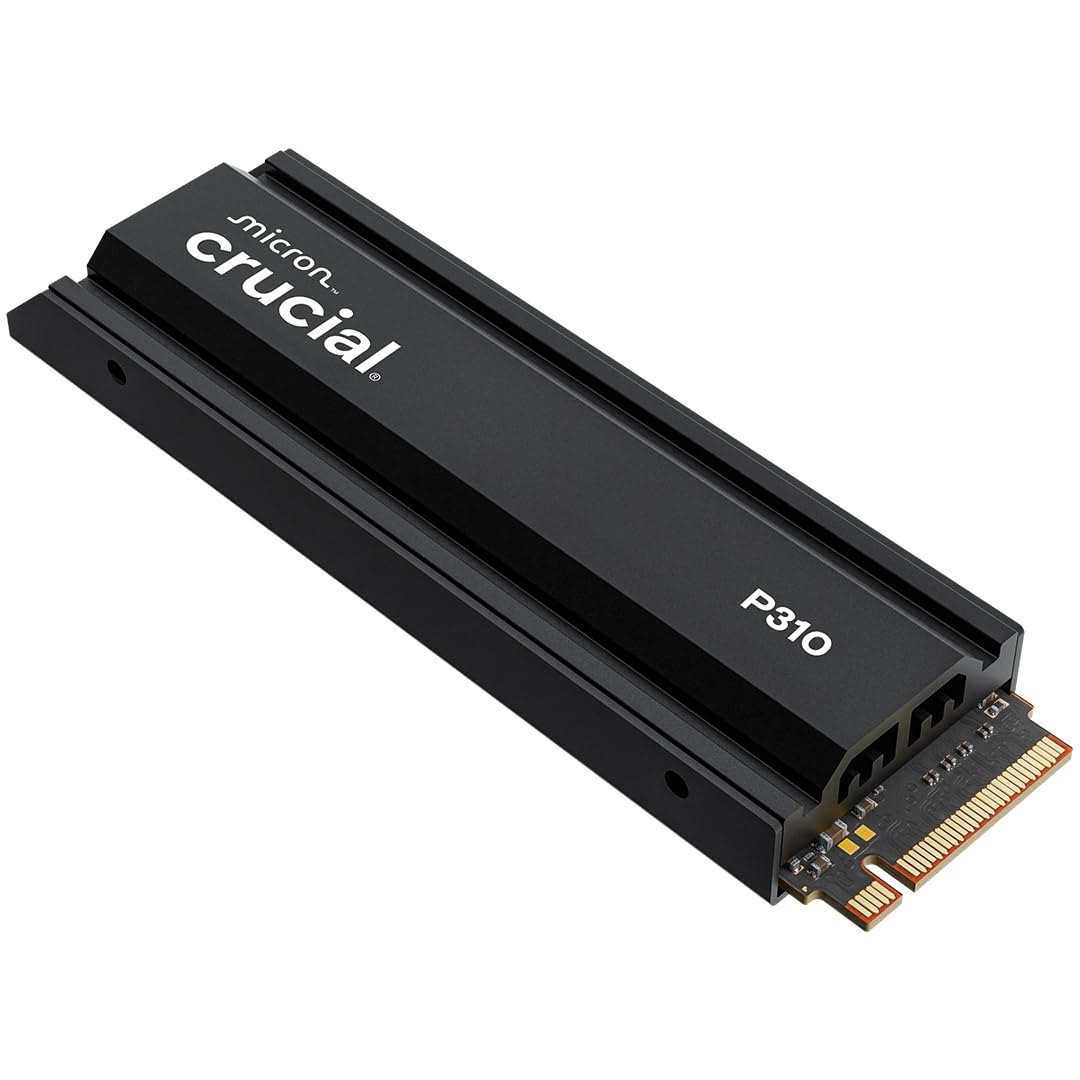
Compact 2230 SSDs suit handheld gaming PCs and small laptops. The Crucial P310 2230 2TB, at around $378, offers Gen4 speeds up to 7,100MB/s and lists compatibility with the Steam Deck, ASUS ROG Ally and MSI Claw, according to Crucial.
Upgrading a handheld's storage lets you carry far more games. The tiny form factor costs more per terabyte than standard 2280 drives.
Check your device's supported length before buying; most desktops and PS5 use 2280 drives.
Swapping a handheld's SSD requires opening the case and reinstalling the operating system or restoring from backup, so follow the maker's guide carefully. Many owners find the upgrade straightforward with basic tools and patience.
Who Should Choose Which Gaming SSD?
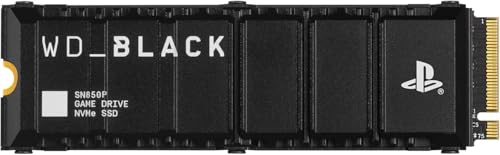
PS5 owners should choose a Gen4 NVMe drive with a heatsink, like the WD_BLACK SN850P, officially licensed for PS5 with read speeds up to 7,300MB/s, or the Crucial P310 2TB with heatsink. PC gamers should choose a Gen4 NVMe drive for the best value, like the WD_BLACK SN7100 or Corsair MP600 PRO LPX.
Enthusiasts building high end PCs can consider Gen5 drives like the Crucial T705, which lists up to 14,500MB/s, or the Corsair MP700 PRO at up to 11,700MB/s, though games rarely load much faster than on Gen4 today. Handheld owners should choose 2230 drives, and anyone who wants plug and play storage should choose a portable SSD.
Older PCs and laptops benefit most from a SATA SSD replacing a hard drive, which brings a dramatic improvement in boot and load times.
Laptop gamers should check whether their laptop has a spare M.2 slot before buying. Adding a second drive keeps the original drive intact and doubles capacity without reinstalling the operating system.
How to Choose the Best Gaming SSD
To choose the best gaming SSD, check compatibility first, then compare capacity, speed, heat management and warranty.
Compatibility (PC, PS5, Handheld)
Check your motherboard or device for M.2 slot type, supported PCIe generation and drive length. The PS5 requires a PCIe Gen4 M.2 drive with recommended speeds of 5,500MB/s or faster and a heatsink that fits the expansion slot. Handhelds usually need 2230 drives. Older systems may only support SATA.
Gen5 drives work in Gen4 slots but run at Gen4 speeds.
For PS5 installs, Sony requires a drive and heatsink that fit within the expansion bay's size limits. Drives sold as PS5 ready, like the WD_BLACK SN850P and Crucial P310 heatsink model, simplify the choice.
Capacity
Choose 2TB for most gamers, since 1TB fills quickly with modern games. Heavy players with large libraries can choose 4TB or more; WD_BLACK says its 8TB SN850P stores up to 200 PS5 games. Leave some free space for best performance.
Price per terabyte often drops at 2TB and 4TB compared with 1TB, so larger drives can be better value. Compare total cost against how many games you keep installed at once.
Speed and Performance
Sequential read speeds matter for load times, but random performance and DRAM or cache design matter too. Gen4 drives around 7,000MB/s offer an excellent balance. Gen5 speeds benefit large file transfers and creative work more than games today.
DRAM cache and controller design help sustain speed during long transfers. For game installs and updates, a drive that maintains speed under heavy writes feels faster than one with a higher peak number that slows down.
For the PS5, Sony recommends drives with read speeds of 5,500MB/s or faster; slower Gen4 drives may work but can be flagged by the console during setup. Every drive in our Gen4 group lists read speeds above 7,000MB/s.
Heat Management
Fast NVMe drives get hot under heavy load. Heatsinks, like those on the WD_BLACK SN850P, Crucial P310 heatsink model and Crucial T705, prevent throttling. Many motherboards include M.2 heatsinks, so you may not need one built in. PS5 drives need a heatsink or the console's cover.
If your case has poor airflow, choose a drive with a heatsink or use your motherboard's M.2 cover. Gen5 drives run especially hot; Corsair sells an MP700 PRO version with an active air cooler for that reason.
Durability and Warranty
Endurance is listed as TBW (terabytes written). Samsung lists up to 600 TBW under a five year limited warranty for its 870 EVO 1TB, and Crucial offers a three year warranty on the BX500. Gamers rarely approach these limits, but longer warranties add peace of mind.
Most SSD makers offer free monitoring tools that report drive health, temperature and remaining endurance, like Samsung Magician and WD_BLACK Dashboard. Check them a few times a year, and back up save files and important data regardless of drive health, since any drive can fail without warning.
Setup and Care Tips
Back up important data before installing a new drive. Power off and unplug your PC or console, touch metal to discharge static and install the drive in the correct slot, securing it with the screw or latch.
On PS5, format the drive when prompted. On PC, initialize the drive in Disk Management. Update SSD firmware with the maker's software, such as WD_BLACK Dashboard or Samsung Magician, and keep at least 10 percent of the drive free.
Move your most played games to the fastest drive and keep older or smaller games on secondary storage. On PC, avoid defragmenting SSDs; the operating system handles SSD maintenance automatically with TRIM.
FAQs
Does it work with Mac and console?
Portable SSDs work with Macs, PCs and consoles after formatting. Internal NVMe drives work in PS5 and many PCs; Xbox Series X|S uses proprietary expansion cards rather than standard M.2 drives, though external USB drives can store games.
NVMe or SATA: which is better for gaming?
NVMe is better for gaming in systems with M.2 slots, offering faster speeds at similar prices. SATA is a good upgrade for older systems, and both are far faster than hard drives.
Is a Gen5 SSD worth it for gaming?
Not for most players today. Gen5 drives are faster in benchmarks, but games load only slightly faster than on Gen4 drives. Choose Gen5 if you also edit video or move huge files.
Gen5 drives also need a motherboard with a Gen5 M.2 slot and good cooling to reach their rated speeds.
How much storage do I need for gaming?
Most gamers need at least 2TB, since many modern games take 100GB or more each. Choose 4TB for large libraries or if you keep many games installed at once.
Do I need a heatsink for my SSD?
A heatsink is required for PS5 drives and helpful for fast NVMe drives in PCs with poor airflow. Many motherboards include M.2 heatsinks, in which case a drive without its own heatsink works fine.
Will an SSD improve frame rates?
No, an SSD improves load times, texture streaming and installation speed, not frame rates. Frame rates depend on your CPU and graphics card. However, fast storage can reduce stutter in games that stream data constantly.
Wrapping Up
The best gaming ssd depends on your system. Gen4 NVMe drives like the WD_BLACK SN850P, Crucial P310 and WD_BLACK SN7100 suit most PCs and the PS5, Gen5 drives like the Crucial T705 suit high end PCs, 2230 drives like the Crucial P310 2230 suit handhelds, portable SSDs like the Sandisk Extreme and Samsung T9 suit plug and play storage and SATA drives like the Samsung 870 EVO suit older systems.
For more PC and gaming guides, see the best external storage hard drives, the best gaming pc prebuilt, the best 240hz monitors and the best office chairs for gaming. Then compare current prices in the product table above.