Best Computer Motherboards 2026: A Practical Buying Guide
Disclosure: We may earn a commission when you buy through links on this page, at no extra cost to you. As an Amazon Associate I earn from qualifying purchases. Learn more

Choose computer motherboards by matching socket, chipset, and expansion so your processor, memory, storage, and future upgrades all work together smoothly.
A motherboard decides which processor, memory and storage a desktop can use, how many upgrades it can take, and how long the build stays useful. The best computer motherboards are not the ones with the longest feature list. They are the boards whose socket, size and connections match the parts you already own or plan to buy, with a little room left over for the next upgrade.
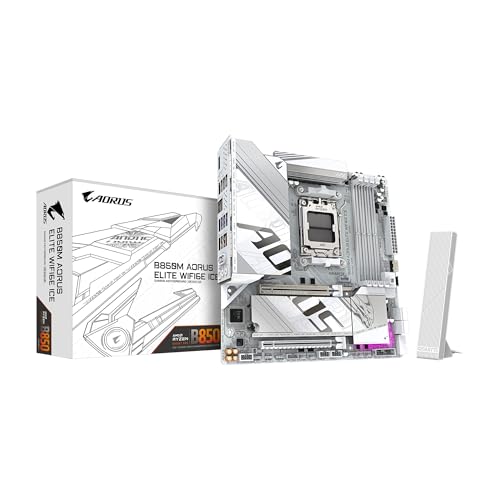
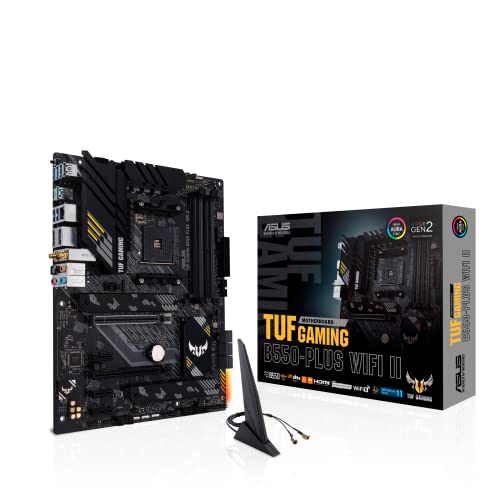
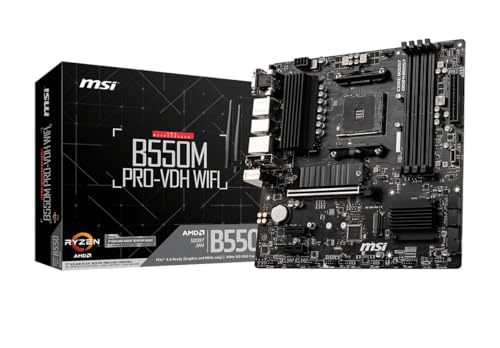
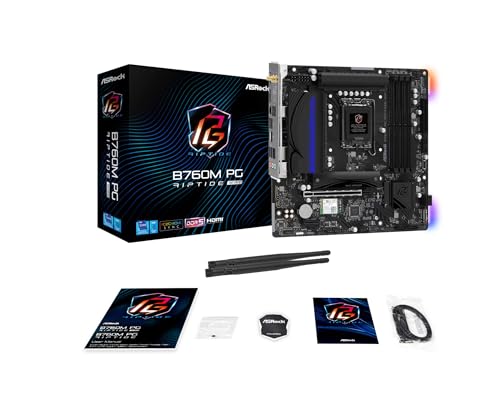
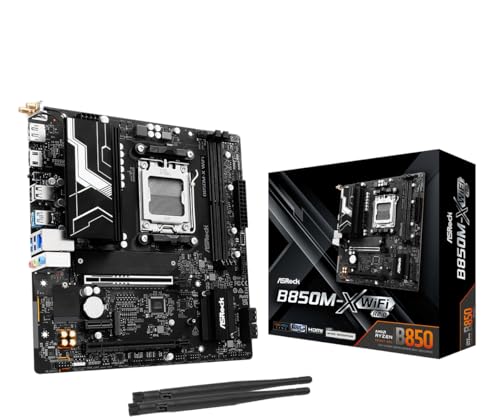
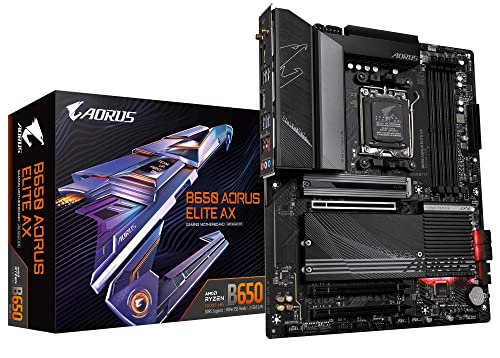
This guide walks through the choices in the order a builder actually meets them: processor family first, then board size, memory, storage, ports and power delivery. The product table above lists boards across the main sizes and price levels, so you can compare real listings against the checks below.




Start With the Processor Socket and Chipset
The socket is the physical connector for the processor, and each processor family uses its own. A processor only fits a board with the matching socket, so this single match comes before everything else. Buying a board first and a processor later is the classic way to end up with a pair that will not work together.
The chipset sits one level below the socket and controls which features the board offers: how many fast storage slots, how many USB ports, whether the processor can be overclocked, and which memory type is supported. Entry level chipsets keep the price down and cover basic builds well. Mid range chipsets add more storage slots and faster ports, and top chipsets add the extra lanes that enthusiast builds with several drives and cards use.
Check the maker's processor support list for any board you shortlist, because some boards need a firmware update before they will start with the newest processors. Listings often mention that a board is ready for a given processor generation, and that line is worth reading closely.
Board Size: ATX, Micro ATX and Mini ITX
Board size sets how many slots and ports you get, and it must fit the case. Larger boards give more room for cards, drives and cooling, while smaller boards save space and often cost less. Pick the size from the case you want, then look for the features inside that size.
| Type | Typical case | Expansion | Best for |
|---|---|---|---|
| ATX | Full size or mid tower | Most slots, most memory and storage connections | Builders who want room to grow |
| Micro ATX | Mid size or compact tower | Fewer slots, still enough for one graphics card and extra storage | Home and gaming builds that value balance |
| Mini ITX | Small form factor case | One graphics slot, fewer ports, two memory slots | Compact builds and living room computers |
ATX Boards for Room to Grow
ATX is the standard full size layout. It offers the most expansion slots, the most storage connections and the roomiest spacing around the processor, which makes first builds easier to assemble. The tradeoff is a larger case and a higher price than smaller boards of the same chipset.
Micro ATX Boards for Balanced Builds
Micro ATX trims the slot count but keeps the features most home builds need. One graphics card, a couple of fast storage drives and four memory slots fit comfortably, and the smaller footprint works in a wide range of cases. For many buyers this is the sweet spot between cost, size and upgrade room.
Mini ITX Boards for Compact Cases
Mini ITX boards are small enough for compact cases, and they usually carry just two memory slots and one graphics slot. Parts must be chosen with care, because small cases limit cooler height and airflow. They suit builders who want a quiet desktop that does not dominate the desk.
How to Choose the Best Computer Motherboards by Features
Memory Support
Boards support one memory type only, so the board decides whether you buy the older or the newer kind. Count the slots and note the maximum capacity: four slots give an easy upgrade path, while two slots mean replacing modules to add capacity later. Faster memory speeds help some workloads, though most home builds gain little from chasing the top listed speed.
Storage and Expansion
Fast solid state drives plug into small slots on the board itself, and boards differ in how many they carry and how fast each one runs. Count the drives you own today and the ones you may add, then check that the board has matching slots plus enough SATA ports for older drives. A board with only one fast slot limits storage upgrades sooner than most buyers expect.
Ports and Wireless
Look at the rear panel as well as the slot count. Enough USB ports, a modern network connection and built in wireless save you from buying add in cards. Front panel connectors matter too, since your case may need USB C support at the front.
Power Delivery and Cooling
The power section feeds the processor, and strong processors need a sturdy one to hold speed under load. Heatsinks over the power parts help sustained performance. A basic board paired with a high end processor can throttle, so match the board tier to the processor tier.
Common Mistakes to Avoid
- Buying a board before choosing the processor, then finding the socket or chipset does not support it.
- Choosing a size that does not fit the case, which stops the build before it starts.
- Overpaying for overclocking features on a build that will run at stock speeds.
- Ignoring the memory type, so existing modules cannot be reused.
- Counting only the slots you need today and leaving no room for a second drive or card.
- Skipping the firmware note, then needing an older processor just to update the board.
Builders with a narrower goal can go further: for fast play, see our guide to the best motherboards for gaming computers, and for a clean look through the case window, browse the best looking motherboards.
Building and Setup Tips
Before assembly, lay the board on its box rather than a bare desk, and install the processor, cooler and memory first because they are easier to fit outside the case. Fit the rear panel shield that comes with the board into the case before mounting, and use only the standoffs that match the board size.
On first start, enter the firmware screen and confirm that the processor, memory capacity and storage drives are all detected. Turn on the memory speed profile if your modules support one, and check the firmware version against the maker's page. If the board offers a safe update tool, apply any update that adds support for your processor before installing the operating system. Keep the manual and the small accessory bag, because spare screws and cables are useful later.
Frequently Asked Questions
How do I know if a motherboard fits my processor?
Match the socket first, then check the maker's processor support list for the exact chip model. Some boards need a firmware update for newer processors, so look for a note that the board is ready for your processor generation. If the listing is unclear, ask the seller before you order.
Does motherboard size affect performance?
Size mainly affects expansion and cooling room rather than speed. A small board with the same chipset runs a processor as fast as a large one. Larger boards simply offer more slots, more ports and more space for heatsinks.
How much memory should a board support?
Support for at least 32 gigabytes covers most home and gaming builds with room to grow. Video editing and virtual machines can use more. Choose a board whose maximum comfortably exceeds your planned need, and check whether it uses two or four memory slots.
Which storage slots matter most?
Fast solid state slots suit the system drive and large games, while SATA ports suit extra storage and older drives. Count the drives you own and plan to add, and check whether using one slot disables a SATA port, since some boards share lanes.
Can I upgrade a motherboard later?
Yes, though it usually means reinstalling the operating system or at least rechecking drivers and processor and memory compatibility. A board with spare slots and ports delays that work. Plan for growth at purchase to avoid a full rebuild.
Final Thoughts
Match the socket to your processor, the size to your case and the memory and storage slots to your plans, and the rest is detail. The best computer motherboards for your build are the ones that fit these three checks with a little room to grow. Compare your finalists against the product table above, confirm the processor support note and the firmware status, and order the board that suits the build you are making today and the upgrades you expect next.