Best Computer Monitors under 250 for Every Need: How to Pick the Right One for 2026
Disclosure: We may earn a commission when you buy through links on this page, at no extra cost to you. As an Amazon Associate I earn from qualifying purchases. Learn more

Clear guidance on size, panel, refresh rate and ports for the best computer monitors under 250, matched to your desk and routine.
There is no single monitor that suits every desk, and that is a good thing at this price. A fast panel for gaming, a sharp screen for documents, and a portable second screen for travel ask for very different tradeoffs. The best computer monitors under 250 are the ones that match your main task first, so start with how you spend most of your screen time.
This guide walks through panel types, size, brightness, stands, and ports in plain terms, with no need to overspend on features you will rarely use. Use the comparison table below to line up the key specs side by side, then read the sections that fit your daily routine. A clear priority list will save you money and desk space.


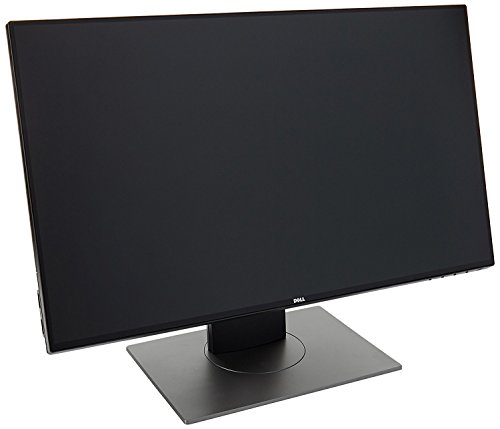

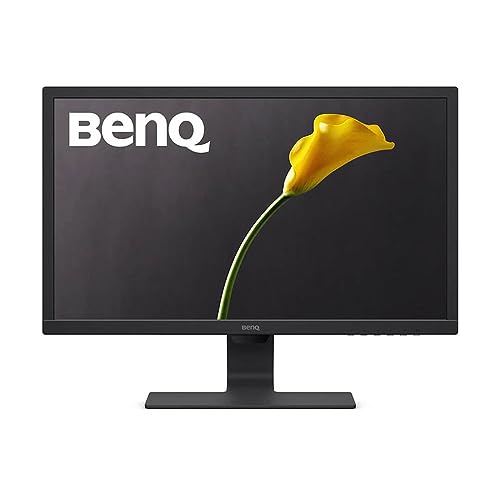
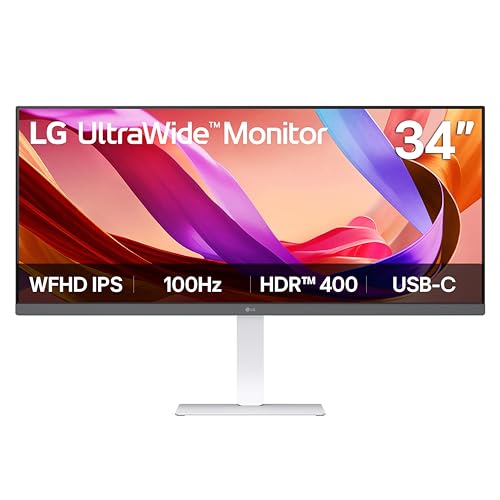
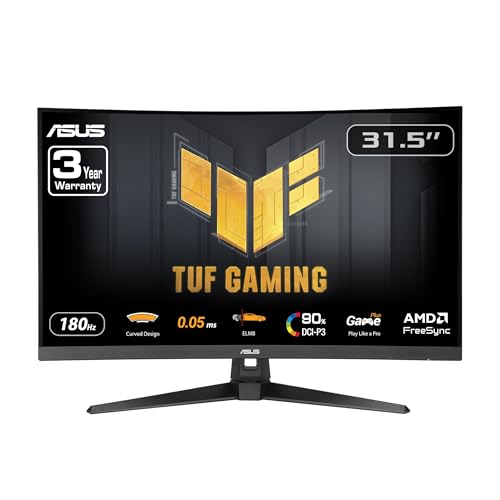

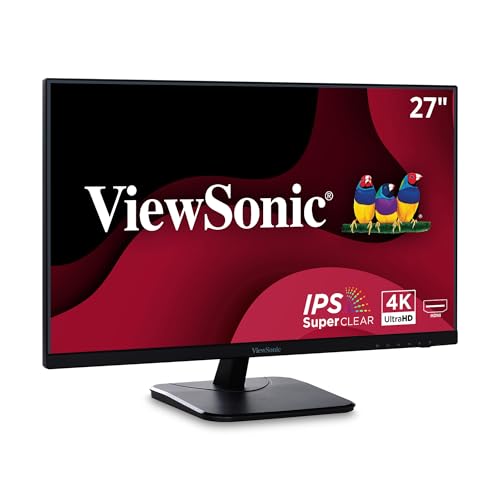
Who Should Buy Which Computer Monitors?
Start with your longest daily task, not the longest spec list. Gamers need speed, office users need comfort and sharp text, and travelers need a light screen that runs from a laptop. The groups below show where to put most of your budget under $250 and where you can accept a simpler spec. Readers comparing shortlists can also see our guide to the best monitors under 250 for a wider view of this price band.
For Gamers and Power Users
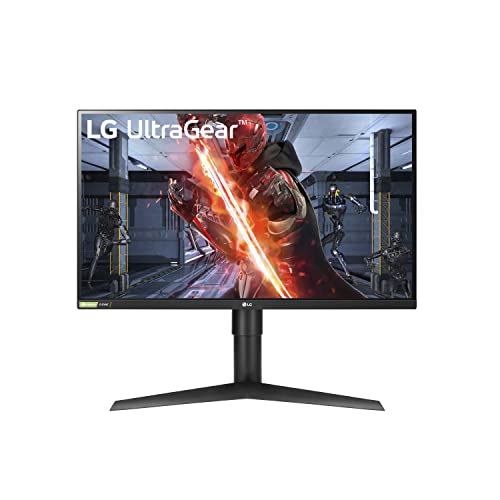
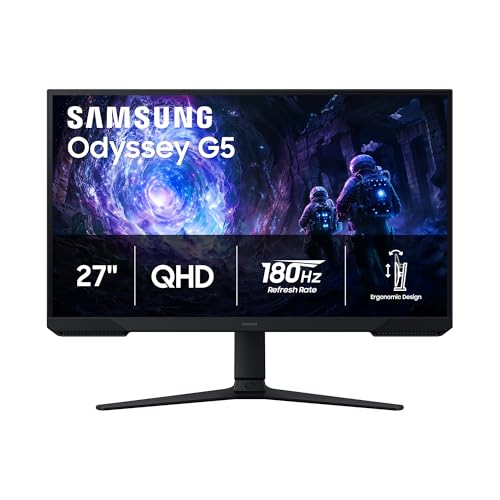
Choose a 24 inch or 27 inch panel with a refresh rate of 144 Hz or higher and a listed response time of 1 to 5 ms. Adaptive sync helps keep motion smooth when frame rates dip during busy scenes. Look for at least two HDMI inputs if a console shares the desk with your computer. If gaming is your main use, see our guide to the best computer monitors for gaming for more detail on speed and console support.
For Travelers and Commuters
A portable monitor in the 14 inch to 16 inch range makes sense if you work from hotels, client sites, or a small spare desk. Most models have no built in battery and draw power through USB C, so expect some drain on your laptop during long sessions. Brightness matters more than fine resolution here, because light in trains, cafes, and meeting rooms changes all day. Choose a light model with a cover that doubles as a stand, and check the total carry weight with your laptop.
For Students and Everyday Users
For essays, browsing, streaming, and video calls, a 24 inch IPS screen at 1080p with a refresh rate of 75 Hz to 100 Hz is a calm and sensible fit. Text stays clear, colors look natural from a chair that is not dead center, and the price leaves room for a keyboard or a desk lamp. Built in speakers, even basic ones, help keep a small dorm desk clear of extra gear. If your ceiling is lower, see our guide to the best computer monitors under 200 to see what changes at that level.
Key Features to Compare
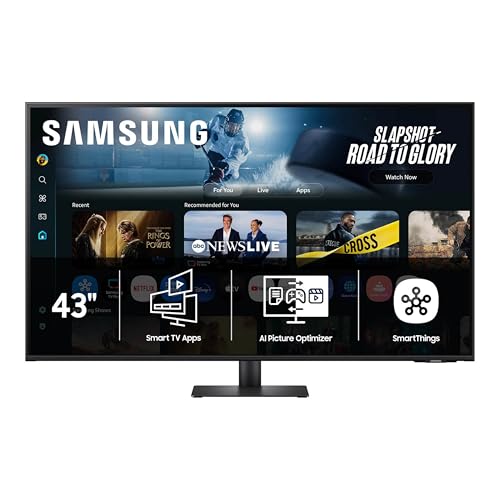
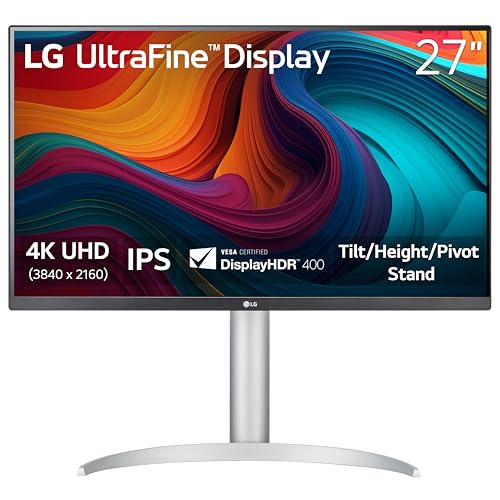
The specs below decide how a monitor feels day after day. Read them in the order that matches your main use, and treat headline numbers with care. A bright room, a deep desk, and a laptop with limited ports can change which spec matters most to you. The product table above is a handy place to check these specs side by side before you decide.
HDR and Brightness
Brightness is listed in nits, and about 250 to 350 nits suits most home and office rooms. HDR on monitors in this range usually means the screen can accept an HDR signal rather than show true HDR contrast, because real HDR needs strong local dimming. If you watch a lot of movies, value deep blacks and steady brightness over an HDR badge on the box. In a bright room near windows, a matte finish and higher brightness help more than HDR labels do.
Panel Technology: IPS, VA, and OLED Options
IPS panels give wide viewing angles and reliable color, which suits shared desks and photo work. VA panels offer stronger contrast for movies and dim rooms, though motion can blur more in fast games. OLED displays deliver perfect blacks and very fast response, but OLED and Mini LED models rarely fit under $250 in standard desk sizes, so treat any such listing with care and check the size and warranty closely. For most buyers in this budget, a good IPS or VA panel is the realistic and safe choice.
Stand, Mounting, and Ergonomics
A stand with height and tilt adjustment lets you set the top of the screen near eye level, which reduces neck strain during long sessions. Many budget models offer tilt only, so plan for a separate arm if you need full movement. A VESA mount pattern of 100 by 100 mm is the common fit for monitor arms and wall brackets. Check that the stand base is not so deep that it pushes your keyboard too close to you.
What You Can Realistically Get Under $250
At this level you can expect 1080p at 24 inches or 1440p at 27 inches, refresh rates up to about 165 Hz on gaming models, and a solid mix of HDMI and DisplayPort inputs. Full 4K, true HDR, and HDMI 2.1 are uncommon, and large screen options of 32 inches tend to pair that size with 1080p, which softens text. If those limits feel tight, see our guide to the best computer monitors under 300 to judge what stepping up adds. For the most basic second screen needs, see our guide to the best computer monitors under 100 and note how much stand quality and color quality drop at that tier.
Sound and Extra Features
Most monitors in this range do not run smart TV apps, because your computer or console supplies the content and the apps. Built in speakers are common but small, and they suit calls and casual clips better than music or films. A headphone jack or a simple USB hub can matter more for daily ease than extra sound modes. If you stream a lot, plan on separate speakers or a soundbar and treat monitor audio as a backup.
A small joystick control on the back often makes menu changes faster than a row of tiny buttons. You will feel that detail each time you switch inputs or adjust brightness at night. It costs nothing to check for it on the specification list, and it can spare you daily annoyance.
Common Mistakes to Avoid When Buying Computer Monitors
Most regrets at this price come from a few repeat errors rather than from a truly bad panel.
- Choosing on price alone can leave you with a dim panel and a fixed stand that makes long work sessions uncomfortable.
- Trusting an HDR badge without checking brightness leads to flat movies that look little better than standard video.
- Buying a 32 inch screen at 1080p for close desk work makes text look soft and coarse during long reading.
- Skipping the port check means a laptop with only USB C may need an adapter that you did not budget for.
- Forgetting warranty and return terms makes a dead pixel or backlight bleed much harder to sort out after setup.
If a listing hides brightness, panel type, or VESA details, treat that silence as a warning sign. Clear spec pages are common at this price, so you do not need to guess about the basics. Careful checks like these are what define the best computer monitors under 250 in practice.
Setup and Care Tips
Place the monitor so the top edge sits at or just below eye level and about an arm length away, then set brightness to match the room rather than leaving it at full power. In the picture menu, choose a standard or sRGB mode instead of a vivid mode, which often pushes color too far. Set your computer to the native resolution and the highest refresh rate the panel supports, because both often start lower by default. Keep brightness lower at night to ease eye strain during late sessions.
Clean the screen only with a dry or lightly damp microfiber cloth and no household sprays, which can damage the surface coating. Dust the vents with a soft brush so heat can escape during long use. If you own an OLED model, run the pixel refresh cycle the maker provides and avoid leaving a static image on screen for hours. Recheck cable seating and stand screws after the first week, since small shifts can cause flicker or wobble.
Frequently Asked Questions
Can You Get a Good Computer Monitor for Under $250?
Yes. A good monitor for under $250 is realistic if you choose one main strength and accept simpler extras elsewhere. Strong options in this band pair a clear IPS or VA panel with smooth motion and the ports most desks need. Check the box contents before you order, because some models include a power lead only and no display cable, which adds a small extra cost on setup day.
IPS vs OLED Computer Monitors: Which Panel Suits You Best?
For most desks in this budget, IPS is the safer buy. It costs less, handles bright rooms well, and shows crisp text for long reading sessions. OLED wins on contrast and motion clarity, but its price sits above this band for normal desk sizes. One point buyers often miss is that some OLED panels show slight color edges on fine text, which can tire readers during long document work.
What Computer Monitor Size Should You Choose for Your Desk?
Choose 24 inches if your desk is shallow and you sit close, and 27 inches if you have a deeper desk and want more room for split windows. Before you order, measure the width of your desk and mark the stand footprint with tape, since the listed screen size never includes the bezel or the base. That simple check prevents a screen that crowds out your laptop or your speakers.
Does Refresh Rate Matter on a Computer Monitor for Office Work?
A higher refresh rate helps office work more than many people expect, though it will not sharpen static text. Scrolling through long documents and moving windows feel smoother at 100 Hz or 120 Hz than at 60 Hz, and the cursor tracks with less blur. Sharpness still comes from resolution and panel quality, so balance both rather than chasing speed alone for a work desk.
How Long Do Computer Monitors Usually Last?
Most computer monitors last about five to eight years of daily use before the backlight dims or small faults appear. The panel itself often outlasts the ports and buttons around it. A useful sign of age is brightness that no longer matches the setting you chose, even after you reset the picture menu to its defaults. At that point, a replacement usually beats a repair on cost for this price class.
Is a 4K Computer Monitor Worth It for Under $250?
A 4K monitor is worth it in this budget only if sharp text and photo detail matter more to you than speed. Most options under $250 pair 4K with a 60 Hz refresh rate and modest brightness, so fast games feel less smooth. Remember to set display scaling in your system settings, because unscaled text at 4K on a 27 inch screen is tiny, and scaling reduces the extra space you hoped to gain.
Final Thoughts
Keep your choice simple. Rank your main use first, then panel and size, then stand and ports, and let the rest follow from there. The product table above gathers the key specs in one place, so use it to confirm your shortlist before you order. Chosen in that order, the best computer monitors under 250 will feel like a clear step up every day you sit down at your desk.
Prices and availability in this band change often, so confirm the panel type, the port list, and the stand type on the product page before you order. A five minute check of those three lines protects you from the most common returns in this category.