Best Computer Monitors for Streaming of 2026: Complete Buying Guide
Disclosure: We may earn a commission when you buy through links on this page, at no extra cost to you. As an Amazon Associate I earn from qualifying purchases. Learn more
Compare the best computer monitors for streaming by panel, resolution, refresh rate, HDR, and ports so you can pick a screen that fits your desk and budget.
Streaming asks a lot from one screen. You may watch a show in one window, read chat in another, and keep an eye on your broadcast preview at the same time. A monitor that looks fine for email can feel cramped, dim, or blurry once video fills the display. Choosing the best computer monitors for streaming starts with matching panel, size, and ports to the way you actually watch and broadcast.
This guide covers the specs that change picture quality and comfort, panel tradeoffs, and setup details people often miss. Use the comparison table below to line up the basics, then read on to choose with confidence.
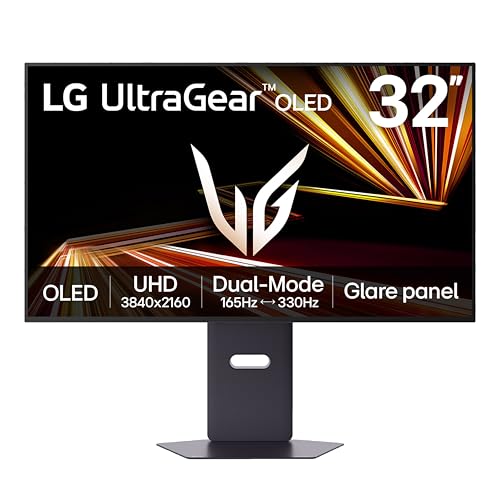
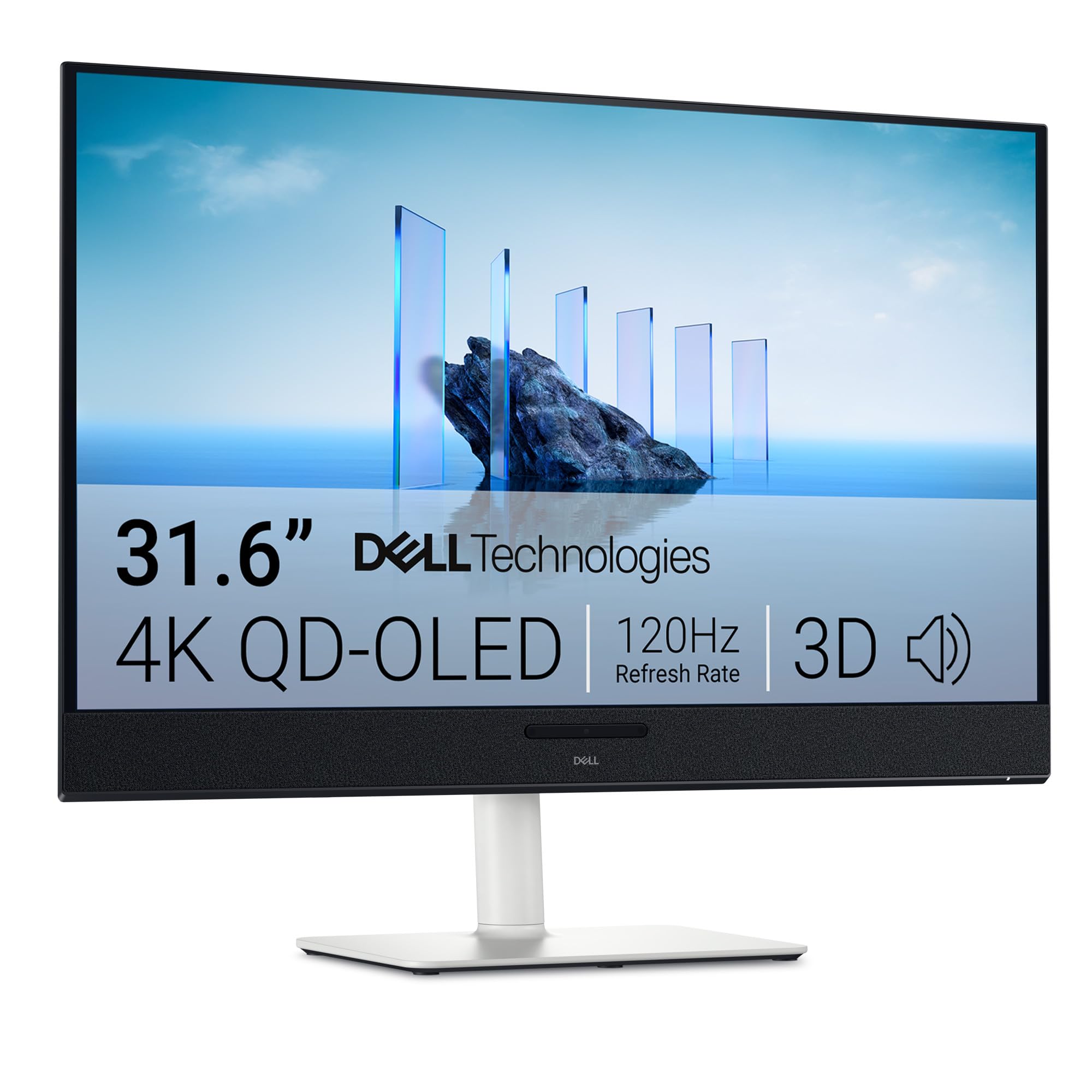
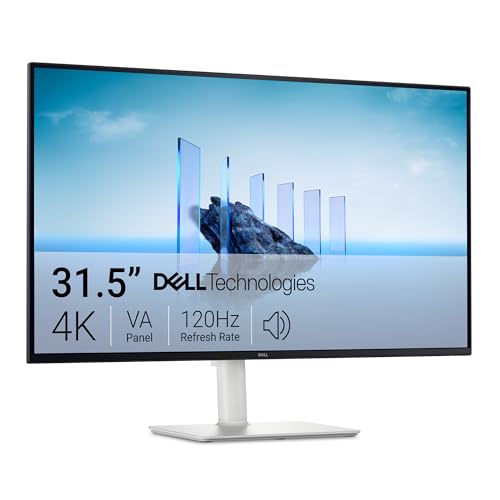
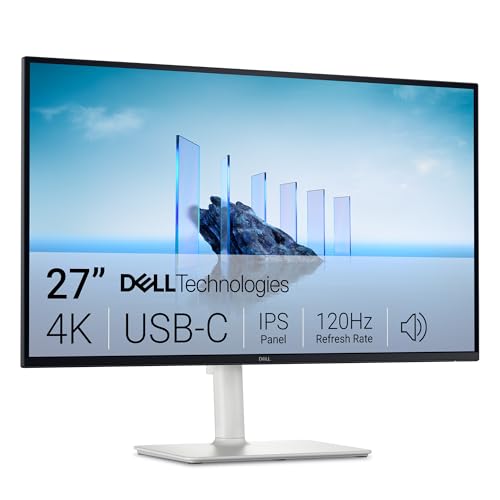
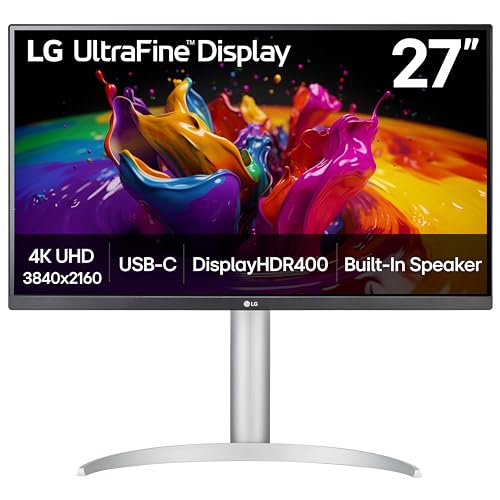
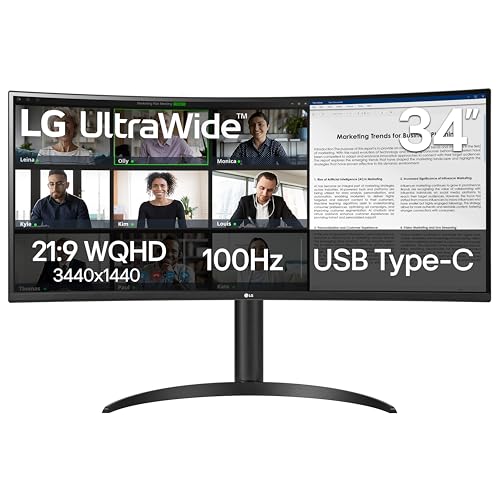


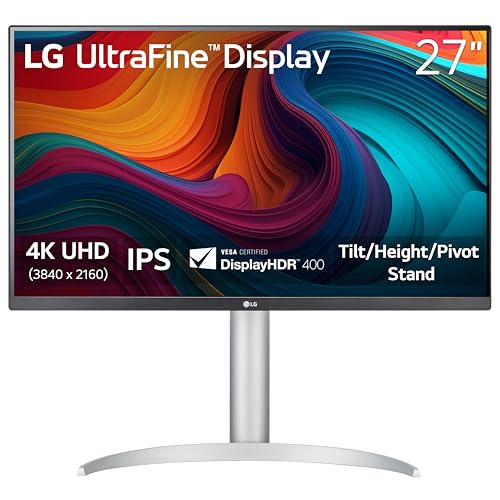
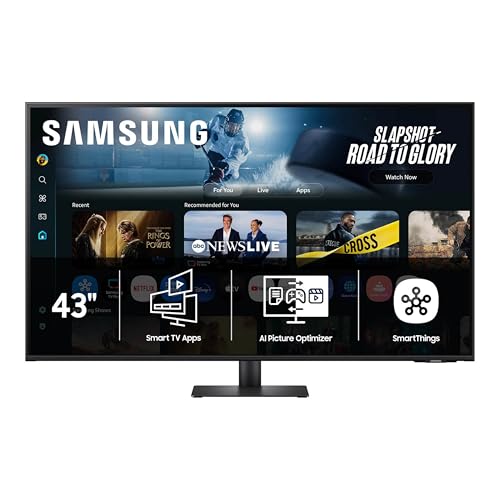
How to Narrow Your Shortlist Before You Buy
Before you compare spec sheets, decide what your screen does most of the day. A live broadcaster, a movie fan, and a video editor all stream, yet each stresses a different part of the monitor. The groups below give you a clear starting point, so the product table above becomes easier to read.
Streamers Who Play Games Live
If you broadcast gameplay, your monitor is both your playing screen and part of your setup. You need motion clarity for your own play, plus a picture that holds up when capture software compresses the feed for viewers. Smooth motion, low input lag, and a second input for a console or capture PC matter more than extreme color accuracy. Many broadcasters in this group also compare dedicated gaming screens, so see our guide to the best computer monitors for gaming if fast play is your top priority.
Viewers Who Mostly Watch Shows and Movies
If your streaming is mostly series, films, and live sports, contrast and brightness shape your experience more than raw speed. Deep blacks make dark scenes readable, and strong brightness keeps the picture clear in bright rooms. You will also spend long sessions in one position, so a stand that tilts and raises easily protects your neck and shoulders.
Creators Who Stream and Edit Video
If you edit the same footage you stream, color accuracy moves to the top of your list. Look for wide color coverage and a matte finish that keeps reflections from shifting how colors look. Screen space matters as well, because timelines, scopes, and preview windows compete for room. A larger or wider display keeps tools open while the preview stays big enough to judge fine detail.
How to Choose the Best Computer Monitors: Buying Guide
Features That Matter for Streaming
Streaming video is compressed before it reaches you, so a monitor cannot add detail the feed never carried. It can only show that feed cleanly, without banding in dark scenes, smeared motion, or washed out color. When you shop for the best computer monitors for streaming, prioritize good contrast, smooth gradation in shadows, and enough brightness for your room.
Ports matter as well, since a streaming stick, a console, and a PC may compete for inputs. If you want a screen built only around viewing and broadcasting, see our guide to the best streaming monitors for that narrower focus.
Panel Technology: IPS, VA, OLED, and Mini LED
IPS panels offer wide viewing angles and consistent color, which helps when you sit off center or share the screen. VA panels deliver much stronger contrast, so blacks look deeper in films, though motion can smear in dark scenes. OLED gives perfect blacks and instant pixel response, with vivid color that flatters movies and games.
Mini LED uses many small backlight zones on an LCD panel to boost contrast and HDR brightness, though bright objects on black backgrounds can show a faint halo. Each option trades something, so match the panel to your room lighting and content.
Resolution and Screen Size
Resolution decides how much detail and workspace you get. A 1080p screen at 24 inches looks sharp for video, but text and chat windows can feel crowded. At 27 inches, 1440p is a sweet spot for many desks, giving crisp video and room for two windows side by side.
A 4K screen at 32 inches suits creators who edit high resolution footage. Sit roughly an arm and a half away from a 27 inch screen, and farther from a 32 inch model.
Refresh Rate and Response Time
Refresh rate is how many times the screen redraws each second. Most streamed video plays at 24 to 60 frames per second, so a 60Hz panel already covers films and shows. Higher rates, such as 120Hz, 144Hz, or 240Hz, mainly help when you play games on the same screen, making motion and mouse movement feel smoother.
Response time describes how fast pixels change color, and lower numbers reduce ghosting. For pure viewing, treat high refresh as a bonus. For mixed use with gaming, it becomes worth paying for.
Stand, Mounting, and Ergonomics
A good stand adjusts in height, tilt, and swivel. If the included stand feels limited, check for a VESA mount pattern, most often 100 by 100 mm, so you can attach the screen to an arm or a wall bracket. A monitor arm also frees desk space for a microphone or a second screen. If a clean look on camera matters to you, see our guide to the best looking computer monitors for styles that suit a visible setup.
HDR and Brightness
HDR expands the range between dark and bright parts of an image, so highlights can glow without crushing shadow detail. Look for an HDR10 label at minimum, and check peak brightness in nits. Around 300 nits is fine for a dim room, while 400 to 600 nits or more holds up better near windows and makes HDR more convincing. A basic HDR badge on a dim panel adds little, because the screen cannot show the bright highlights the format promises.
Adaptive Sync and Gaming Features
Adaptive sync matches the screen refresh rate to the frame rate your card or console produces, which removes tearing and reduces stutter. FreeSync works over many connections, while G Sync is built for NVIDIA cards, and many monitors support both. For console play at 4K and 120Hz, look for HDMI 2.1 ports, plus variable refresh rate and auto low latency mode support. If competitive play sits at the center of your setup, see our guide to the best gaming monitors for models tuned purely for speed.
Types of Computer Monitors
Gaming Displays
Gaming displays chase speed first, with high refresh rates, fast response times, and adaptive sync as standard. They suit streamers who play live and want one screen that handles both the game and the broadcast preview. The tradeoff is price, since the fastest panels cost more.
Budget Displays
Budget displays cover the basics well: a 1080p or 1440p IPS or VA panel, 60Hz to 100Hz refresh, and a simple stand. They suit a first setup or a second screen for chat and stream controls. You give up strong HDR, wide color coverage, and premium stands, but everyday video still looks clean and bright.
Productivity and Ultrawide Displays
Ultrawide monitors stretch to a 21 to 9 shape or wider, giving you room for a video window, a chat column, and your streaming software at once, with no bezel gap in the middle. Flat productivity models focus on text clarity, accurate color, and ports such as USB C that can charge a laptop through one cable. If your desk travels with you or space is tight, see our guide to the best portable computer monitors for light screens that work as a main or second display.
Common Mistakes to Avoid
- Buying a 4K screen for a weak internet connection, so streams fall back to lower quality and the extra resolution goes unused.
- Choosing a dim panel for a bright room, so reflections and glare wash out dark scenes during daytime viewing.
- Ignoring input count, so you end up swapping cables every time you move between your PC, console, and streaming stick.
- Skipping the VESA pattern check, so the monitor arm you already own will not fit the new screen.
- Leaving the factory vivid picture mode on, so colors look pushed and skin tones turn unnatural on camera and on screen.
- Placing the screen too low, so long viewing sessions strain your neck and shoulders.
Setup and Care Tips
A few small steps after unboxing make a bigger difference than most spec gaps.
- Calibrate the picture settings first. Turn off vivid mode, choose a standard or cinema preset, and set brightness so white looks clean without glowing in a dark room.
- Use the pixel refresh tool on an OLED screen when the monitor prompts you, since that cycle evens out pixel wear and helps prevent lasting image retention.
- Clean the screen with a dry microfiber cloth only. Spray cleaner onto the cloth, never onto the panel, and avoid paper towels that can scratch the coating.
- Use quality HDMI 2.1 cables for a 4K 120Hz signal, because older cables can cause black screens, flicker, or a silent drop to a lower refresh rate.
- Check cable seating and firmware if the picture drops out, since loose plugs cause many faults that look like panel problems.
Computer Monitors: Your Questions Answered
What features matter most in a computer monitor for streaming?
Contrast, brightness, and panel quality matter most in a computer monitor for streaming, because they decide how clean compressed video looks in your room. Strong contrast keeps dark scenes readable, and enough brightness fights glare during the day. Resolution comes next, with 1440p at 27 inches a balanced choice for most desks. One point many buyers miss is audio: if you use a soundbar or headphones through the monitor, confirm its audio output works with your gear.
Does refresh rate matter for people who do not game on a streaming monitor?
Refresh rate matters very little if you only watch video on a streaming monitor, because films and shows top out at 60 frames per second. A 60Hz or 75Hz panel shows that content at full smoothness. Where a faster screen still helps non gamers is everyday desktop feel: scrolling text, moving windows, and cursor movement look calmer at 120Hz and above. Treat that comfort as a nice extra, and put your money toward panel quality first.
Is a 4K computer monitor worth it for streaming?
A 4K computer monitor is worth it for streaming when you sit close to a larger screen, watch a lot of native 4K content, or edit video at full resolution. At 32 inches, the extra pixels keep text, timelines, and fine detail crisp. On a 24 inch desk screen, the gain over 1440p is hard to see from a normal seat. Weigh your connection speed too, since a shaky link will downshift quality no matter what panel you own.
IPS vs OLED: Which panel is better for a streaming monitor?
Neither panel wins for every streaming monitor, because they excel in different rooms and habits. OLED gives perfect blacks, instant response, and rich color that flatters films and games, yet it costs more and needs care with static images such as a fixed broadcast overlay left on for hours. IPS costs less, resists image retention entirely, and stays bright and accurate for mixed work and viewing. If your screen shows the same static layout all day, IPS is the safer long term choice.
How long does a computer monitor for streaming usually last?
A computer monitor for streaming usually lasts about five to eight years of daily use before brightness fades or a fault appears. Backlights dim slowly over time, so an older screen may look less punchy even though it still works. You can stretch that life by keeping brightness below maximum, letting the screen sleep when you step away, and using the built in panel care tools on OLED models. Near that age, replacement usually makes more sense than a costly repair.
The Bottom Line
Start with your room and your habits. Match panel type to your lighting, pick a size and resolution that fit your desk, then confirm the ports and stand suit your gear. The product table above pulls those basics together so you can compare at a glance. When you weigh value against picture quality, best computer monitors for streaming choices stop feeling like a gamble and start feeling like a fit you can explain.