Best Computer Monitors for AutoCAD by Budget: A Buying Guide for 2026
Disclosure: We may earn a commission when you buy through links on this page, at no extra cost to you. As an Amazon Associate I earn from qualifying purchases. Learn more

Compare the best computer monitors for AutoCAD by budget, and learn which resolution, panel, and color features are worth paying for in daily CAD work.
A monitor shapes every hour you spend in AutoCAD, because linework, layer colors, and dimension text all have to stay crisp while you pan and zoom across a drawing. Prices run from under $150 to about $1,200 at the top end, and that gap is about far more than screen size. This guide shows where extra money actually improves drafting work, so you can choose the best computer monitors for autocad for your budget without paying for extras you will never use.
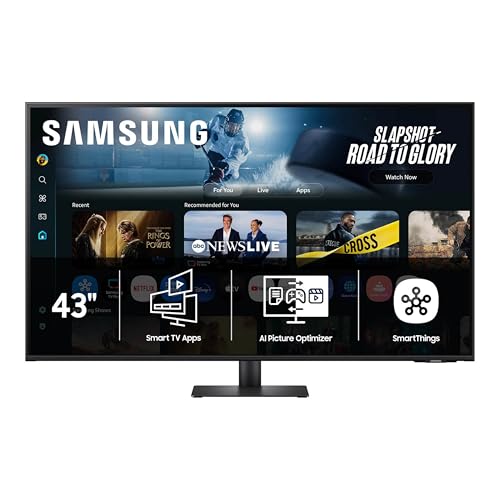
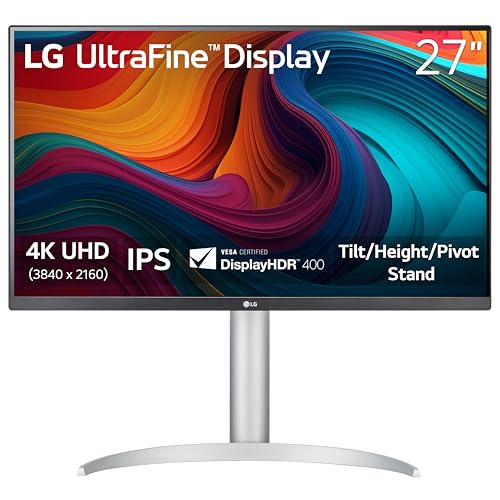
Start with the product table above to shortlist models by size, resolution, and price, then read on for what each tier really delivers. The sections ahead cover panel types, color accuracy, ports, and stands, plus the long term costs many buyers forget to count. If AutoCAD is the only design program you run, see our guide to the best monitors for autocad for a narrower take on the same decisions.



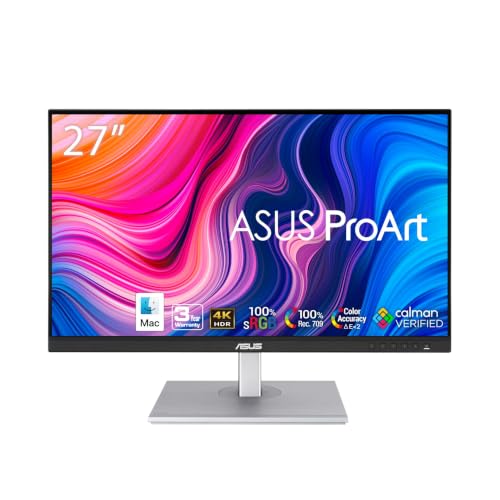
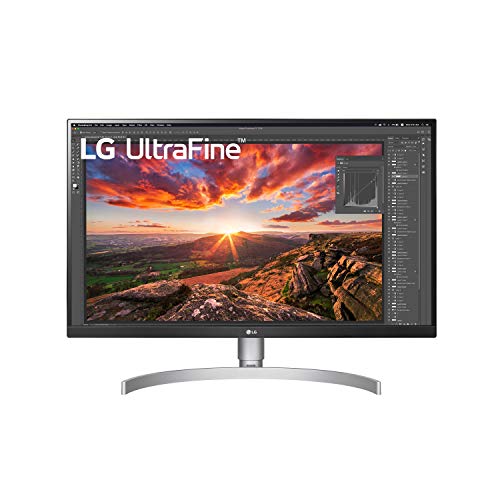
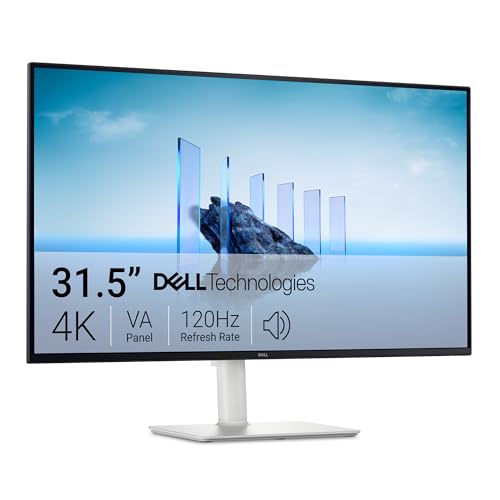

How to Allocate Your Budget for an AutoCAD Monitor
Budget matters here because drafting needs are not equal. A student opening drawings a few hours a week, a full time drafter working in dense models all day, and a reviewer checking plotted output against the screen each gain from different spending. The groups below answer a simple question: given your budget, which single upgrade should you protect first, and which features can safely wait until later?
Tight Budgets: Protect Size and Resolution First
If your budget sits around $150 to $250, put nearly all of it into screen size and resolution, because those two specs decide how much of a drawing you can see without constant zooming. A 27 inch screen at 1440p shows more of a floor plan at a readable scale than a smaller 1080p panel, and that difference shows up in every session. Accept a basic stand and fewer ports at this level. You can add a monitor arm or a simple hub later, while a cramped, blurry panel cannot be fixed by any accessory.
Midrange Budgets: Balance Screen Space and Color
With about $300 to $500 to spend, you no longer have to choose between space and image quality, so split the budget between them. Look for a 27 inch 1440p or 32 inch 4K panel with strong color coverage, since layer colors and hatch patterns are easier to tell apart on a screen that renders them accurately. This is also the tier where a stand that adjusts for height becomes common, and that matters during long drafting days. Ports such as USB C with power delivery appear here too, which suits laptop based desks.
Generous Budgets: Buy Comfort and Precision
Above about $600, extra money stops buying basic clarity and starts buying comfort and precision instead. Larger 4K panels and ultrawide screens let you keep a drawing, a properties palette, and a reference document open side by side without overlap. Factory calibration and wider color gamuts help when screen colors must match plotted sheets closely. Spend here only if you draft full time or share the screen with rendering, photo, or presentation work.
What Your Money Gets You at Each Price Tier
The product table above groups the best computer monitors for autocad across a wide price span, and the tiers below explain what typically changes as you move up. Treat these as patterns across the US market rather than promises about any single model, and always confirm the exact specs on the product page before ordering.
Budget Tier: What to Expect
Budget monitors for AutoCAD usually offer 24 to 27 inch screens at 1080p, with some 1440p options near the top of the band. Panels are mostly IPS or VA with standard color coverage, brightness around 250 to 300 nits, and a fixed or tilt only stand. Ports tend to cover HDMI and DisplayPort, which is enough for a single desktop or laptop. The trade off is real but manageable: text is less sharp than on pricier screens, and you will adjust your chair rather than the display. For coursework and light drafting, that is a fair exchange.
Midrange Tier: The Sweet Spot for Most Buyers
Midrange models, roughly about $300 to $500, step up to 1440p at 27 inches or 4K at 27 to 32 inches, and the sharper text is the first thing most drafters notice. Color coverage widens, stands add height and pivot adjustment, and USB C with power delivery often appears for one cable laptop setups. Brightness climbs to around 350 to 400 nits, which helps in bright rooms. This tier suits full time drafters because it removes the daily annoyances of the budget band without charging for pro level calibration or extreme HDR.
Premium Tier: When Spending More Pays Off
Premium monitors, generally about $600 and up, center on 32 inch 4K panels, ultrawide formats, or OLED screens with deep contrast. Expect factory calibration reports, color coverage beyond standard sRGB, HDR peaks of 600 nits or more, and sturdy stands with full motion. Built in hubs with ethernet and several USB ports turn the monitor into a docking point for the whole desk. Spending more pays off when the screen doubles as your presentation, rendering, or client review display. If it only ever shows linework, much of that money buys polish you will rarely notice.
Features Worth Paying For (and Ones to Skip)
Panel Technology: IPS, VA, OLED, and Mini LED
IPS panels are the safe default for AutoCAD because colors stay consistent when you lean or shift in your chair, and a colleague standing beside you sees the same drawing you do. VA panels offer deeper contrast, which makes dark backgrounds and fine white lines stand out, though colors can shift at wide angles. OLED delivers the strongest contrast of all and suits mixed drawing and media work, but static toolbars shown all day raise a long term burn in concern. Mini LED backlights improve brightness control on premium LCD models and matter mostly for HDR content rather than drafting.
Features That Matter for AutoCAD
Resolution and scaling matter most, because AutoCAD is a text and line heavy program where small fonts and thin geometry must stay legible for hours. A matte antiglare finish is worth prioritizing if your desk faces a window, since reflections tire your eyes faster than a slightly dimmer panel does. Aim for brightness of at least 300 nits so drawings stay clear in daylight. Adaptive sync and very high refresh rates, sold heavily to players, add little for drafting, because panning a 2D drawing is not demanding motion work. If your desk doubles for play after hours, see our guide to the best computer monitors for gaming to weigh those extras properly.
HDR and Brightness
HDR labels can mislead CAD buyers, because HDR10 support on a 300 nit screen changes almost nothing you can see. True HDR impact needs high peak brightness, usually 600 nits or more, plus local dimming that can brighten one zone without lifting the whole image. That combination lives mostly in the premium tier. For drafting itself, steady brightness and good contrast at normal levels matter far more than peak HDR numbers. Skip paying extra for HDR badges on budget models, and put that money toward resolution instead.
Stand, Mounting, and Ergonomics
A stand that adjusts for height, tilt, and swivel lets you place the top of the screen near eye level, which reduces neck strain across a full drafting day. Check for a VESA mount pattern, most often 100 by 100 mm, if you plan to use a monitor arm or wall mount later. Pivot to portrait can help when you review tall drawings or long schedules. Cable routing through the stand keeps the desk tidy. Buyers who care how the desk looks overall can also see our guide to the best looking computer monitors for design focused options with slim bezels and clean backs.
How to Size and Set Up a Monitor for AutoCAD Work
Match screen size to your viewing distance before chasing resolution. At a typical desk distance of about 24 to 30 inches, a 27 inch 1440p screen hits a comfortable balance, with toolbars and text readable at full scaling. A 32 inch 4K screen at the same distance usually needs scaling of 125 to 150 percent, which still leaves more usable space than 1440p while keeping text smooth. Going bigger without more distance forces constant head turning across wide drawings, which quietly wears you down over a week of work.
Two smaller monitors can beat one large screen when you keep reference files, email, or a spreadsheet open beside your drawing, because each window gets a fixed home. A single larger screen wins when you often work across one wide plan without breaks. Whichever layout you choose, connect with DisplayPort or USB C where possible for full resolution support, set the refresh rate correctly in your system settings, and confirm the drawing area uses the native resolution of the panel. Non native resolutions soften lines and text, which defeats the point of the upgrade.
Long Term Costs to Factor In
The purchase price is only part of what a monitor costs over a working life of five years or more. Budget for a monitor arm if the included stand lacks height adjustment, a longer cable if your tower sits far from the desk, and possibly a color calibration tool if printed output must match the screen. Electricity use is modest but real, with larger and brighter panels drawing more power across long days. A longer warranty has value for full time work, since a dead screen stops production entirely. If you also draft on site visits or at home, see our guide to the best portable computer monitors for a light second screen instead of moving your main display.
FAQ
What features matter most in computer monitors for AutoCAD?
Resolution, screen size, and color accuracy matter most in computer monitors for AutoCAD. A 27 inch 1440p panel is the practical starting point, because it keeps thin lines and small dimension text sharp without heavy scaling. IPS panels hold color steady at angles, and brightness of 300 nits or more keeps drawings readable in lit rooms. One point buyers overlook is the command line and ribbon: at higher resolutions these interface elements shrink, so check that your preferred scaling setting keeps them comfortable before committing to a very dense 4K panel.
How long do computer monitors for AutoCAD usually last?
Computer monitors for AutoCAD usually last about five to eight years of regular use. Backlights dim slowly over time, so a screen that starts at 350 nits may feel noticeably duller in a bright office by year six, even though it still works. Keeping brightness below the maximum, turning the screen off overnight, and using a surge protector all stretch that lifespan. Plan a replacement budget near year five if you draft full time, and watch for uneven backlight patches or flicker at low brightness, which signal that the panel is nearing the end.
Is an IPS or OLED panel better in a computer monitor for AutoCAD?
An IPS panel is the safer choice in a computer monitor for AutoCAD for most buyers. OLED offers deeper blacks and faster response time, which flatter rendered views and walkthroughs, but AutoCAD keeps static toolbars, ribbons, and layer panels on screen for hours, exactly the pattern that raises burn in risk over years. IPS panels avoid that worry, cost less at the same size, and hold color well at angles. Choose OLED only if the same screen carries heavy video or rendering work and you are comfortable varying content and using the built in pixel care tools.
Does refresh rate matter on a computer monitor for AutoCAD if you do not game?
Refresh rate matters very little on a computer monitor for AutoCAD when you do not game. Drafting involves slow pans and short zooms, and a standard 60 Hz panel already renders that motion smoothly for most eyes. A 75 Hz or 100 Hz model may feel slightly smoother when scrolling long schedules, but the difference is subtle and should never outrank resolution or size in your budget. Put the money toward panel quality instead. High refresh rates up to 144 Hz or beyond earn their cost in fast moving games, a different use covered by gaming focused guides.
Is a 4K computer monitor worth it for AutoCAD?
A 4K computer monitor is worth it for AutoCAD when the screen is 32 inches or larger and you work on dense drawings. At that size, 4K keeps small text crisp while showing a large area of the model at once, and scaling of 125 to 150 percent keeps the interface usable. On a 27 inch screen the gain over 1440p is smaller, because scaling rises and the visible workspace ends up similar. Also confirm your graphics card can drive 4K across all your screens, since older laptops sometimes limit a second display to a lower resolution.
Final Thoughts
Start with size and resolution, then color accuracy, then stand comfort, and let price tiers guide the order rather than the other way around. The product table above pulls the current options into one view, so compare your shortlist there against the tier guidance in this article. Chosen that way, the best computer monitors for autocad become the ones that fit your desk, your drawings, and your budget, rather than the ones with the longest feature list.