Best Computer Monitors for Home Office in 2026: What Your Money Really Gets You
Disclosure: We may earn a commission when you buy through links on this page, at no extra cost to you. As an Amazon Associate I earn from qualifying purchases. Learn more

What each price tier buys in the best computer monitors for home office use, from sharper text to one cable docking.
Home office monitors run from about $100 to well past $700, and the listings all shout the same gaming words: refresh rates, response times, HDR badges. Office work plays by different rules. What decides your comfort across an eight hour day is text sharpness, a stand that puts the screen at the right height, and ports that match your laptop. This guide sorts the best computer monitors for home office use by price tier, and the tier table below maps what each level actually delivers before the detail starts.
The pattern across the tiers is simple once you see it. The first step up buys sharper text and a real stand, the next buys one cable docking and extra space, and the top buys 4K clarity and consistency. Everything else is decoration, and some of it is decoration you pay for twice. If you want the wider class view first, our guide to the best monitors for home office covers the full range of desk setups.



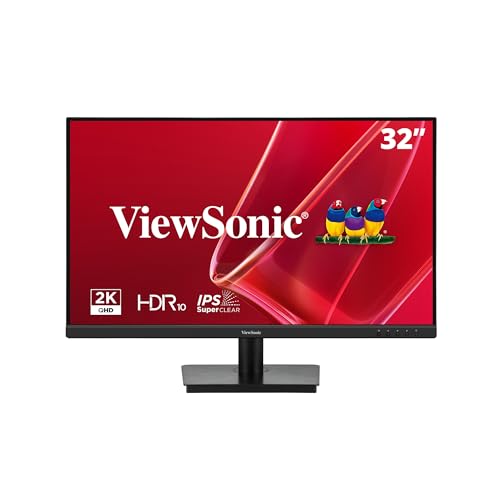
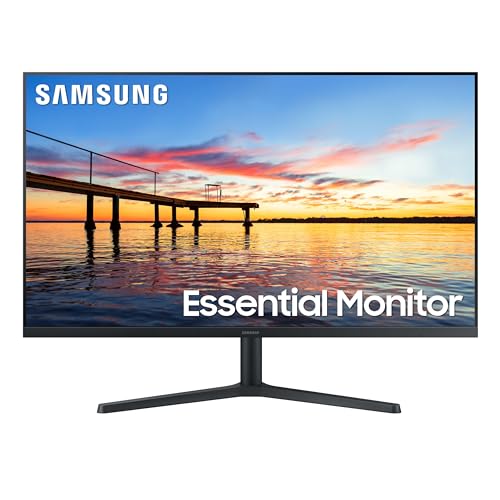
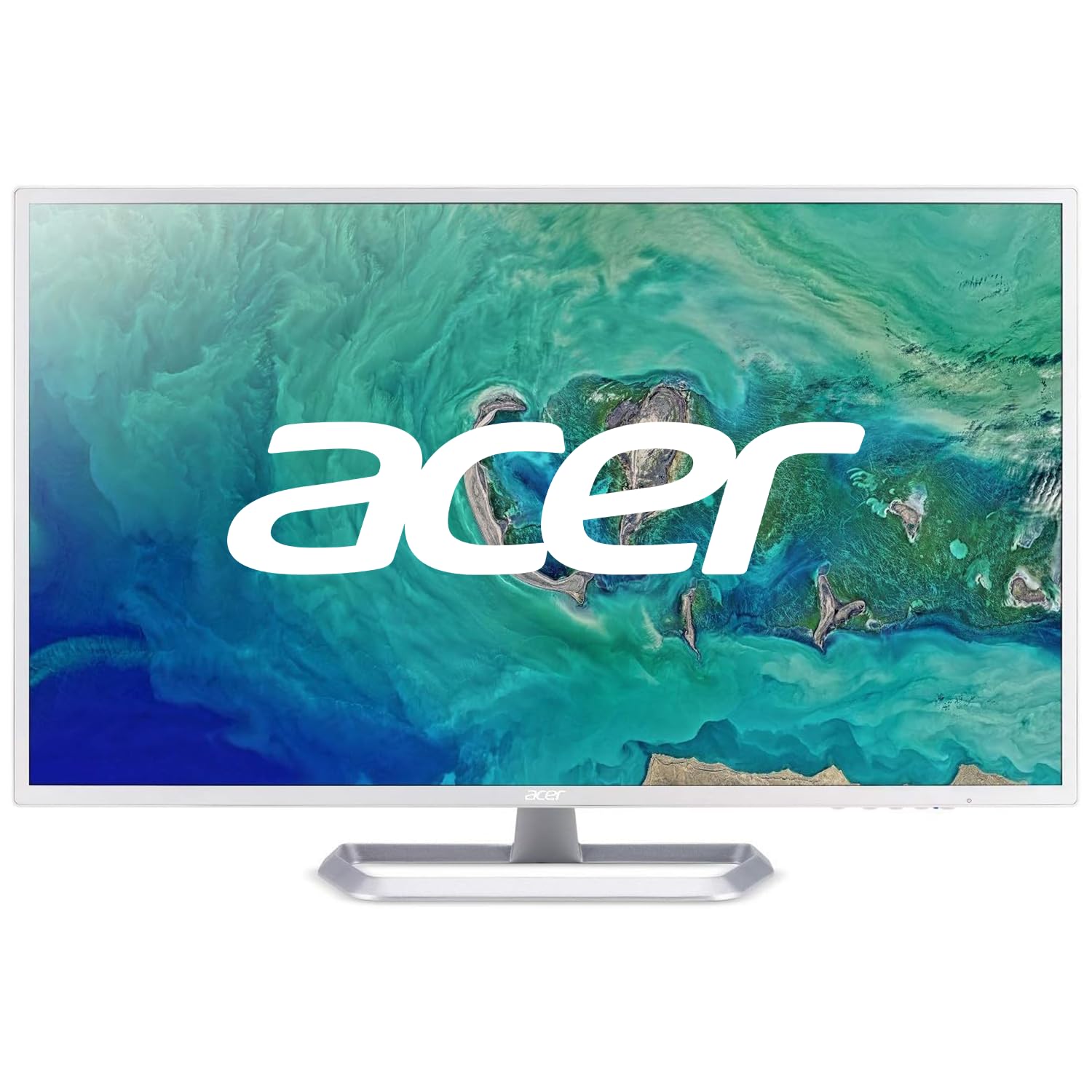


What Your Money Gets You at Each Price Tier
Price in this class buys comfort features in a predictable order, which makes the tiers easy to read once you know the sequence. Screen size and resolution come first, stand adjustment arrives in the middle, and docking plus panel consistency sit at the top. Shoppers comparing everyday screens beyond the office can also browse our guide to the best home computer monitors for the general home class.
| Tier | Typical Price | Size and Resolution Class | Stand | Ports and Extras |
|---|---|---|---|---|
| Entry | About $100 to $180 | 24 inch, 1080p | Tilt only | HDMI, basic inputs |
| Middle | About $180 to $350 | 27 inch, 1440p | Height adjustable | USB hub ports arrive |
| Upper | About $350 to $700 and up | 27 to 32 inch, 4K, or ultrawide | Full adjustment, pivot | USB C docking and charging |
Entry Tier, About $100 to $180: Honest Text, Basic Stands
Entry home office monitors are usually 24 inch 1080p screens with tilt only stands and a brightness figure around 250 to 300 nits as the maker measures it. For email, documents, and web work at a normal desk distance, the text is perfectly readable, and colors are fine for anything short of photo work. This tier suits a second screen, a spare desk, or a first home office on a strict budget.
The compromise you feel daily is the stand. With tilt only adjustment, most people end up stacking the monitor on books or a box to reach eye level, which works but wobbles and eats desk space. Budget for a basic monitor arm or accept the stack, and check the port list twice: some entry models still ship with a single HDMI input and nothing else, which matters the day a second device arrives.
Middle Tier, About $180 to $350: The Sharpness and Stand Step
The middle tier is where home office value concentrates. Screens grow to 27 inches at 1440p, which puts noticeably more text on screen at a size you can read without scaling tricks, and height adjustable stands become standard rather than a luxury. USB hub ports appear on many models, so your keyboard receiver and webcam stop competing for laptop sockets. Panel uniformity also improves on average, with fewer blotchy corners on white document pages.
Most full time home workers should start their search here and only move up for a named reason, like docking or 4K, rather than a general feeling that more money must mean more comfort. It usually does not. Once the stand fits your posture and the text is sharp at your sitting distance, extra spending buys features you may never touch.
Upper Tier, About $350 to $700 and Up: Docking, 4K, and Room to Spread Out
Upper tier money buys three things. First, USB C docking: one cable carries the picture to the monitor and power back to the laptop, with the monitor hub running your peripherals, so the desk clears and a laptop comes and goes with a single plug. Second, resolution and space: 4K at 27 or 32 inches for very fine text, or an ultrawide that parks two documents side by side without a bezel between them. Third, consistency: better odds of even brightness and color across the panel.
That last point deserves honest wording. Panel uniformity is a lottery at every price, and paying more narrows the odds of a poor sample rather than removing the risk. Buy from a seller with a painless return window and check your screen on a plain white and a plain gray page during the first week, whatever tier you choose.
Features Worth Paying For (and Ones to Skip)
Spec sheets for home office monitors lead with gaming numbers, so this section reorders the features by office value instead. Ports and cables come before panels here for a reason: the wrong connector makes the best screen useless until an adapter arrives, so check what your laptop outputs before you compare a single price.
Resolution and Screen Size
Resolution only matters relative to size. At 24 inches, 1080p text looks acceptable; at 27 inches the same 1080p spreads its pixels thin and letters grow fuzzy edges, which is why 1440p is the natural partner for 27 inches. 4K earns its price at 27 inches for very fine text and at 32 inches for maximum space, provided your laptop can drive it at a smooth refresh rate over the cable you plan to use.
The other route to space is a second screen, and for many desks two middle tier monitors beat one large one for window management. If that layout tempts you, our guide to the best dual computer monitors for home office walks through the desk math, the cabling, and the stand choices that make pairs work.
Brightness and HDR Numbers
Brightness figures and HDR badges are the least comparable numbers in this class. Each maker measures brightness under its own conditions, so 300 nits from one brand and 350 from another can describe screens that look identical side by side. For office work in a normally lit room, any current monitor in these tiers gets bright enough; what matters more is a matte finish that kills window reflections and a stand that lets you angle glare away.
HDR on office monitors mostly means the screen accepts an HDR signal, not that it displays it with real impact, since that takes far higher brightness and local dimming that office tiers rarely include. Treat the badge as a free extra if present and worth nothing extra on the invoice.
Refresh Rate and Adaptive Sync
For documents, spreadsheets, and video calls, a standard 60 to 75 Hz refresh rate is fully sufficient, and your eyes cannot cash the difference during a workday. High refresh panels, adaptive sync systems like FreeSync, and one millisecond response claims are gaming features, and in this class they often ride along on panels whose office basics, like the stand or the port mix, are weaker than a plain office model at the same price.
The exception is the shared desk: if the same screen hosts fast games after hours, those features stop being decoration. In that case our guide to the best computer monitors for gaming covers the faster end of the class, and you can weigh its picks against the office tiers above.
Panel Technology: IPS, VA, and OLED
IPS panels are the office default for good reason: text stays clear at an angle, colors hold up for casual photo and design work, and prices are sane. VA panels trade some of that angle stability for deeper contrast, which flatters video but can make the edges of a wide screen look washed from a straight on seat. Both are safe, proven choices for a workday screen.
OLED is the tempting guest here. Its contrast is superb, but office screens show static content for hours: taskbars, toolbars, and document margins that never move. Static images are exactly what wears OLED unevenly over time, and some OLED panels also render text with slight fringing because of their pixel layout. For a screen that earns its living on documents, IPS remains the sound buy.
Ports, Docking, and the One Cable Desk
Match the monitor to your laptop before anything else. A modern thin laptop may offer only USB C, an older one only HDMI, and the monitor needs the matching input or a known good adapter in the box budget. USB C docking models state a charging wattage, commonly around 65 W, which runs most thin laptops fully; larger workstations may sip more than the monitor gives and still need their own charger.
Hub ports on the monitor are worth real money if you plug and unplug daily, because the keyboard, mouse, and webcam stay married to the screen. Also confirm the refresh rate over each input: some monitors accept 4K at full rate on one port and half rate on another, a limitation buried in manuals rather than listings.
Text Scaling, Color Modes, and Built In Comfort Settings
Several features that decide daily comfort are free settings rather than hardware, and it is worth knowing that before paying for them as extras. Text scaling in your operating system, set around 125 to 150 percent on a 4K screen, is what makes high resolution readable instead of tiny, and it costs nothing. Night light schedules that warm the screen color in the evening also live in the operating system on current computers, so a monitor that advertises its own version is rarely offering anything extra.
Two settings on the monitor itself do matter. An sRGB mode keeps colors honest when you share documents and slides with other people, since an unmanaged wide color screen makes ordinary office graphics look oversaturated. And a low blue light mode you can toggle from the front buttons, rather than through a deep menu, is the version you will actually use on late evenings.
Eye Comfort: What a Monitor Can and Cannot Do
No monitor can fix eye strain habits, and any listing that promises healthy eyes is selling you a badge. What decides how your eyes feel at 5 pm is mostly behavior: keep the screen about an arm length away, rest your eyes on something distant for a short break every 20 minutes or so, and match screen brightness to the room instead of running full brightness in a dim space. The top of the screen around eye level, which is where the middle tier stands earn their keep, also matters more than any panel feature.
Hardware plays a supporting role. Low flicker backlights and low blue light modes are comfort preferences that many people like, and they cost nothing at these tiers, but they are not medical protection. If headaches, double vision, or eye pain persist through a workweek, that is a reason for an eye exam, not a more expensive monitor.
Long Term Costs to Factor In
The screen price is most of the story, but not all of it. A monitor arm, if you go that route, runs about $30 to $100 and outlives several monitors, since the VESA mount pattern is standard across brands. Add the right cable if your laptop needs one, and possibly a USB hub if your chosen tier lacks ports. Electricity is a minor line: a typical office monitor draws roughly the power of a bright light bulb, and sleep settings erase most of the idle waste.
Two ownership details matter more than watts. First, dead pixel and uniformity policies differ sharply between makers, and a generous policy is worth money at every tier because your sample is a lottery draw. Second, a good office monitor commonly serves five to eight years of daily work, so cost per year favors the middle tier strongly: a stand and panel you enjoy for six years is cheaper than a basic screen you replace in three because your neck complains.
Home Office Monitor Questions Answered
What features matter most in a monitor for a home office?
Text sharpness at your sitting distance, a height adjustable stand, and the right ports for your laptop matter most, ahead of every gaming figure on the box. One check most buyers miss: read the dead pixel and return policy before ordering, because panel uniformity varies between individual units of the same model and an easy exchange window is the only real protection against a blotchy sample.
How long does a home office monitor usually last?
Most office monitors work for about five to eight years of daily use before they feel tired. The panel rarely dies outright; instead the backlight slowly dims over the years, which is why buying a screen with brightness headroom extends its useful life. Keep the box through the first month, since early failures and unacceptable uniformity show up fast, and a kept box makes any return painless.
What monitor size suits a small home office desk?
A 24 or 27 inch screen suits most small desks, as long as you can sit about an arm length back from it. Desk depth is the measurement that matters, not width: a shallow desk under about 24 inches deep pushes a big screen too close. A wall mount or a slim monitor arm buys back several inches of depth and is often the smarter spend than shrinking the screen itself.
IPS or OLED: which panel is better for office work?
IPS is the better office panel for most people, because office screens display static toolbars and taskbars for hours, and static content is what wears OLED unevenly over time. OLED wins on contrast for video and photo work, and some people love it anyway, but for a document screen that runs all day, IPS gives you the same text clarity without the wear concern or the price premium.
Is 4K worth it for office work?
4K is worth it when the screen is 27 inches or larger and your work is text dense, like code, spreadsheets, or long documents, because the finer pixels make small type genuinely easier to read for hours. Before paying, confirm your laptop can output 4K at 60 Hz over the port you will actually use; older machines sometimes cap the signal at 30 Hz, which makes the mouse feel like it drags through syrup.
The Bottom Line
Buy in this order: the resolution and size your desk distance supports, a stand that meets your posture, then ports that match your laptop, and let gaming numbers fall where they may. The middle tier delivers that order for most home workers, the entry tier serves spare desks honestly, and the upper tier earns its price only when docking or 4K solves a named problem. Chosen that way, the best computer monitors for home office setups feel invisible all day, and the product table above lets you compare the tiers side by side before you order.